Filter › Deploying Securly Filter
Deploying SmartPAC on iPads using Mosyle Manager
Follow the steps below to deploy the Securly Certificate to your iPads with Mosyle Manager:
- Navigate to Management > Web Filter > Add new profile.
- Give the profile a name like "Securly Filter".
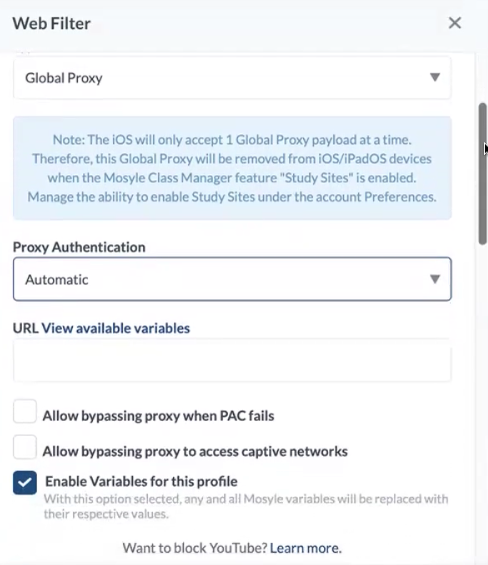
- Select ‘Global Proxy’ from the "Type" dropdown.
- Select Proxy Authentication as "Automatic" and enter the SmartPAC URL found in the Settings of your Securly Filter Account. Your SmartPac URL would look something like this: https://rtqa4www.securly.com/smart.pac?fid=admin@securlyqa1.com
Warning
- If you enter the incorrect SmartPAC URL, your devices may become unusable and you will have to factory reset them to regain access.
- It is strongly encouraged to select "Allow bypassing proxy when PAC fails" until you've confirmed this profile works.
- If you'd like end users to be able to connect to public wifi with captive portals, check the "Allow bypassing proxy to access captive networks"
- Select "Application time" and ensure it's set for Fulltime 24x7 if you always want these devices filtered with Securly.
- Finally, under "Profile Assignment" select the devices, users, or locations you want to push this to.