Filter › Filter Deployment
How to Manually Set Up Securly DNS on iOS Devices
Securly’s DNS-based solution can be used on all types of devices. To set up Securly DNS on your iOS device, follow the steps below:
- Open the Settings app and choose 'Wi-Fi'.
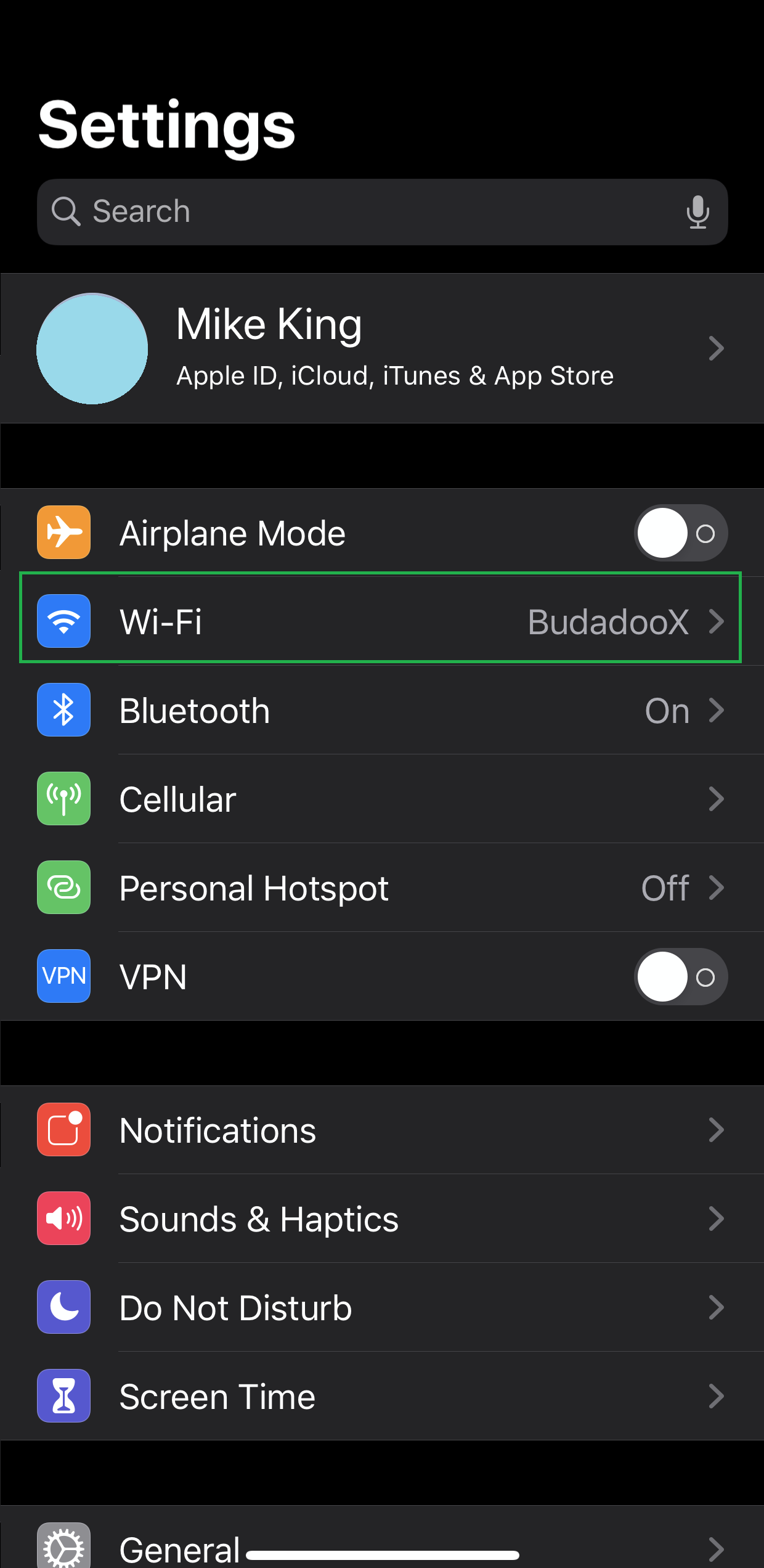
- Select the connected Wi-Fi SSID by clicking on the “i” symbol.

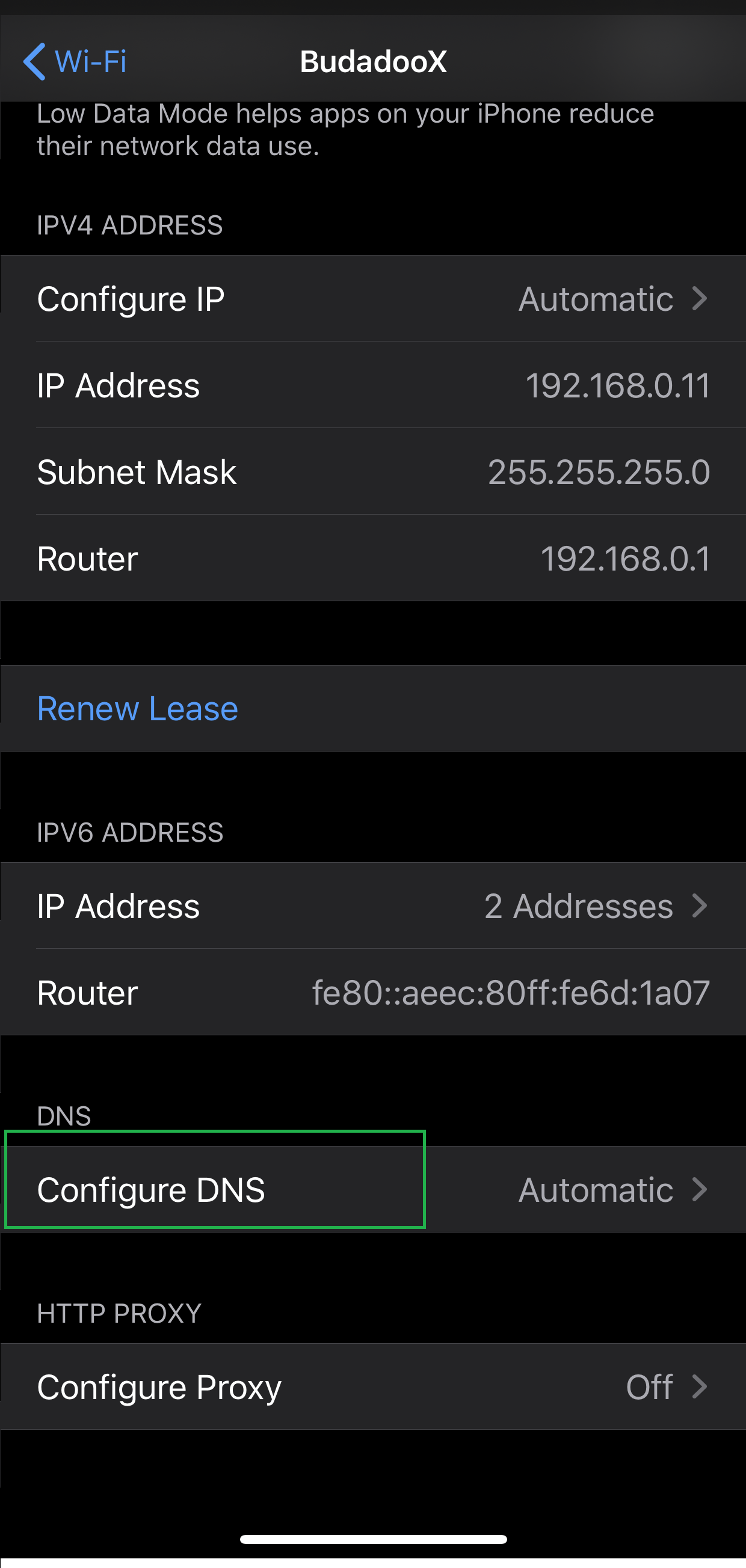
- Scroll to the bottom of the options and select 'Configure DNS'.
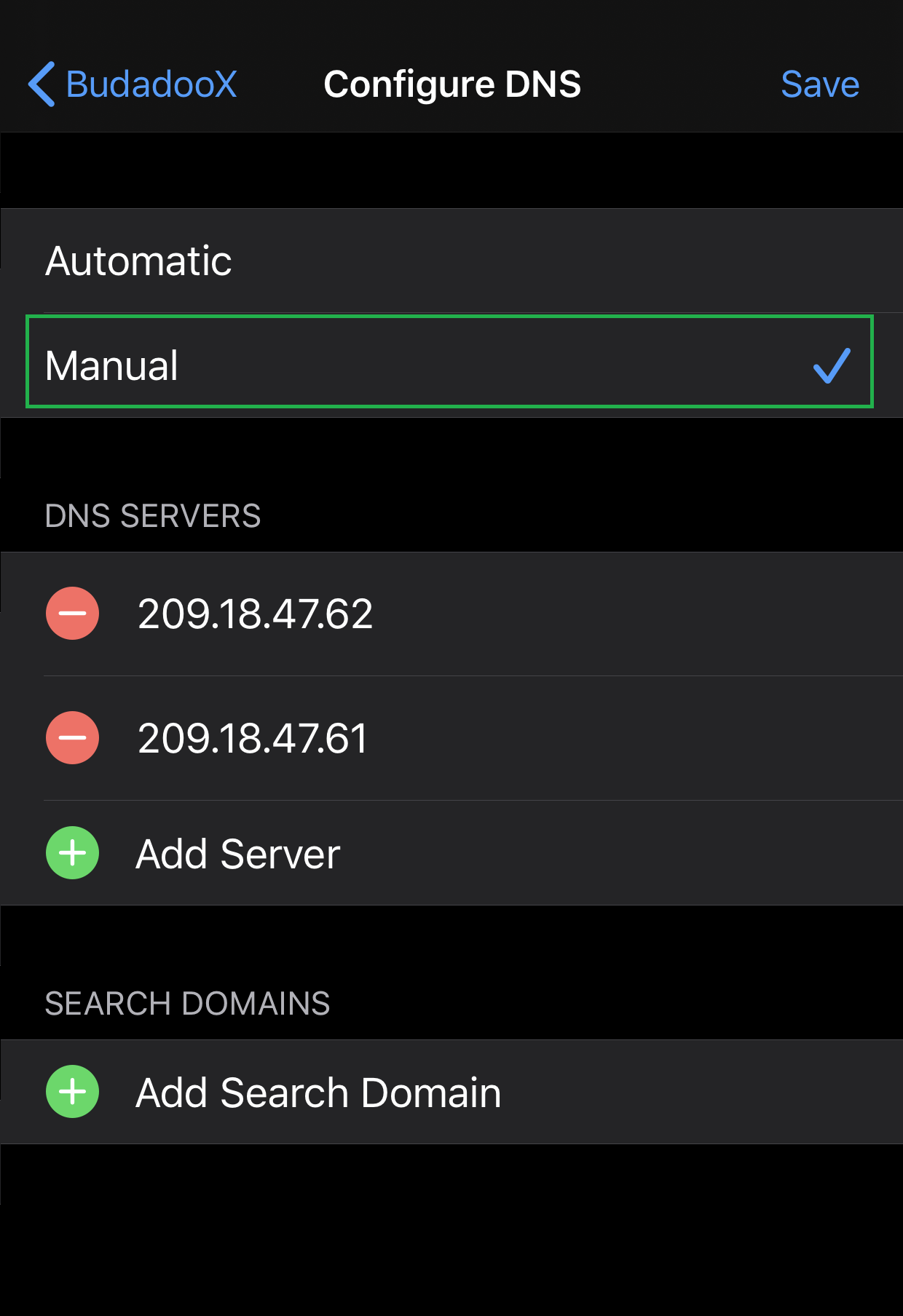
- Select Manual.
- Remove the current DNS servers. Enter the new DNS server IPs and click on 'Save'.