Pass › Pass Teacher/Staff Guide
Creating an Appointment
Appointment Pass is an adult-created pass requesting a student come see them from another adult or location at a set date and time. This feature could be used by teachers scheduling make-up work, advisors scheduling meetings for clubs, medical staff scheduling appointments for students to take meds, counselors scheduling guidance meetings with students, coaches scheduling pre/post game meetings with athletes, etc. (Please see your admin if this feature is not enabled in your system.)
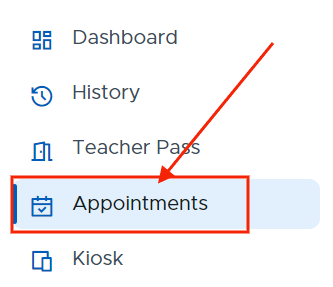
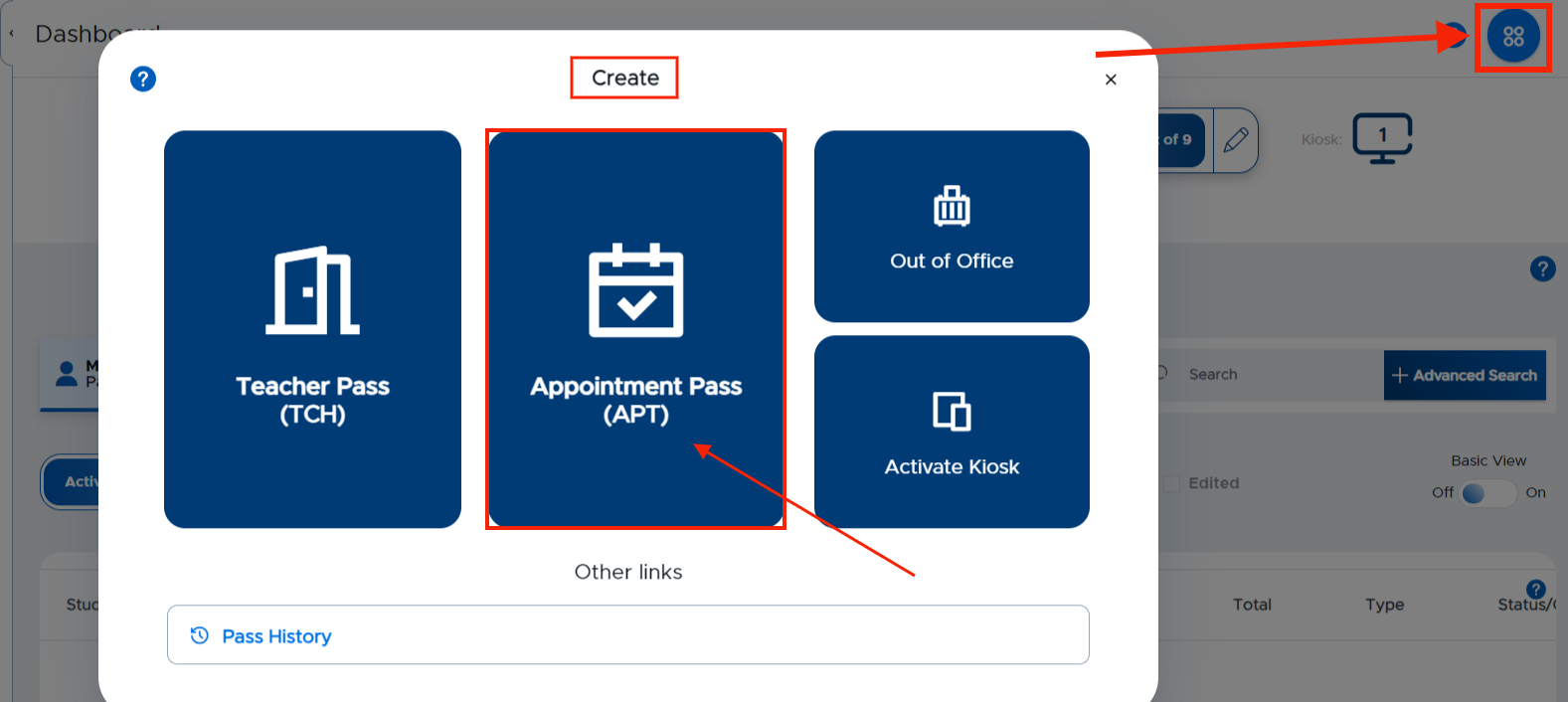
On the Appointment pass screen, click the blue + Appointment button in the upper right corner of the screen and complete the following fields on the popup screen in order to set up an appointment for a student.
Student’s name
Reason
The From adult or location (if known)
The To adult or location (If it is to you, leave as “To:Me”.)
Date of the appointment
Specific time of the appointment
Period of the appointment
Repetition of the appointment (No Repetition, Daily, Weekly, Every other week, Monthly)
When completed, click on the blue Create button.
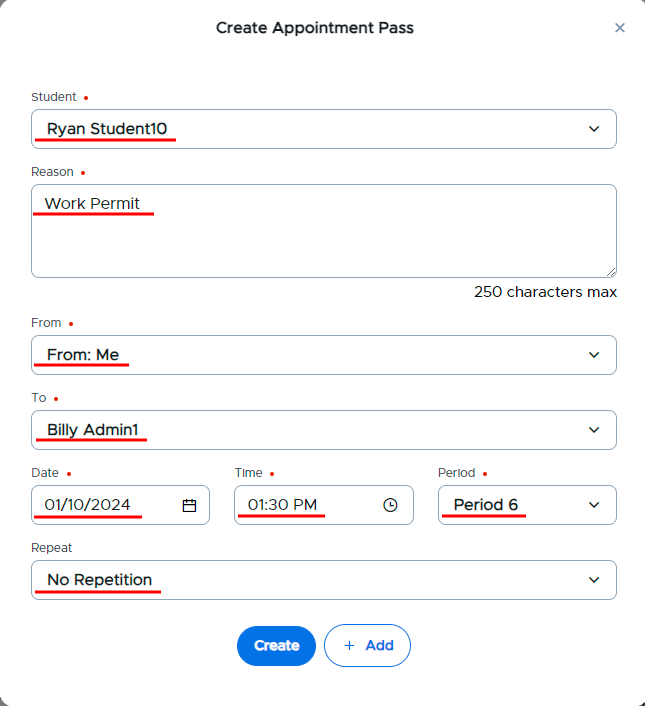
You can create multiple appointments for the same reason by clicking on the + Add button. (To avoid potential loss of work, our recommendation would be to create 20 or fewer at one time.) Add the next student’s information and continue adding other students as needed, making adjustments to the date, period, time, and From/To adults as needed. Remember to click on Create when finished creating the appointment(s).
Once the appointment pass has been created, you can see the appointment by scrolling down to the bottom of the screen. If there are multiple students’ appointments listed, you can search for your student’s name.
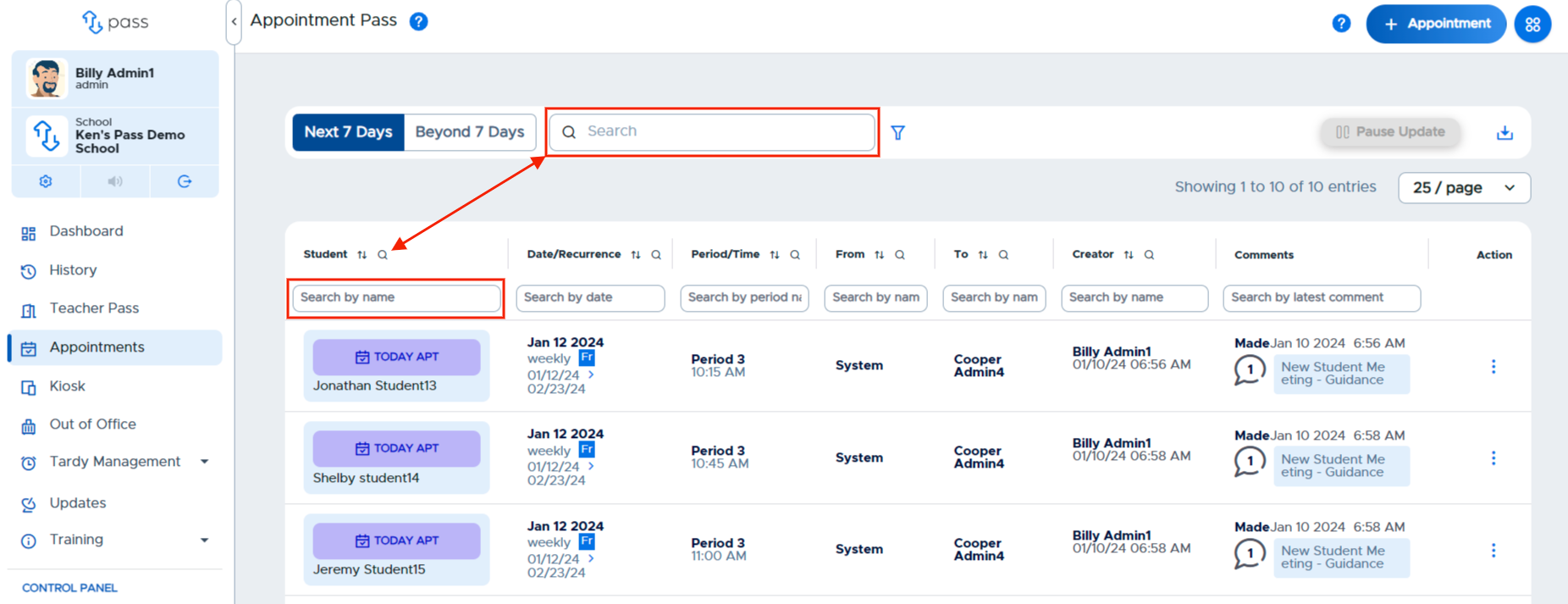
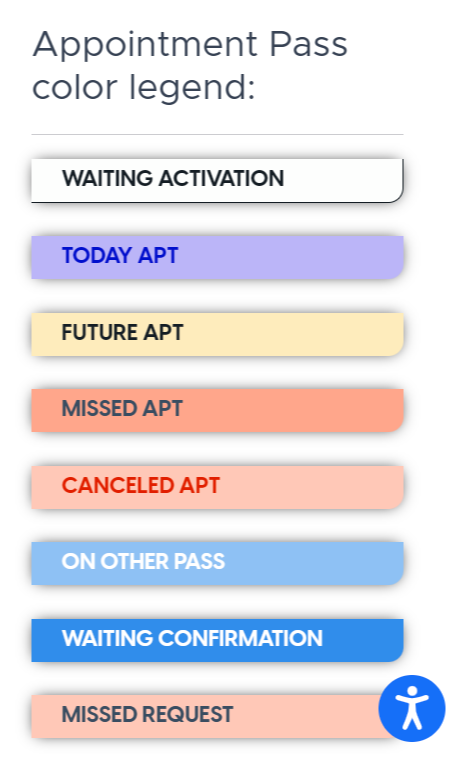
If multiple appointment passes have been created, you may see different colors associated with certain passes. Click on the blue “?” in the upper right corner of the screen for an explanation of the different-colored appointment passes. (Also, shown below.)

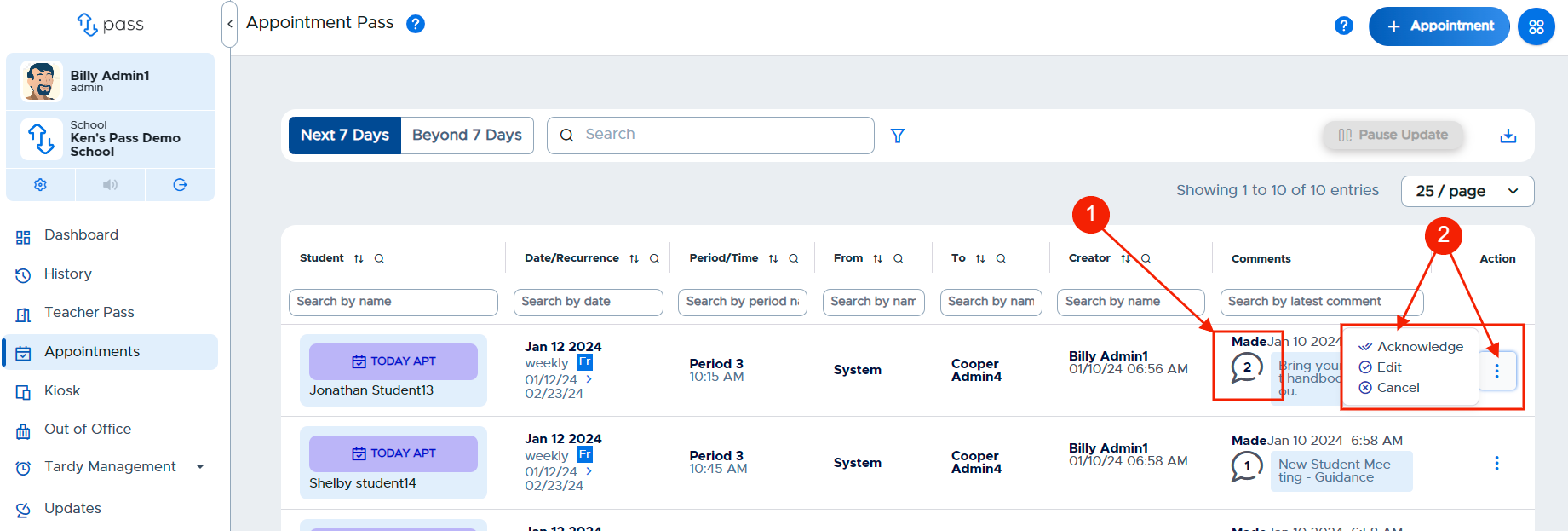
If you need to add an additional comment or edit/cancel the appointment, you can do that from this screen.
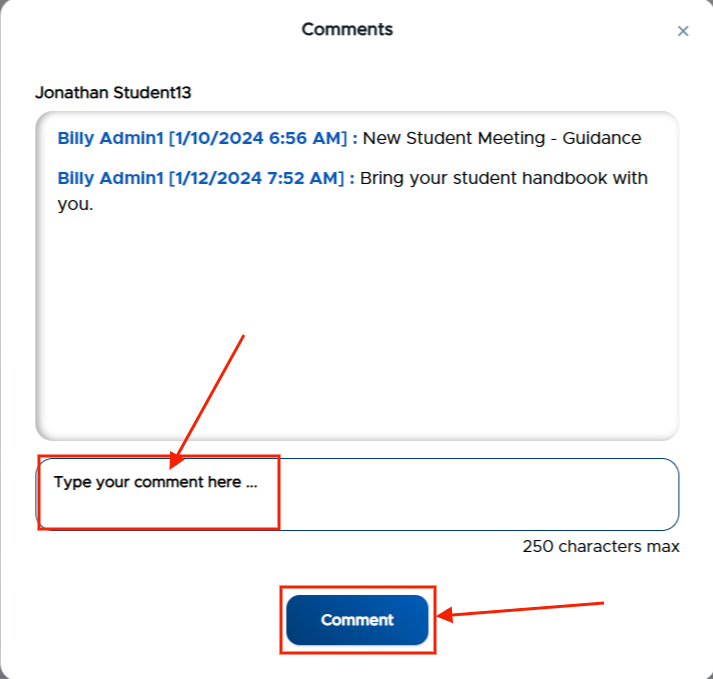
To add an additional comment . . .
To edit/cancel an appointment . . .
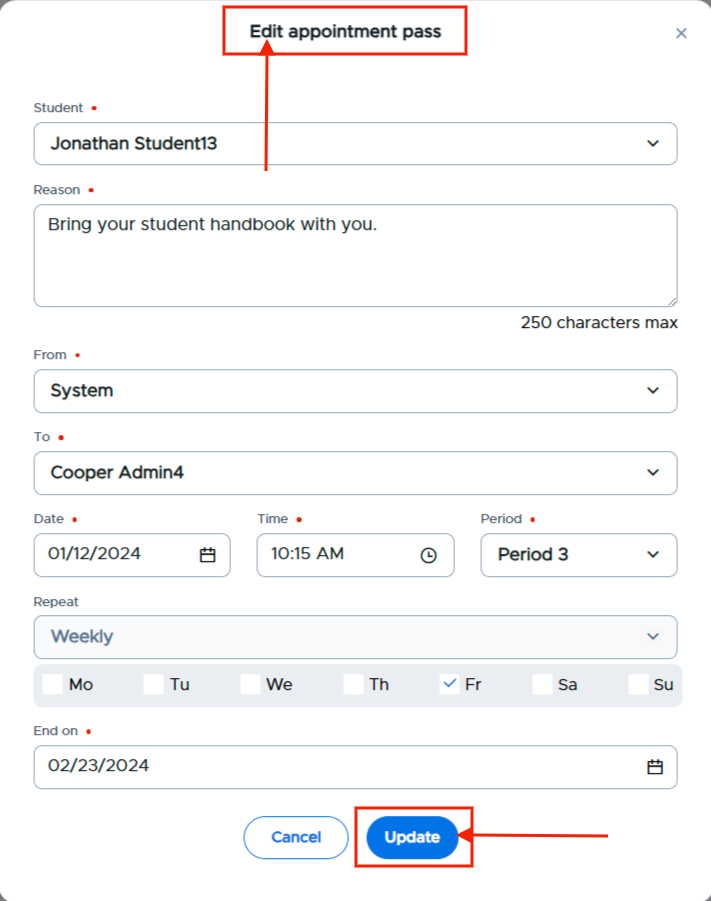
REMEMBER: Students will be notified via notifications on their Pass Dashboard of any -change made or any comment added to an appointment.
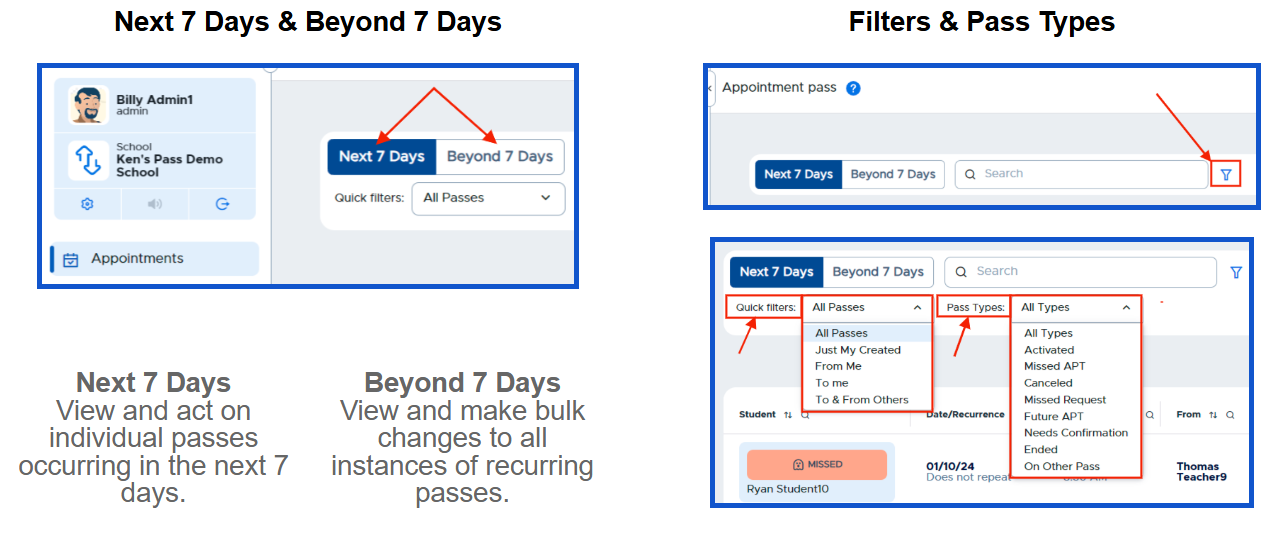
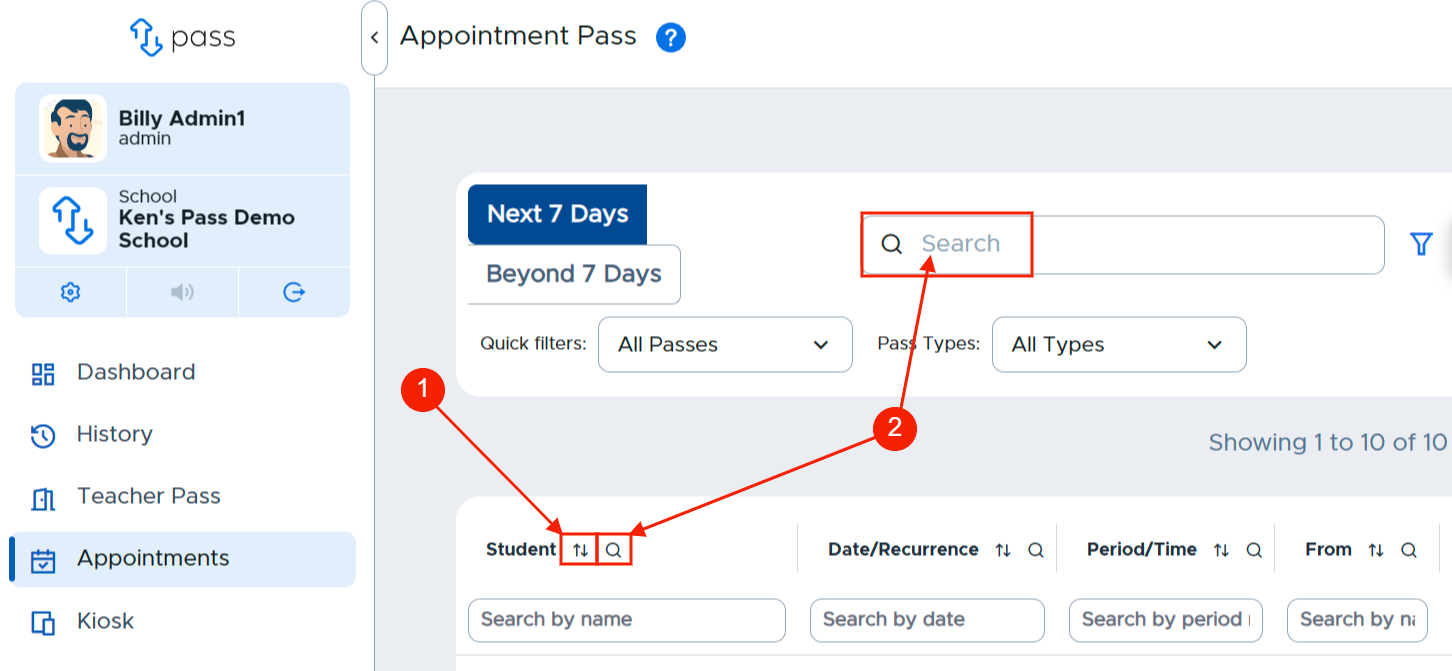
You can use the filtering options (“Next 7 Days”, “Beyond 7 Days”, “Quick filters”, “Pass Types”, Sorting, and the Search boxes) to help narrow down the appointment passes you are trying to find.
Sorting / Searching Options

Who can end the pass? (it depends on the pass type and how the student ends it)
Whether the student can end their own pass depends on the type of pass and the method they use:
- Auto Pass — the student can end it themselves with the red Stop button.
- Kiosk pass — the student can end it themselves by choosing End Pass at the kiosk and re-entering their information when they return.
If the pass is neither an Auto Pass nor a Kiosk pass — for example an appointment pass created by a principal, teacher, or other adult — the student cannot end it themselves. In that case an adult ends the pass, either on the student’s device or through the adult’s Pass interface.
It does not have to be the adult who created the pass. Any adult can end it — ending an appointment pass is not limited to the staff member who created the appointment.
Separately, students cannot cancel appointments created by an adult. A student can only cancel an appointment request that the student themselves submitted, and only up to 30 minutes before the appointment time.