Flex › Flex Admin Guide
Adding a new Flex Period
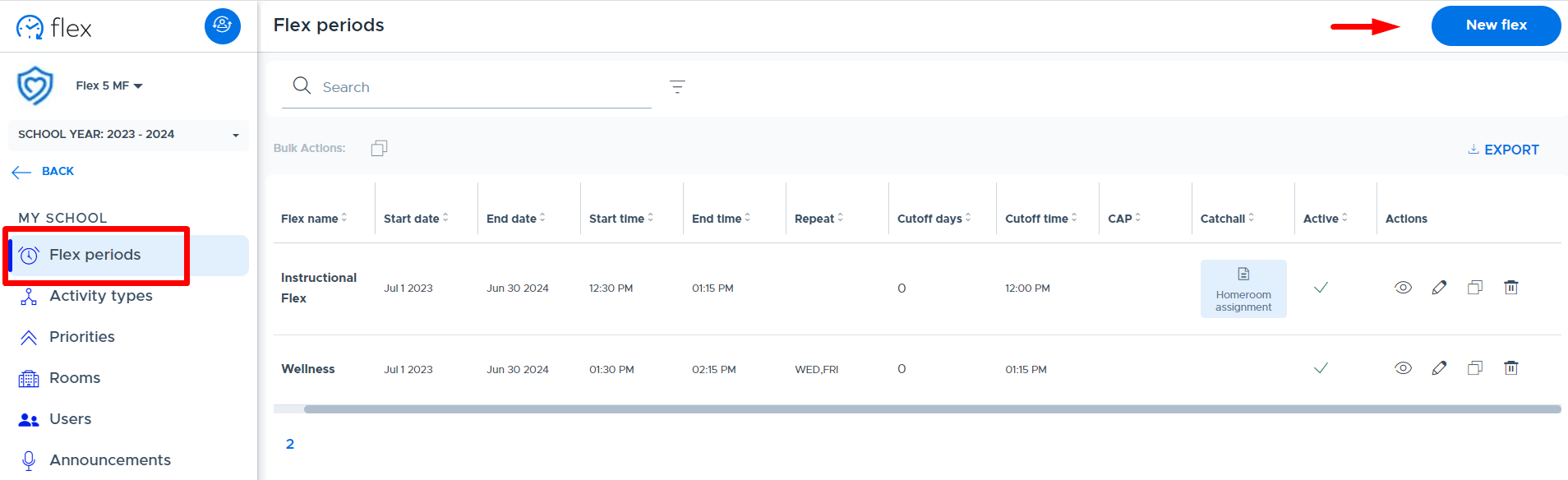
To add a new Flex period to the system, follow the steps below:
- Click on “New Flex”.
- Complete the screen as follows.
-
Name: Enter the desired name for the Flex period (Ex: Flex 1 or Wildcat Time)
-
Start Date/End Date: Enter the appropriate start and end dates. (Teachers will have access to schedule activities for this period of time.)
-
Start Time/End Time: Enter the appropriate start and end times.
- When multiple flex period times overlap (by a few minutes or the whole period), please keep in mind that the system treats these flex periods as completely separate from one another. In other words, there are no system checks to prevent students, who have access to the flex periods, from registering in both/all periods. The system is not looking and comparing registrations across overlapping or simultaneous flex periods.
- Controlled Access Period (CAP) functionality can be used to limit student access to certain flex periods.
-
Recurring: Select Daily (default) or Weekly
- Daily - Flex will run everyday, Monday through Friday
- Weekly - desired days of the week can be selected (Mon-Fri) - this should be used when there is a specific pattern, not for rotating or random schedules.
- It’s very important that you do not come back and remove days from the schedule or change from “Daily” to “Weekly”. Changing the recurrence and removing days can cause a loss of historical data.
- If days need to be removed, the Flex period should be ended and a new one created to avoid loss of historical data.
- If “Weekly” is set, you can add days without causing a problem.
-
Cutoff Days: Number of days the system will use as a ‘set-off’ to apply the Cutoff Time.
- Example: If Cutoff Days = 0 it applies to the same day the Flex period runs. If cutoff days = 1, it will apply 1 day prior to the day the Flex period runs. If Cutoff Days = 2, it will apply 2 days prior, etc.
- Count weekends: Toggle this to the right to include Saturday and Sunday in the Cutoff Days calculation. Weekends will not be included if this is not turned on.
-
Cuttoff Time
: Enter the desired time to “lock down” the Flex period offerings and registrations. This means teachers can no longer make changes to what they’re offering and students cannot make changes to their choice registrations. The one exception is teachers can still use the Plus Add function. -
Active (toggle): Default is on/active. Toggle to the left to make Flex period inactive. (Inactive Flex periods are not shown in the main list but can be accessed from the filter option. See more details below.)
-
Controlled Access Period (CAP): Toggle this option to the right to turn on and access additional settings. Once enabled, select the desired group and whether to “allow or forbid” students to access this Flex period. Learn more in the “CAP”
section of this guide. -
Catchall: Toggle this option to the right to turn on and access additional settings. Once enabled, enter a “Catchall Title” and select the “Type” of catchall. Learn more in the “Catchall”
section of this guide.)
-
- Click “Add” to add the new Flex period.