Filter › Home
Parent Resources
The Parents Resources tab under the Global Settings allows admins to easily share district-approved resources like helpful links, student handbooks, or school policies to parents directly through Securly Home.
To add a parent resource, follow the steps below:
Click the Add new resource.
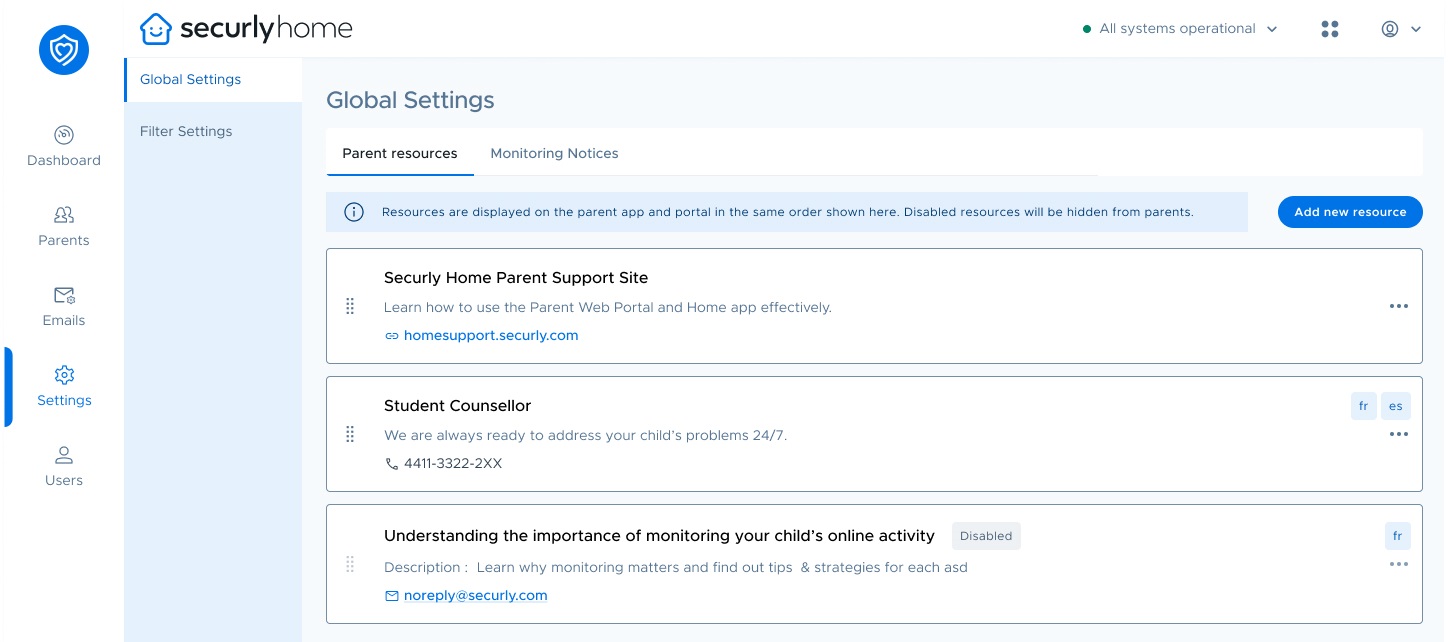
In the following popup, enter the resource title and description. Then, choose the resource type (URL, Email, or Contact Number) and fill in the details.
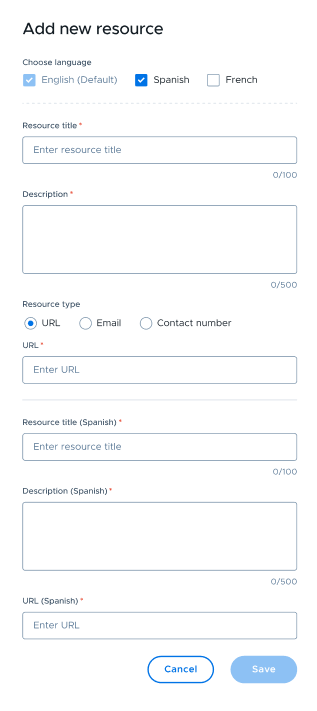
You can also select the Spanish and French checkboxes to display the Spanish and French variants of the resource.
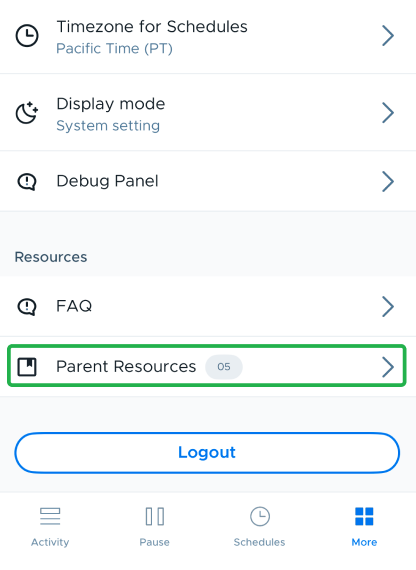
Hit the Save button to add the resource. Once saved, parents can find your new resource in the Securly Home app by going to More > Parent Resources.
Editing resources
To edit, delete, or disable a resource, click on the three-dots in the resource entry and select the option as required.
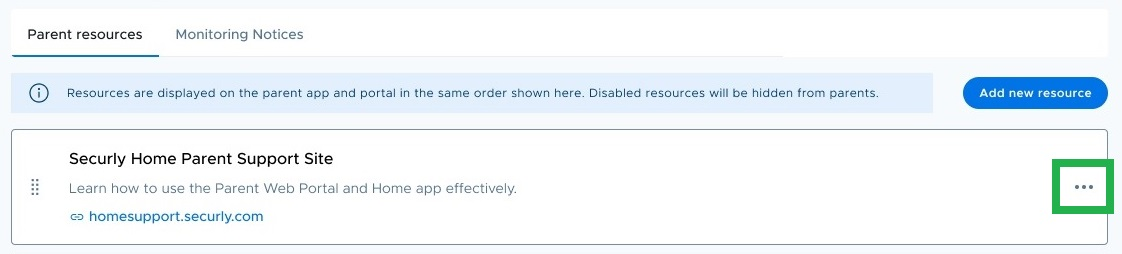
Disabled resources won’t be shown to parents and will have the ‘Disabled’ tag on them. These resources can be re-enabled from the three-dots menu.
