Sync
Securly Sync User Guide
Securly Sync UI - Customer Guide
A guide for K-12 district IT administrators to view and validate your synced SIS data.
Overview
Securly Sync UI allows you to:
Check data readiness for Securly products before rollout
Generate reports that highlight missing or incomplete data from your SIS
Browse synced entities to verify student, staff, class, and enrollment data
Download CSV exports for detailed analysis and remediation
The data shown in Sync UI comes directly from your Student Information System (SIS) through Securly's rostering integration.
Logging In
Sync UI currently supports login through Google Identity Provider (IDP) only.
Security Requirement: Access to Sync UI requires Multi-Factor Authentication (MFA). By accessing this application, you have confirmed with Securly that your Google account is protected by MFA.
Need to add additional users from your district? Contact support@securly.com to request access for other team members.
Getting Started
When you log in, you'll be automatically directed to the Data Readiness page for your district. Your district identifier is pre-assigned to your account.
Data Readiness
Data Readiness helps you verify that your synced data is complete and properly formatted for Securly products.
Creating Reports
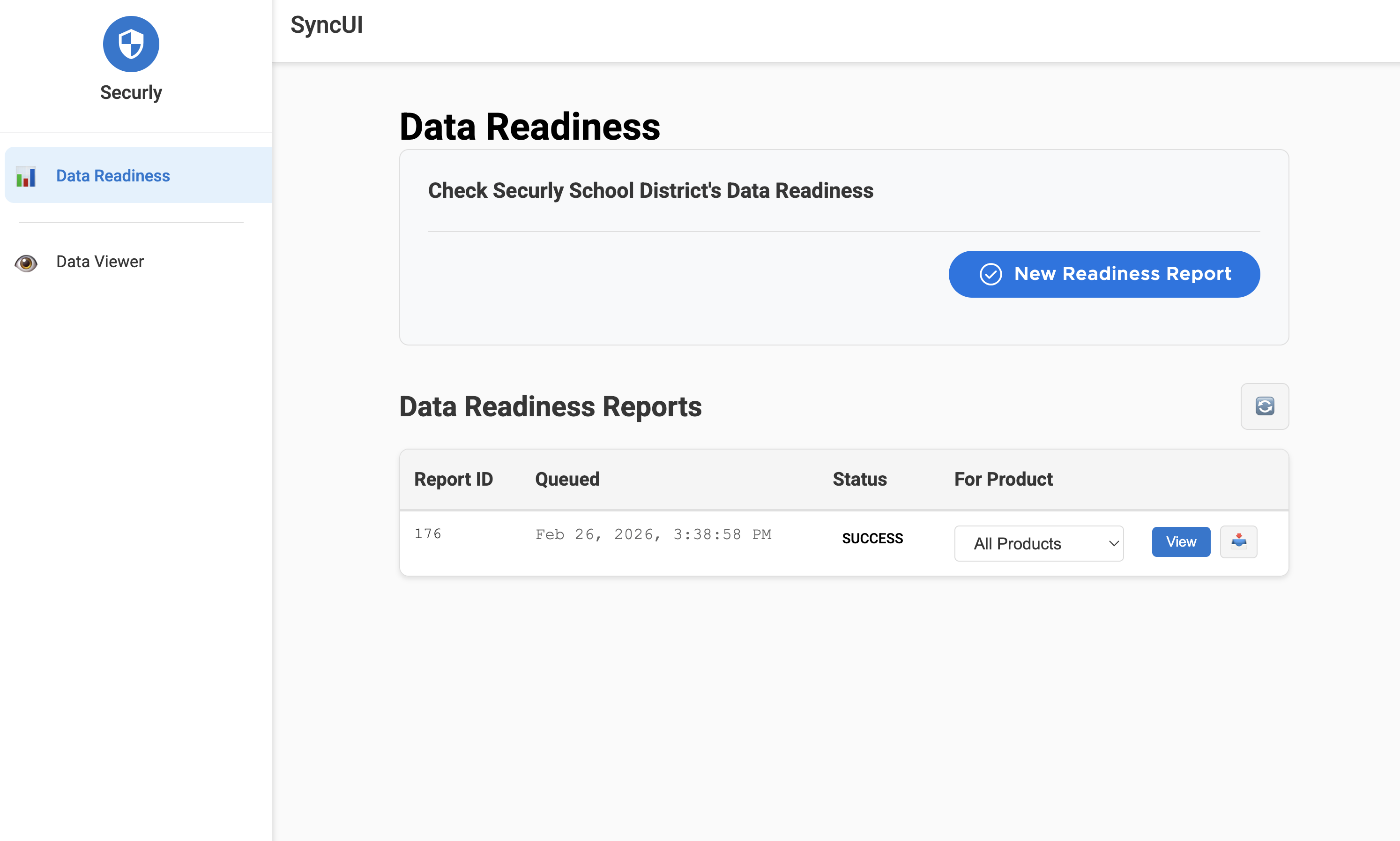
From the Data Readiness page, click New Readiness Report to generate a fresh analysis of your district's data. The report queues immediately and processes in the background.
Reports appear in the table below, sorted with the newest first. Each report shows:
Report ID - Unique identifier
Queued - When the report was requested
Status - Queued, Processing, or Completed
Filtering by Product
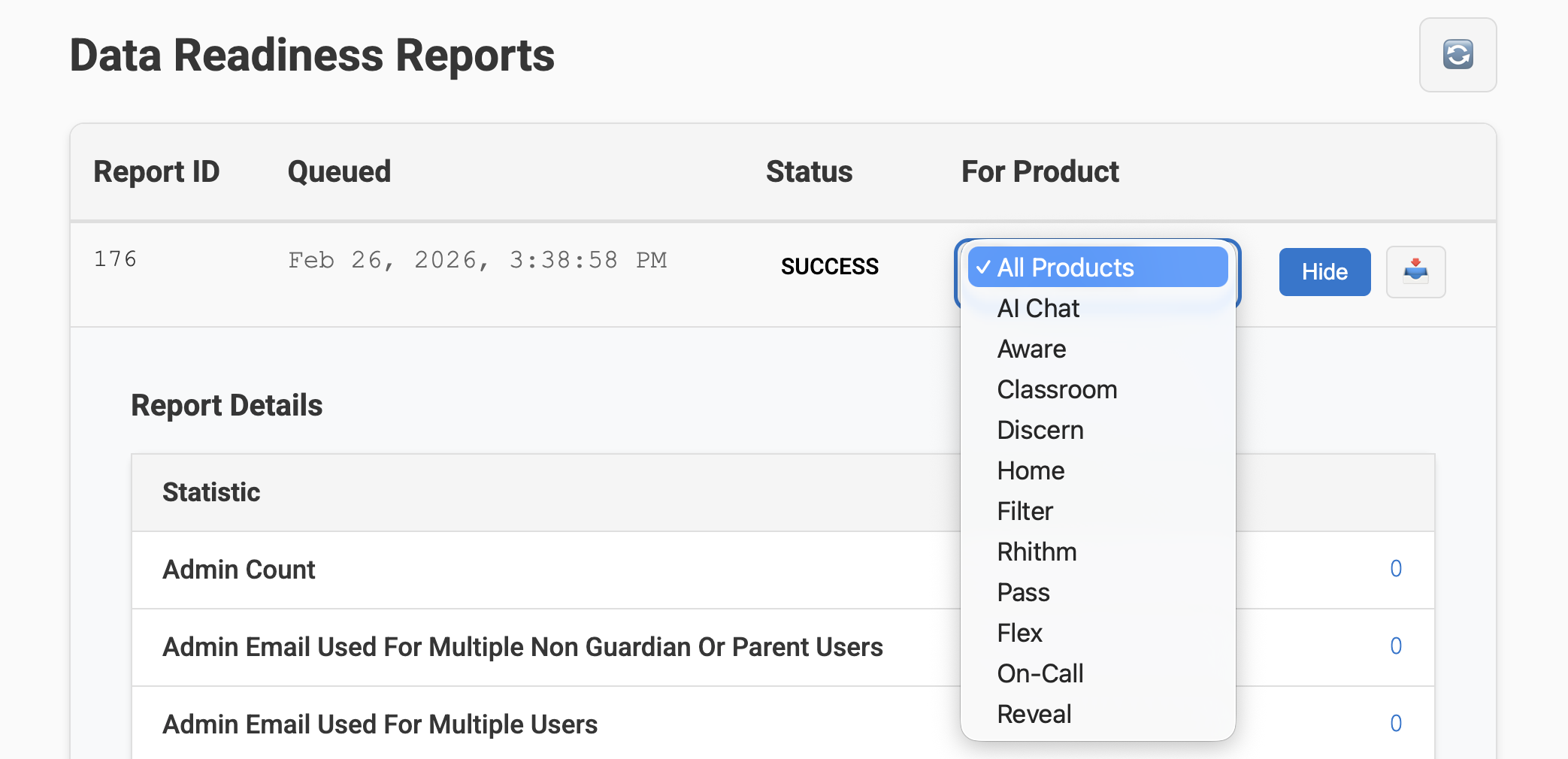
Use the For Product dropdown to filter results for a specific Securly product. This is helpful when troubleshooting issues with a particular product.
Available filters:
All Products (default)
AI Chat
Aware
Classroom
Discern
Filter
Flex
Home
On-Call
Pass
Reveal
Rhithm
Viewing Report Summary
.png)
Click View on any completed report to expand the summary. This shows aggregate counts for each data validation check, giving you a quick overview of potential issues.
Downloading Reports
.png)
Click the download icon to export the report as a CSV file. The export includes user-level details for each data readiness issue, allowing you to:
Share with your SIS team for remediation
Filter and sort in Excel or Google Sheets
Track progress on data cleanup over time
Tip: Select a product filter before downloading to get a focused export for that specific product.
Interpreting Your Results
The Data Readiness Report highlights missing or incomplete data so you can improve data quality over time. However, some entries may appear as "errors" but don't require action.
When "Errors" Are Not Actionable
After you remove or modify records in your SIS (such as deleting a guardian or changing relationships), Securly Sync stops using those records. In some cases, relationship rows tied to removed records may still appear in the report.
Examples of non-actionable entries:
Guardian-related rows for guardians you've already removed from your SIS
"Missing data" issues (like missing email/phone) for guardians you no longer use
Relationship rows pointing to records that no longer exist
These entries are informational noise and don't prevent data from flowing correctly.
Recommended Approach
Focus on patterns you recognize - Prioritize entries that map to active schools, students, and guardians in your SIS.
De-emphasize orphaned relationships - If a row references a guardian or relationship you've already removed, treat it as informational rather than a blocker.
Cross-check in Data Viewer - If you're unsure whether an entry represents a real issue:
Look up the student or guardian in Data Viewer
Confirm whether the record matches your current SIS configuration
If everything looks correct in Data Viewer, the readiness row is likely non-actionable
What to Prioritize
Use Data Readiness to identify:
Guardians missing email addresses (when those emails should exist)
Students without any guardian relationships (when your SIS should have them)
Missing required fields for active users
You can also use Data Readiness to confirm that core entities are syncing correctly:
Classes - Verify your class sections are present and properly linked
Orgs - Confirm all schools in your district are synced
Enrollments - Check that student and teacher enrollments exist for your classes
Expect some false-positive rows during periods of heavy data cleanup (end-of-year rollover, school restructuring, bulk guardian changes).
Have questions about specific entries? Email support@securly.com with examples from your export.
Data Validation Reference
This section explains each validation check in the Data Readiness Report, what it means, and how to resolve issues.
User Validations
Student
Student Has No Email
Affected Products: All
Description: A student record exists but has no email address. All Securly products rely on email to identify students.
Needs to be fixed: Yes
How to fix: If this number is large, the email field may be missing from your SIS export or mapped incorrectly. If the number is small, it's likely a data entry issue. Update the information in your SIS and run another sync.
Student Has No Guardians
Affected Products: Home, On-Call
Description: Student guardians are used to grant access in Home and link contact information in On-Call.
Needs to be fixed: Yes
How to fix: If this number is large, the augmentation may not be set up correctly or matching properly. If smaller, the guardian relationship is missing for specific students. Update your SIS and run another sync.
Note: This metric counts student-guardian relationships. One guardian with two children counts as 2.
Known Issue: Soft deletes may appear as errors. If the email is empty or the SourcedId starts with
securlyinternal:, this can be ignored.
Student Email Used for Multiple Users
Affected Products: All
Description: All products expect each student email to map to exactly one student. Email addresses cannot be shared.
Needs to be fixed: Yes
How to fix: If this number is large, there may be an incorrect field mapping (often a misnamed column header). If small, it's likely a data entry issue. Update your SIS and run another sync.
Teacher
Teacher Email Used for Multiple Users
Affected Products: All
Description: All products expect each teacher email to map to exactly one teacher.
Needs to be fixed: Yes
How to fix: Check for incorrect field mappings or data entry issues. Update your SIS and run another sync.
Administrator
Admin Email Used for Multiple Users
Affected Products: All
Description: All products expect each admin email to map to exactly one admin.
Needs to be fixed: Yes
How to fix: Check for incorrect field mappings or data entry issues. Update your SIS and run another sync.
Guardian / Parent
Guardian Has No Address
Affected Products: On-Call
Description: On-Call will be unable to share address information when working a case.
Needs to be fixed: Yes
How to fix: If this number is large, the augmentation may not be set up correctly. If smaller, the address is missing for specific guardians. Download the list and update your SIS.
Note: This metric counts student-guardian relationships. One guardian with two children counts as 2.
Known Issue: Soft deletes may appear as errors. If the email is empty or the SourcedId starts with
securlyinternal:, this can be ignored.
Guardian Has No Email
Affected Products: On-Call, Home
Description: Home uses email for guardian login. Guardians without email cannot log in. On-Call also uses email to identify guardians.
Needs to be fixed: Yes
How to fix: If this number is large, check your augmentation setup. If smaller, the email is missing for specific guardians. Download the list and update your SIS.
Note: This metric counts student-guardian relationships. One guardian with two children counts as 2.
Class Validations
Terms Link Exists
Some sync configurations (like RosterStream's maximal compatibility mode) may not include term links for classes.
Courses Link Exists
Some sync configurations may not include course links for classes.
Enrollment Validations
Teacher Enrollments Exist
Verifies that teacher enrollments are present. Some advanced settings may affect this.
Student Enrollments Exist
Verifies that student enrollments are present.
End Date Exists
End dates are important for rollover and archiving functionality.
Data Viewer
Data Viewer lets you browse the actual synced data for your district to verify records and troubleshoot issues.
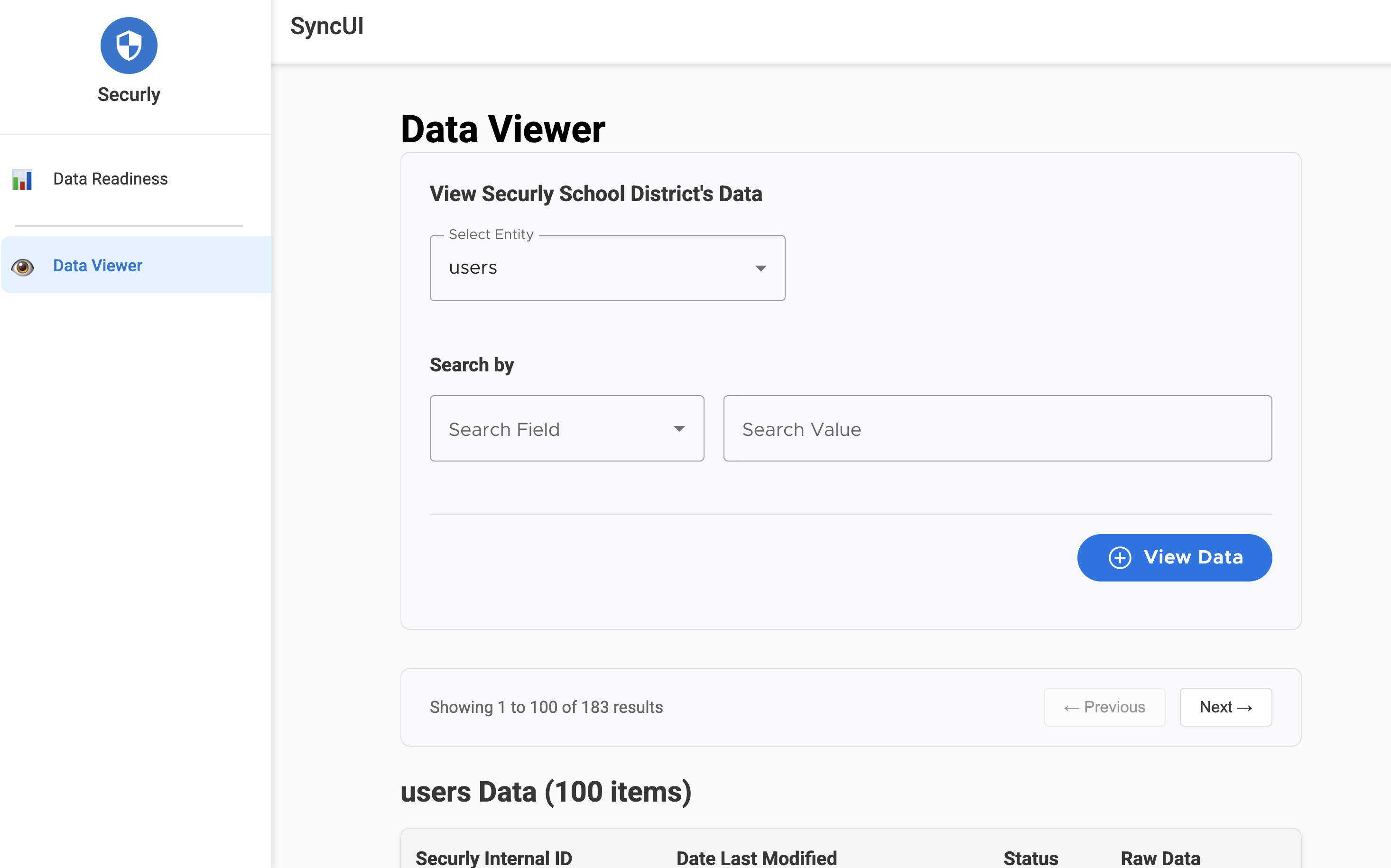
Browsing Entities
Select an entity type from the dropdown:
Users - Student and staff accounts
Enrollments - Class enrollment records
Classes - Class/section information
Courses - Course catalog entries
Academic Sessions - School years, terms, semesters
Demographics - Student demographic data
Orgs - Schools and organizational units
Click View Data to load records. Results display 100 records per page with pagination controls.
Search and Filtering
Each entity type has specific search fields to help you find records:
Entity
Search Fields
Users
Securly Internal ID, Role, Email, Securly Internal Org ID
Enrollments
Securly Internal ID, Role, Securly Internal Class ID, Securly Internal User ID
Demographics
Securly Internal ID, Role
Classes
Securly Internal ID
Courses
Securly Internal ID
Academic Sessions
Securly Internal ID
Orgs
Securly Internal ID
Common search workflows:
Find a user's enrollments:
Search Users by Email to find the user
Copy their Securly Internal ID
Switch to Enrollments, search by Securly Internal User ID
Find students in a class:
Search Classes to find the class
Copy the Securly Internal ID
Switch to Enrollments, search by Securly Internal Class ID
Find users at a school:
Search Orgs to find the school
Copy the Securly Internal ID
Switch to Users, search by Securly Internal Org ID
Viewing Raw Data
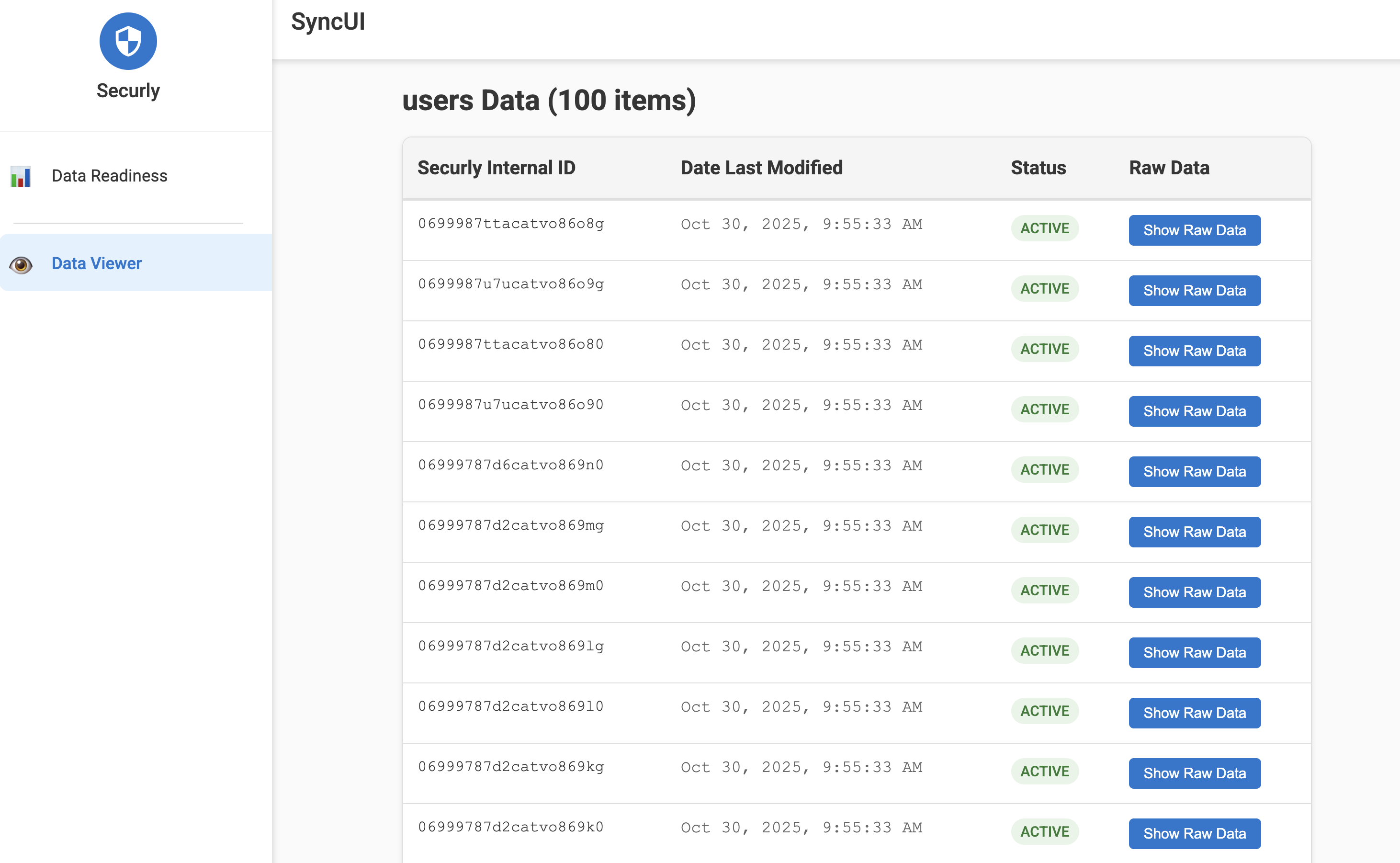
Click Show Raw Data on any record to expand the complete JSON data. This reveals all fields synced from your SIS, including:
Unique identifiers (sourcedId)
Status and dates
Role information
Relationship references
Custom metadata
Use raw data to verify specific field values or troubleshoot sync issues.
Entity Reference
Here's what each entity type contains and how they relate:
Entity
Description
Key Fields
Users
Students, teachers, staff, guardians
sourcedId, email, role, status, givenName, familyName, orgs
Enrollments
Links users to classes with a role
sourcedId, user, class, role, status
Classes
Course sections with term/school info
sourcedId, title, course, school, terms, status
Courses
Course catalog entries
sourcedId, title, courseCode, status
Academic Sessions
School years, semesters, terms
sourcedId, title, type, startDate, endDate, status
Demographics
Student demographic information
sourcedId, birthDate, sex, grades
Orgs
Schools and district organizational units
sourcedId, name, type, identifier, status
Relationships:
Users belong to Orgs (schools)
Enrollments connect Users to Classes
Classes reference Courses and Academic Sessions
Demographics link to Users
Coming Soon
User Management for Customers
Soon you'll be able to manage Sync UI access for your district staff directly. Add team members, set permissions, and control who can view your synced data.
Improved Data Viewer
Enhanced usability and more powerful search capabilities to help you find records faster.
Data Readiness Improvements
Usability enhancements to make interpreting and acting on your reports easier.
Sync Administration
New admin functions including:
View sync status
Trigger manual syncs
Set up sync pausing and scheduling
Glossary
Term
Definition
Securly Internal ID
Unique identifier for each synced record (also called sourcedId)
Entity
A type of data record (users, classes, enrollments, etc.)
SIS
Student Information System - The source of your synced data
Data Readiness
Validation status of your synced data for Securly products
Role
User type (student, teacher, administrator, guardian, etc.)
Augmentation
The process of enriching student records with guardian/parent data
Troubleshooting
Common Issues
"No data found" in Data Viewer
The entity type may have no records matching your search
Try removing search filters or selecting a different entity type
Verify the search value is exact (check for extra spaces)
Report shows "No statistics available"
The report may still be processing - click refresh to check status
If completed with no stats, your data passed all validation checks
Downloaded CSV is empty
An empty export means no issues were found for that product filter
This is a good result - your data is ready
Data doesn't match what's in my SIS
Sync typically runs on a schedule - recent SIS changes may not be reflected yet
Contact support@securly.com if data appears significantly outdated
Getting Help
For additional assistance, contact support@securly.com.
Feedback
Your feedback helps us improve Sync UI. If you have suggestions, encounter issues, or want to share how you're using the tool, we'd love to hear from you. Please reach out to support@securly.com.
Last updated: February 2026