Flex › Flex Admin Guide
Teacher Attendance/Substitutes
There are several different options for addressing Substitute Teachers.
The Flex system provides functionality to give a Substitute Teacher temporary access to the system in order to take attendance for an activity originally scheduled by the absent Teacher. Below are detailed instructions that review this process and videos that review and demonstrate this process. In addition, there is an instructional video for Substitutes that guide them through logging into Flex and taking attendance. Please feel free to share this with your substitutes.
- Overview for Flex Admins - Substitute Process Overview
- Video for Substitutes - Instructions for Taking Attendance
To start the process, an Admin (or Staff user) will need to select Teachers >Teacher Attendance from the menu. On the day of the Flex, before cutoff, select or check mark each Teacher that is absent that day, as shown below. Then click the “Submit Attendance” button in the bottom right corner.
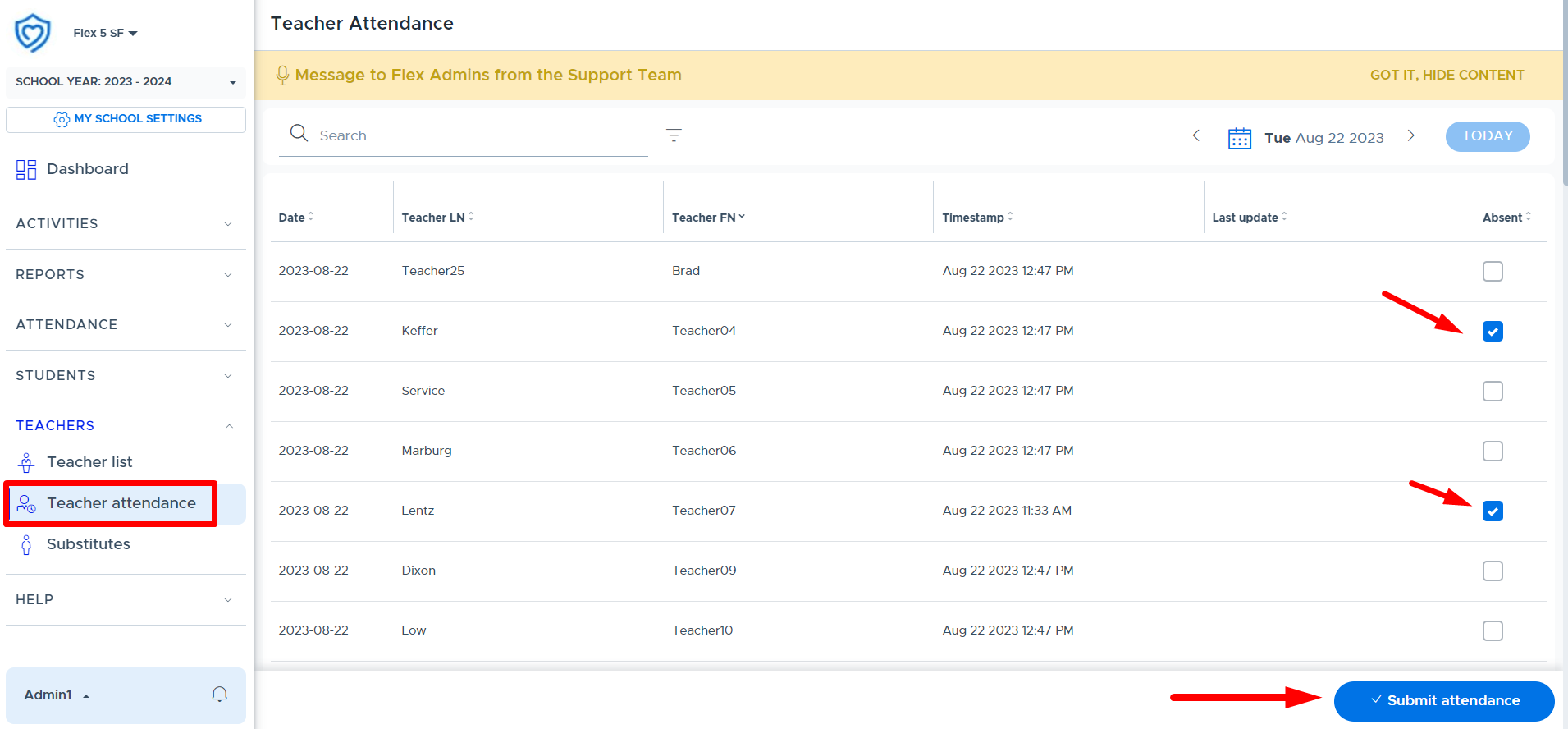
The system will then show a timestamp for when this attendance was taken:
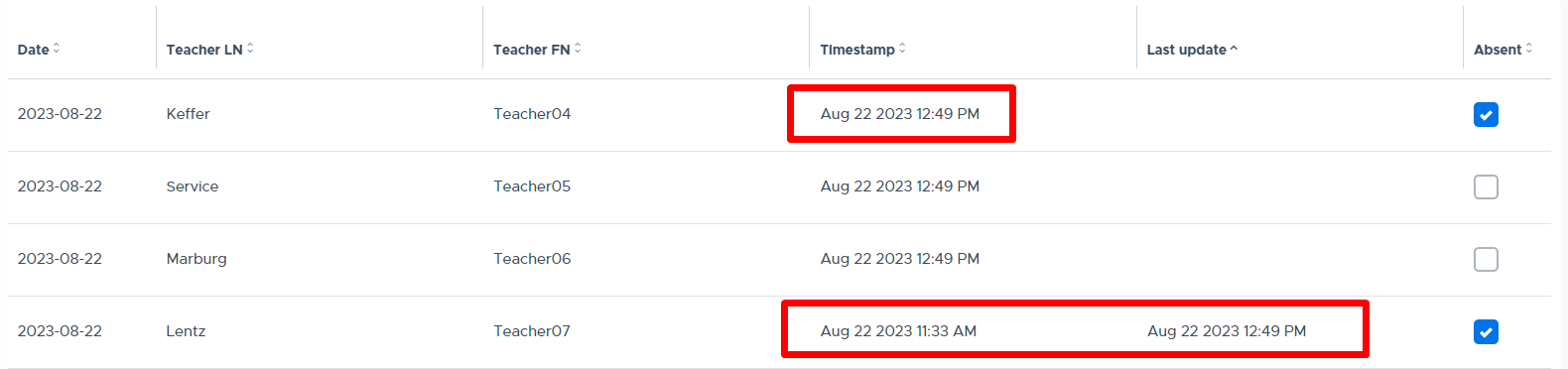
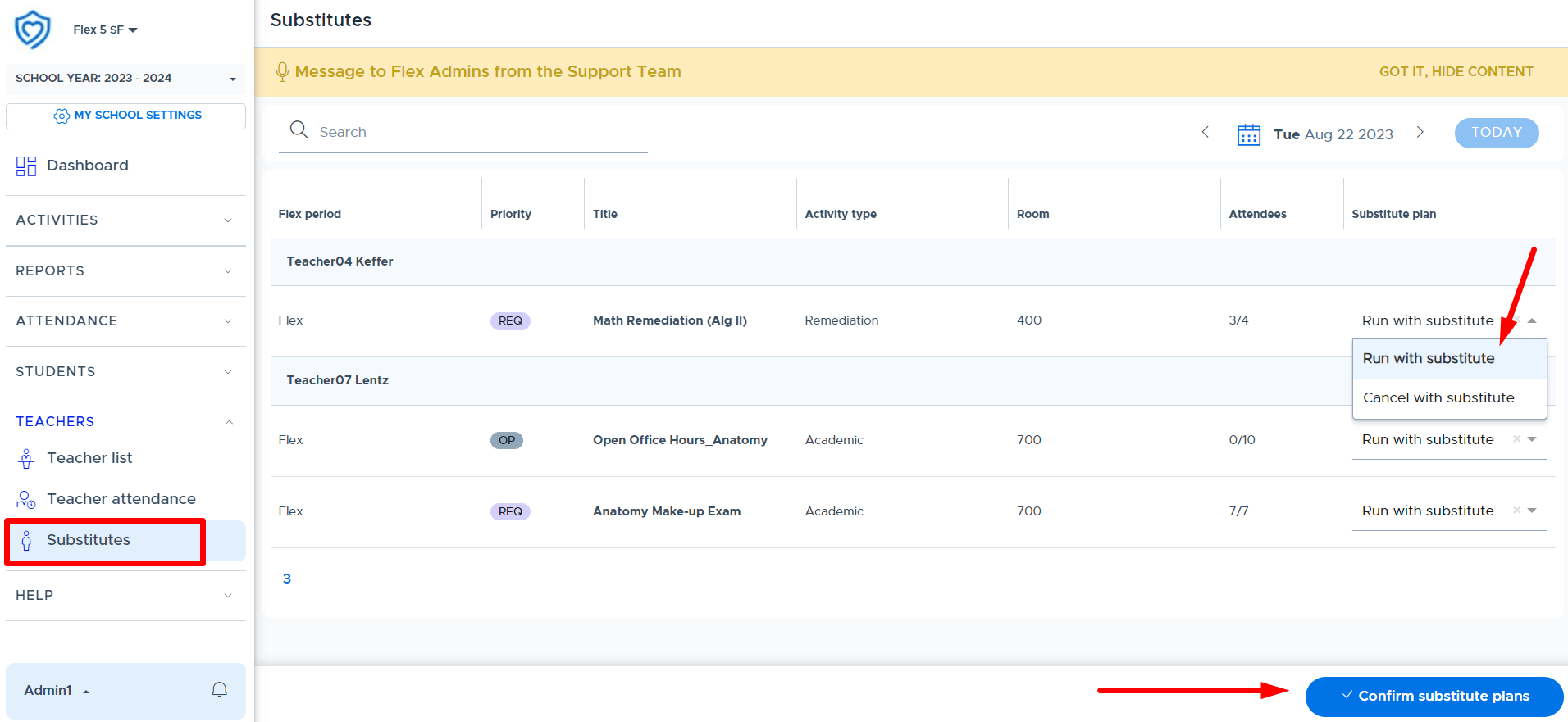
After marking the teacher absent, the next step is for the Admin to select Teachers > Substitutes from the menu, as shown below.
This screen will display the activities that were scheduled for TODAY by the Teachers marked absent in step #1. It is important to review the “Substitute Plan” column to confirm which option should be selected:
- Run with Substitute
- Cancel with Substitute
If “Cancel with Substitute” is selected and you proceed, the activity is completely canceled and removed from the student’s calendar. Students will receive the following in-app notification about when this happens:

The default option that shows in this field is driven by what was set on the “Activity Type” menu. Once the Substitute Plan has been confirmed/selected for each activity, then click “Confirm substitute plans”.
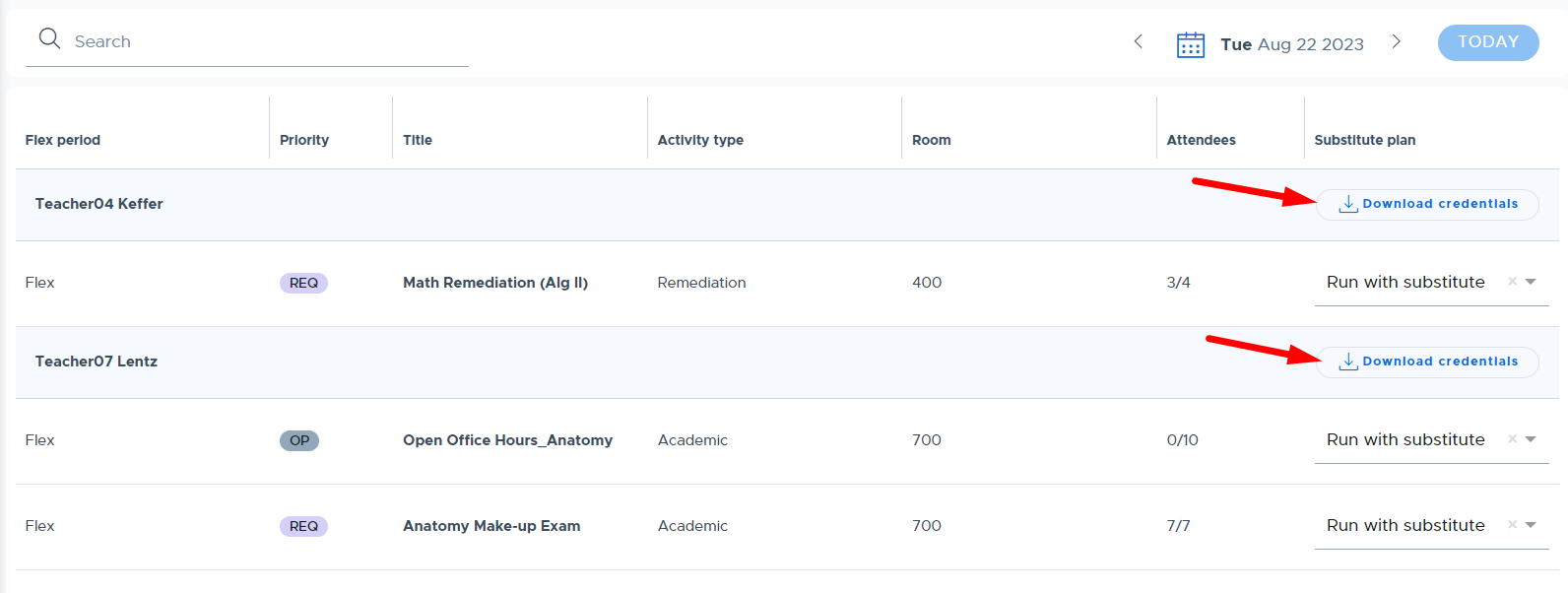
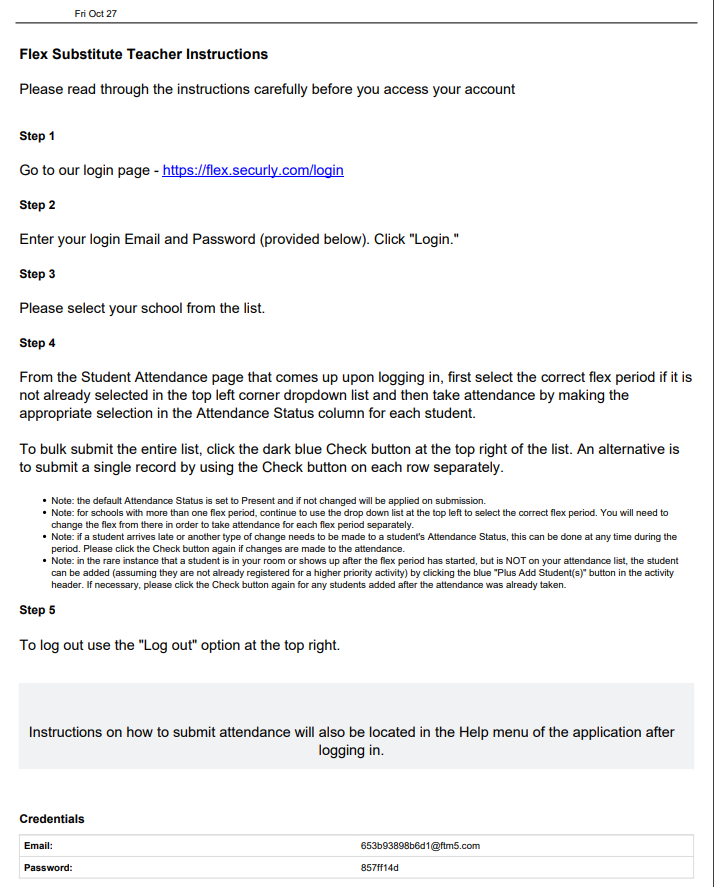
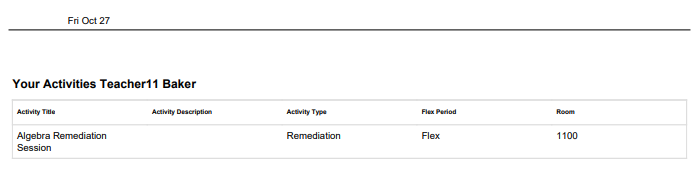
Once the plan(s) has been submitted the screen will update and provide access to the “Download credentials” button for each teacher that is absent, as shown in the image below. This produces a separate PDF document in a new web browser window that can be printed and given to the Substitute Teacher. This will generate temporary credentials for each Substitute that will be running an activity session and need to take attendance in Flex.
Below is an example of these instructions. Also, as mentioned earlier, there is a video specific for Substitutes that reviews this process.
Other optional substitute workflows:
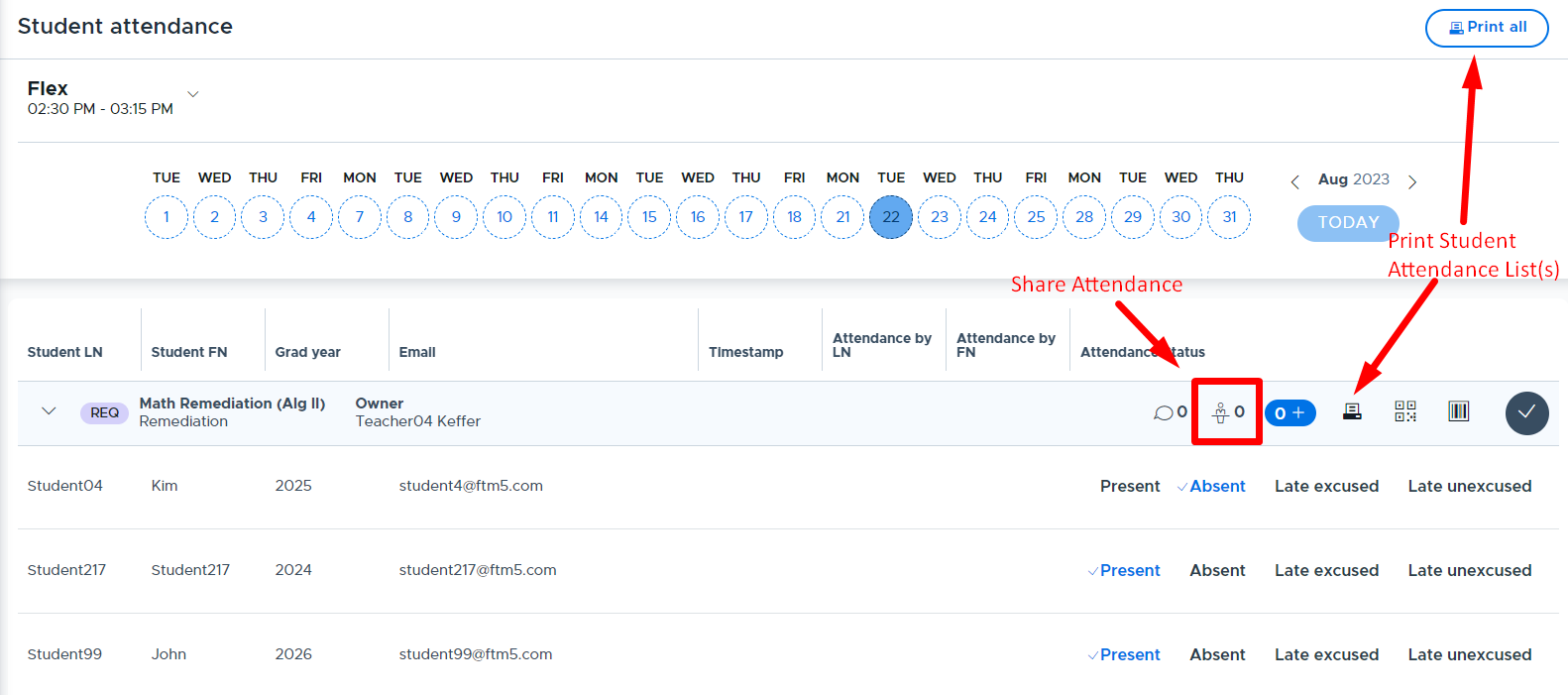
- Another less technologically dependent workflow for subs is to print off the attendance list for the teacher who is absent. The teacher can print off their own list and place it within their substitute folder or notes for their sub. Keep in mind that if cut off is the day of the Flex, the printout may not be accurate if printing the day before. An admin in the front office can also simulate any teacher and print out their attendance for the day, giving it to the substitute when they check in at the beginning of the day. The substitute can record attendance on the printout and turn it into the Front Office to update in Flex.
- Oftentimes, teachers, staff, and administrators will cover for one another. A teacher (or an admin simulating the teacher) can go to an activity and share attendance with an adult Flex user who will be supervising the activity on behalf of the teacher.
The screenshot below shows where to access print buttons and set up shared attendance from the “Student Attendance” screen in Flex.
If you have regular substitutes who have access to technology and you trust to log into and have access to Flex, you can add them as a user under My School Settings > Users. The substitute must have a school email and can log in with email single sign-on. Activities can be shared with this user as described above.