Aware › Cases
Case Metrics
Case count
This widget shows a graph view of the total number of cases generated and resolved during the selected timeframe.
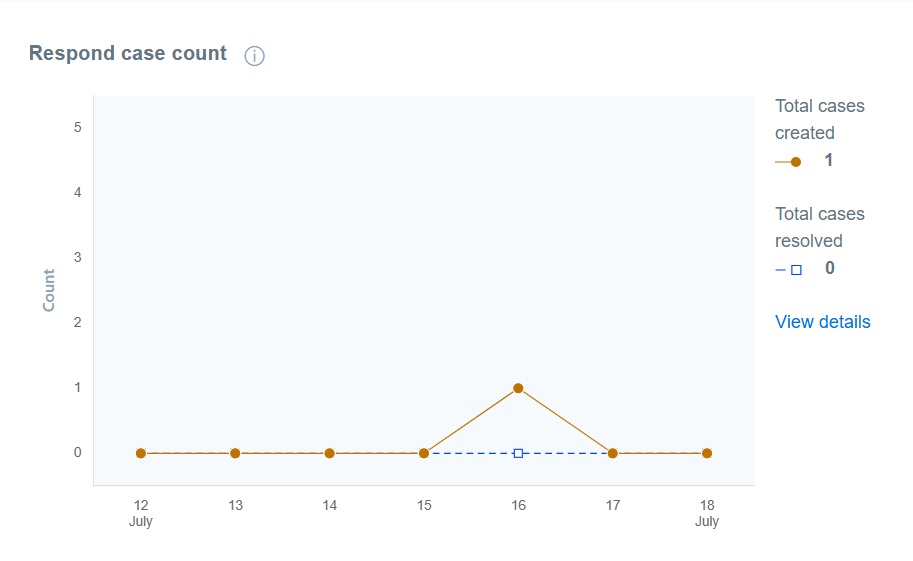
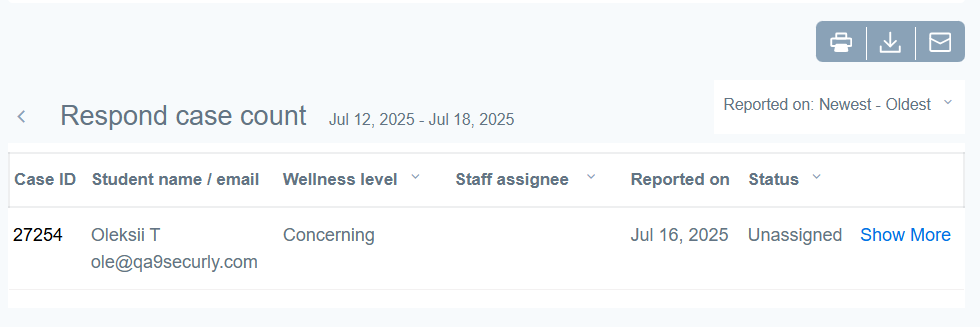
Click on View details to get an overview of the cases during the selected timeframe. This detailed table will contain the student ID, name, email, wellness level, staff assigned to the case, the reported date of the case, and its current status.
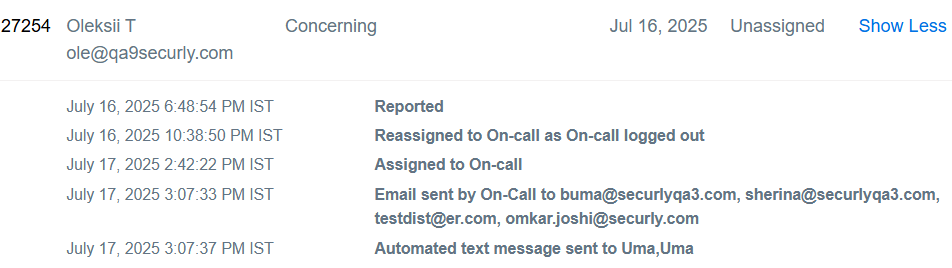
Clicking on Show More will reveal an activity log for the case as shown below.
Response time
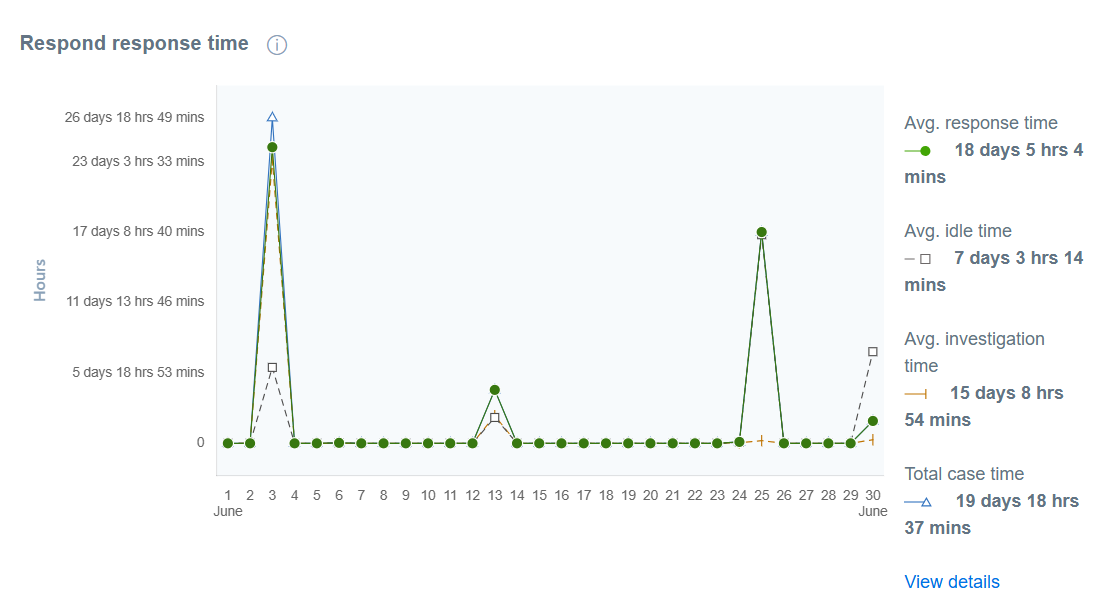
This widget displays three metrics as listed below.
- Avg. response time: This is the average time required to resolve a case since its creation.
- Avg. idle time: This is the average idle time from case creation to a case being assigned to an analyst.
- Avg. investigation time: This is the average time required by analysts to resolve a case after it is assigned to them.
Clicking View details brings up details of response time for the cases, including the student email, the Wellness level, the analyst it was assigned to, the actual minutes of the response time, the idle time, time taken for investigation, the total time, date of reporting, and the resolution date.
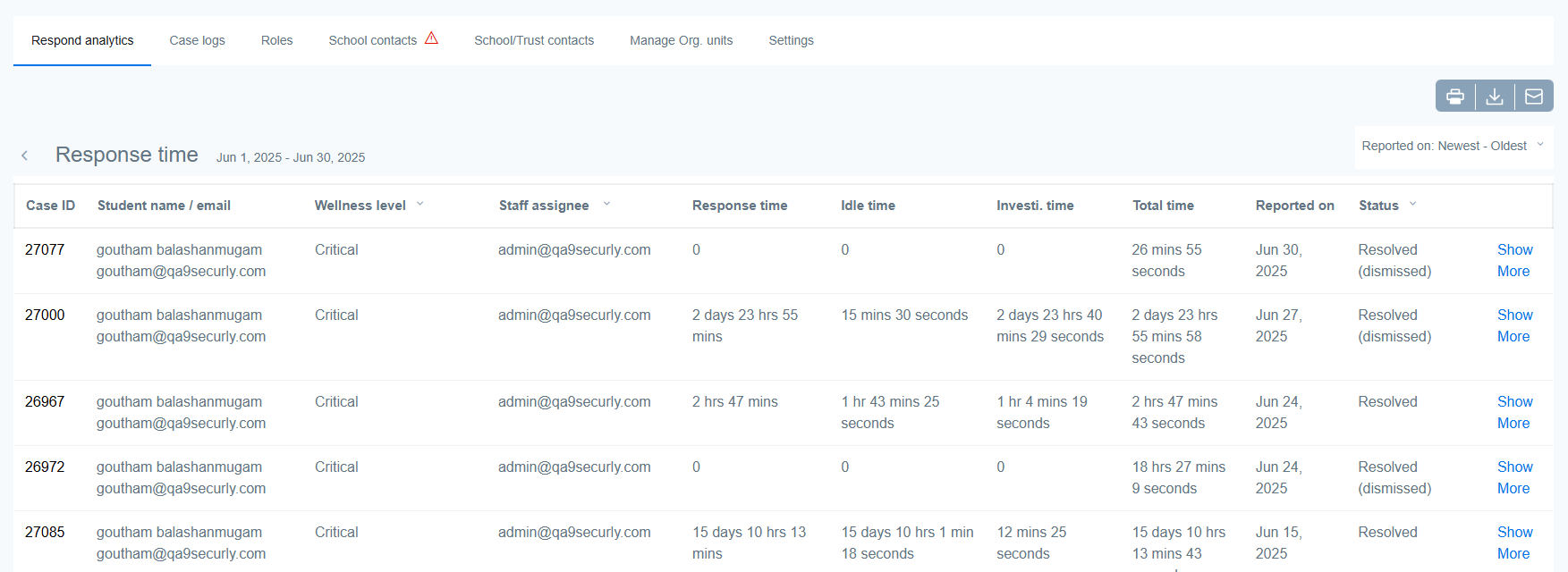
If you wish to dive deeper, the Show more link for each case entry reveals the log where you can see the exact time and day the case was reported, dismissed, resolved, etc.

Logged in time
This widget shows the total time spent by all analysts during a given time period. The data in this widget is updated hourly.
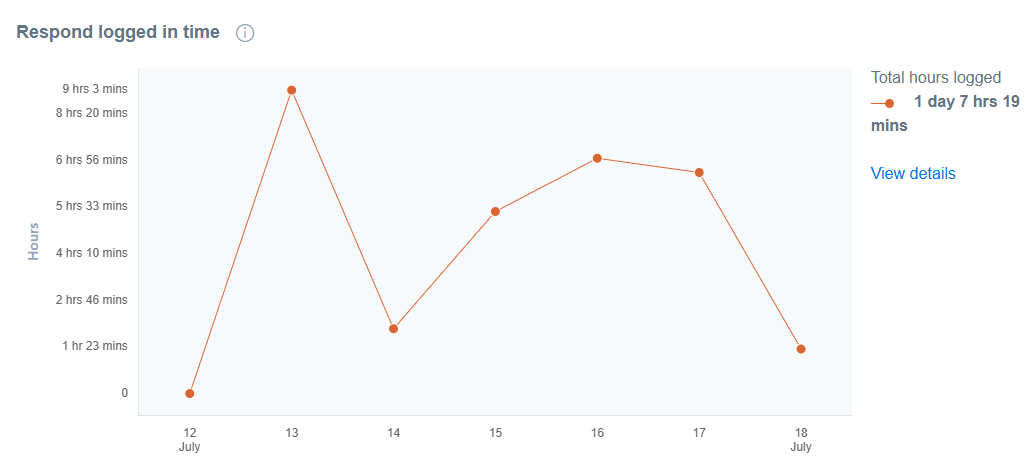
Clicking View details provides a granular view of the time each analyst spent in resolving cases.
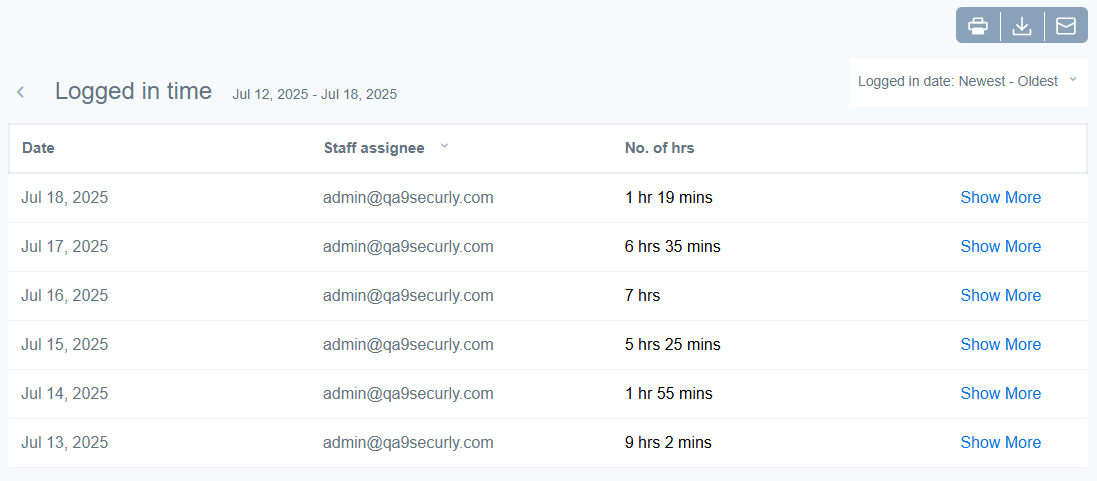
Click on Show More to track the sessions of an analyst.

Like for other widgets, you can print the activities report, download it as CSV or PDF, or email the report, and sort the list from newest to oldest login instance or vice versa using the dropdown selector at the top right corner below the action buttons.