Filter › Setup and get started
Syncing Org. Units
To ensure your all of your users are properly filtered, you’ll need to sync your Organizational Units (OUs) with Securly. This is necessary step before applying any policies.
Log in to Filter and navigate to Policy Map.
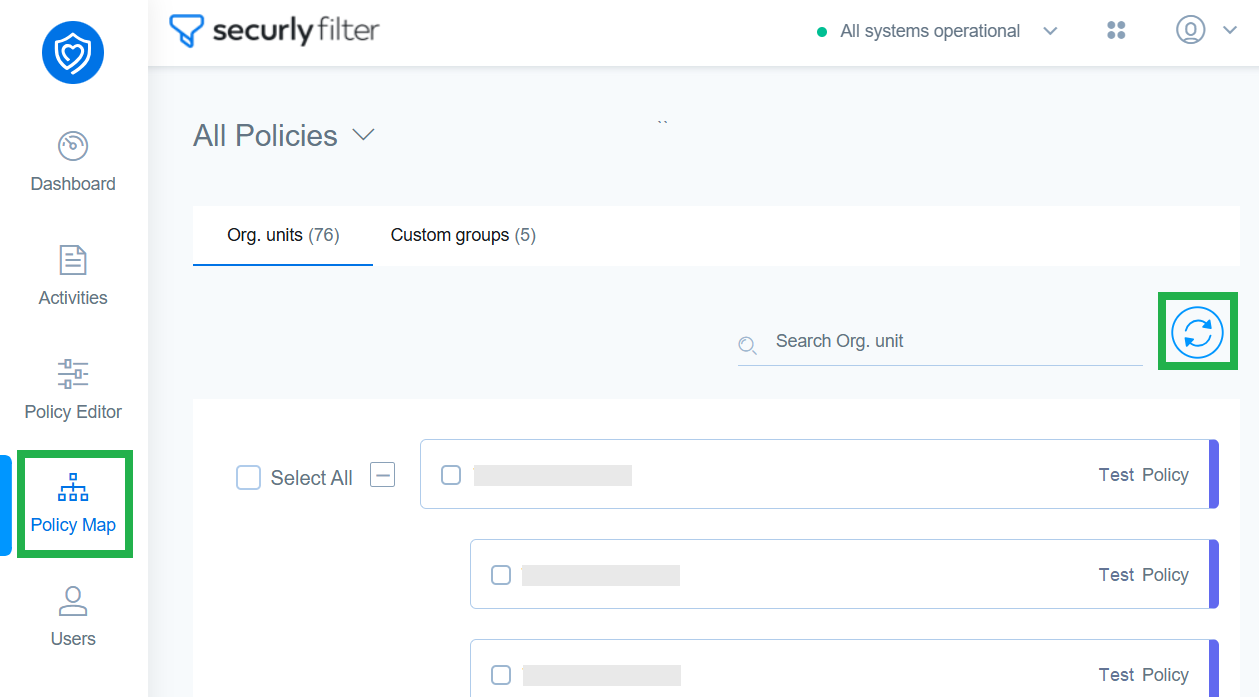
Click the Sync OUs button and sign in from your school’s Google Workspace or Microsoft Entra (Azure AD) account to bring in your school's or district's organizational structure into Securly.
Once synced, you will see all available OUs in the Policy Map, allowing you to apply specific filtering policies based on different groups (such as students, teachers, and staff).