Pass › Visitor
Setting up Printers in the Visitor iPad app
When installing and setting up the Securly Visitor app for the first time, you will be prompted to set up a printer. To access admin settings after you've already set up an iPad kiosk, tap and hold on the Welcome screen with two fingers. This will allow you to adjust any of the settings you set up initially, including adding a new printer. You can also test the selected printer, remove a printer, or change the selected printer.
Note:When adding a new printer, only AirPrint-enabled printers will be shown in the list.
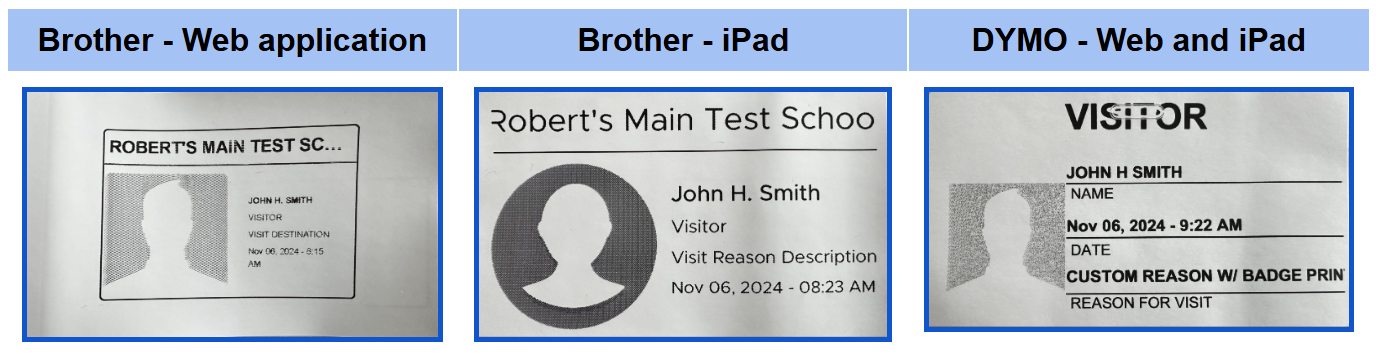
When your printer is set up, you are ready to print badges. The following information will be displayed and cannot be modified:
- Visitor’s name
- Visitor’s Picture (if Photo Capture is enabled)
- Reason for the Visit
- Date and Time
(The Destination is NOT printed on the badge.)
Below are screenshots of what the badge should look like based on your printer.