Classroom › How to for Teachers
How to Share a Teacher's Screen in Securly Classroom
This feature must first be enabled for your teachers in the Device Console > Organization > Settings > Permissions tab > in the Teacher Tools section > Save.
Steps to Share Your Screen
- Start a class in Securly Classroom.
- Select the student(s) you want to share with (if you are sharing with a group and not the whole class).
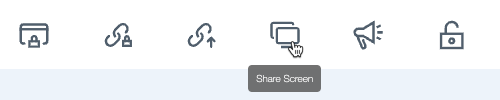
- Click on the Share Screen button.
- Respond to the prompts regarding locking students into a shared screen and allowing audio to be shared.
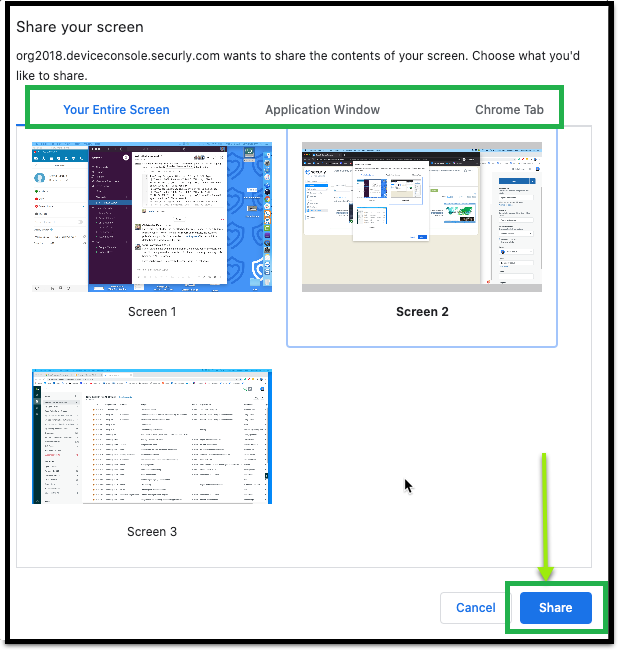
- Select the Screen, Application Window, or Chrome tab that you wish to share.
- Click the Share button.
- To stop screen sharing, click the Stop Share Screen button.