Classroom › Classes
Creating a Seating Chart
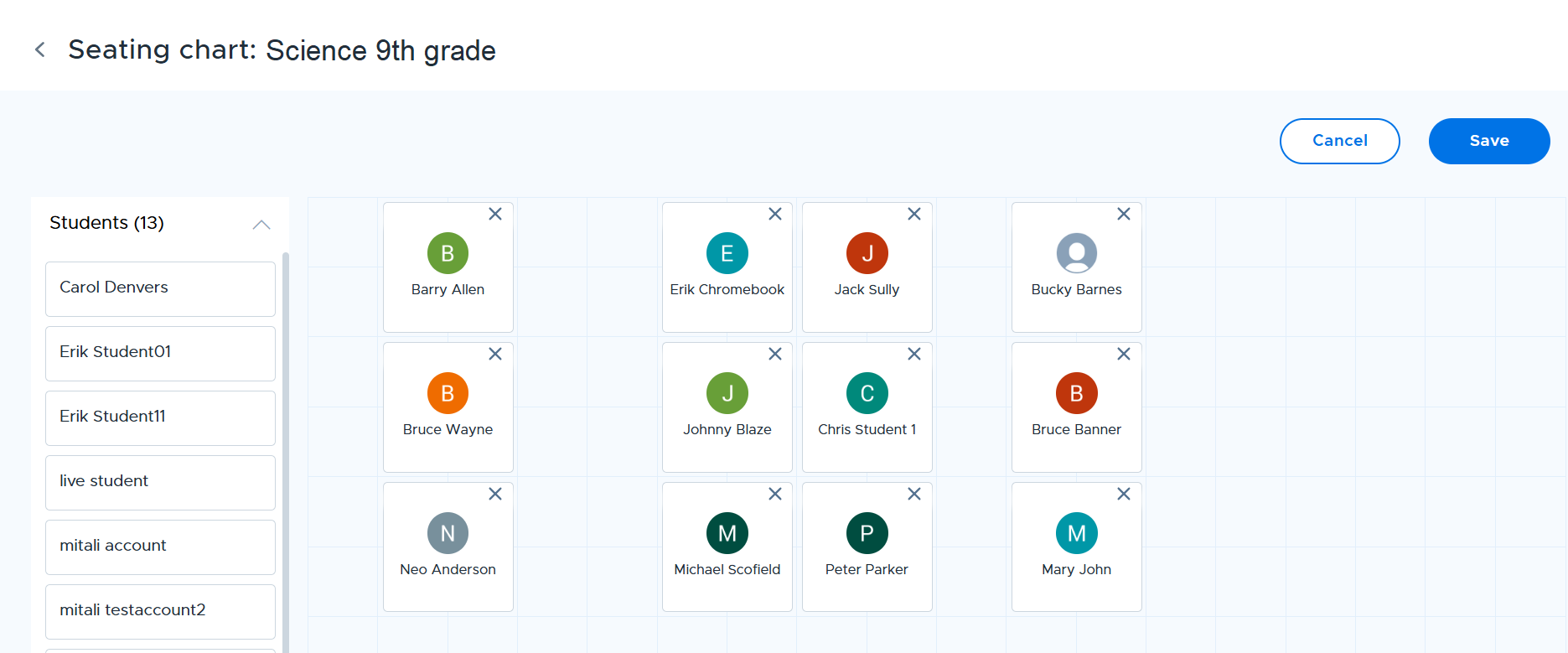
Teachers can create seating charts that reflect the physical arrangement of each of their classes. Start by going to Classes and clicking on the three-dot icon in your class card.
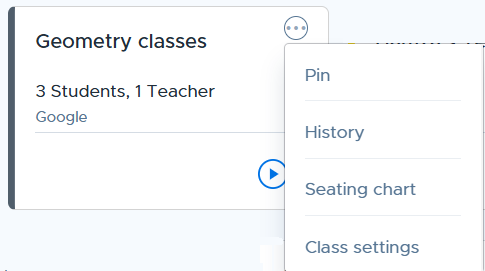
Select the Seating chart option and in the following up you can either choose to start from a blank chart or pre-populate it.
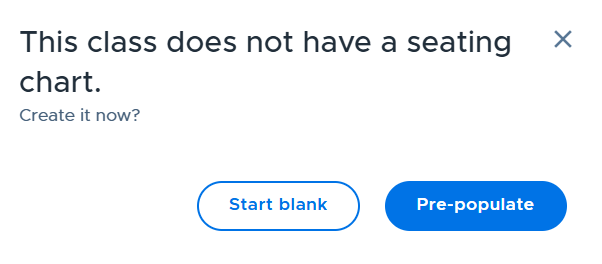
If you use the "Start blank" option, you can drag and drop student cards in the grid to create a seating arrangement.