Pass › Pass Teacher/Staff Guide
Managing Appointment Passes
Once an appointment has been created, you can see the appointments with which you are associated from your Dashboard.
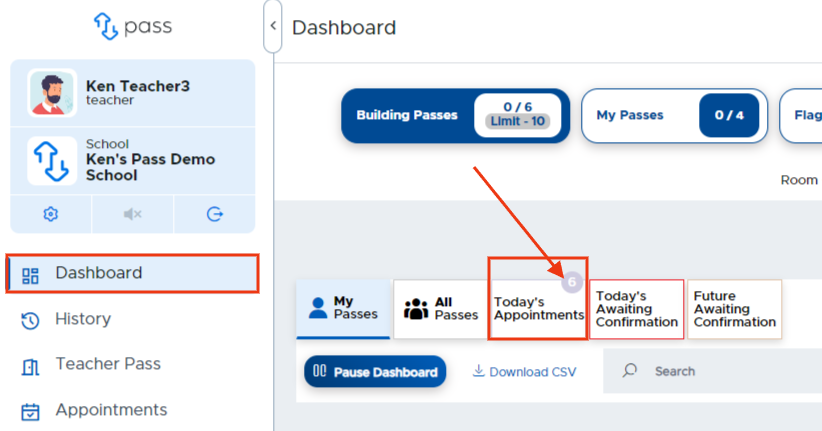
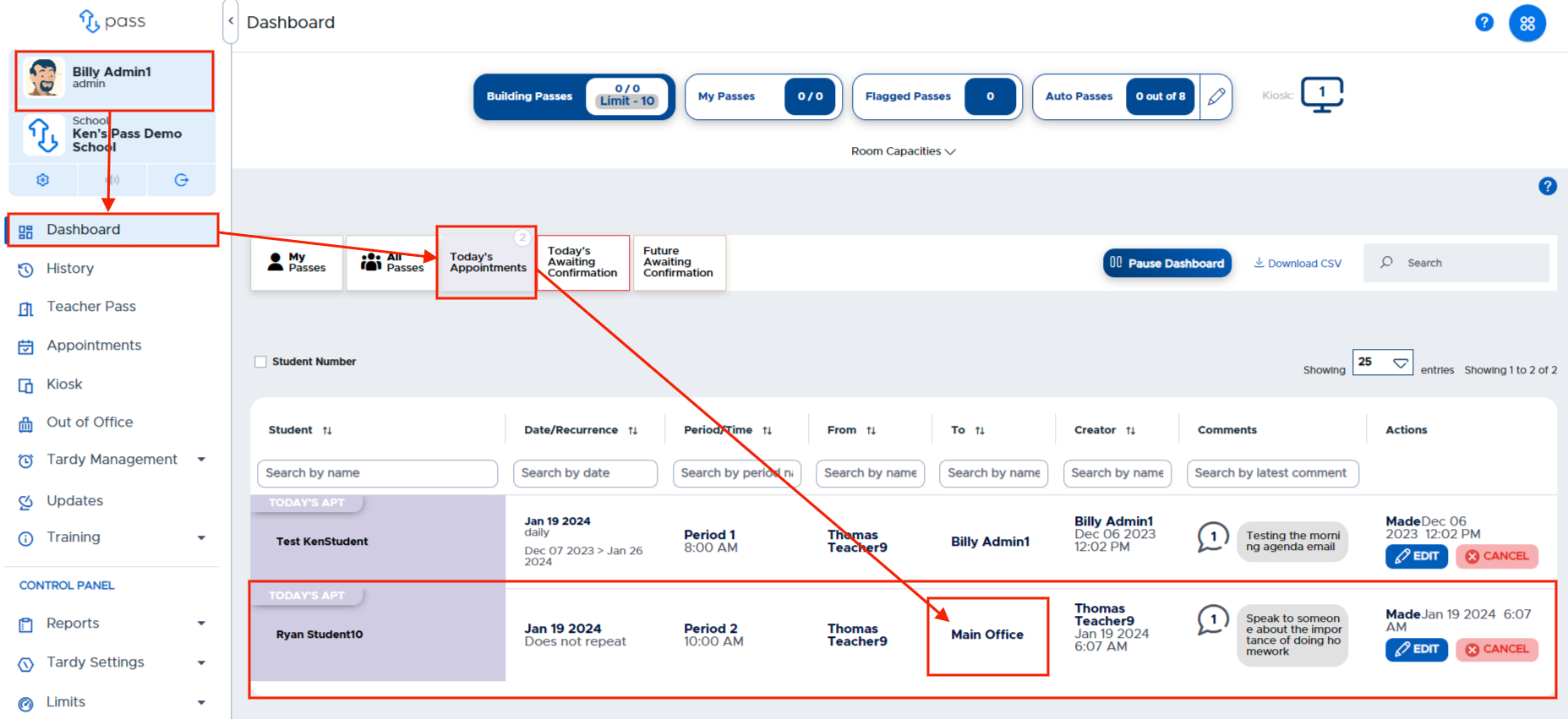
On the Dashboard, click on the Today’s Appointments tab. If you have appointments today, the number of appointments will appear in the upper right corner. Click on Today’s Appointments to see the appointments with which you are associated.
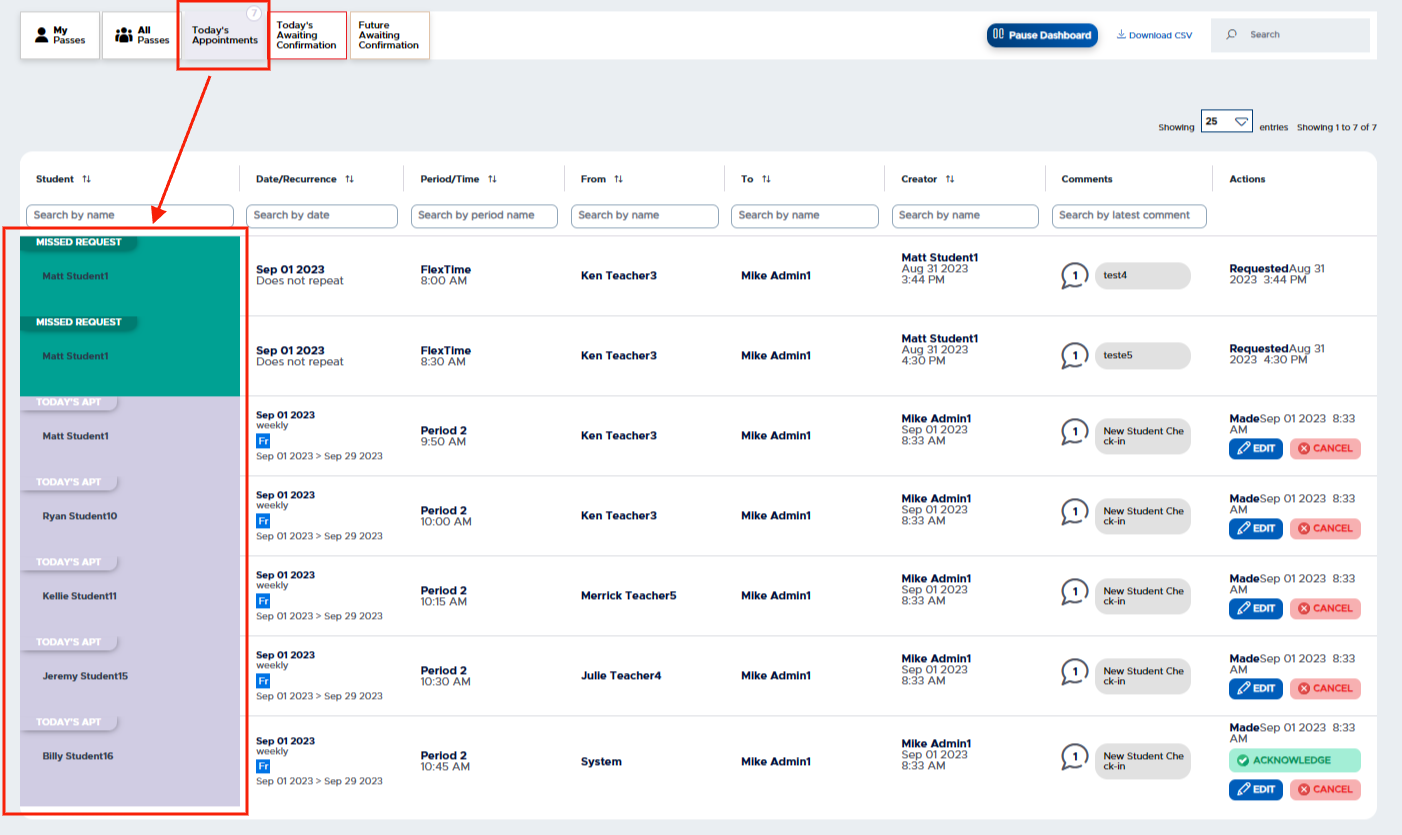
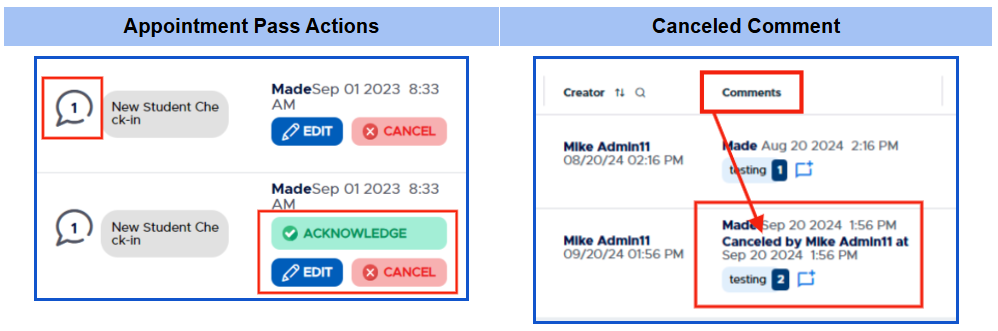
If need be, you can add a comment or ACKNOWLEDGE, EDIT, or CANCEL an appointment pass by clicking on the Comment icon or clicking on one of the Action buttons. If you don’t see the pass in time to acknowledge it, the student’s appointment will still take place.
ACKNOWLEDGE - Acknowledging an appointment pass simply lets the adult who created the appointment know that you’ve seen it and agree to let the student attend the appointment.
CANCEL - When an appointment is canceled, the name of the person who canceled the appointment along with the Date/Time stamp will be displayed in the Comments column for that appointment.
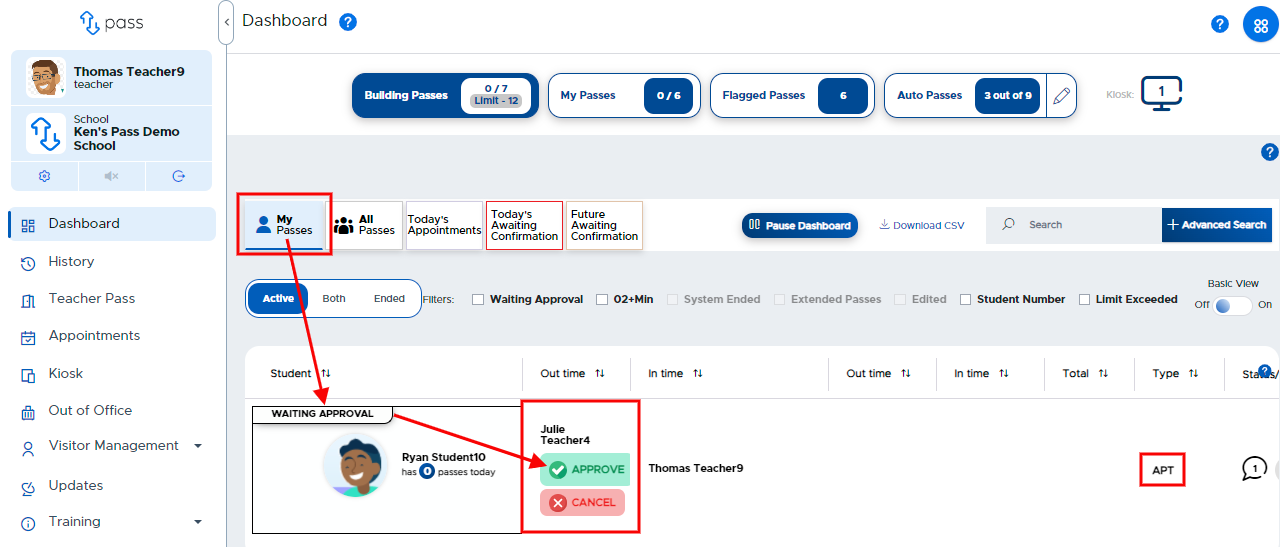
An appointment pass will move from “Today’s Appointments” to the “My Passes” tab five (5) minutes prior to the appointment time and become a regular pass that is “WAITING APPROVAL” on your Dashboard. At that point, it functions just like any other pass.
Additional Info:
Your admin will determine how long that appointment pass will stay on your Dashboard. The default time is fifteen (15) minutes.
REMEMBER:
When an appointment is canceled prior to appearing on the Dashboard, the person canceling must post a comment and both the comment and the person’s name are recorded on the canceled appointment.
Students can cancel their requested appointments up to 30 min prior to the appointment time but they must put in a reason and we record who and when it was canceled. Students cannot cancel appointments made by adults.
If an appointment appears on the Dashboard as “Waiting Approval” and is then canceled by an adult, no comment is required and there is no record as to which adult canceled the appointment pass.
If you have a large number of appointment passes scheduled at the same time, you may experience system slowness.
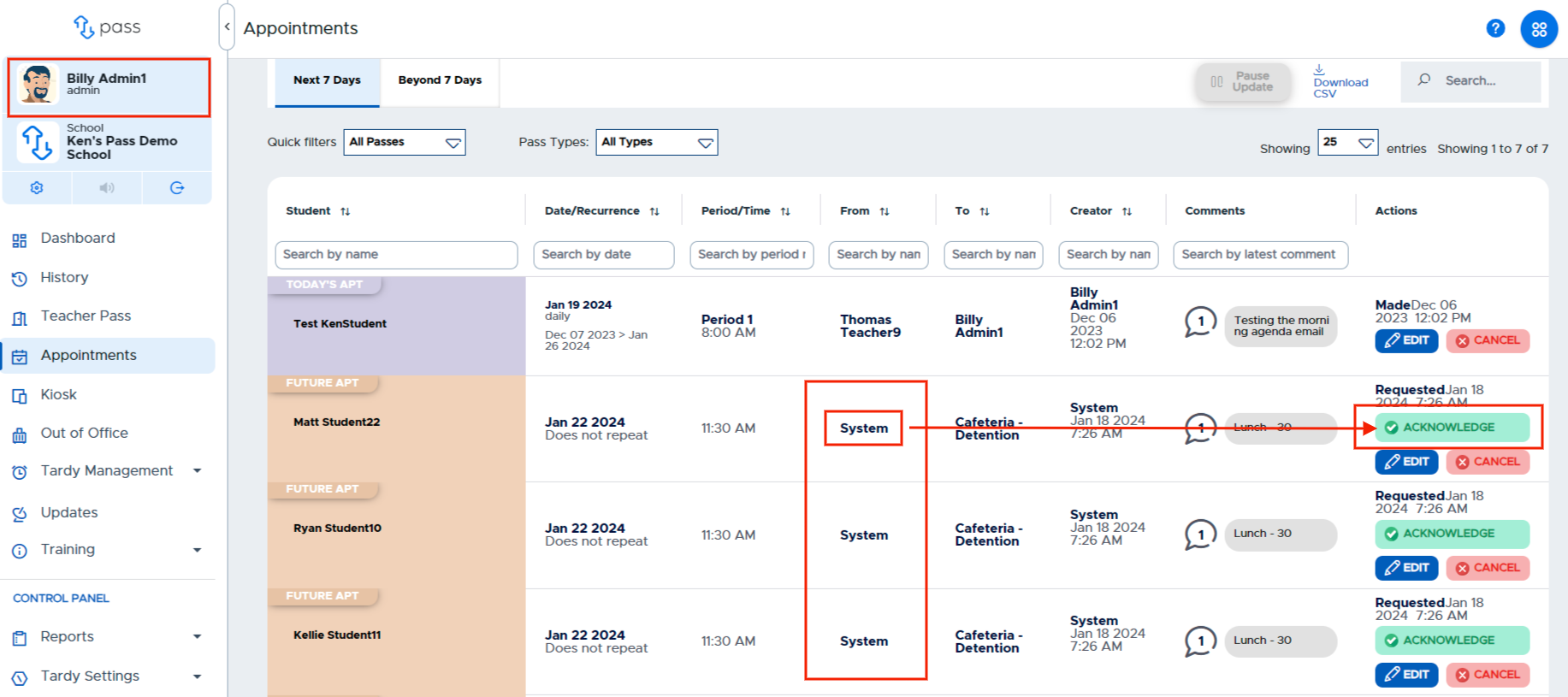
Appointments (From: System)
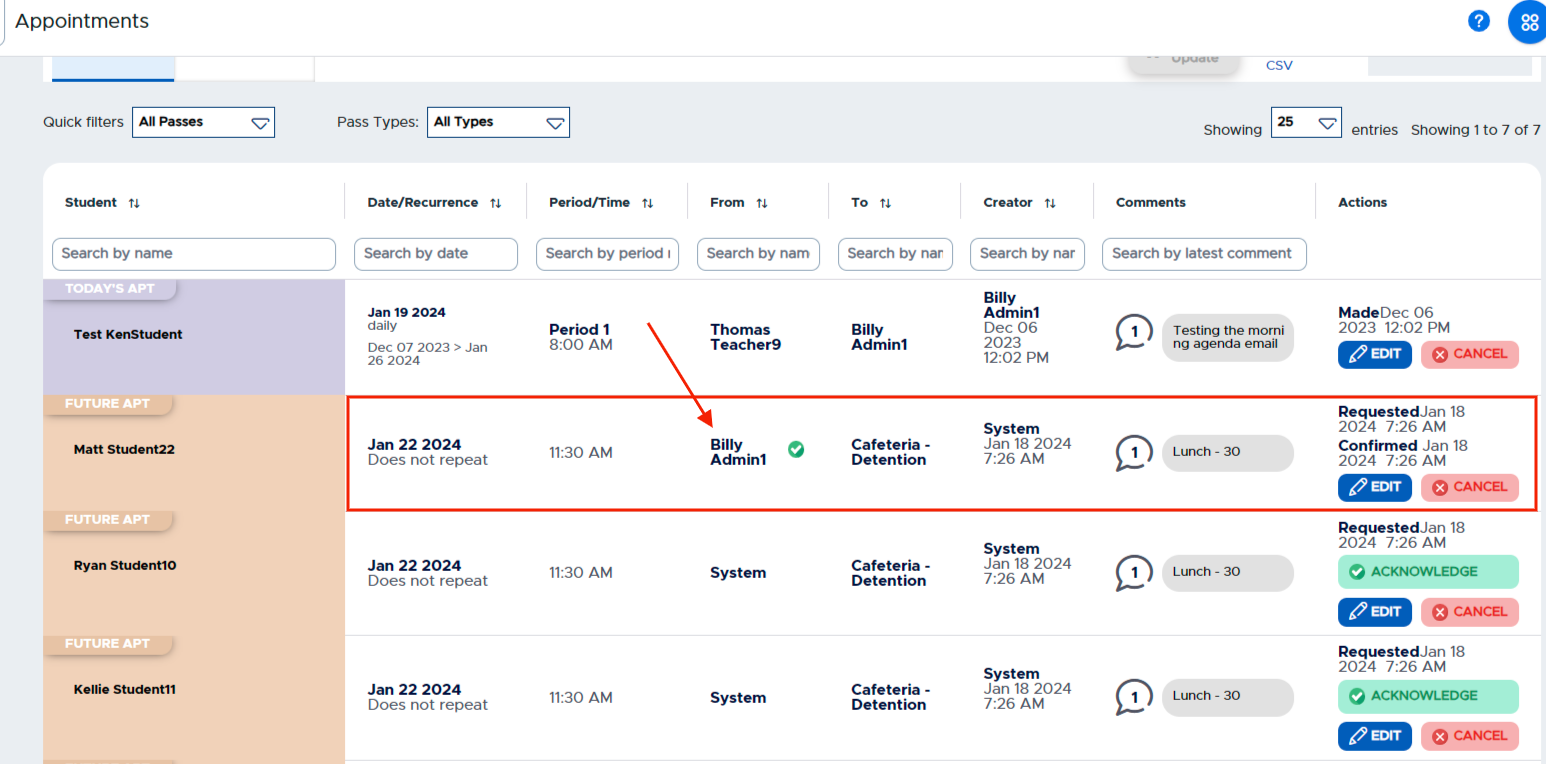
Under the Appointment tab, you may see appointments from “System”. This means that when the appointment was created, the From adult was left blank. If you have that student during the appointment time, you can click on the green ACKNOWLEDGE button, and your name will then appear in the from column.
REMEMBER:
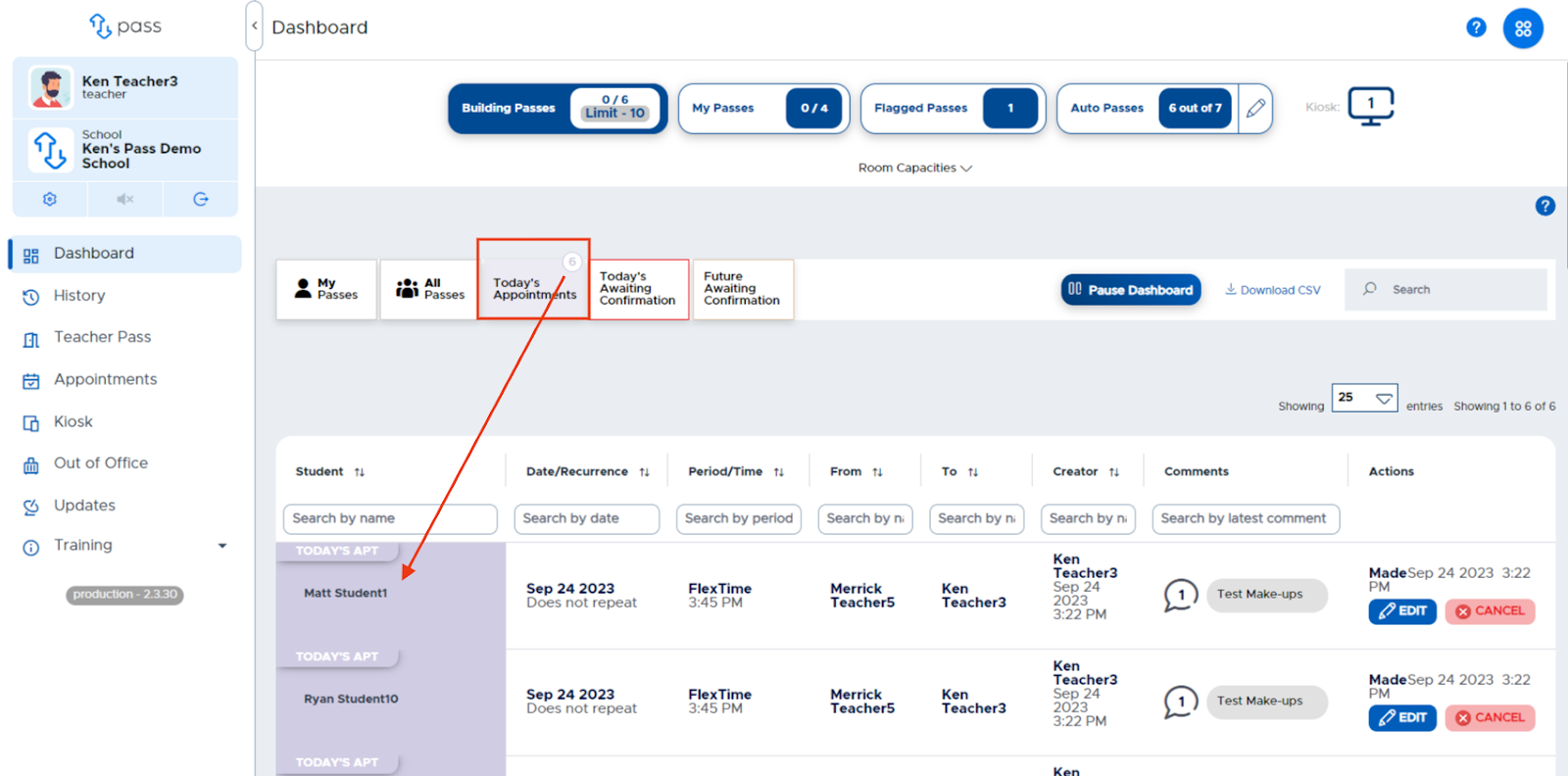
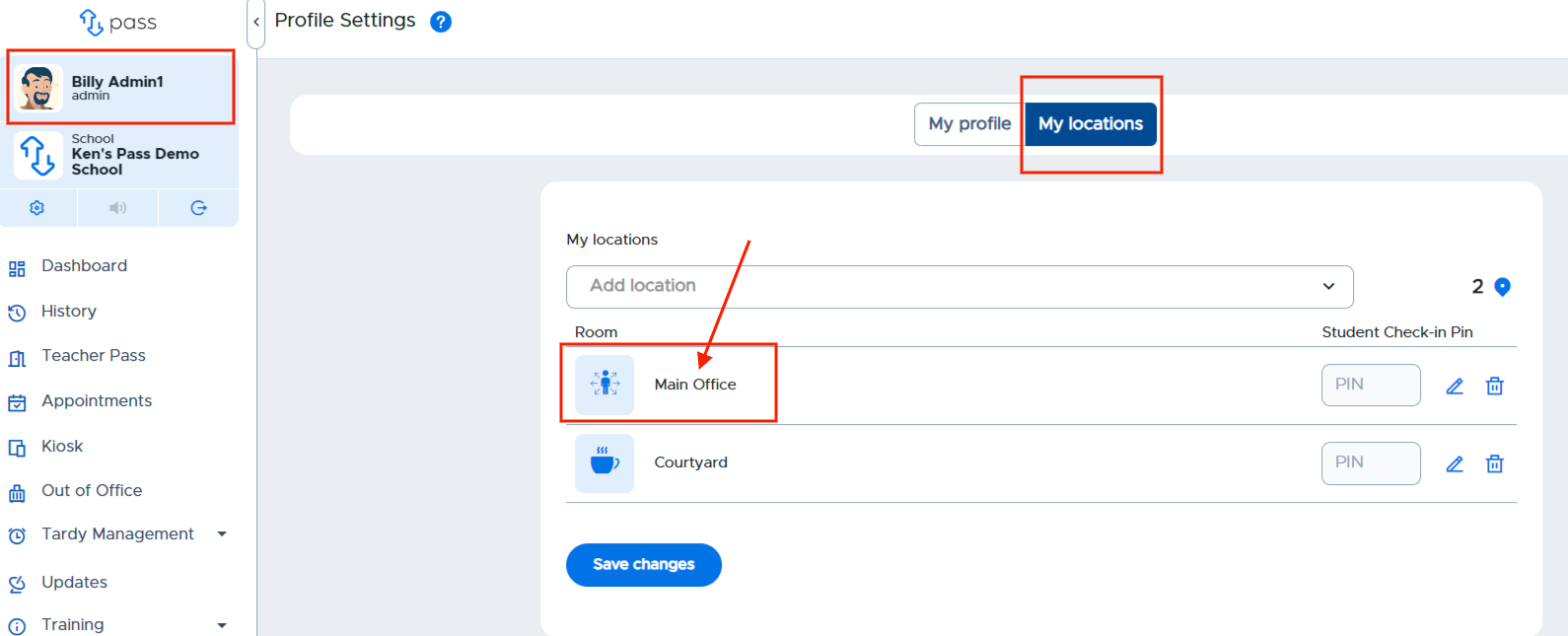
If an adult is associated with a location in the Profile Settings (My locations) section, appointment passes made to those locations will appear on that person’s Dashboard under the Today’s Appointments tab. (Please see the screenshots below.)
Who can end the pass? (it depends on the pass type and how the student ends it)
Whether the student can end their own pass depends on the type of pass and the method they use:
- Auto Pass — the student can end it themselves with the red Stop button.
- Kiosk pass — the student can end it themselves by choosing End Pass at the kiosk and re-entering their information when they return.
If the pass is neither an Auto Pass nor a Kiosk pass — for example an appointment pass created by a principal, teacher, or other adult — the student cannot end it themselves. In that case an adult ends the pass, either on the student’s device or through the adult’s Pass interface.
It does not have to be the adult who created the pass. Any adult can end it — ending an appointment pass is not limited to the staff member who created the appointment.
Separately, students cannot cancel appointments created by an adult. A student can only cancel an appointment request that the student themselves submitted, and only up to 30 minutes before the appointment time.