Pass › Pass Teacher/Staff Guide
Student Input Method Options
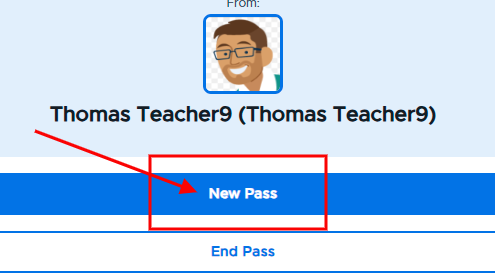
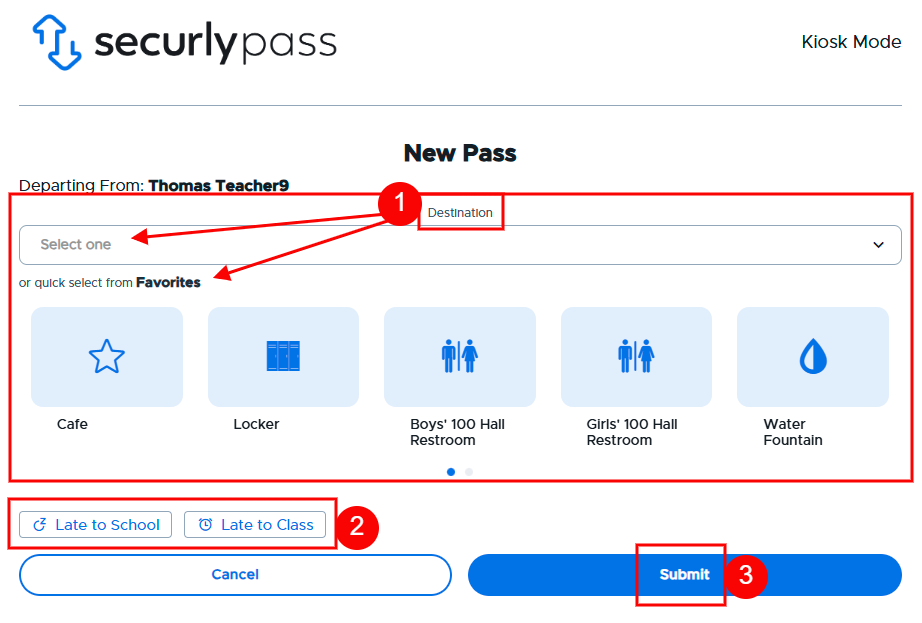
For students who are creating passes using a kiosk, they will click New Pass. On the next screen, they will choose the location (1) (either from the Favorites or by clicking on Select one and choosing one from the drop down menu), either Late to School or Late to Class (2) (if available and applicable), and then Submit (3).
On the next screen, students will need to authenticate or validate who they are using one of four options:
Student Number
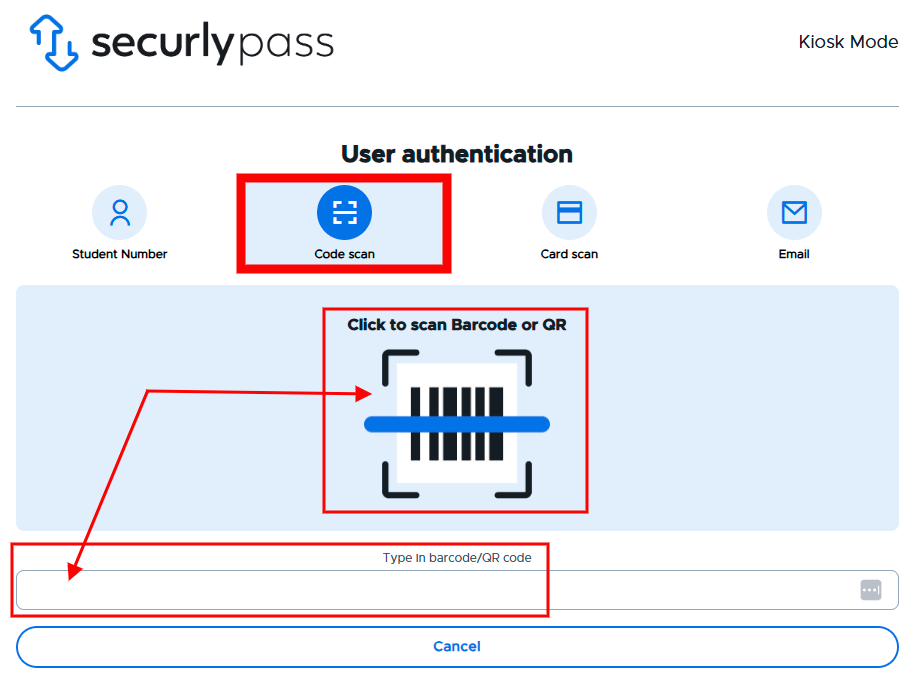
Code scan
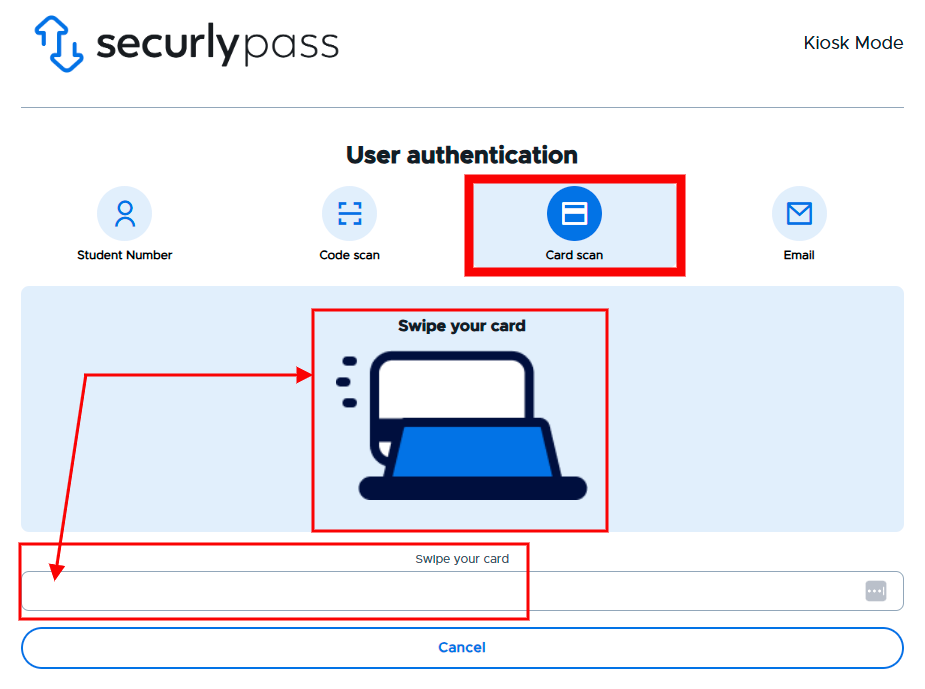
Card scan
Email & Kiosk Passcode
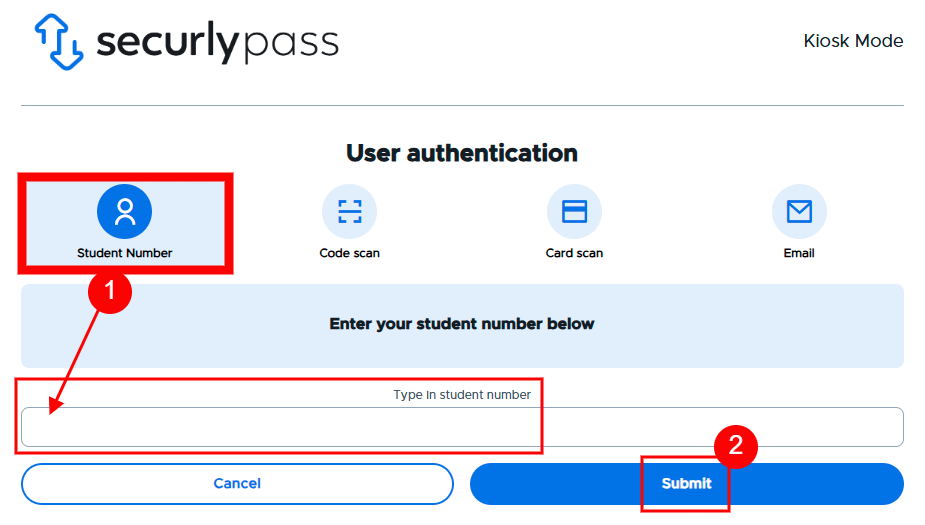
Student Number - Students can enter their student number and then click Submit.
Code Scan - If students have school-issued ID cards that make use of a barcode/QR code, students can scan their barcode/QR code using the kiosk’s camera or manually enter their kiosk passcode. (The barcode/QR code MUST contain the student’s passcode.)
Card Scan - If students have school-issued ID cards that make use of a magnetic strip, students can scan their card using a magnetic card reader or manually enter their kiosk passcode. (The magnetic strip MUST contain the student’s passcode.)
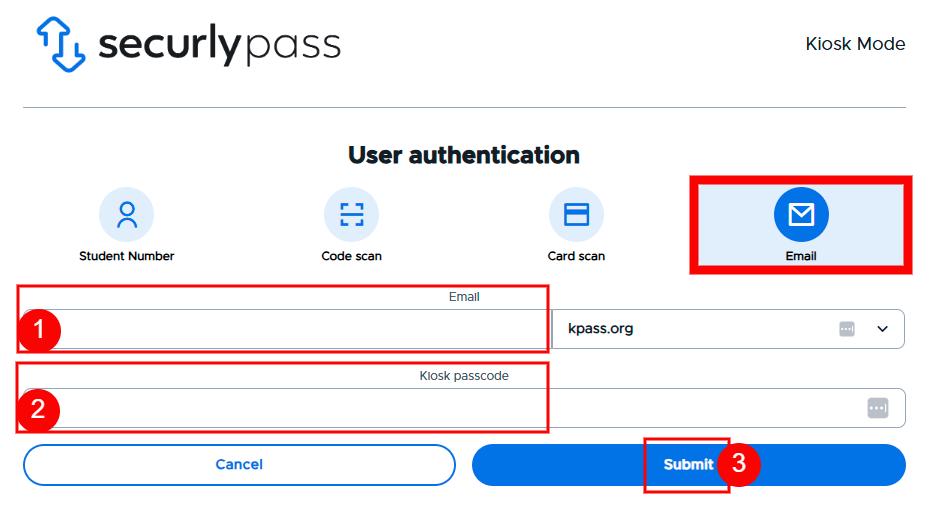
Email & Kiosk Passcode - If the email option is selected, students will enter the first part of their email address(1) and their kiosk passcode (2) and then click Submit (3).