Pass › Pass Mobile App Guide
Pass Mobile App Overview
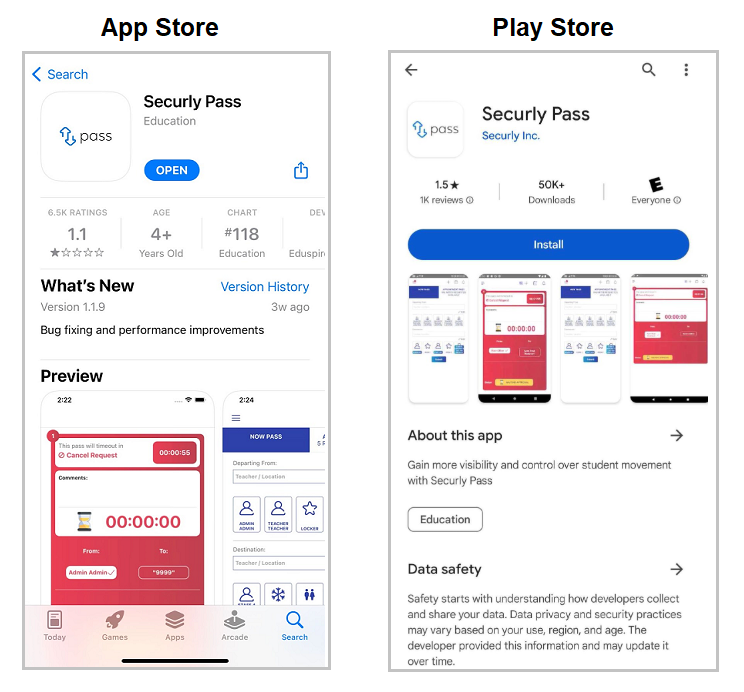
Adults will now be able to download the Pass App to their mobile device from the Google Store or the Apple Store. The Mobile App does not mirror the Web application. Once downloaded, adults can do the following:
- Logging into Securly Pass
- Enable Audible Notifications
- Access the Dashboard
- Switch between My Passes and All Passes
- Switch between Active and Ended
- Scroll through the List of Passes
- View Active Building Pass Limit
- Adjust Auto Pass Locations/Limit
- Adjust Location Limits
- Change View of Passes
- Expand a Pass View
- Filter/Search the dashboard
- Turn Sound Notifications ON/OFF
- Approve student-created passes (STU)
- End student-created passes (STU)
- Student-created Late Pass (STU)
- Create Teacher passes (TCH)
- End Teacher-created passes (TCH)
- Add Comments to passes
- De-select a pass
- Access your Profile and make changes
- Profile Settings
- My Locations
- Queue Management (Admin, Teachers, Staff)
- Entering a Queue (Students)
- Switch between schools
- Adjust Active Building pass Limit (for Admins only)
- Access Training Documents and Videos
- Access Other Features
- Launch Kiosk from Pass Mobile App
- Potential Issues for Adults
To begin, go to your app store and download the Pass app.