Pass › Pass Admin Guide
View Profile Settings of Users
Admins can view (Read Only) a user’s Profile Settings from the Main Users screen. This view includes the following information:
- Adults
- Answers to the “Appointment requests to you” and/or the “Passes to/from you” questions.
- An adult’s PIN.
- The locations with which an adult user is associated and the Student Check-in PINS that have been selected for any of those locations.
- An adult user’s Profile photo
- Students
- The student’s Kiosk Passcode
- Student Photo
To view a user’s profile settings, click Users, click Main Users, search for the specific user, and click the three (3) dots to the left of the user’s name under the Action column.
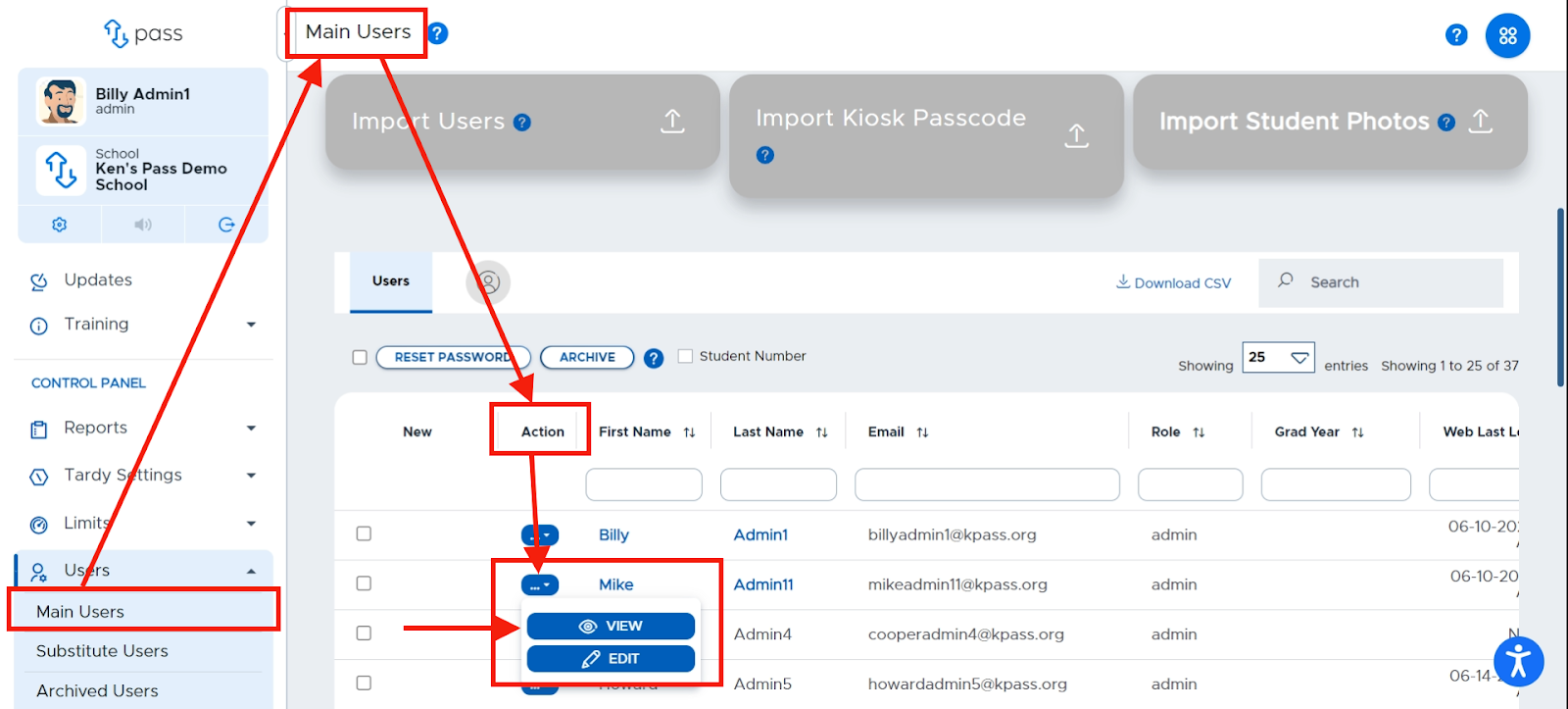
Click View to see that user’s Profile Settings.
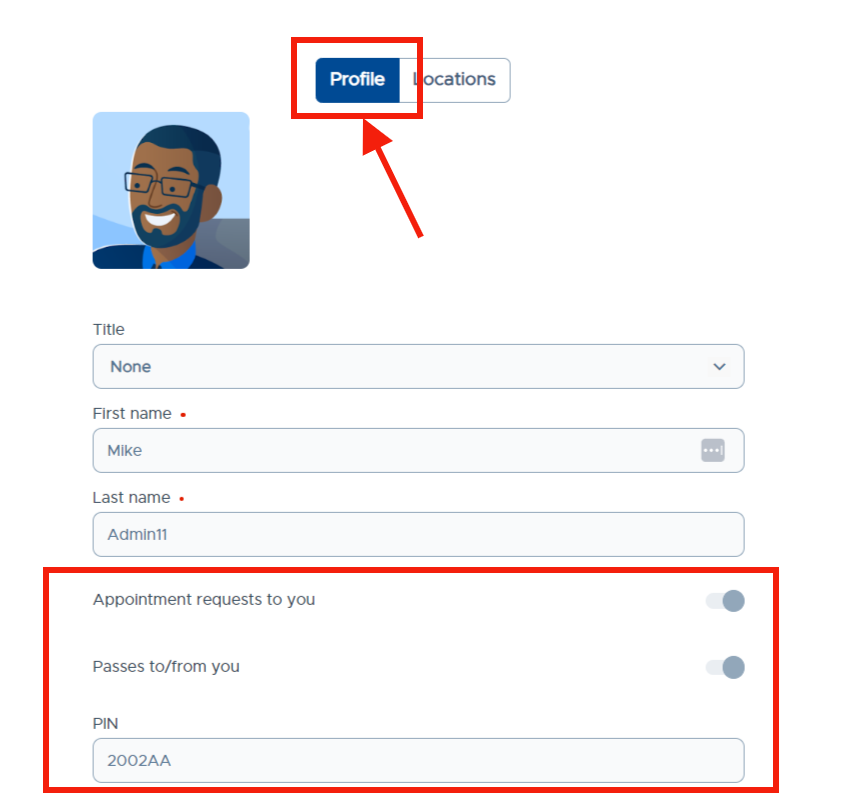
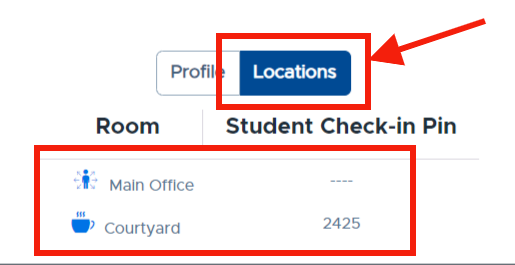
The information displayed in the user's profile settings is Read Only. You cannot change any of this information on behalf of a user.
Utilizing this Feature
If a teacher reports that passes are being approved with their name without their interaction, a student may have guessed their PIN. You can view the adult's PIN and, if necessary, direct that adult user to update their PIN in their Profile Settings.
If a student or teacher reports that an adult cannot be found when creating a pass, they may have turned off the ability for passes to be created to/from them. You can view their answer to “Passes to/from you” to verify that it is toggled On. This can be changed in the adult user’s Profile.
If an adult user reports that their My Passes dashboard is showing other people’s passes, they may have associated themselves with an unnecessary location. You can view their location associations and recommend removing bathrooms, drinking fountains, and other locations.