MDM › Teacher Tools
App Lock
Teachers can use App Lock to keep students focused on a specific application by locking them into the interface. Once active, students are unable to exit or switch apps.
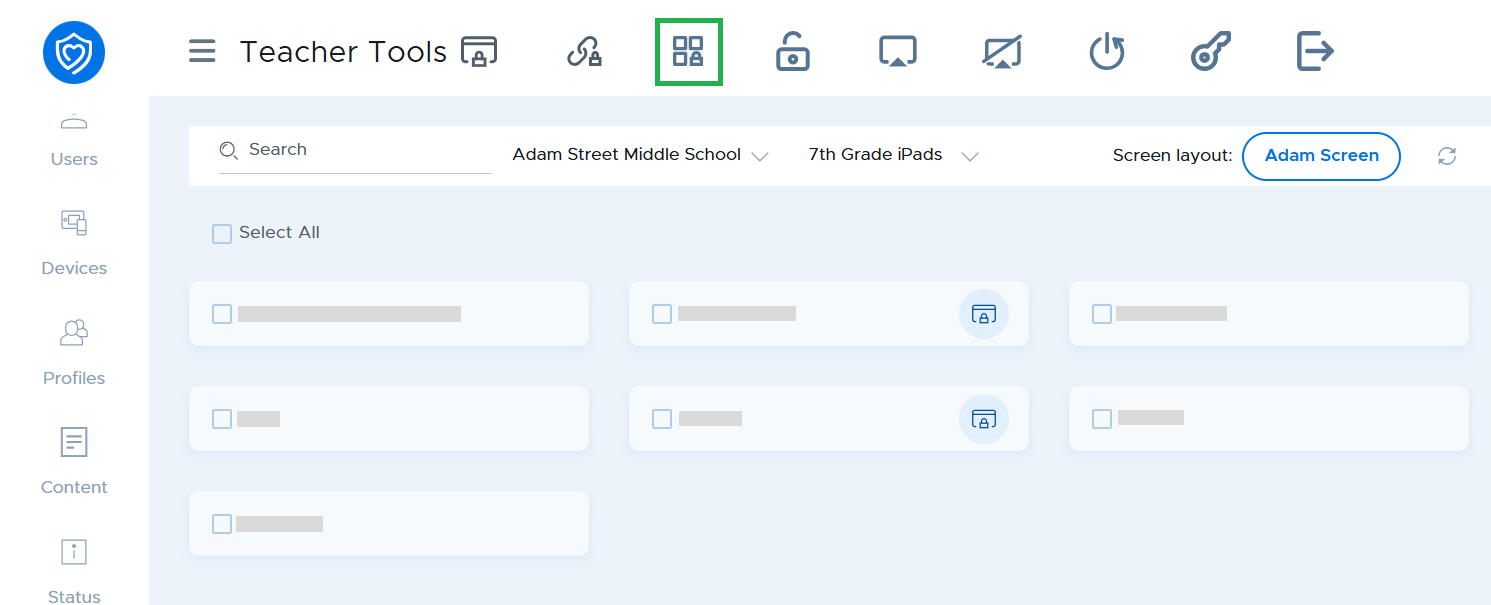
To use App Lock, select one or more iPads and click the App Lock button.
A popup will appear with three different tabs for choosing your app. The Standard Apps tab contains pre-installed Apple software like the Camera or Calendar, while the Device Apps tab lists applications that admins have pushed to student devices. If you need to see every option, the Apps tab shows all apps available in your MDM library.
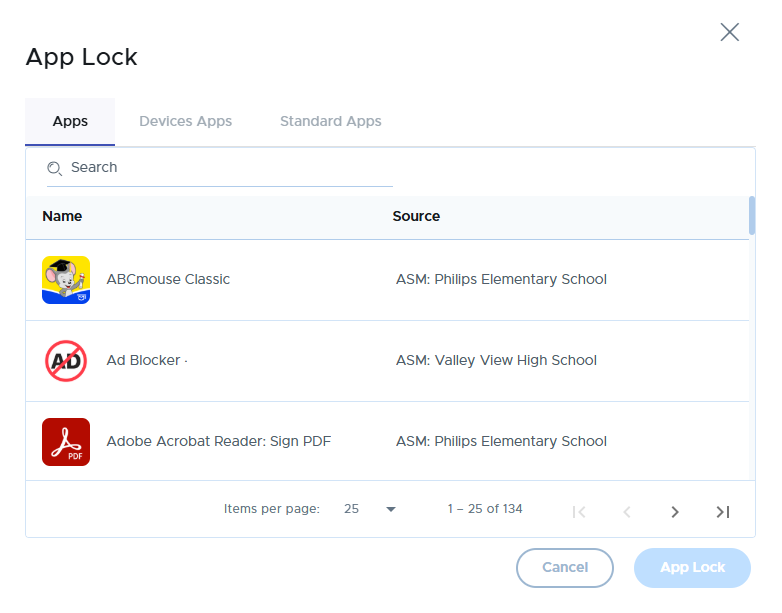
After you have selected an app, click the App Lock button in the bottom right corner to apply the restriction.
To stop the App Lock, select one or more iPads and click the Release Lock button.
