Flex › Flex Admin Guide
Attendance
Student Attendance
It is important for adults who are running flex activities to take attendance in the system. This will document which students attended the scheduled flex activity and which students did not. This can help schools provide necessary documentation for attendance purposes and prove that students are getting required services.
In order for a teacher, staff, or admin to take attendance in Flex for an activity being run, navigate to the Student Attendance screen for the current day’s active flex period. This can be done one of two ways:
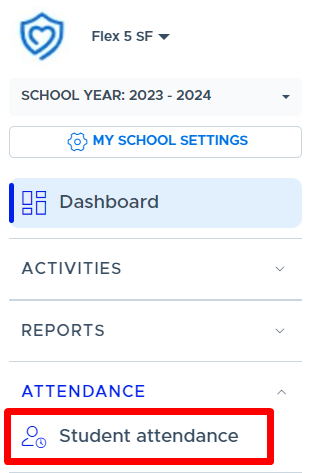
- From the main menu, click on Attendance and Student Attendance.
- From the My Schedule screen, click on the hyperlinked registration numbers on the activity card, as shown below.
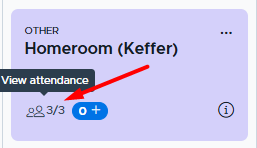
This will take you to the Student Attendance screen and display the current flex period and scheduled activities.
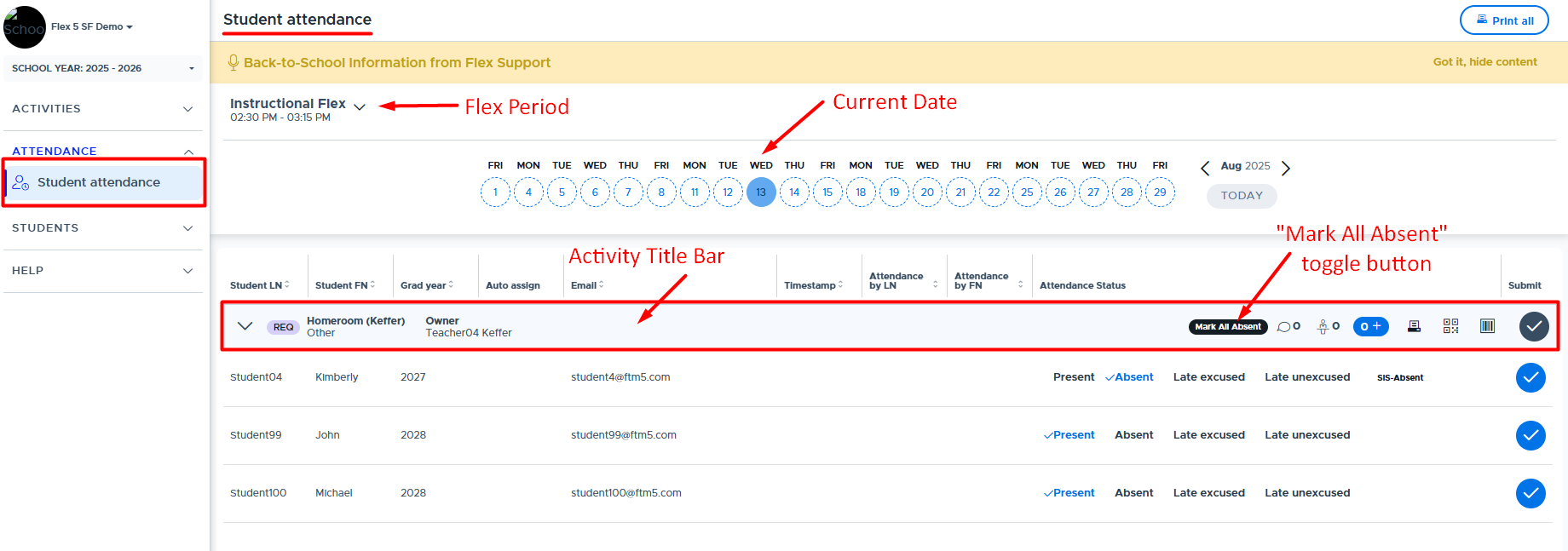
Follow the steps bellow to take attendance in Flex:
- Select the correct option in the Attendance Status area for each student.
- “Present” will default for most students. If you prefer to start with the default as “Absent”, click the Mark All Absent button.
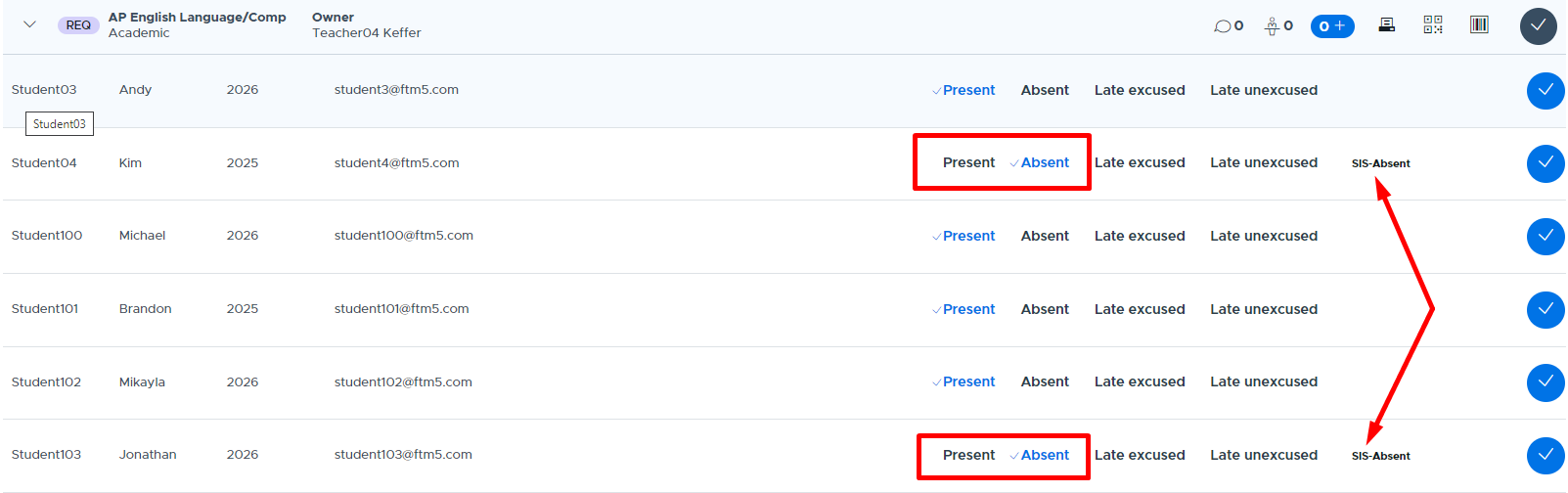
- If your school is importing daily attendance from your SIS, some students may default to “Absent” with a notation to the right indicating “SIS Absent”. You can also change their status if needed.
- Once all students have been accounted for click the gray circle (shown above) to submit the attendance for all students for that particular activity.
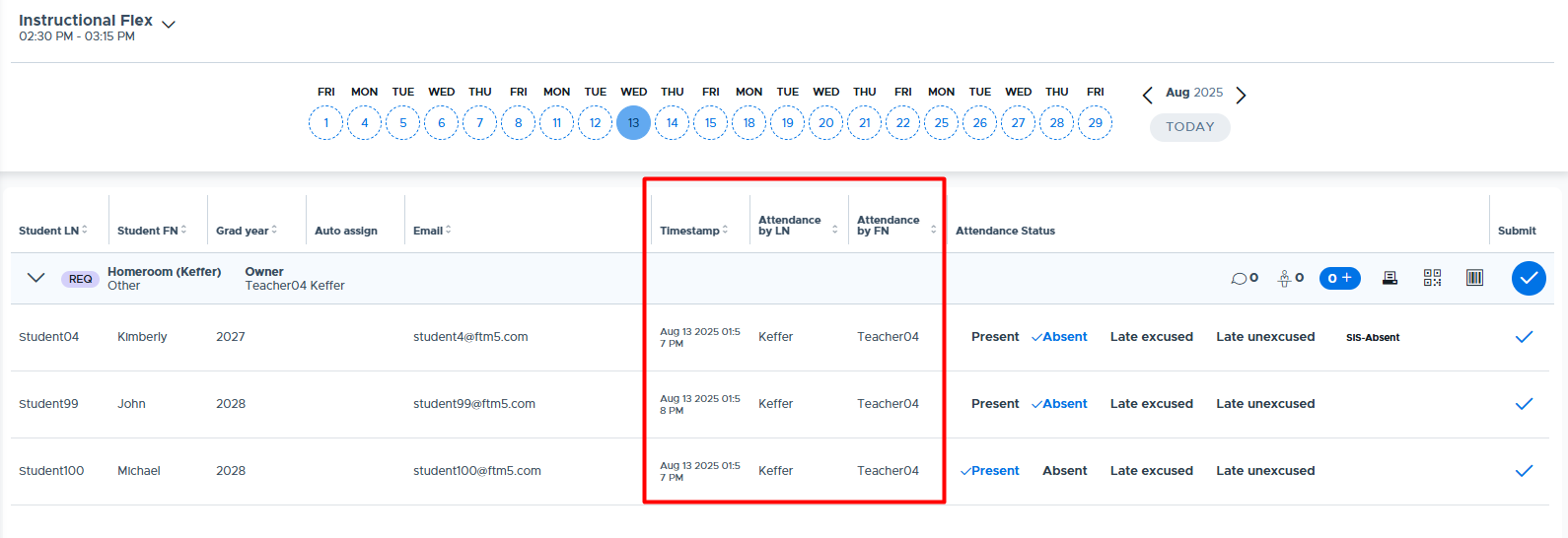
- The system will then “Timestamp” the submission and display the name of the adult who submitted the attendance.
- The system will then “Timestamp” the submission and display the name of the adult who submitted the attendance.
- It is possible to update a student’s attendance status and resubmit the attendance. Simply, change the selection and click the light blue circle to the right of the student record (shown below). This will update the timestamp and student’s attendance status.
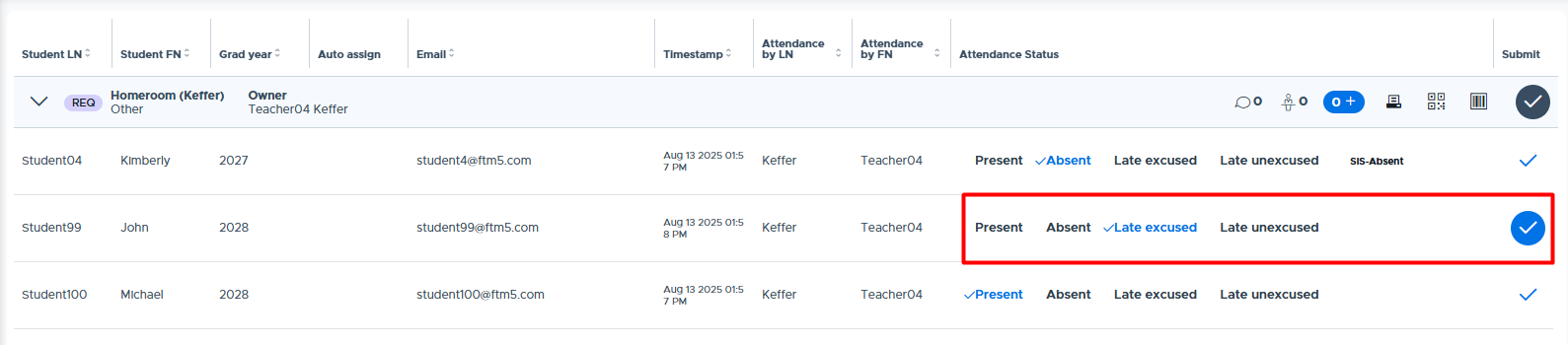
Teachers and staff role users can go back to prior dates and update the status and/or (re)submit attendance for students on their registrations lists. Teachers and staff cannot add students to the attendance list for prior dates.
Admins can simulate teachers or staff users and plus add students, if necessary. This is referred to as “retroactive attendance”. It’s important that the attendance for the plus added student(s) be submitted in Flex. (Please see this video for more details: Retroactive Attendance.)
How importing SIS attendance prior to Flex can help.
Schools have the option to import an attendance file from their SIS (Student Information System) into Flex. When this is done shortly before the beginning of the flex period, students who are absent according to the SIS will have an indicator in Flex showing they are “SIS Absent”. The screenshot below shows how this is displayed on the teacher’s attendance screen.
Notice the default attendance status will be “Absent” rather than “Present” for SIS Absent students. This provides the teacher with a heads-up that the student will be absent for their activity and saves them time when taking attendance for their students.
- For more information on creating and importing an SIS Attendance file, please see the following document: How to Create a SIS Attendance Import File
- Also, please see the following sections of this guide and the corresponding training videos for information on how this data is used in the Flex reports that are available to Admins.
Activity Title Bar and Icons:
Below are additional details about each section of the activity bar and the available icons.

-
Clicking on this down arrow collapses the list of students registered for this particular activity. This may be helpful if there are multiple activities being run during the same flex and attendance needs to be taken for each activity.
-
Activity priority level
-
Activity Title and Activity Type
-
Owner of the Activity
- “Mark All Absent” - toggle to change default status to “Absent”
-
The number beside this bubble indicates if students have left any comments when they registered for the activity. (If it’s a mandatory activity, the student does not have this option.)
- Adults can only read these comments. They cannot respond back to the student.
-
Additional adults can be added here for “Shared Attendance” purposes. Click the icon and search for the desired teacher(s) to add who will help take attendance for this specific activity.
-
Students can be plus added to the activity here - if they are “available” to be added. (In other words, they are not plus added to another activity or already in a higher priority activity.)
-
The printer icon allows the adult to download and print the list of students for this particular activity.
- Note: If there are multiple activities on the attendance screen, the “Print All” button in the top right of the screen can be used to print all activity lists at the same time.
-
This icon provides a QR Code for this particular activity that students can scan to mark themselves “Present” in the activity.
- Please see the following document for more details: QR Code Scanning for Student Attendance
-
This icon provides a window for the teacher to use a scanning device in order to scan a student’s “Barcode” (SIS ID number) in order to mark them “Present” in the activity.
- Please see the following document for more details: Barcode Scanning for Student Attendance.
- Note: This icon does not appear until the day of the activity.
-
Attendance submission button. (This will submit attendance for all students registered for this particular activity.)
Missing Student Section:
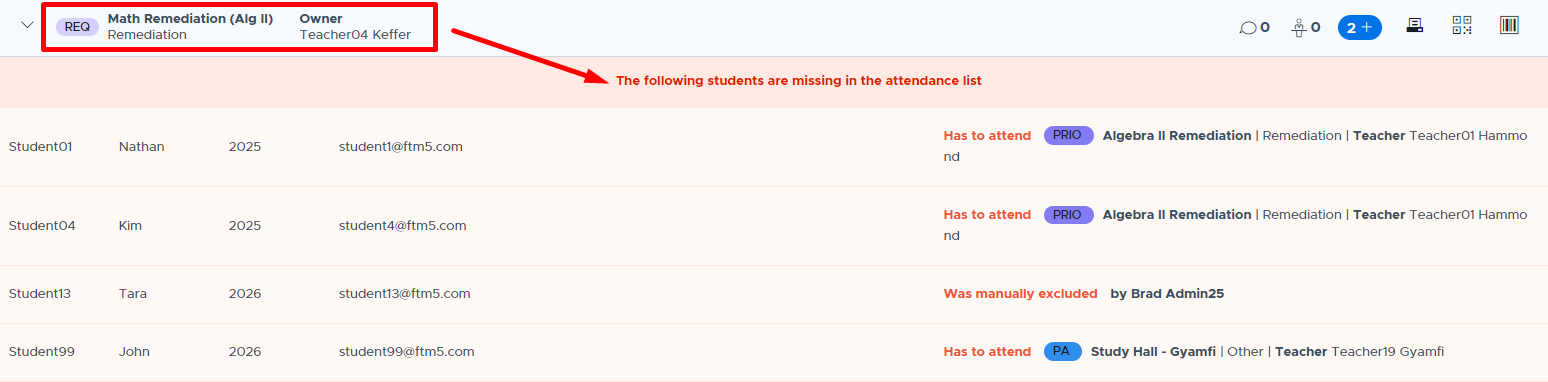
This section will show any students who you are expecting to attend the activity but will not be for one of the following reasons:
- They are scheduled in a higher level priority activity (Ex: Nathan, Kim, & John shown below)
- They were scheduled in another ‘same-level’ activity and selected the other mandatory activity.
- An Admin has “manually excluded” the student because they are not expected to participate in the school’s flex period. (Ex: Tara student below.)
Please see the How to Take Attendance video for more details.