Classroom › Classes
Monitoring Student Screens
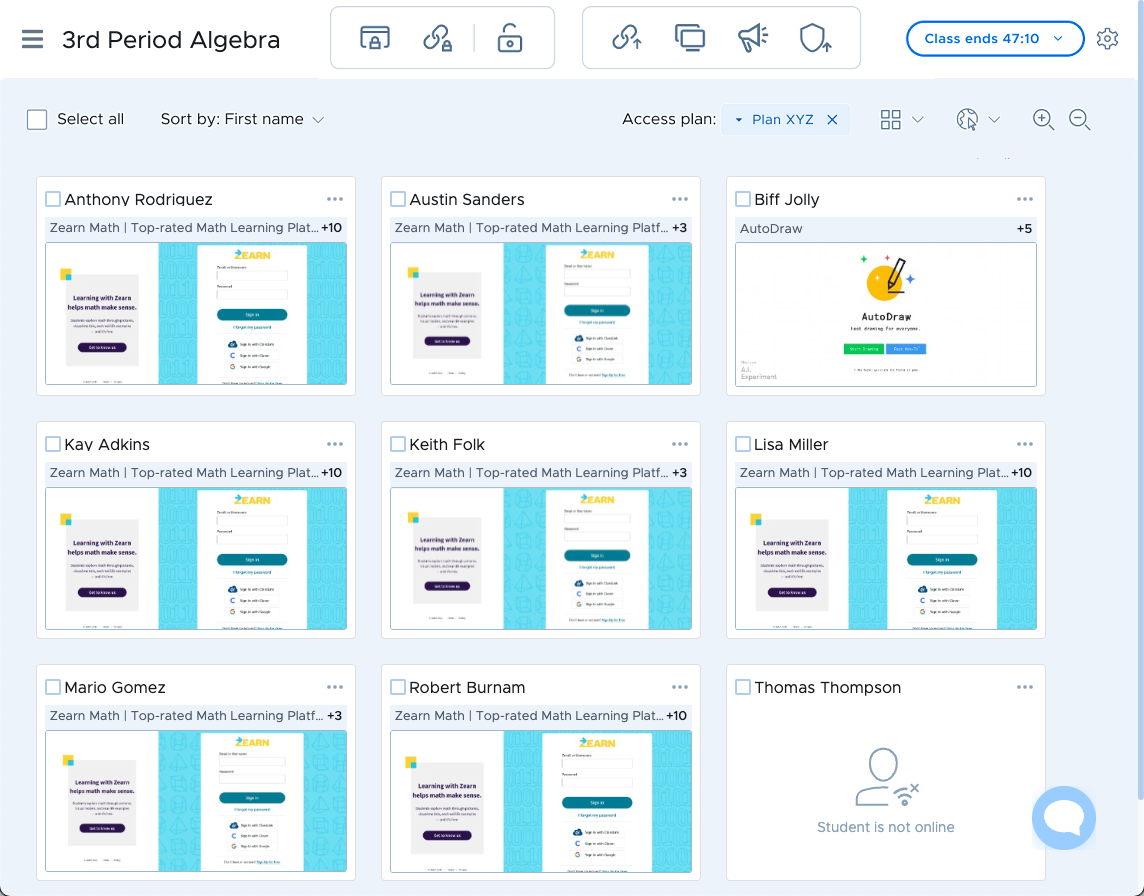
Student screen thumbnails are visible on the main page once a class is started unless screen viewing has been disabled by an administrator.
Student screen thumbnails are updated about once every 4 to 6 seconds. However, if the device is asleep or has recently been restarted, it may take up to 2 minutes for it to begin responding to Classroom's requests for screen updates.
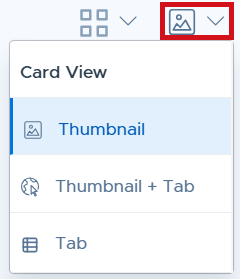
The Thumbnail view is the default when you start a class session for the first time, but you can use the top-right view selector to switch to the Tab or Thumbnail + Tab view.
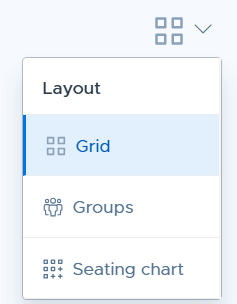
By using the layout selector dropdown present left to the view selector, you can also choose to monitor students in the default grid view or by student groups, or as per the seating chart (if created for that class).
Students are sorted alphabetically by first or last name. Any students that are offline will be moved to the end of the list (or student group).
To change the way students are sorted, use the Sort by selector in the upper left, and select either First or Last.

Student States
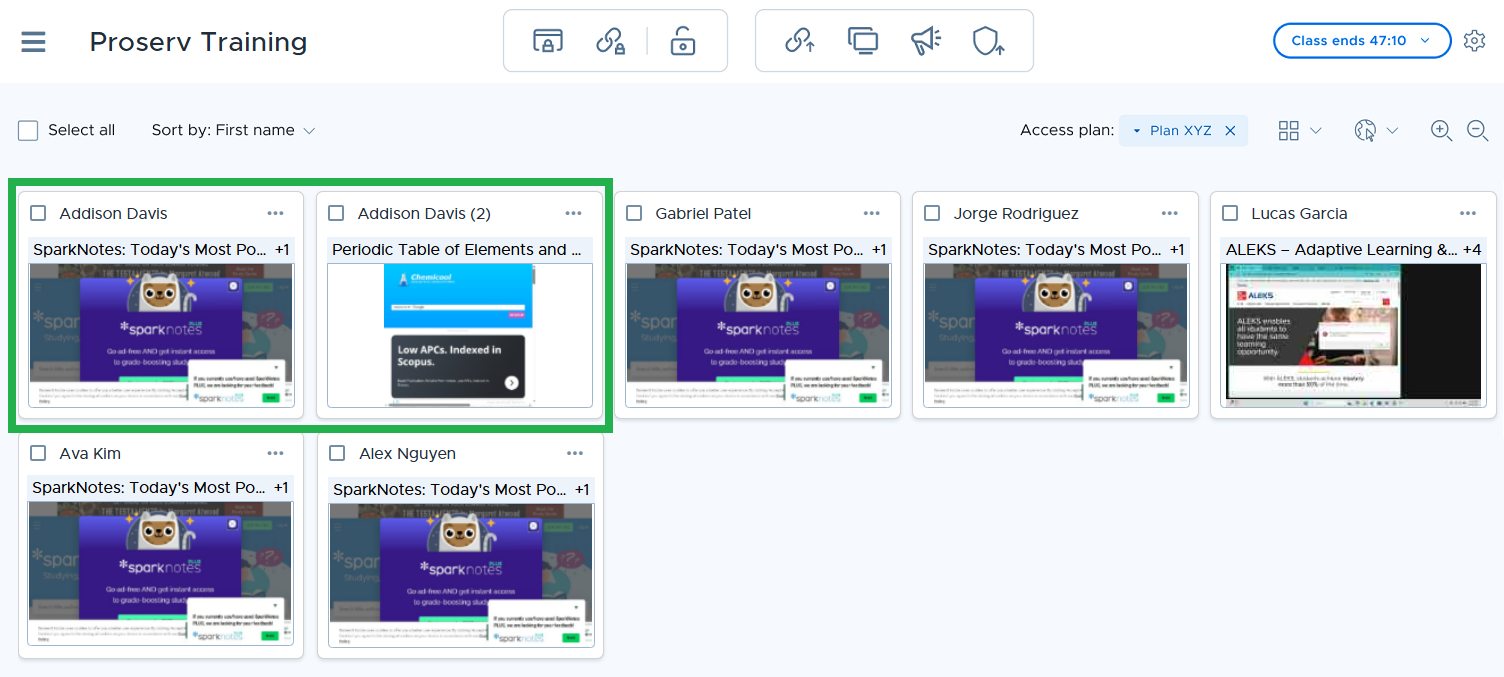
Students on more than one device will show more than one thumbnail, with a number after the students name for additional devices. In the 'Seating Chart' layout view, the student with multiple devices will have a placeholder in the space they would normally appear in the seating chart and all of that student’s devices will appear as thumbnails at the bottom of the screen.
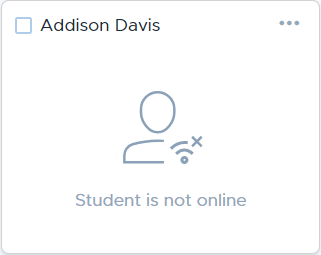
Student is not online will appear when the student's device is not communicating with Securly Classroom. This can be due to the following:
Device is offline: The student's device may be turned off or disconnected from the internet.
Network issues: There might be a problem with the network connection that is preventing the device from communicating with Classroom.
Configuration settings: If the device is detected on an outside (non-school) IP address, it often means the student is not in the school environment and is therefore marked offline.
Device not registered: The student’s device isn't registered with your school's Securly setup. Confirm that the device is properly registered and the Securly agent is installed on the student's device.
Student not logged in with a school account: When students attempt to log in using personal accounts instead of their school-issued email. Check their account type and assist with login if they are having trouble and guide them through the login process to ensure they are using the correct credentials.
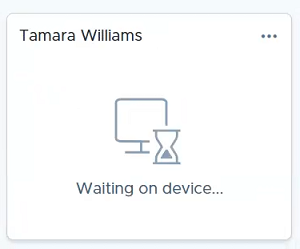
"Waiting on Device": This appears when the student’s device has not yet connected to Securly Classroom. It may take a moment to process, especially if the device was recently restarted or has been asleep. To resolve this:
Check device status: Ensure the student’s device is powered on and connected to the internet.
Refresh Classroom: Ask the student to refresh their browser or restart the device to re-establish the connection.
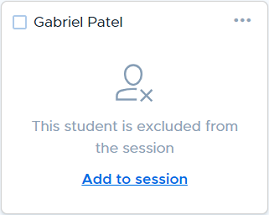
This student is excluded from the session can appear when a student was deselected before the class was started, or because their device connected to Securly Classroom but was detected on an outside (non-school) IP address, which typically means they are absent from school and connecting from home or elsewhere. This automatic exclusion from class based on IP address is an optional setting configured in the System submenu under Settings. Teachers can also click the "Add to session" link to add the student to current class.
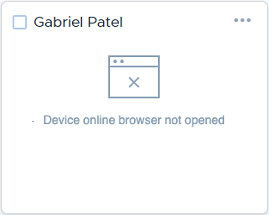
Device online browser not opened will appear when a student is in student is logged into Securly Classroom but hasn't opened the Chrome browser, meaning the platform cannot monitor their activity. This state can also appear when a student is viewing an empty tab. To resolve this:
Open Chrome: Ensure the student is using the Chrome browser and it has some open tabs.
Check extension: Confirm that the Securly Classroom extension is enabled.
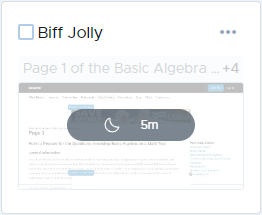
Inactive state is shown if a student device is inactive for more than 5 minutes. This is shown in tab and detail view. To make the student device active, encourage the student to interact with their device by asking questions or assigning tasks. You can also have have the student log out and log back in to refresh their status.

If a student visits tabs and apps on a Chromebook that do not allow screen capture such as the New Tab page, the Chromebook Camera app or the Files app, relevant indicators will be shown on their thumbnails.
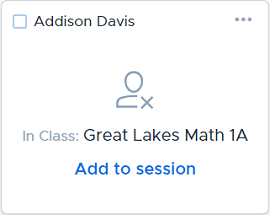
If a student is in another class, the student card will appear with an Add to session link. Teachers can click on this link to add them to the current class session.
Zoom Levels
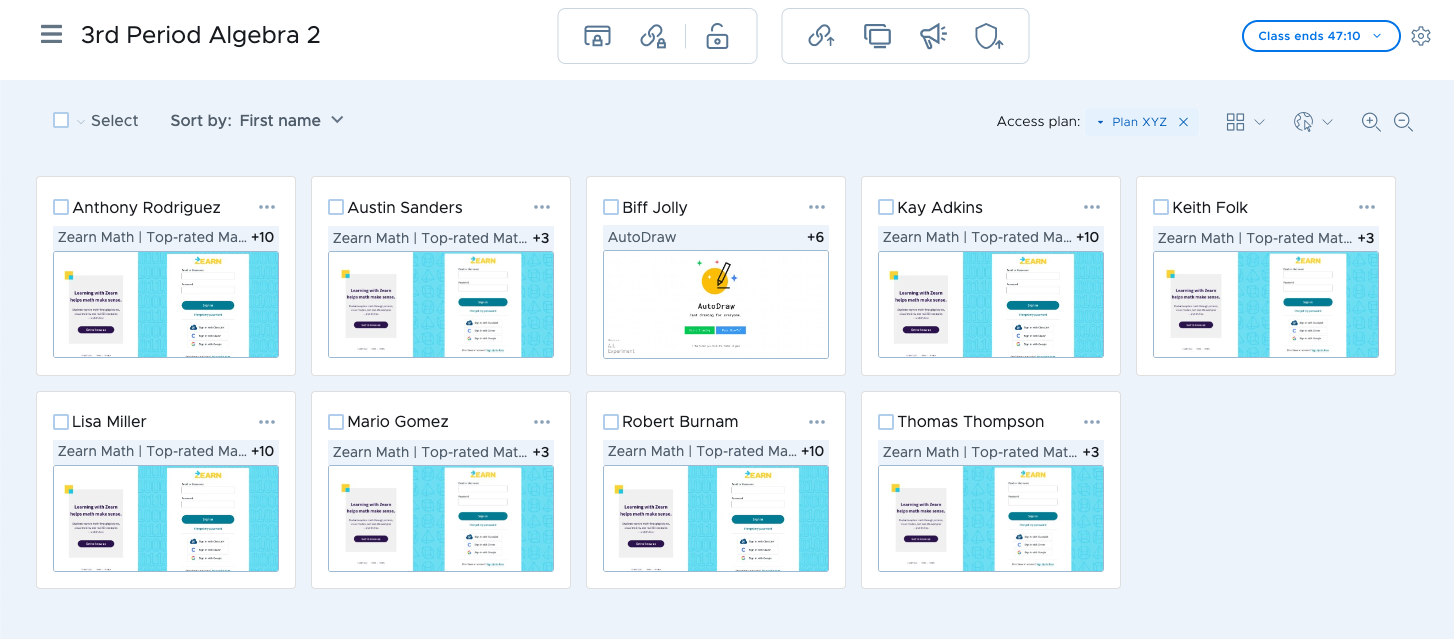
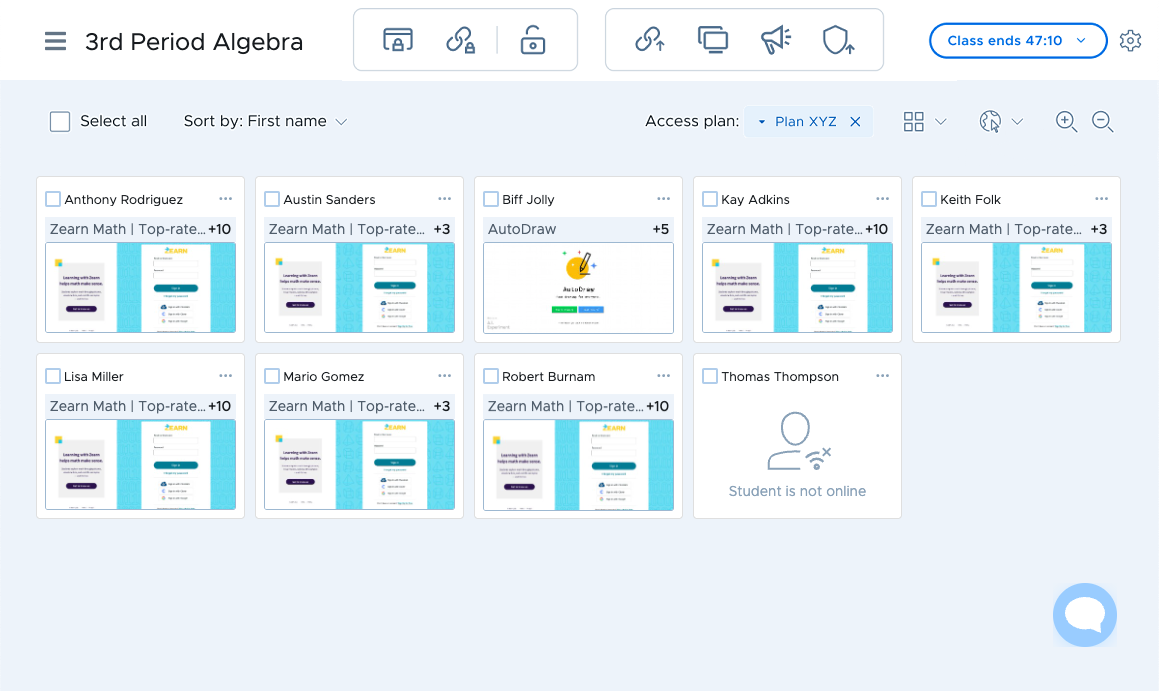
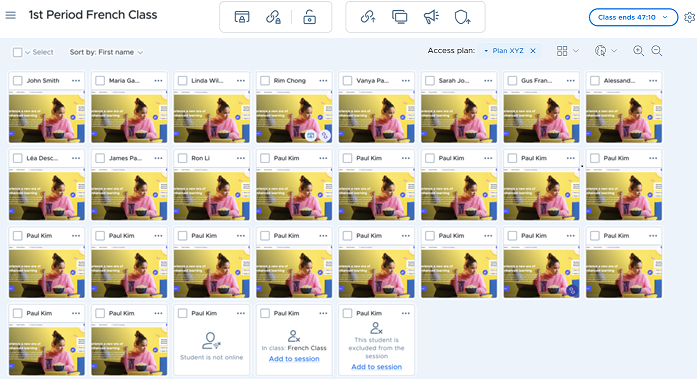
You can use the zoom buttons in the upper right area to control your view of students in the class. Zoom out to view more students at once, or zoom in to view more detailed thumbnails.
Default zoom level:
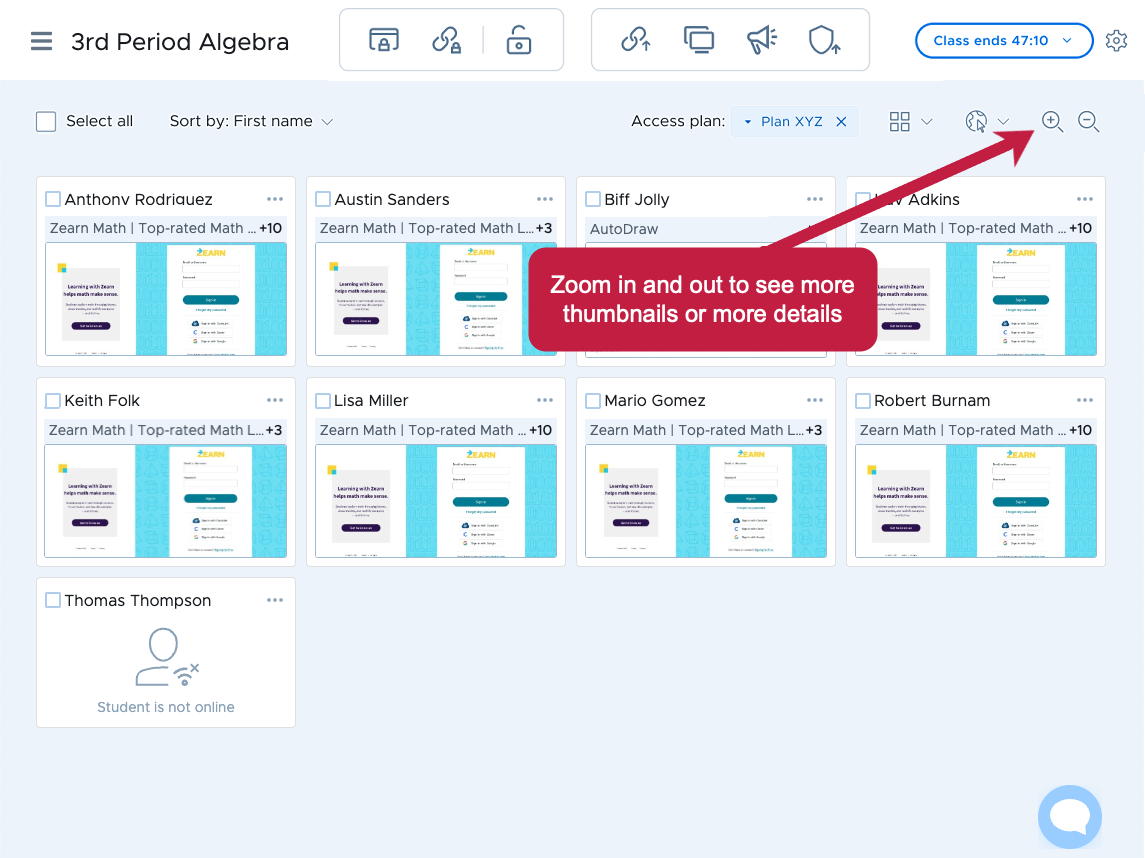
Zoomed out:
Zoomed further out
Note: This zoom level is available only in card view, not tab view. Due to space limitations, tab titles will not show above thumbnails.
Zoomed in: