Aware › Cases
Adding School Contacts
School contacts will be the first point of contact for responders in case of an emergency.
Follow the steps below to add a contact:
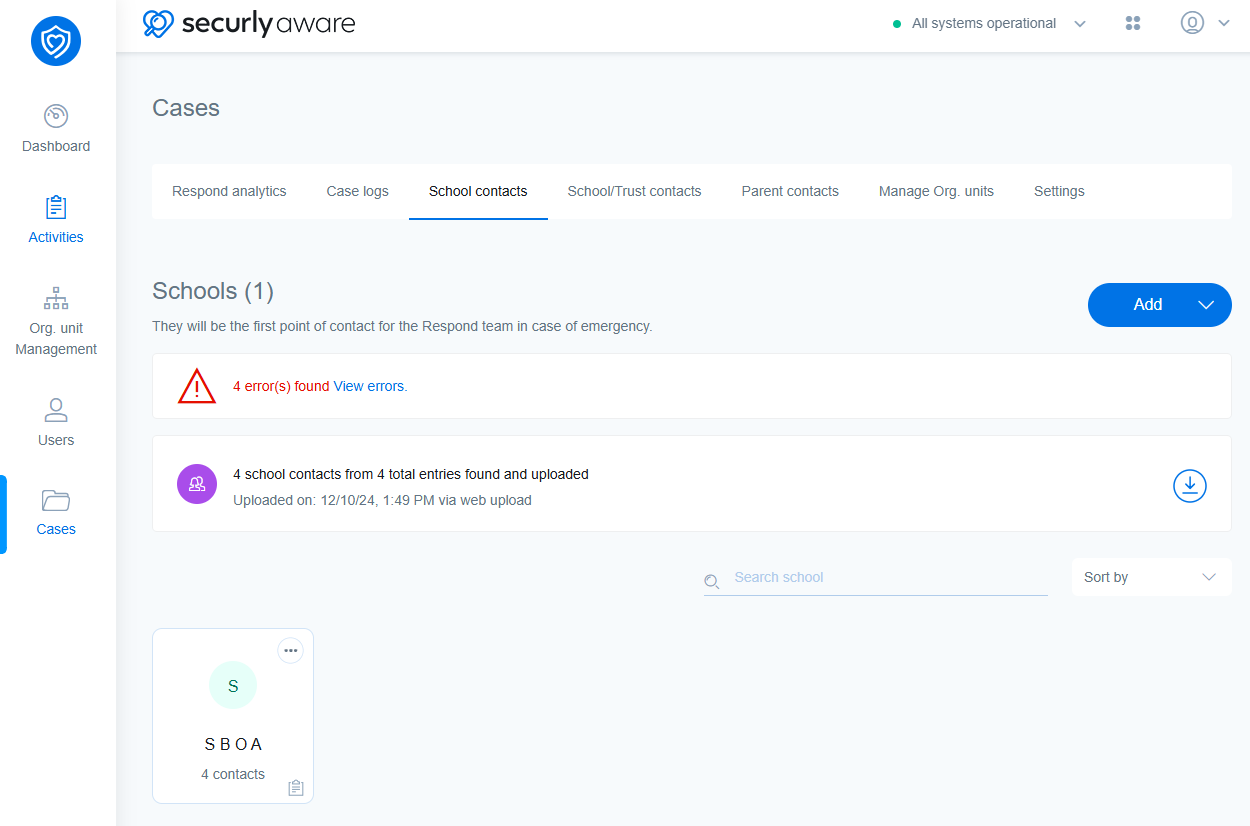
Click on the Add button and select ‘Contact’ from the dropdown menu. Selecting ‘School’ will just create a card where you can go and add a contact.
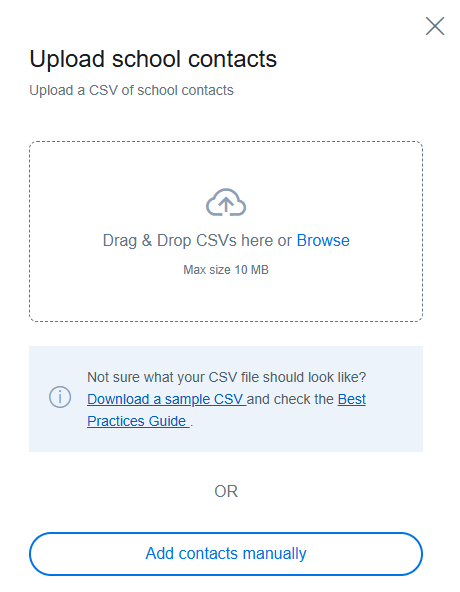
In the sidebar popup you can drag and drop a CSV to upload your contacts. A sample CSV is provided that you can use to update the contact information. A best practices guide is linked as well. This helps in mapping students, OUs, and school contacts so that the right person can be contacted in case of an emergency. It is recommended you add a note for each of the contacts so that the responders know when and how they can be contacted or cannot.
If you choose to add contacts manually, you’ll need to fill in contact details. Select a school from the dropdown menu. Schools will show up once the OUs have been synced from the org. management tab.

You can also select the contact to be part of both Respond and On-Call team or just either one of them as required.
Under contact availability, you set the contact to be available 24/7 or only during hours or create a custom schedule.
Confirm your changes and click on Save.