Pass › Pass Mobile App Guide
Queue Management
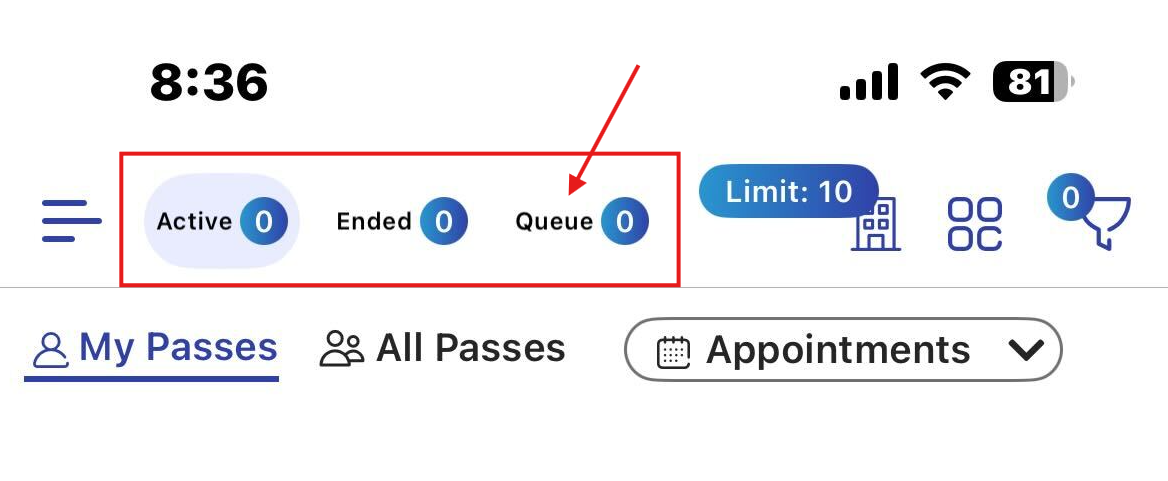
If Queue Management is enabled in your school, adults will see the Queue added at the top of the app.
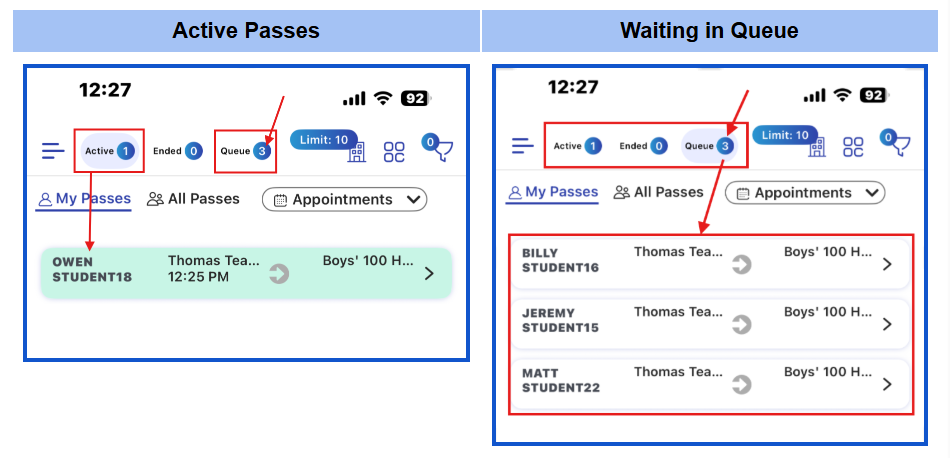
When passes are created to a Queue location and the capacity has been reached, the Active passes will be displayed on the screen, and the number of students “waiting in line” will be displayed beside the Queue.
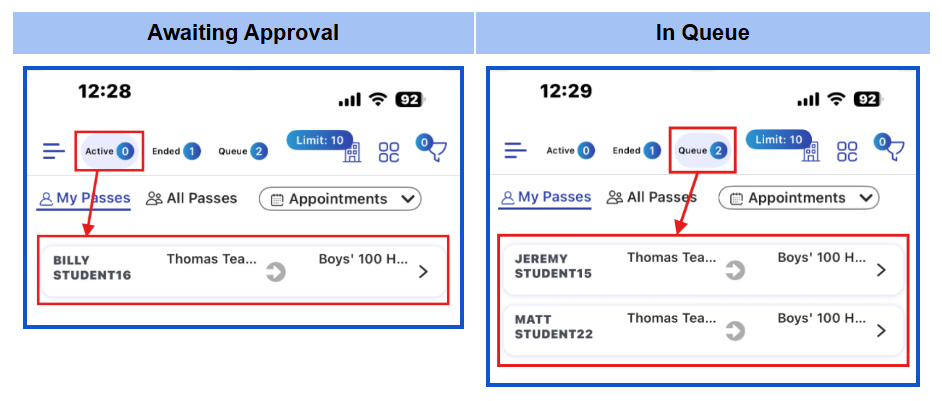
As the location becomes available, the first person in the Queue for that location will move from the Queue to Active Status and await approval, and the next two students in the Queue will move up in line.
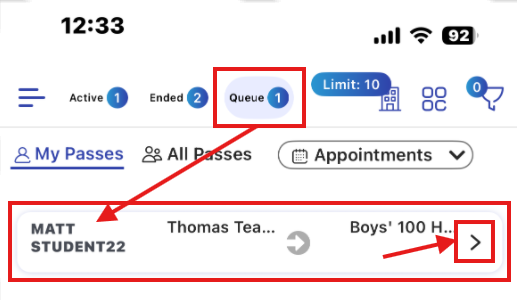
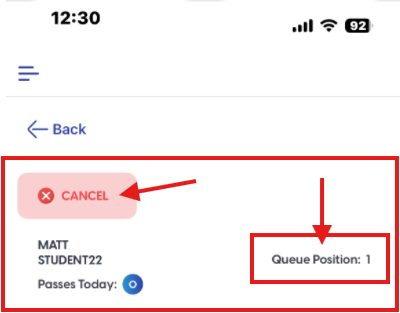
By clicking on a student’s name in the Queue, adults will be able to see that student’s position in the queue. If need be, the adult can CANCEL the pass. To clear a Queue at the end of a period, click Queue at the top of the screen and then click into each student listed in the Queue and click CANCEL for each student.
Additional Info
- If a student is waiting in line for an Auto Pass location that is currently full, when that location becomes available, the student will be able to START their own pass.
- For Contact Control pairings, if Student A is on a Pass, Student B will be able to join the queue but will not be given an active pass until Student A’s pass is ended. The queue will continue to progress - skipping Student B - until the hallway is clear for them.
- If you wish to clear the Queue, you will need to do so from the web application.