Classroom › Settings
Permissions
Permissions Overview
Use the Permissions sub-menu to select functions available to users of each role in your organization.
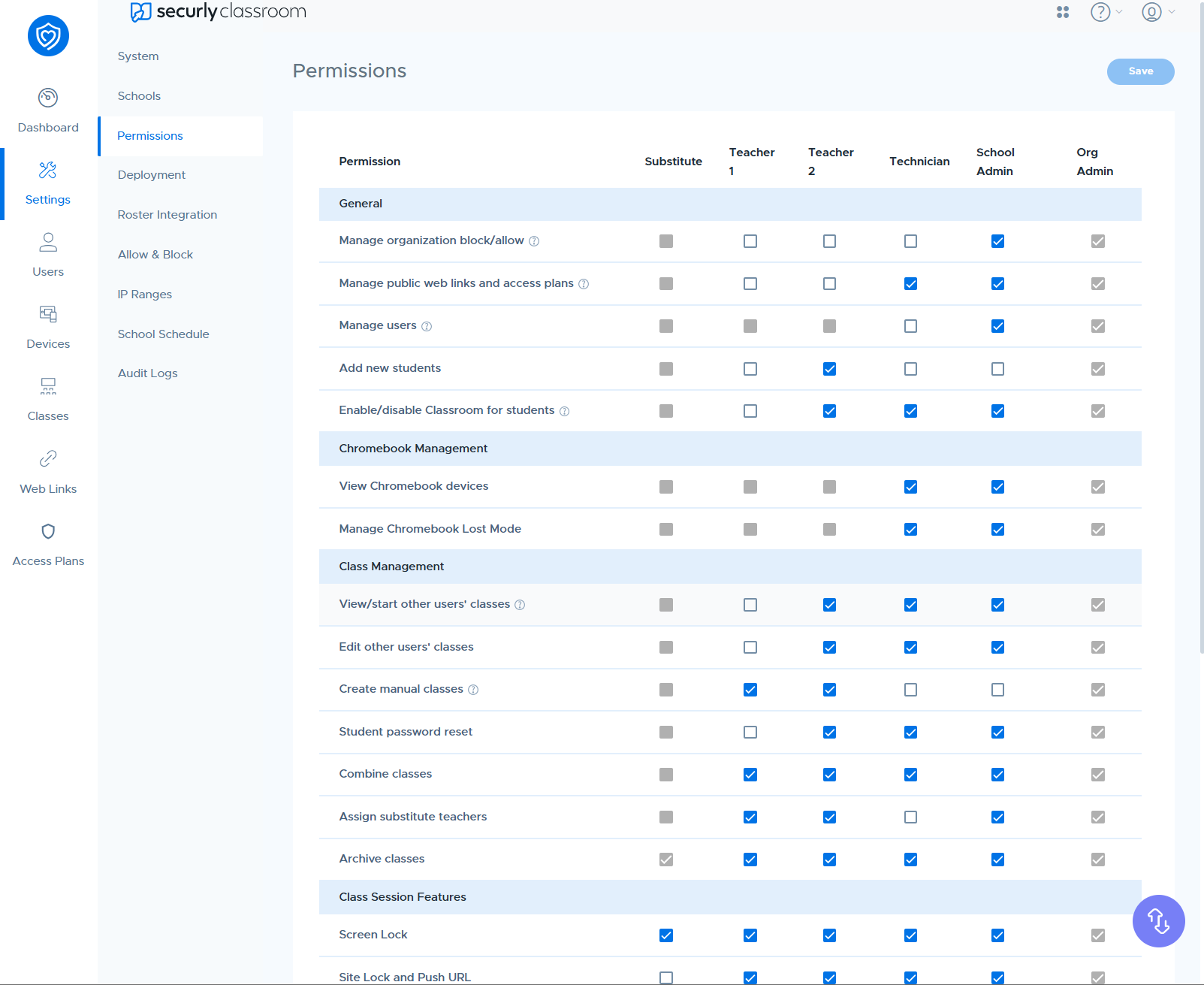
There are six user roles in Securly Classroom. These are:
Substitute Teachers
Teachers (split into Teacher 1 and 2)
Technicians
School Admins
Org Admins
The two teacher roles (1 and 2) allow you to have two different sets of teachers in case certain teachers need to be given more or less access.
A greyed out box means that feature is disabled for users of that role and cannot be enabled. For Org Admins, all permissions are always available.
Securly Classroom Permission Settings Explained
User Roles Overview
Securly Classroom uses a granular permission system that allows administrators to tailor exactly what different staff members can see and do. These settings are managed under Settings > Permissions and are organized by user role. Here is a breakdown of the primary permission categories and specific settings within Securly Classroom as of 2026.
Securly Classroom typically defines six distinct roles. While Org Admins always have full access, permissions for the others can be toggled on or off:
Org Admin: Full "keys to the kingdom" access across the entire district.
School Admin: Management access limited to specific school sites.
Technician: Often used for IT staff who need to troubleshoot but may not need to run classes.
Teacher 1 & Teacher 2: Two separate tiers for teachers, allowing you to give veteran teachers more power (like public block lists) while keeping newer staff on a standard profile.
Substitute Teacher: A restricted role designed for temporary access.
Permission Settings Breakdown
General
Manage organization block/allow: Grants a user the authority to create and enforce permanent, district-wide website and application restrictions that override individual teacher settings and remain active regardless of whether a class session is in progress.
Manage public web links and access plans: Allows a user to create, edit, and share curated lists of websites and filtering rules that are visible and usable by all other teachers across the entire organization.
Manage users: Grants the authority to add, delete, or edit user accounts and assign specific roles and permission levels to staff members within the Securly Classroom environment.
Add new students: Allows a user to manually create new student profiles within the system and assign them to classes, rather than relying solely on automated roster syncs from a Student Information System or Google Classroom.
Enable/disable Classroom for students: Allows a user to globally toggle the monitoring and filtering capabilities of Securly Classroom on or off for specific student accounts or groups, effectively determining whether those students can be tracked or managed during a live session.
Chromebook Management
View Chromebook devices: Allows a user to access the device list to see real-time hardware status, technical details, and the current connection state of all Chromebooks registered within their assigned schools or organization.
Manage Chromebook Lost Mode: Grants a user the authority to remotely lock a missing Chromebook with a custom message and tracking features, rendering the device unusable until it is recovered and the mode is manually disabled.
Class Management
View/start other users' classes: Allows a user to oversee or initiate a session for a class they are not the primary teacher of, typically used by administrators or substitutes to monitor active sessions or help manage a classroom in another teacher's absence.
Edit other users' classes: Allows a user to modify the rosters, schedules, and settings of classes created by other staff members, ensuring administrators or department heads can manage classroom configurations across the organization.
Create manual classes: Allows a user to independently build and name custom class groups by hand-selecting specific students, providing an alternative to using the automated rosters synced from a Student Information System or Google Classroom.
Student password reset: Allows a user to directly change or update a student's login credentials within the Securly Classroom interface to help them regain access to their accounts without requiring intervention from the IT department.
Combine classes: Allows a user to merge two or more separate class rosters into a single active monitoring session, enabling the teacher to manage multiple groups of students simultaneously from one dashboard.
Assign substitute teachers: Allows a user to temporarily grant another staff member access to their specific classes and monitoring tools, ensuring the substitute can manage and view student screens for a designated period.
Archive classes: Allows a user to remove inactive or completed classes from their main dashboard and move them to a storage area, preserving the class data and history without cluttering the active classroom list.
Class Session Features
Screen Lock: Grants the teacher the ability to remotely freeze student devices with a custom message, effectively disabling keyboard and mouse input to redirect student attention toward the front of the classroom.
Site Lock and Push URL: Grants a teacher the ability to remotely force a specific website to open on all student devices while simultaneously restricting their browsing to only that site or a pre-defined collection of approved pages.
View Screens: Allows a teacher or administrator to monitor student activity in real-time by viewing live, streaming thumbnails or full-screen enlargements of each student's device display during an active class session.
Announce: Allows a teacher to broadcast a one-way digital message that pops up on every student's screen and remains visible until the student clicks an acknowledgment button, ensuring the entire class sees important instructions or alerts.
Hand Raise: Enables a digital feature that allows students to virtually signal the teacher for help or attention, displaying a notification on the teacher’s dashboard that can be acknowledged or cleared once the student's needs are met.
Chat: Enables a secure, two-way instant messaging channel that allows teachers and students to communicate directly within the Securly Classroom interface during an active session.
Screen Share: Allows a teacher to broadcast their own screen, or a specific student's screen, to the rest of the class's devices in real-time to facilitate demonstrations and highlight student work.
Live Connect: Allows a teacher to bypass certain network restrictions to establish a direct, real-time connection with a student's device for advanced interactions like remote screen viewing and desktop control.
Observation Group Features
Create observation groups: Allows a user to organize specific students into custom sub-groups for easier monitoring and targeted management during a live class session without altering the official class roster.
Run observation group sessions: Allows a user to initiate and manage active monitoring sessions for specifically created sub-groups of students, enabling targeted oversight and interaction separate from the rest of the main class.