Pass › Pass Mobile App Guide
Student-created Late Pass (STU)
If a school has enabled Tardy Management and allows students to mark their own passes as LTC (Late to Class) or LTS (Late to School), then students have the ability to create a Student Late Pass (SLP) on their device - laptop or mobile device.
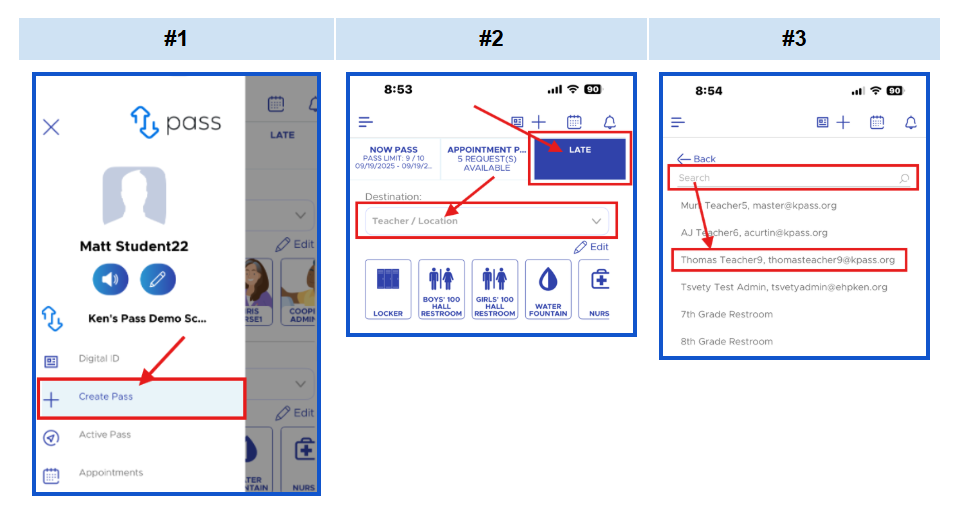
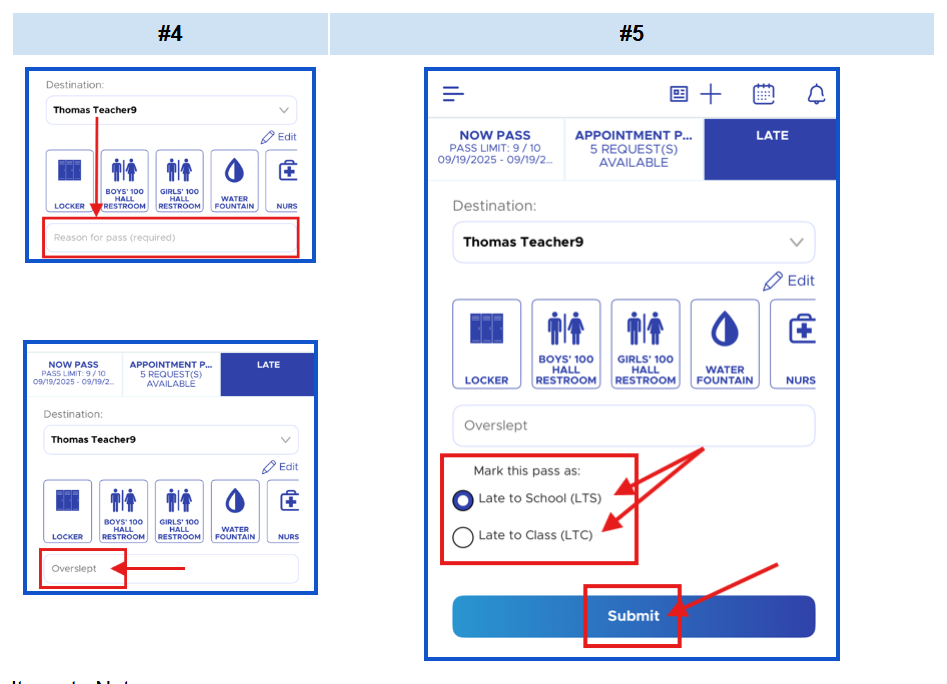
To create an SLP, the student needs to do the following:
- On the Main Menu, click Create Pass (1)
- On the next screen, click LATE (2) (top right)
- Choose the destination (2-3) by typing the name OR scrolling down the list and choosing the destination (typically an adult)
- Add a reason (4) for being late
- Click either Late to School (LTS) OR Late to Class (LTC) (5)
- Click Submit (5)
Items to Note:
- The SLP will not count toward any limits or pass blocks.
- Adults will NOT need to approve the SLP. It will automatically be started and stopped.
- Students will not be able to create an SLP to an adult who is Out of Office (OOO).
- The SLP will be visible in Today’s history (admin and student), Pass History, and Dashboard, but not in the Summary report or Meet-up report
- Only the adults associated with the pass and admin will be able to edit the LTC or LTS designation within the same day. In that case, the pass will remain an SLP.
- Detentions that are earned as a result of tardies will be assigned overnight.
- If the LTC/LTS designation is removed, added, or edited, the SLP will remain as an ended pass on the Dashboard and in History. The adult who removes the badge will have an automatic comment generated that says “LTS/LTC removed/added/edited by (user’s name) at 0:00am/pm”.
- Please see the Pass Admin Guide for additional details about the Student Late Pass .