Pass › Visitor
Downloading and Setting Up
Securly Visitor allows you to set up self check-in and check-out kiosks using any iPad running the current iOS plus the two most recent versions OR using an android tablet. If you have the appropriate iPad or android device, follow the instructions outlined below:
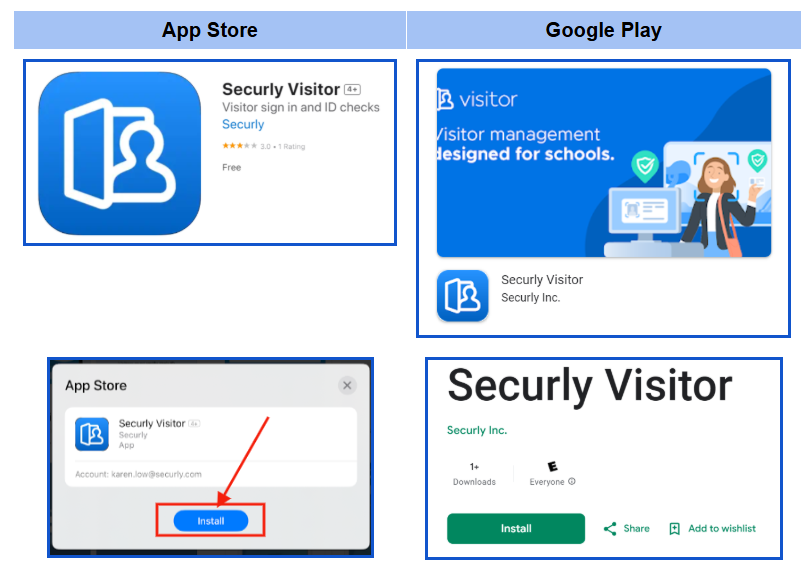
- Download the Securly Visitor app for iPad from the App Store or a tablet from Google Play. (Please note: This is a mobile App for tablets, not for cell phones.)
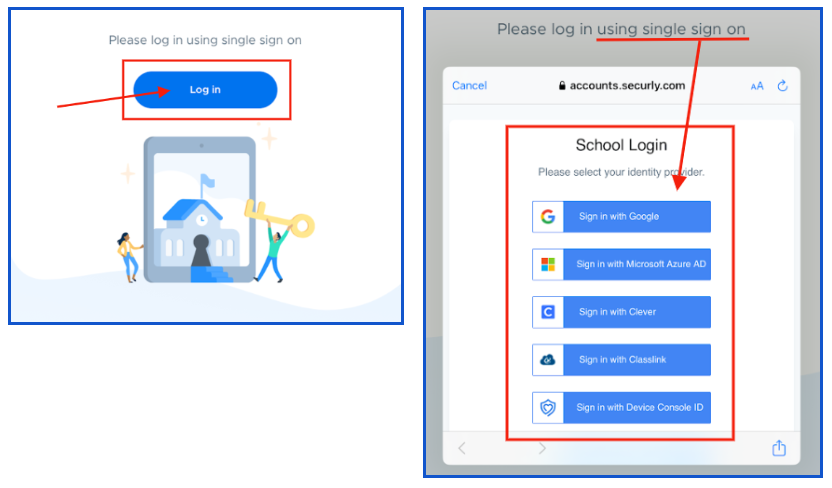
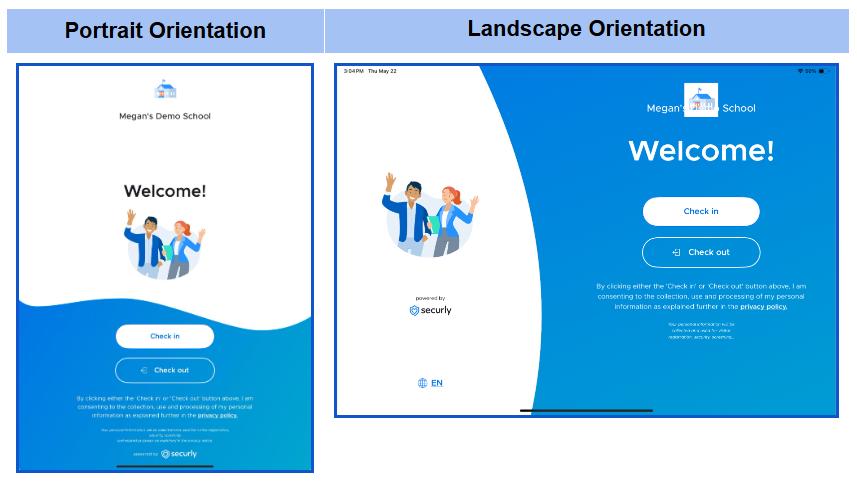
- Open the app on the device in the portrait or landscape orientation, sign in as any school admin or visitor adult, and set up the iPad/tablet for your school.
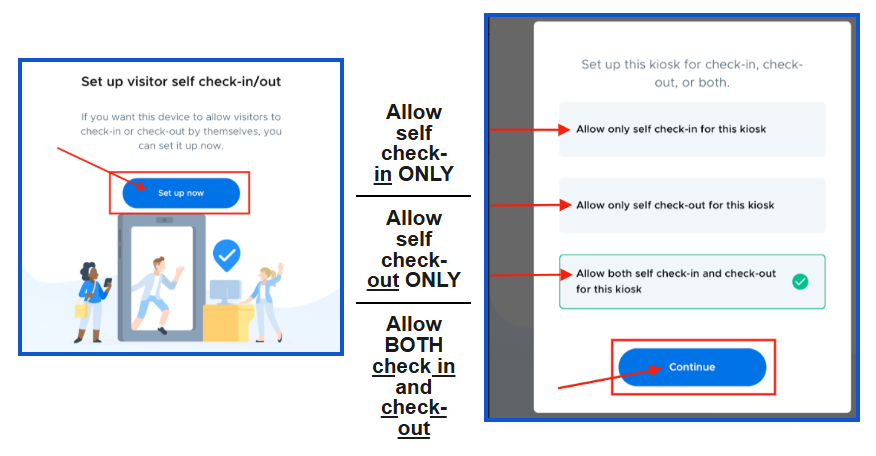
- In the Setup Wizard, you can set up visitor self check-in/out. Click Set up now, select the appropriate option, and then click Continue. Your kiosk is ready to allow visitors to check themselves in and/or out. Click Done.
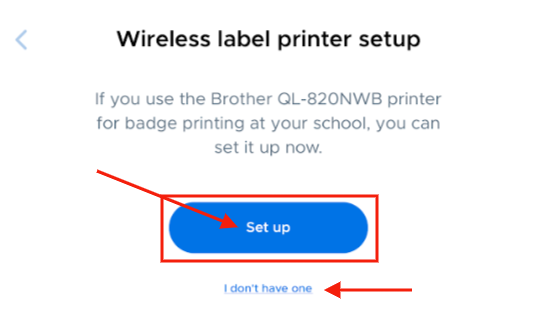
- Connect to a wireless label printer to enable badge printing. In order to complete this step, you will need a Brother QL-820NWB printer. Make sure the printer is turned on. On the “Wireless label printer setup” page, click Set up. If using a printer is not desired, click I don’t have one.
- When finished, you will see the Welcome screen. Click the Tap to check in button.
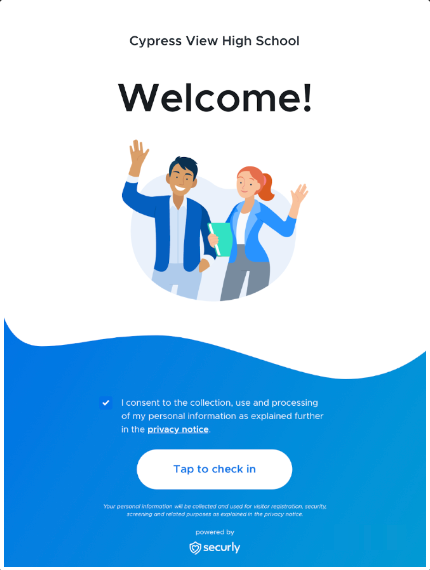
To access the Admin Settings, double tap the Welcome screen with two fingers. This will allow you to adjust any of the settings using the iPad.
Note:Please allow notifications on your iPad/tablet for the Securly Visitor app.