Aware › Cases
Fetching Case Details of a Student
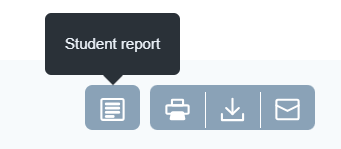
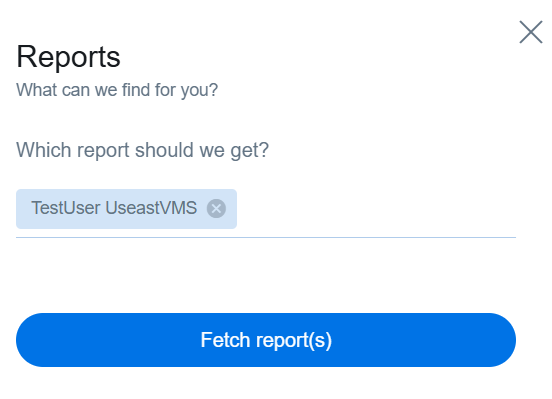
Clicking on the Student Report button will open a sidebar window where you can search for the student's case by entering the student's name, email ID, or the case ID.
Once you've made your entry, click the Fetch Report(s) button. You can also generate reports for multiple students in one go.
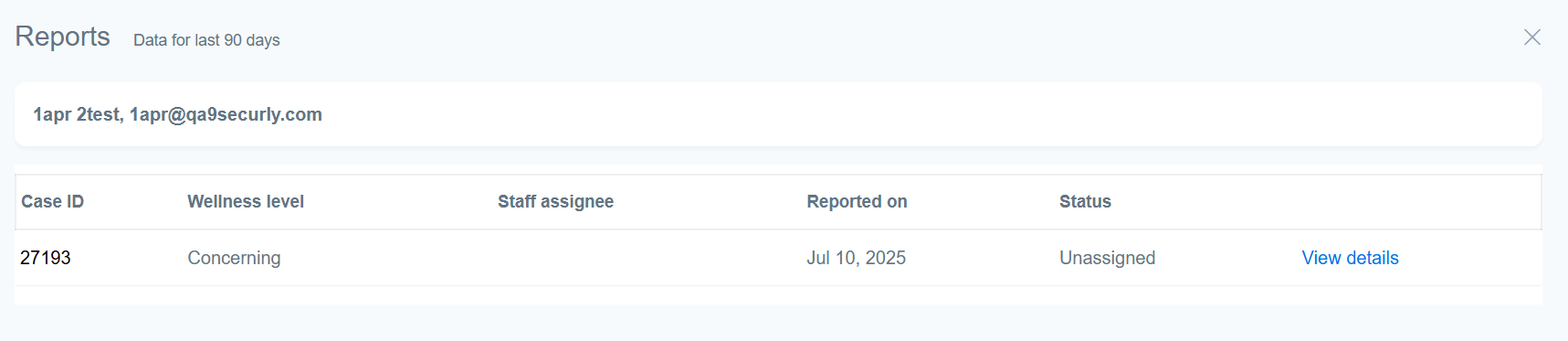
After clicking the Fetch Report button, you'll be taken to a reports list with each entry including the Case ID, Wellness level, staff assigned to the case, reported date, and status.
Click on View details will open up details about the student case to guide your next course of action, including the date, the current status, and a list of the flagged activities.
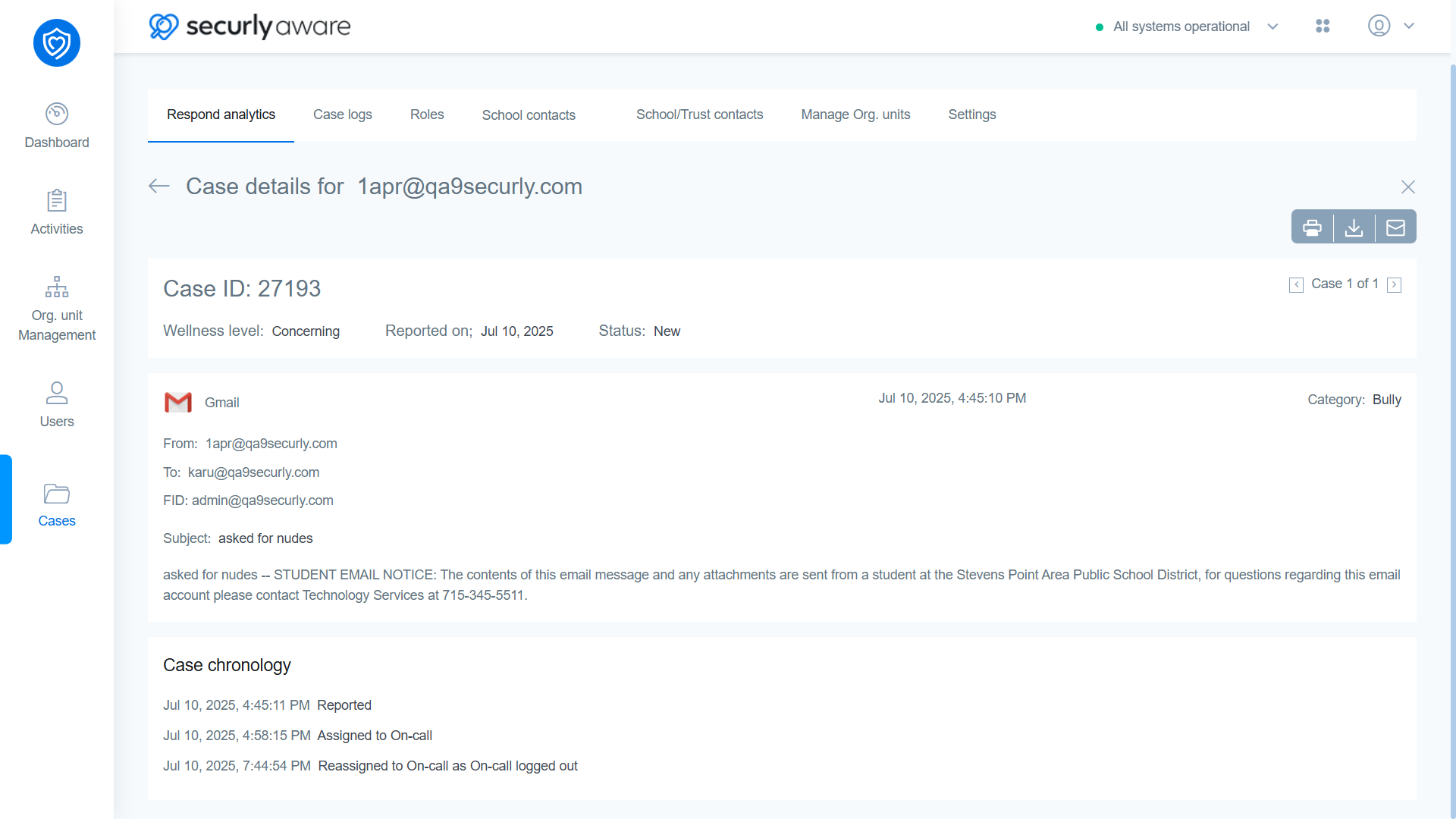
You can also print, download, or email this report using the action buttons on the top right hand corner.