MDM › Managing Profiles
Creating and Editing Email Profiles
To create a profile, first choose the appropriate tab for the OS, either iOS/iPadOS or macOS, then click the Add Email Profile button.
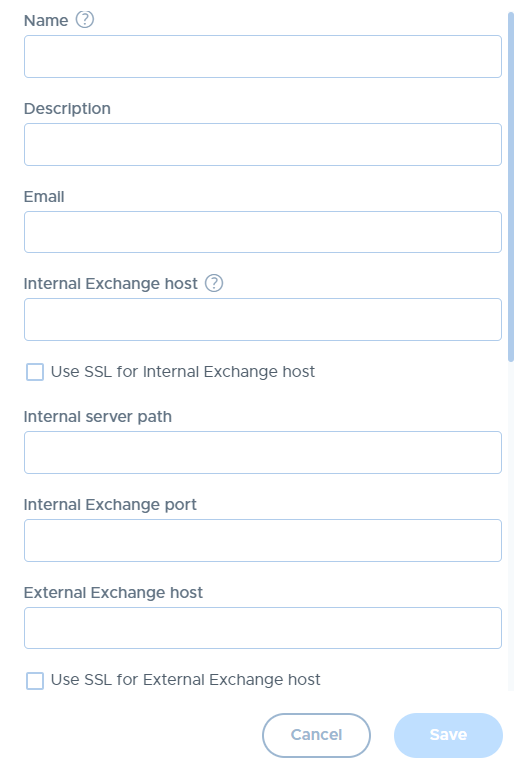
On the resulting configuration screen, enter all required fields for configuring the Exchange host. Note that you can leave the password field blank in order to prompt the user for their password when they first open the email app after configuration. Choose desired options and click Save.
To edit an existing email profile, select it from the list. After making changes, click Save to save the changes without pushing it out to devices where it’s already in use, or click Save & Apply to save the changes and push the profile immediately to devices where it’s assigned.