Pass › Pass Admin Guide
Important sAPT Information - Admins
In order to activate the Student Appointment Pass (sAPT) module, go to the “Modules List” menu on the Control Panel to access the following screen and select all four options or any desired combination of the four.
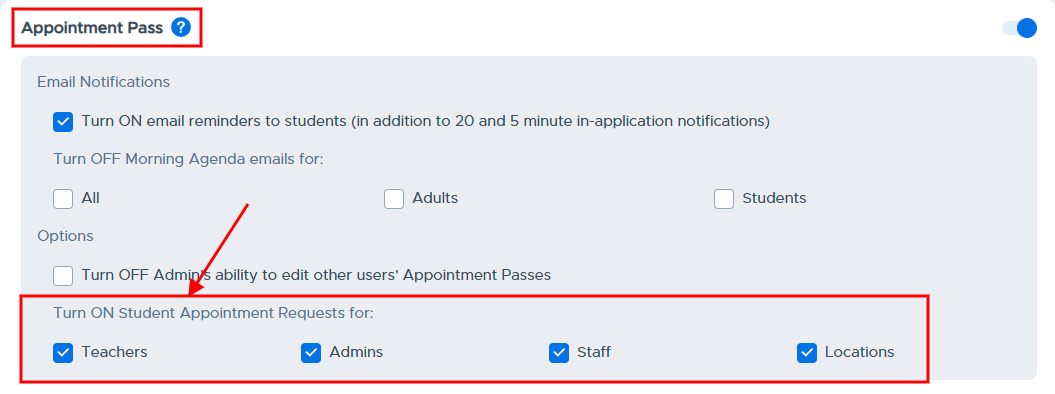
When an Admin selects one or more of the options that specify to whom or what location students can request an appointment pass to, this is automatically updated/saved and will activate the student APT pass functionality.
Important noteIt is highly recommended to communicate with staff and students regarding these new features prior to activating.
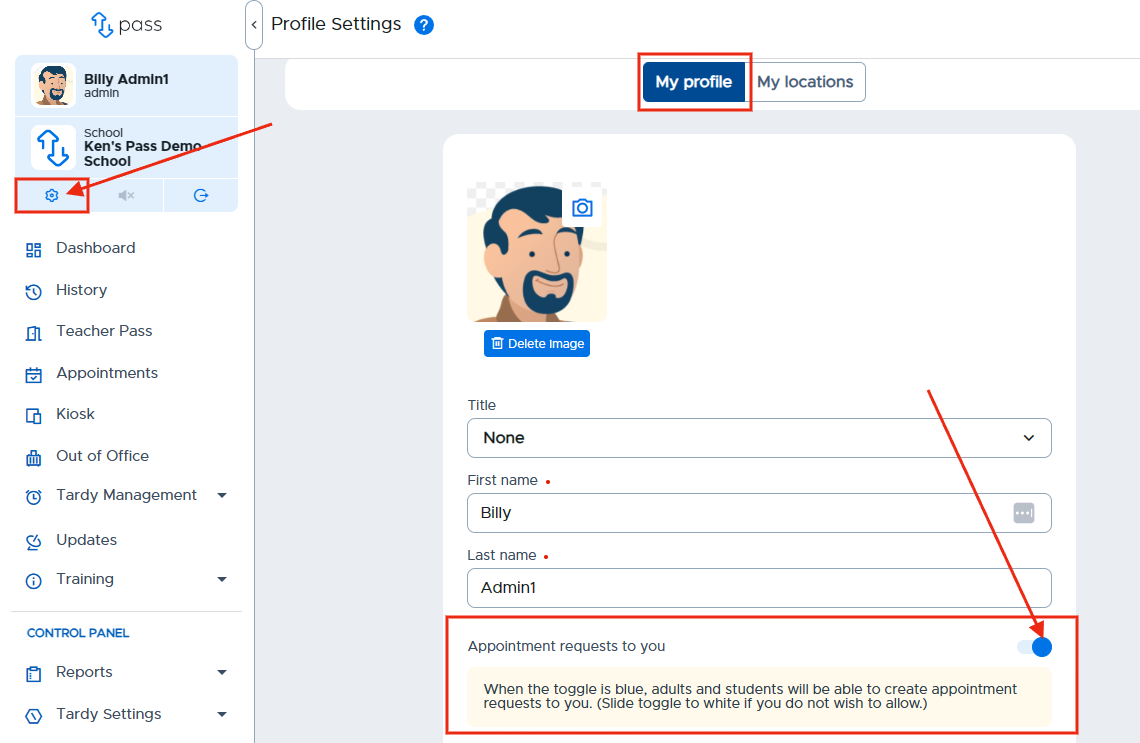
When a Teacher, Admin, or Staff group is checked on the settings screen, as allowing student appointment pass requests, individual users will have the option to say “YES” or “NO” to allow student appointment pass requests to them individually. Click Update after making a change to your Profile Settings.
When enabled, the question below will appear in the user’s Pass Profile Settings. Even if the adult answers “Yes” in their profile (the switch toggled to the right), specific appointment requests can be “Denied” if it does not suit their schedule, etc.