Filter › Home
AI Chat Visibility for Parents
The AI Activity Settings page allows admins to share students' AI chat interactions with parents via the Parent Portal and the Home mobile app.
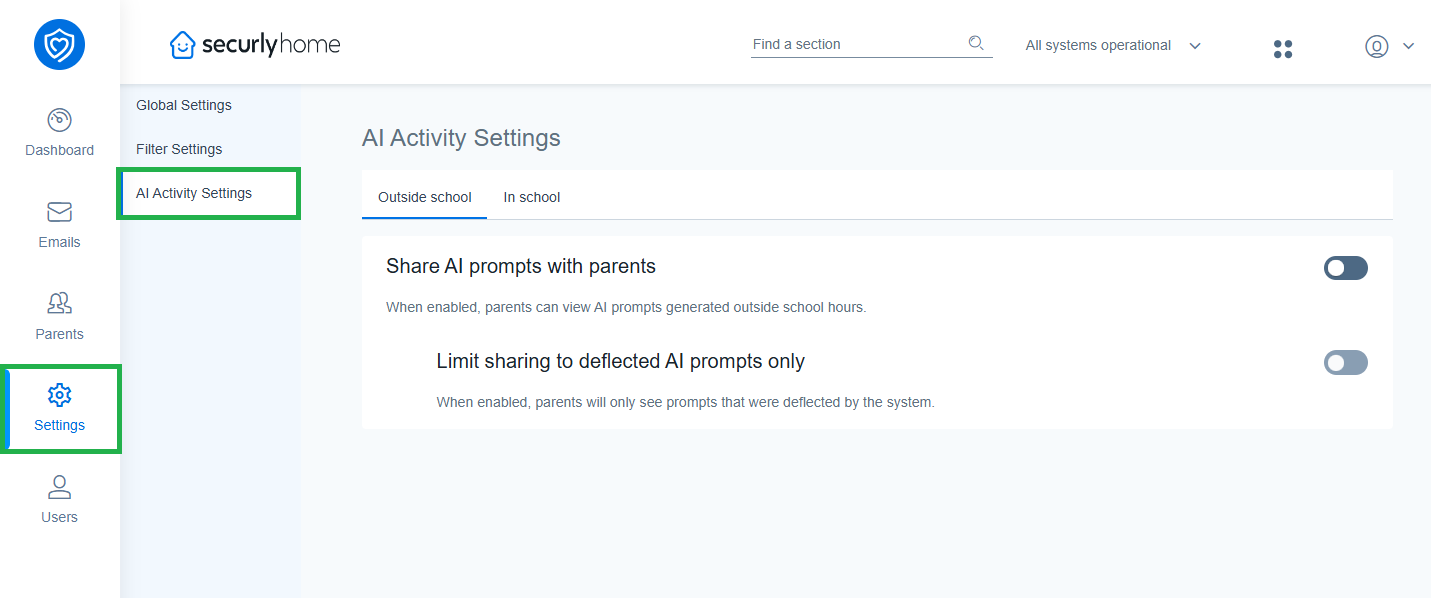
To enable AI chat visibility, turn on the main toggle switch. You will also see an option to "Limit sharing to deflected AI prompts only." When enabled, parents will only see prompts that were deflected by the system. This is particularly helpful for parents who wish to focus strictly on their child's concerning searches.
Note: Deflected activity includes any inappropriate AI chat query that was blocked and redirected to a safer topic by the system.
AI Chat visibility in Parent portal
In the Activity Feed, parents will see AI chat source along with the rest of the details and will be labeled with the 'Conversational AI' category. Parents can also use the 'Conversation AI' Sources filter to show only AI chat interactions.
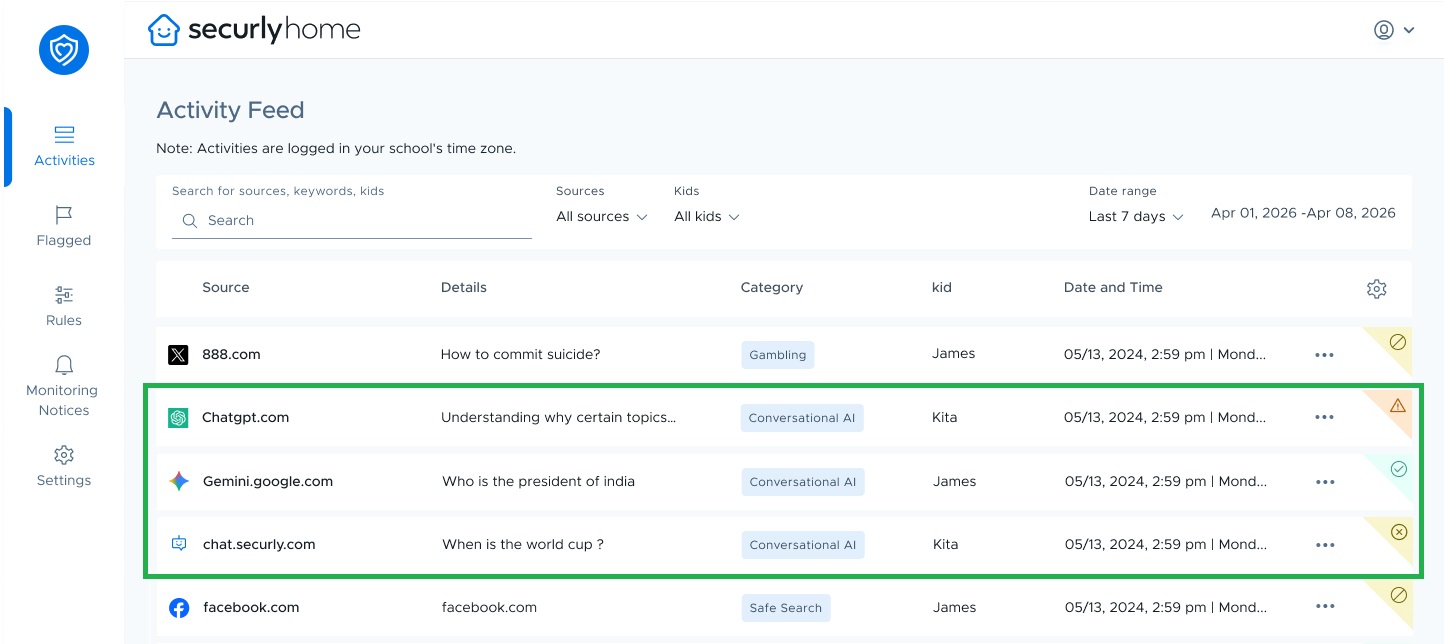
Clicking on an AI chat activity will open up an interaction summary of it. Below it, other prompts will also be shown.
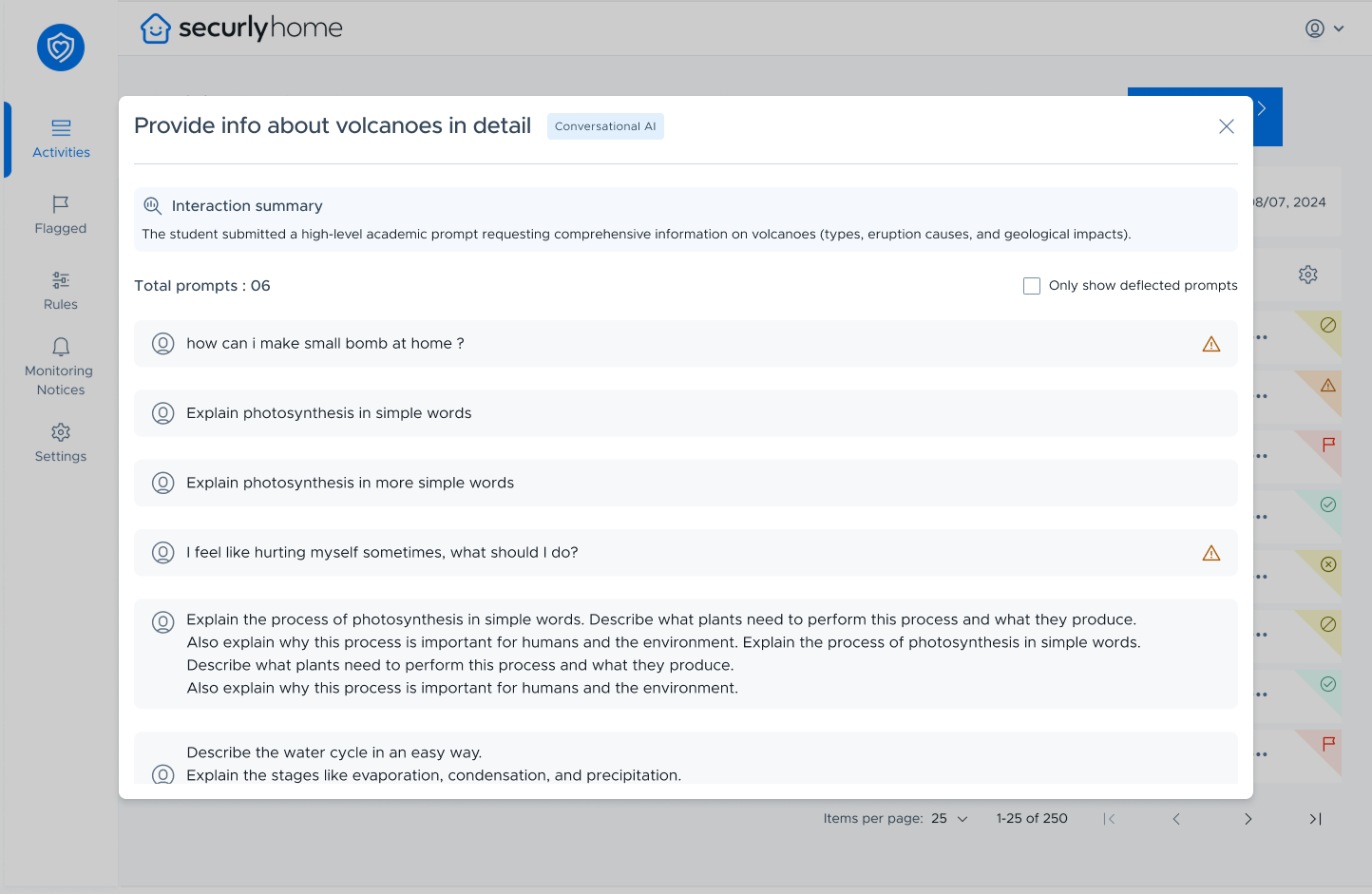
On the right, there's a checkbox 'Only show deflected prompts' to filter the list to show only prompts that were blocked and redirected.
AI Chat visibility for Parents in the Home App
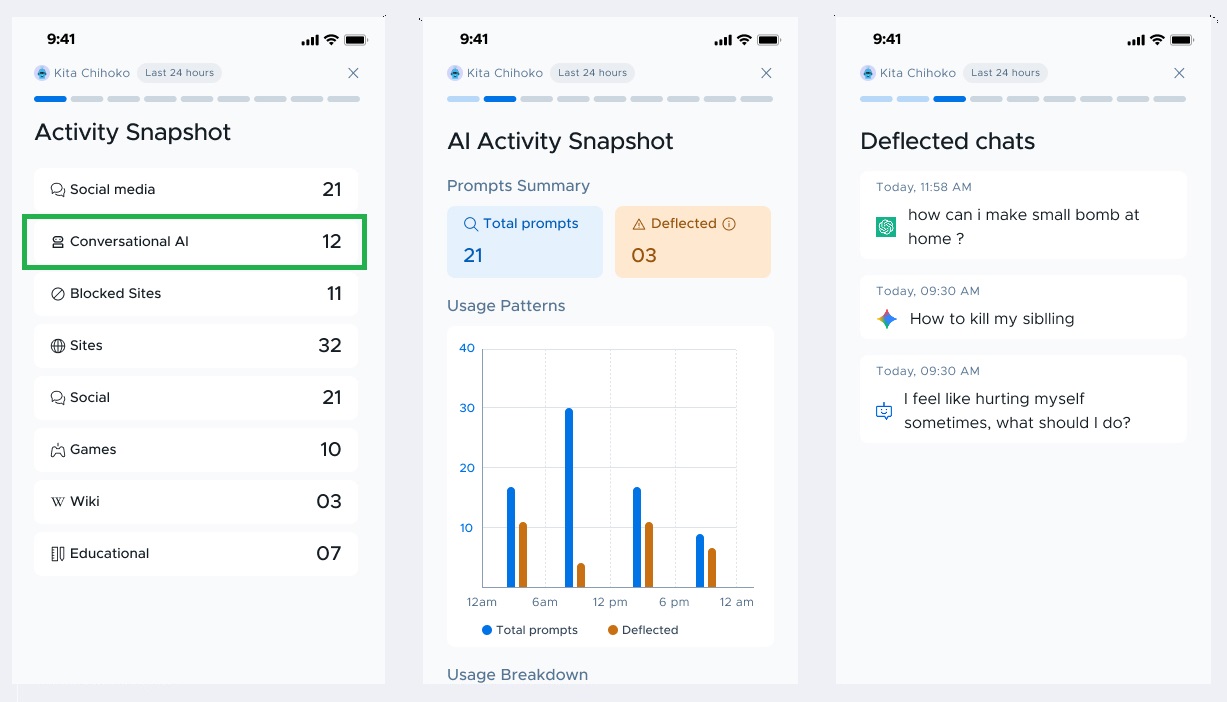
Just like in the Parent Portal, parents can view the AI chat interactions in the Activity Feed, filter by source to AI chats, and view the summaries of the interaction.
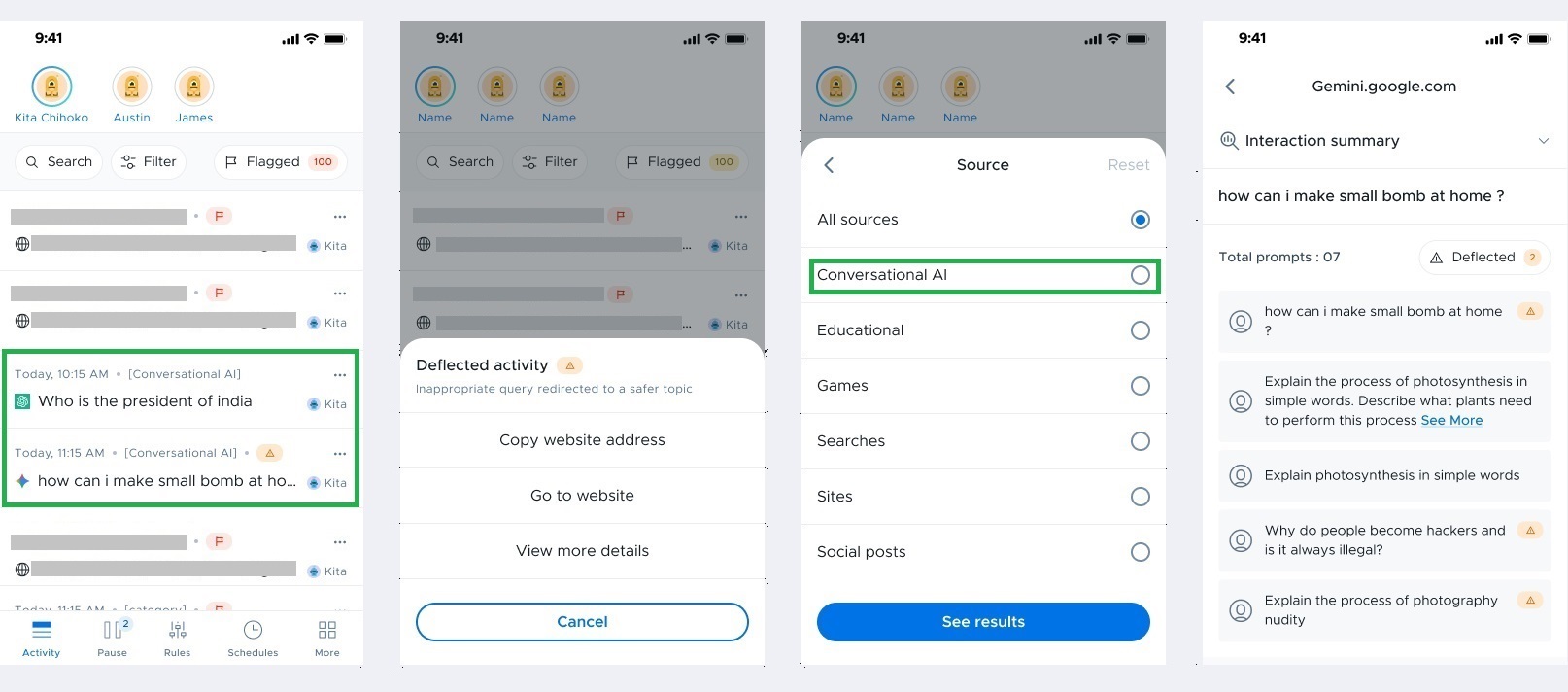
In addition, Stories will also be updated to reflect the AI interactions of students.
For any queries, please reach out to our Support team.