Pass › Pass Teacher/Staff Guide
Creating a Teacher Pass (TCH)
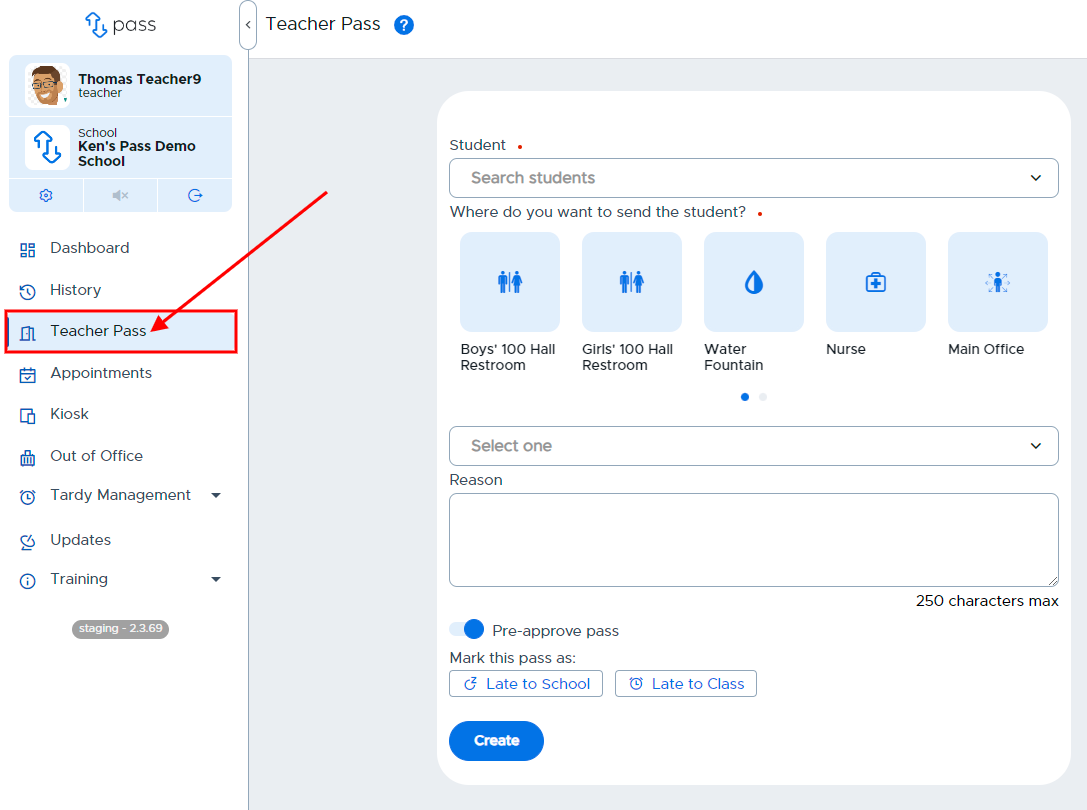
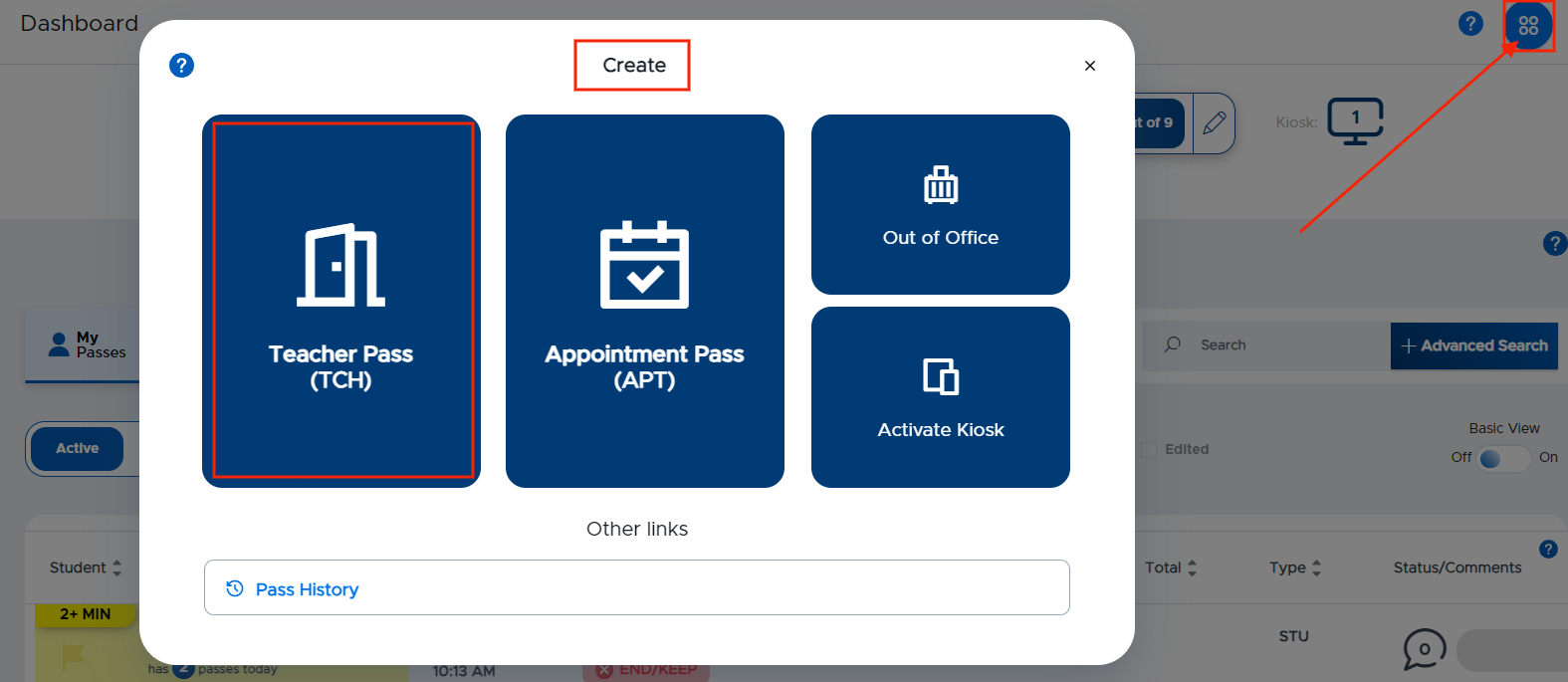
To create a Teacher Pass, click Teacher Pass on the left side of the screen or click the Create icon in the top right corner of the screen and select Teacher Pass.
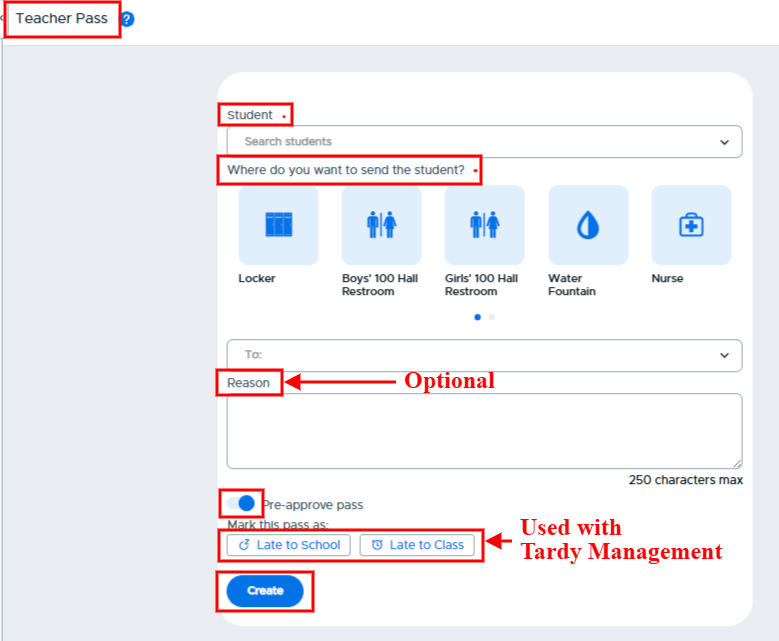
Complete/select the fields on the popup screen and click Create when finished.
Student name
“Where do you want to send the student?”
If the location is not one of the “favorite” locations, type the name of the adult or location in the “To:” field.
Reason for the pass (optional)
“Pre-approve pass” - Pass will go straight to an active (green) pass, if selected.
“Late to School” or “Late to Class” (Used with Tardy Management)
“Late to School” - This notation is typically used by office personnel when creating a pass for a student who is late to school.
“Late to Class” - Office personnel or hall monitors can create a “Late to Class” pass for a student. Teachers can also create a “Late to Class” pass for a student entering their classroom late.
Click Create.
The Teacher Pass will show:
The total number of passes the student has had today.
How many student-created passes are left if there is a pass limit.
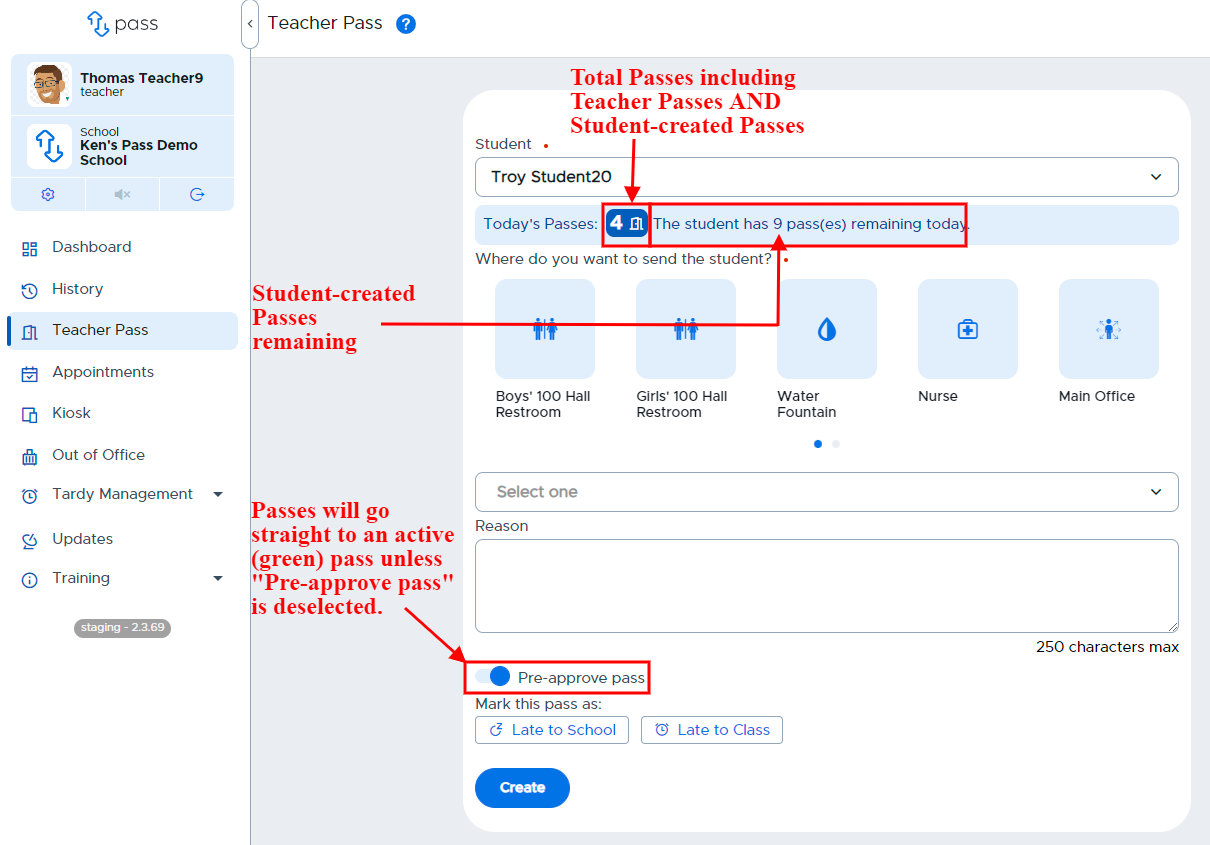
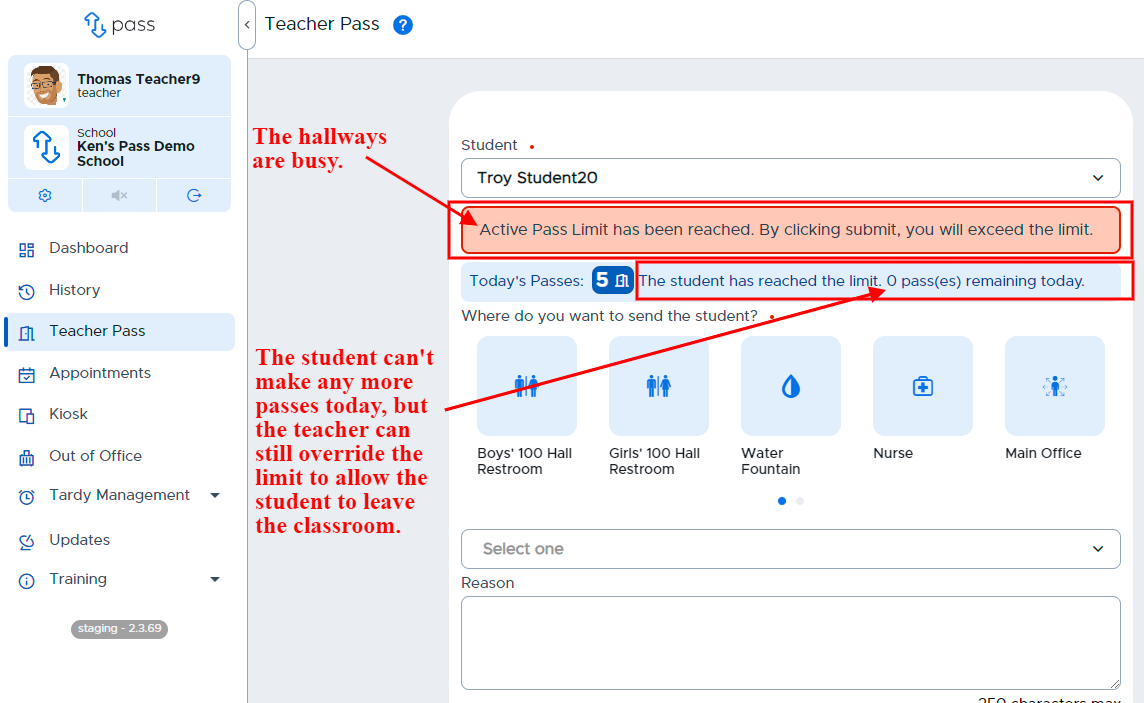
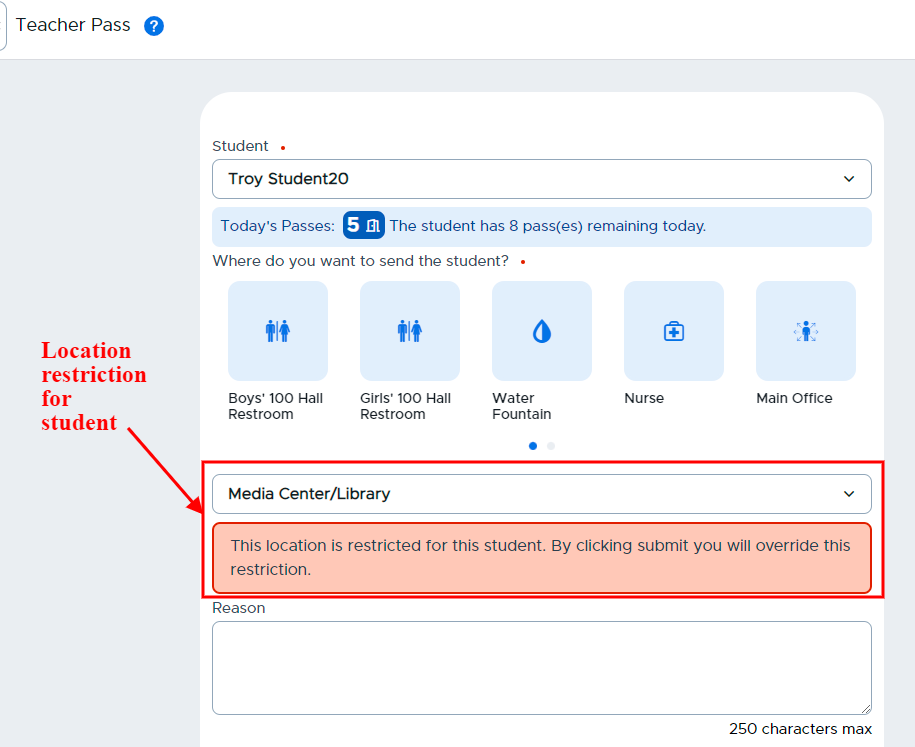
Teachers will also see notifications if students have any pass restrictions assigned to them by admins. The information given on the Teacher Pass allows the teacher to make an informed decision before allowing a student to go into the hallway. (See the illustrations below.)
If there is a location restriction for a student . . . .
If an admin has placed a contact control or a location limit on a student . . . . (The contact control message is editable by an admin, so it may vary from what you see below.)
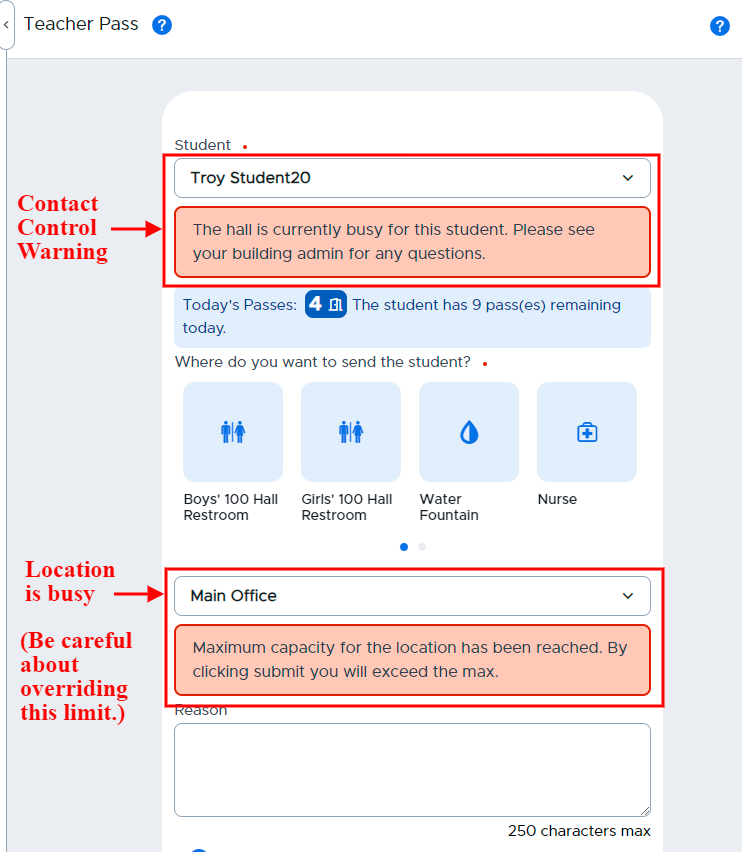
If the Hallway Pass Limit has been reached or a student-limit is exhausted . . . .