Aware › Cases
Editing School Contacts
Once you've created your school contacts, you can view and edit them by clicking on your school card under the School Contacts tab.
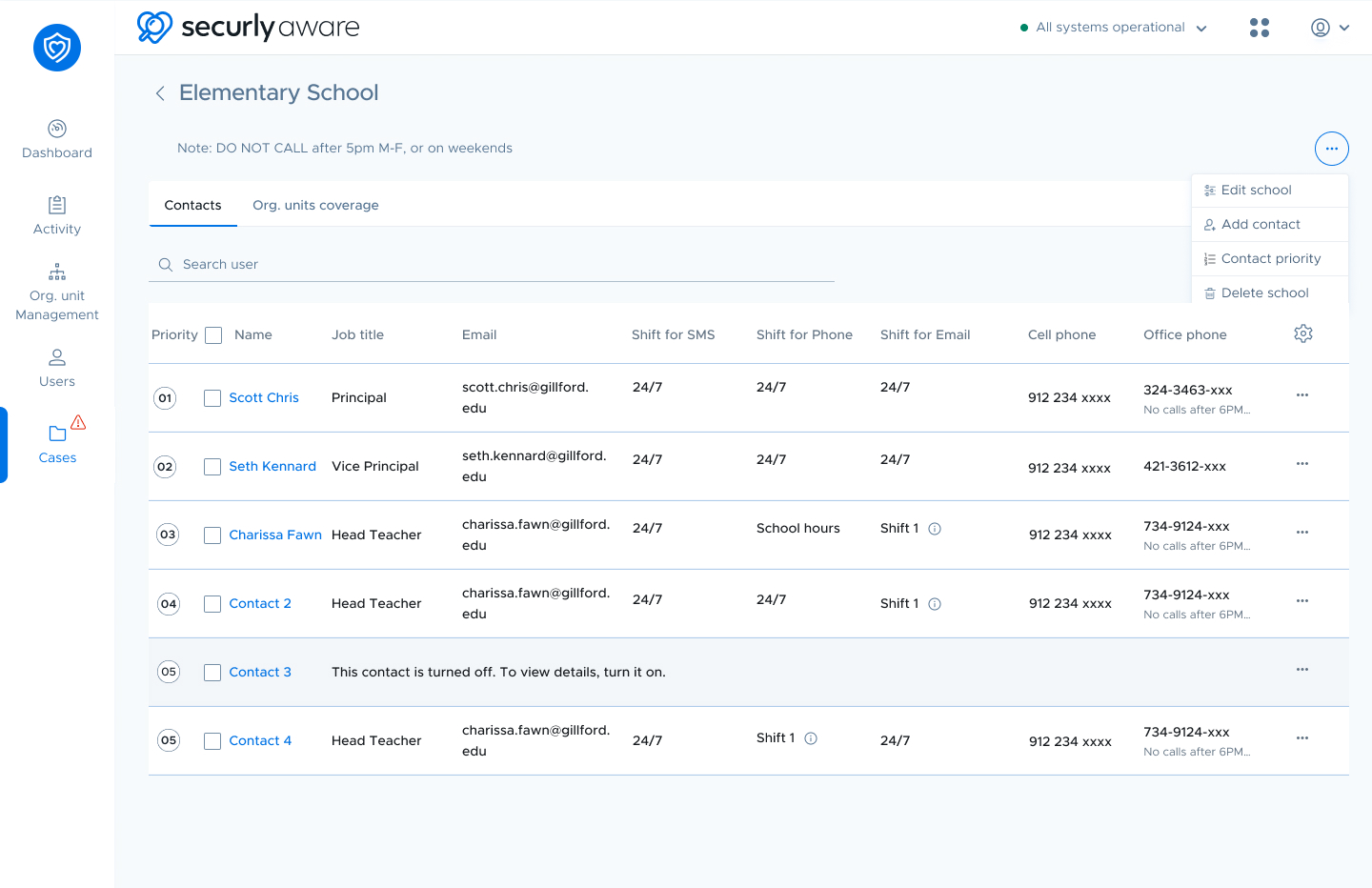
From here, you can select a contact and use the three-dots icon in the right to edit details, turn off a contact, or delete it.
Note: Turning off a contact disables it without deleting it. Use this option if a contact is temporarily unavailable (e.g., on leave), so they won't be reached for any student cases. You can re-enable them anytime by selecting their checkbox and choosing 'Turn on' from the three-dots menu.
To add new contacts directly from this page, click the three-dots icon in the top right.
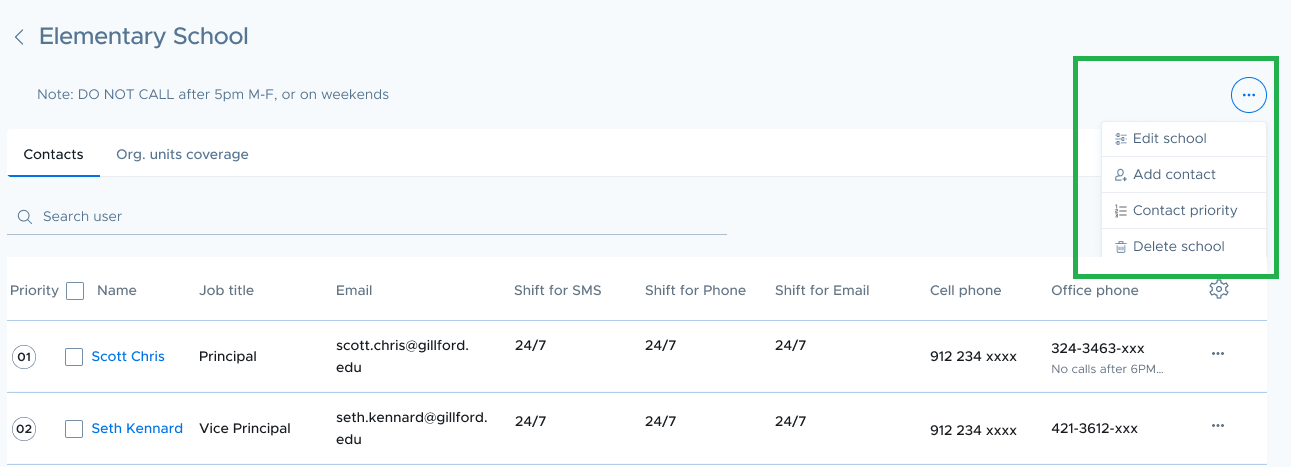
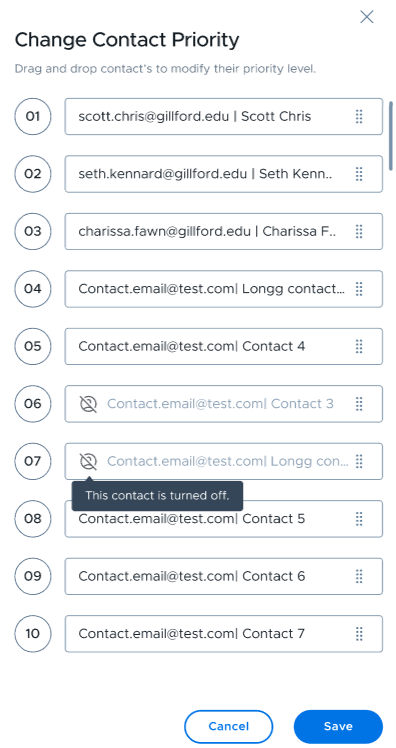
You can also prioritize contacts for student cases from here. Select 'Contact priority' from the dropdown, then use the drag-and-drop handle next to each contact to reorder them.
Disabled contacts are excluded from the priority list and appear grayed out.