Classroom › Classes
Monitoring Student Screens with the Thumbnail+Tab View
In the default Thumbnail view, teachers will only see student screens, whereas this view will also display icons for each open tab on the student's device below the thumbnail.
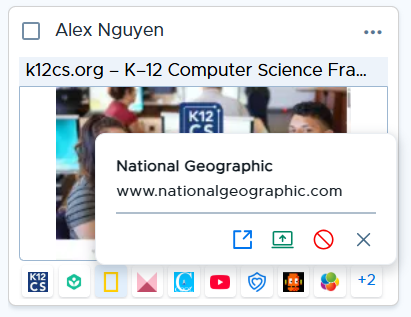
Clicking on a tab icon will reveal the usual actions:
Visit the site on your device
Switch the student to that tab
Block the site (adding the entire domain to the currently active/temporary access plan)
Close the tab for the student
If there are more tabs than can fit in a row, an overflow button (+X) indicating the total number of additional tabs will appear, linked to the student’s Detail View which shows the full tab list.