AI Chat
Prompts
The Prompts page in Securly AI Chat lets you create, save, and organize custom prompts for use across the platform.
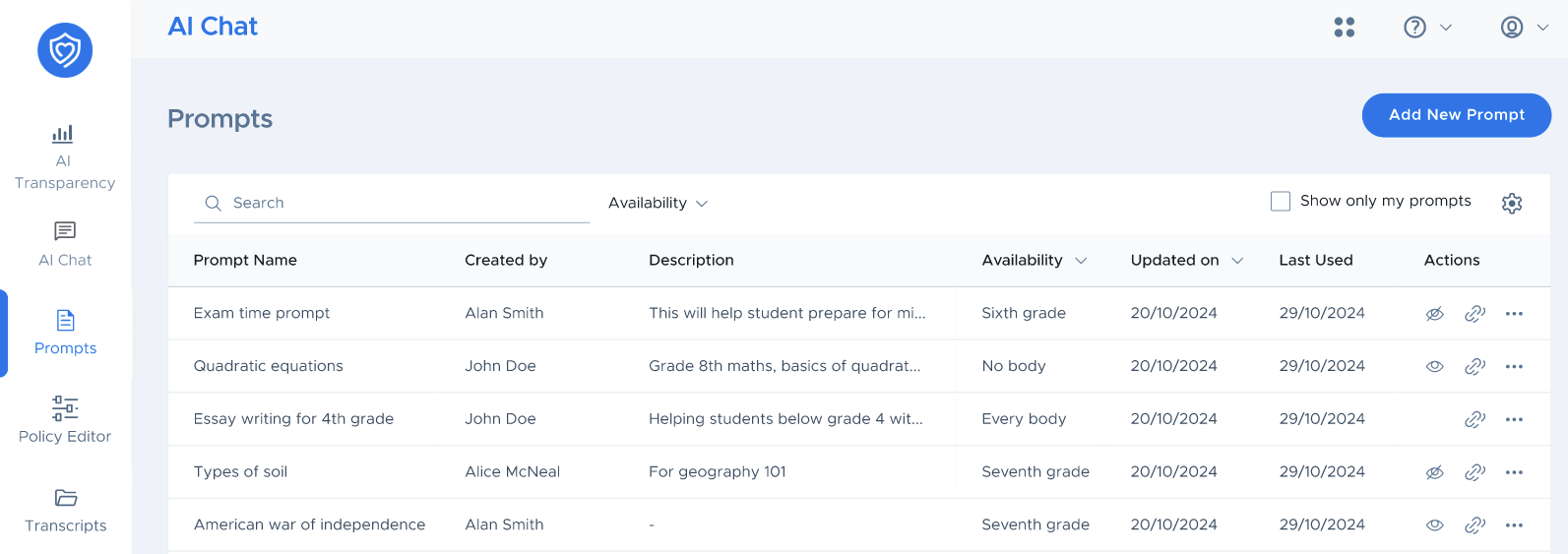
Navigating the Prompts page
Search Bar: Type the name of a specific prompt at the top of the interface to locate it instantly.
Availability filter: Filters data to quickly see which prompts are hidden or shared with others. Continue reading below for more details.
Prompts record: The Prompts table displays key details for each entry, including Prompt Name, Creation Date, Creator’s Name, and Last Usage Date.
On the right side of each prompt row, you have three action items.
Set prompt visibility (Eye Icon): Click this to control who can see your prompt on this page. When visible, other admins and teachers can use. However, they cannot edit or delete it.
Copy Deep link: Copies a direct URL that opens a new Securly AI Chat session with that prompt already loaded.
More Options (Three-Dots Icon): Provides options to edit, duplicate, or delete the prompt. You can also select multiple prompts using the checkboxes to reveal options for cloning or deleting.
Creating a new prompt
Click the Add New Prompt button in the top-right corner.
In the sidebar popup, enter the prompt name, description, and details.
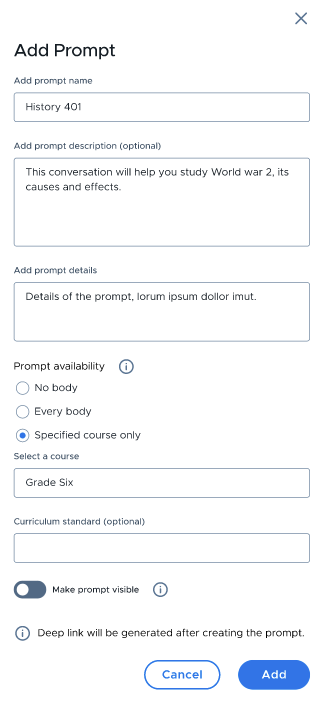
Set your privacy preference using the Prompt availability options:
Nobody
Everybody: Selecting this makes the prompt becomes discoverable by other admins, teachers, users in a specific class, and students.
Specific course only: Selecting this makes the prompt available for use only for users in the selected course.
You can then add the curriculum standard if needed.
Use the 'Make prompt visible' toggle to control if the prompt should be visible by other admins and teachers in the Prompts library.
Finally, confirm your changes and hit Save.
Deep Links
Once a prompt has been created, a deep link gets generated. A deep link is a shareable, reusable URL that points directly to a specific saved prompt. When a user clicks the link, AI Chat opens with that prompt pre-selected and ready to start a session.
Deep work regardless of the prompt's discoverability setting, meaning even if a prompt is hidden, anyone with the deep link can still access and use it. This gives teachers a convenient way to share specific prompts to students without making them publicly browsable.
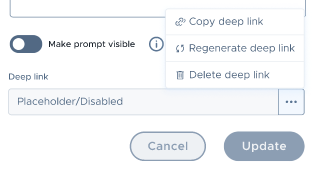
You can regenerate and delete deep links using the three-dots icon (as shown below) when editing a prompt.
Permissions
| Role | Core Capabilities |
| Admins | Create, manage, and share prompts; link prompts to policies; configure audience permissions platform-wide. |
| Teachers | Create, manage, and share prompts; generate direct deep links for quick classroom distribution. |
| Students | Browse and select from pre-approved prompts shared with them when initiating a new chat session. |