Pass › Visitor
Setting up Printers in Visitor
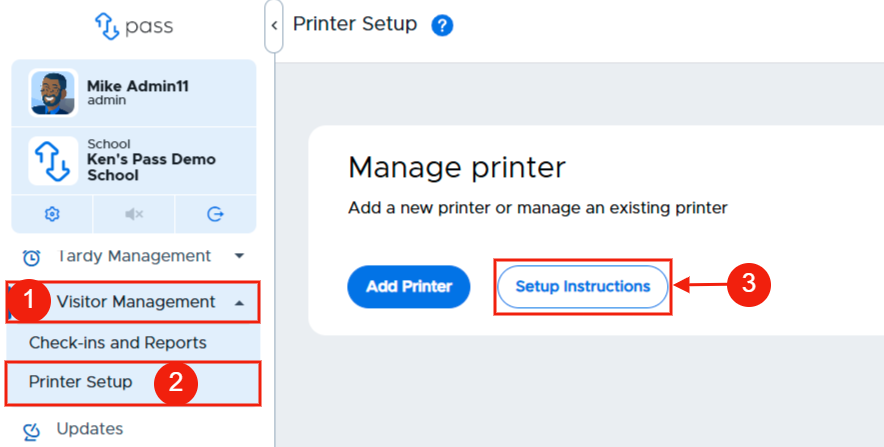
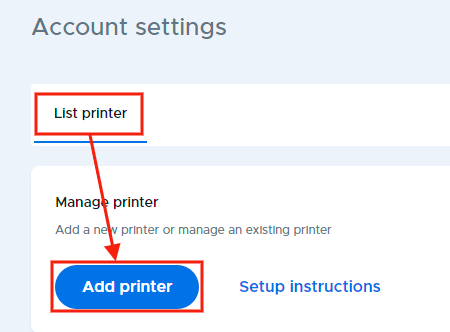
To set up a printer, from the left menu, click Visitor Management, Printer Setup, and then Setup Instructions.
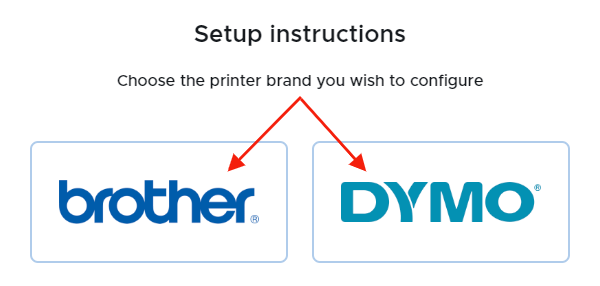
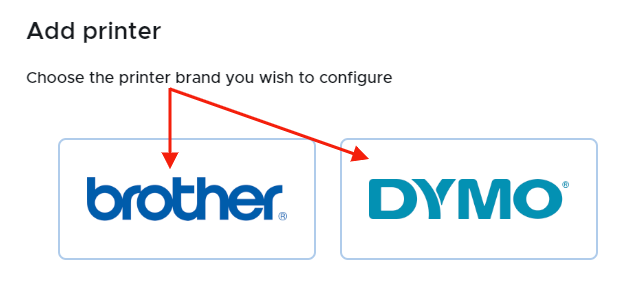
On the popup, select the brand of printer you have and follow the instructions that are listed below for the printer that you selected (brother or DYMO).
Brother Printer - Setup Instructions
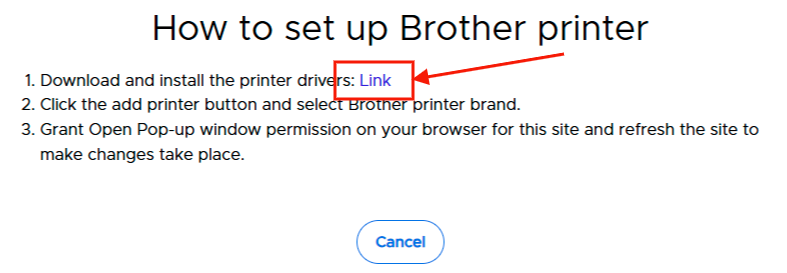
Download and install the printer drivers: Link
Steps 1 & 2
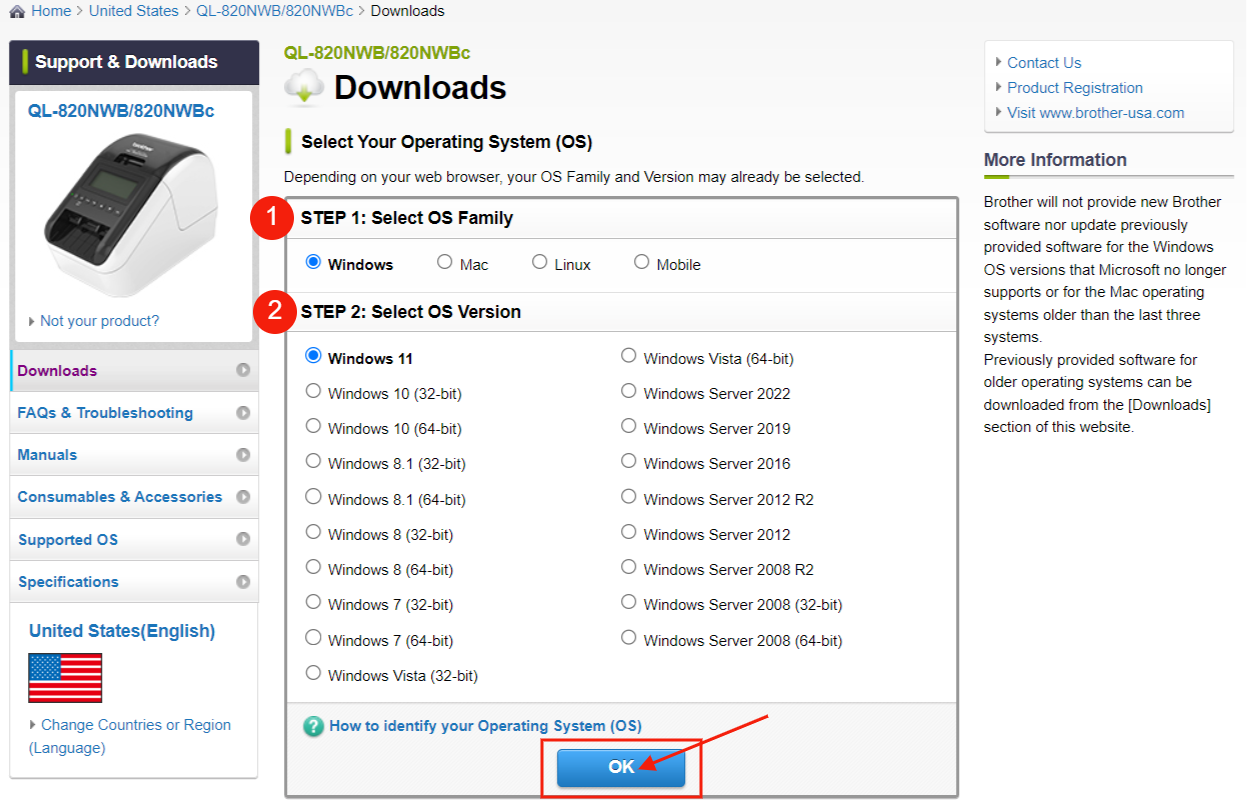
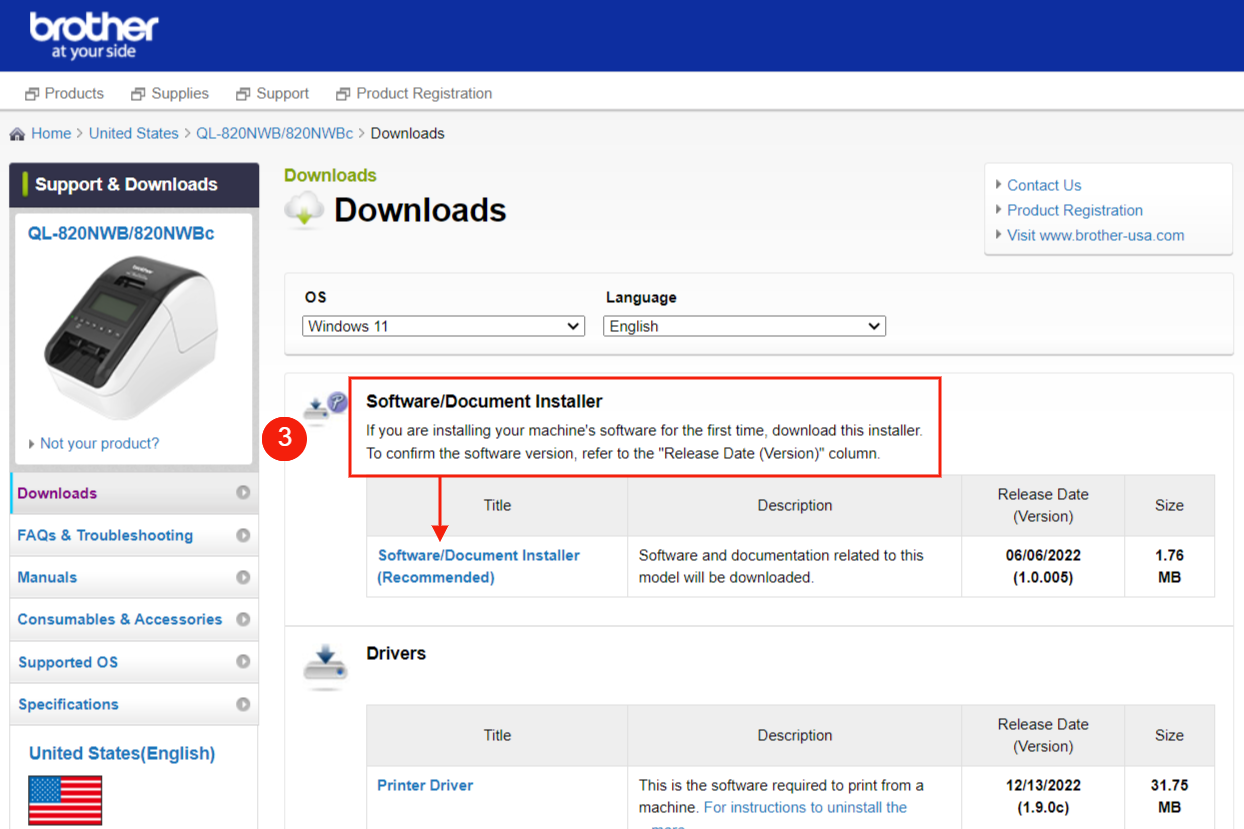
Step 3
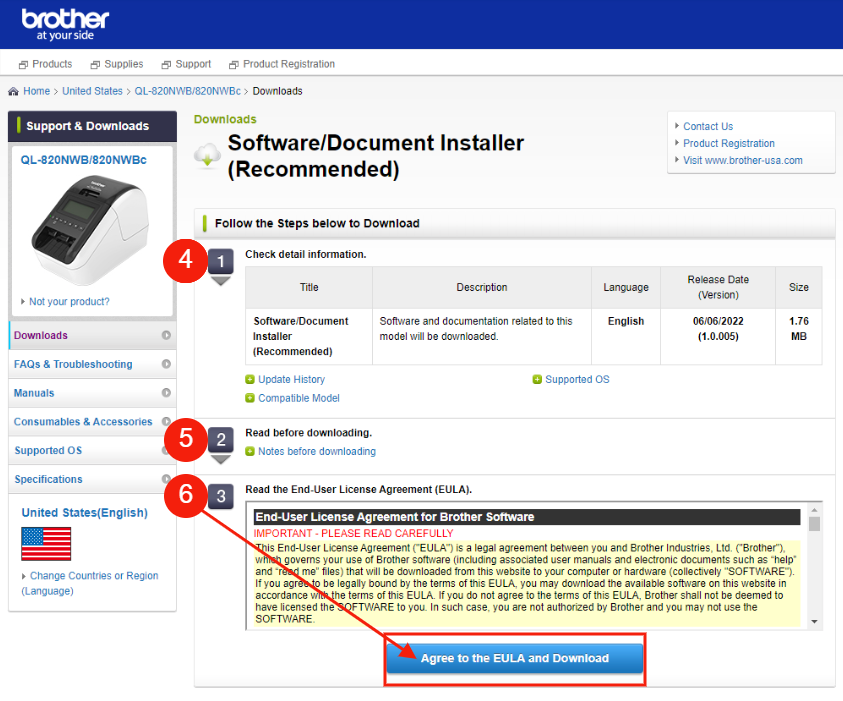
Step 4, 5, & 6
Step 7
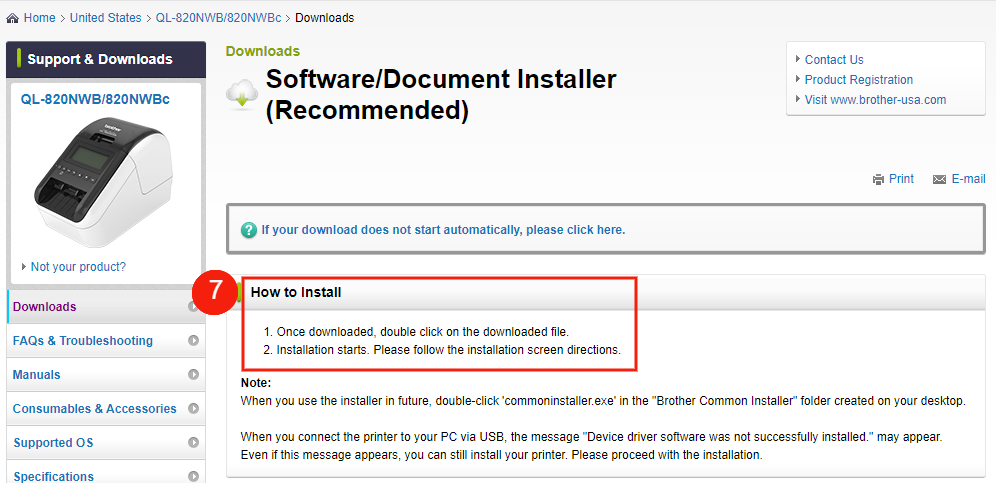
Note:
If you have issues with your Brother printer, please reach out to Brother FAQs and Troubleshooting.
Connect Brother QL-820NWB to Wi-Fi
Press the [Menu] button and the [▼] button to select the [WLAN] menu, and then press the [OK] button.
Press the [▼] button to select WLAN On/Off, and press the [OK] button.
Use the [▲] and [▼] buttons to select [On] and press the [OK] button to enable.
Once enabled, press the [↩] button and within the [WLAN] menu select WLAN > Infra Manual Setting and press the [OK] button.
The printer should then search for available Wi-Fi networks. Use the [▲] and [▼] buttons, select your preferred Wi-Fi network and then press the [OK] button.
Enter your password using the [▲] and [▼] buttons to select the correct characters.
Please note: you can select the [Menu] button to change the keyboard to input symbols, numbers, uppercase, and lowercase characters.The screen should then display 'Connected!' to confirm this was successful. Press the [↩] button to make your way back to the main screen and confirm the Wi-Fi symbol shows solid in the top right corner of the screen.
Connect Brother QL-820NWB to Bluetooth
In order to print labels, you will need a WiFi network that allows pop-ups/notifications and does not block printing or print devices. This applies for both all printer types and for Bluetooth connections.
Enable Bluetooth printing on your Brother Printer:
Ensure that your computer, tablet, and printer are all on the same WiFi network.
Press the [Menu] button and the [▼] button to select the [Bluetooth] menu, and then press the [OK] button.
Press the [▼] button to select Bluetooth On/Off, and press the [OK] button.
Use the [▲] and [▼] buttons to select [On] and press the [OK] button to enable.
Once enabled, press the [↩] button and within the [Bluetooth] menu, select Bluetooth > Automatic Reconnection and press the [OK] button
Use the [▲] and [▼] buttons to select [On] and press the [OK] button to enable.
Return to the printer’s home screen and confirm the Bluetooth symbol is displayed in the top right corner.
In your iPad Settings, select Bluetooth. Click the printer, and verify that the code displayed matches what is on your printer.
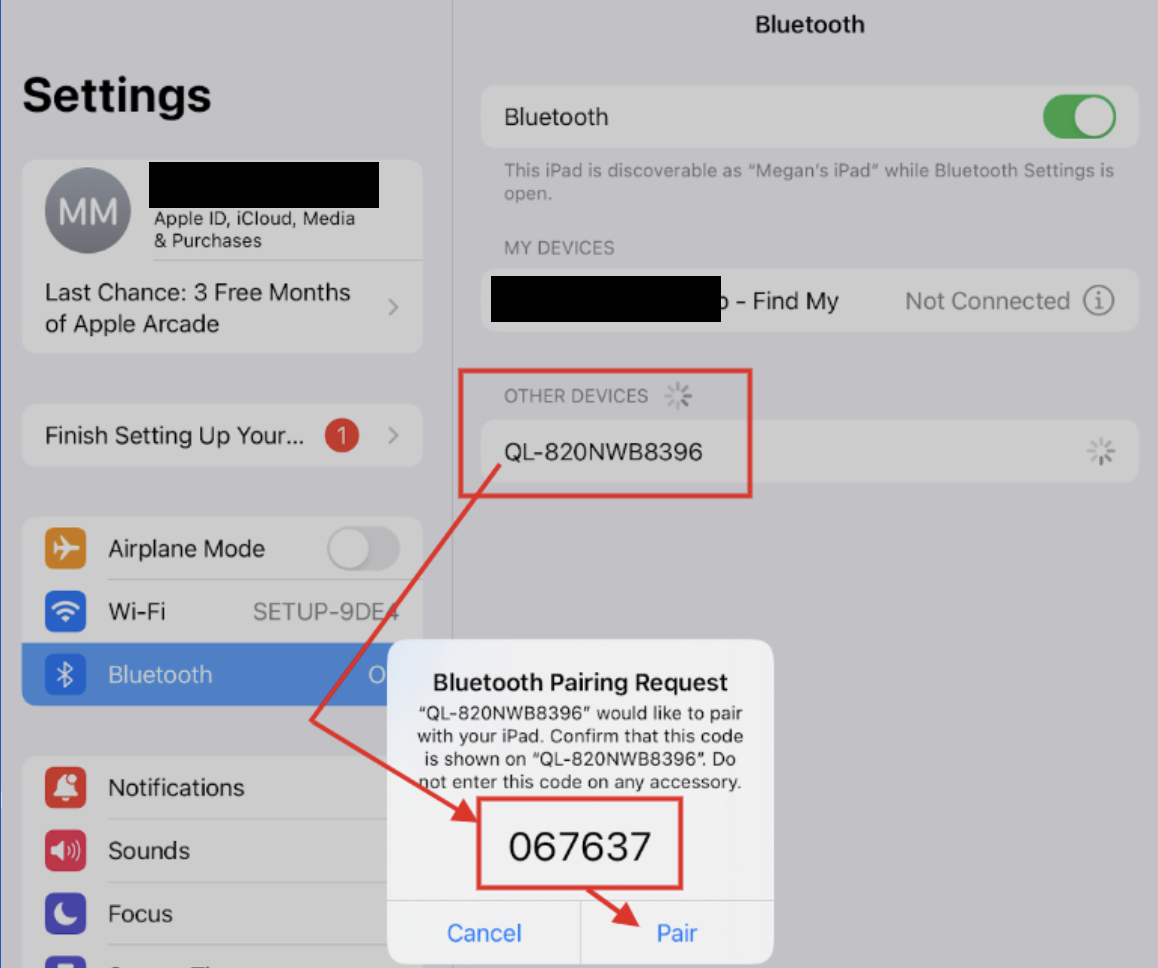
Also in iPad Settings, search for the iPrint&Label app (this app should already be downloaded on the device). Ensure that the "Local Network" toggle is on under Settings - iPrint&Label.
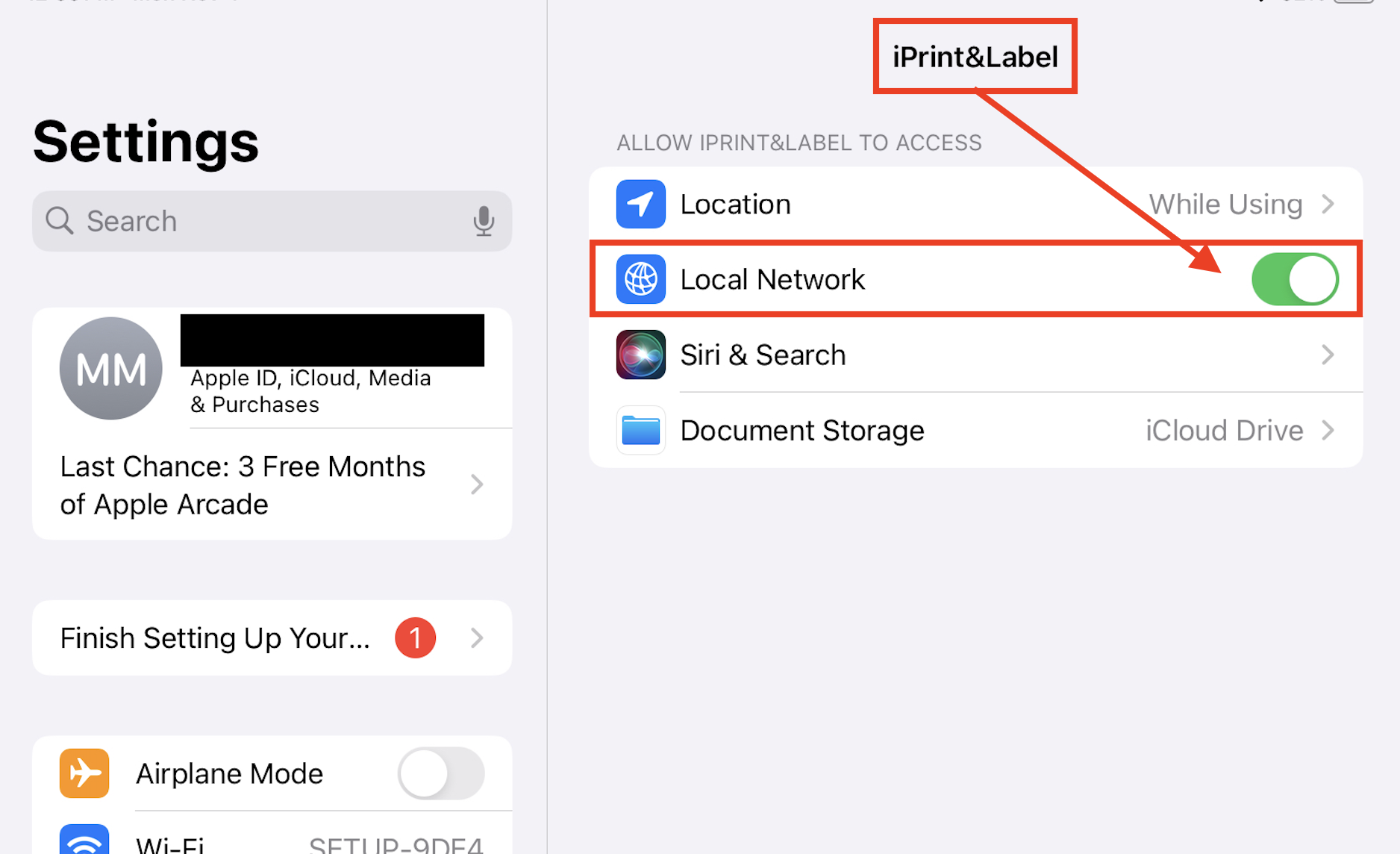
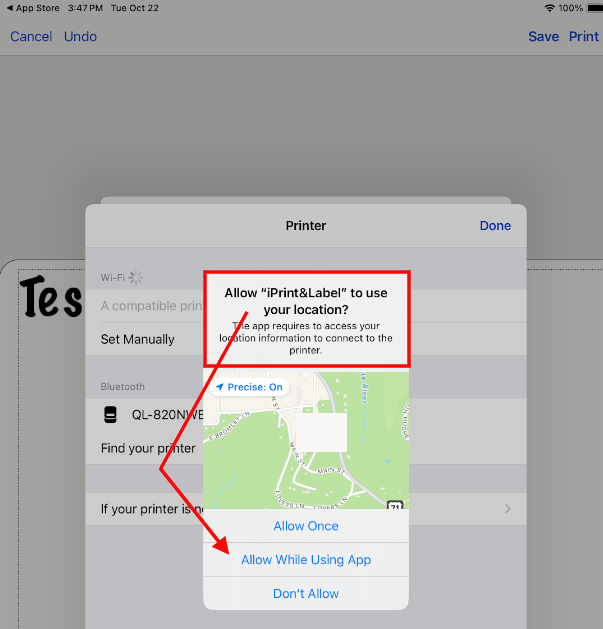
In the iPrint&Label app, allow location access.
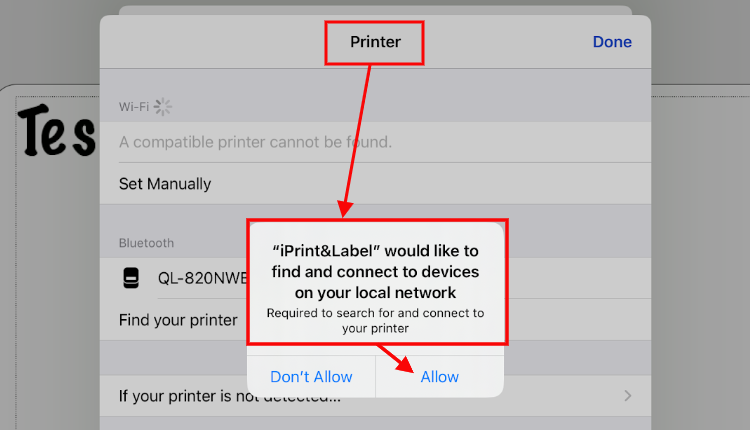
Connect to the printer using the local network.
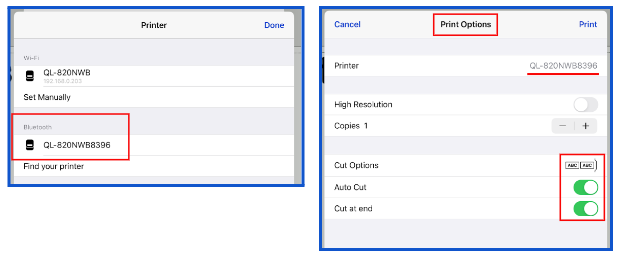
Ensure that the printer is found and connected. Try printing a test label.
Note:
If you try these steps and are still not successful in connecting with Bluetooth, contact Brother Support and ask for assistance. The 2.4 GHz limitation is specific to the printer, not to our product, so the Brother team can add additional insight into the WPA3 setup and other network components.
DYMO Setup
Open the compatibility chart on the Dymo website: Link.
Select and download the Dymo Connect Software or Dymo Label software according to your printer and system.
Install the application.
Run the web service (search for Dymo web service in Windows search or Mac spotlight) for the application installed in step 3.
If you don’t find the web service, try restarting your system. It will start running automatically.
If you still have an issue running web service in Mac, follow these steps: Link
If you are on a Mac, open the installed Dymo service and click Print to print a test badge (This step is not required for Windows users.)
Connect your printer to the system and return to the Visitor app.
Click on the (test printer) icon across from the printer’s name to ensure the printer is functioning properly.
Please note: If you have issues with your Dymo Printer, please consult these resources.
Compatibility chart on the Dymo Website
Next, go back to Printer Setup and click Add Printer. Select the brand of printer - brother or DYMO.
Clarification on Dymo Printer Compatibility:
The Dymo LabelWriter 550 is not compatible with the Securly Visitor Management System. However, the Dymo LabelWriter 550 Turbo is supported and can be used to print visitor badges effectively.