Pass › Pass Mobile App Guide
Launch Kiosk from Pass Mobile App
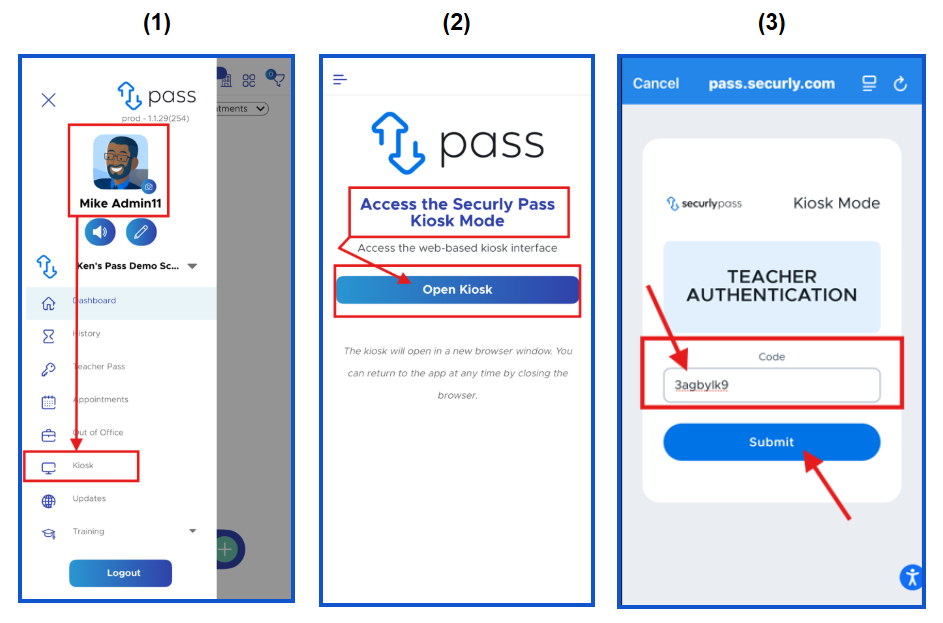
To access the Kiosk functionality, click the three (3) horizontal bars in the upper left corner. On the Navigation Menu, click Kiosk (1). On the next screen, click Open Kiosk (2). The Teacher Authentication page will appear. Enter your Kiosk key (8-digit code from the web application - i.e.- 3agbylk9) (3).
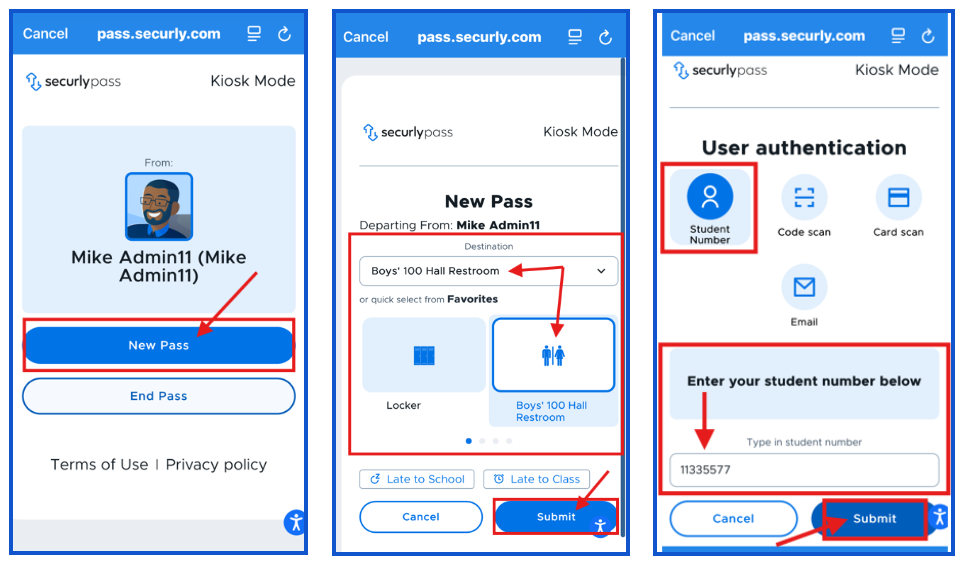
The Kiosk will appear and look very similar to the web application. The person creating the pass will click New Pass, select the Destination from the list of "Favorites" or select one from the dropdown menu and then click Submit.
The next screen will display the Student Authentication Method that was chosen on the Modules page - Email/Passcode, Barcode, Magnetic Strip Card, or Student Number. The screenshot below shows the Student Number authentication screen - enter the student number (or appropriate student authentication) and click Submit. The student's pass is now awaiting approval. On the next screen, the adult will enter their PIN (4-6 digit PIN - Profile Settings) and click Submit.
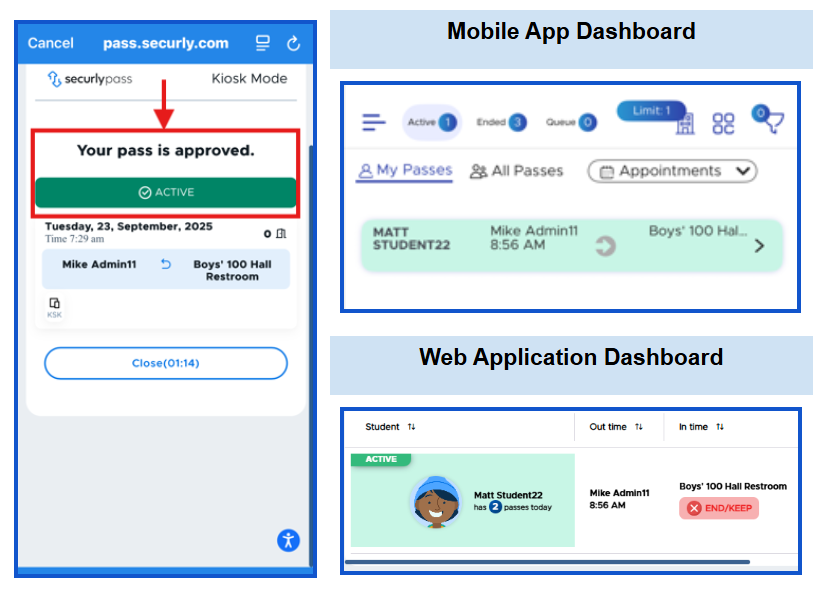
The student will get confirmation that the pass was approved. Once approved, the pass will be displayed on the Dashboard of both the mobile app as well as the web application.
Kiosk and Auto Pass Locations
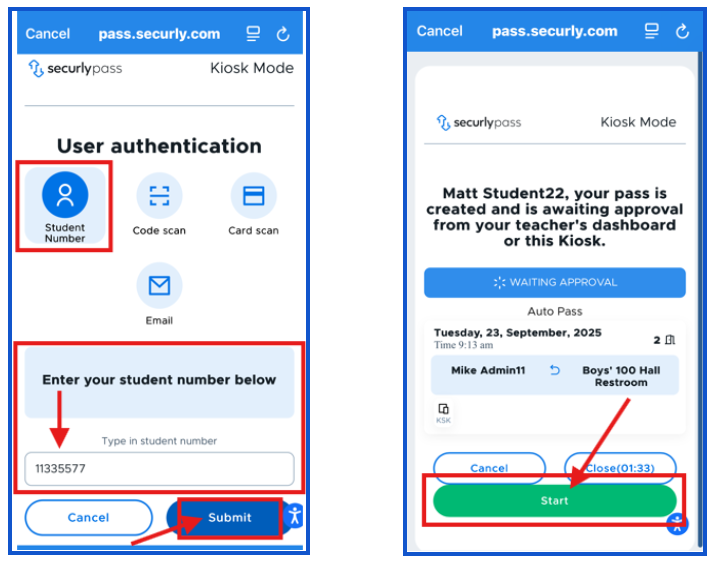
If the kiosk pass is to an Auto Pass location, the same process will be followed. When the student enters their Student Number and clicks Submit, they will be able to click the green Start button to start their pass.
Reminders
- If you launch a Kiosk from you (“Me”), your Auto Pass locations that you selected will also work on the Kiosk.
- If you launch a Kiosk from a location, your Auto Pass locations that you selected will NOT function as Auto Passes. Students can select those locations, but you will need to approve the pass from the Kiosk.