Pass › Visitor
Visitor Guardian/Student Matrix
The Guardian/Student Matrix matches guardians/parents with their students during pick up and drop off. The matches are based on the information shared via matrix.
Note:At Check-in, the name of the visitor MUST MATCH EXACTLY what is listed on the matrix. If a nickname is used at Check in, that visitor will be denied access. Using a nickname (“Rob” or “Bob” for “Robert”) will result in a Denial status.
In order to utilize this functionality, you will need to upload a matrix file that matches guardians with their students. Before uploading your Matrix, make sure that you have student users provisioned into your system. You can check this under Users - Main Users.
You have two options for uploading a Guardian/Student matrix:
- Option #1 - SFTP: Individual School file (One file uploaded for one school) / District file (One file uploaded for multiple schools in the district)
- Option #2 - Manual (CSV via the Pass system)
Option #1 - SFTP
Individual School Matrix File
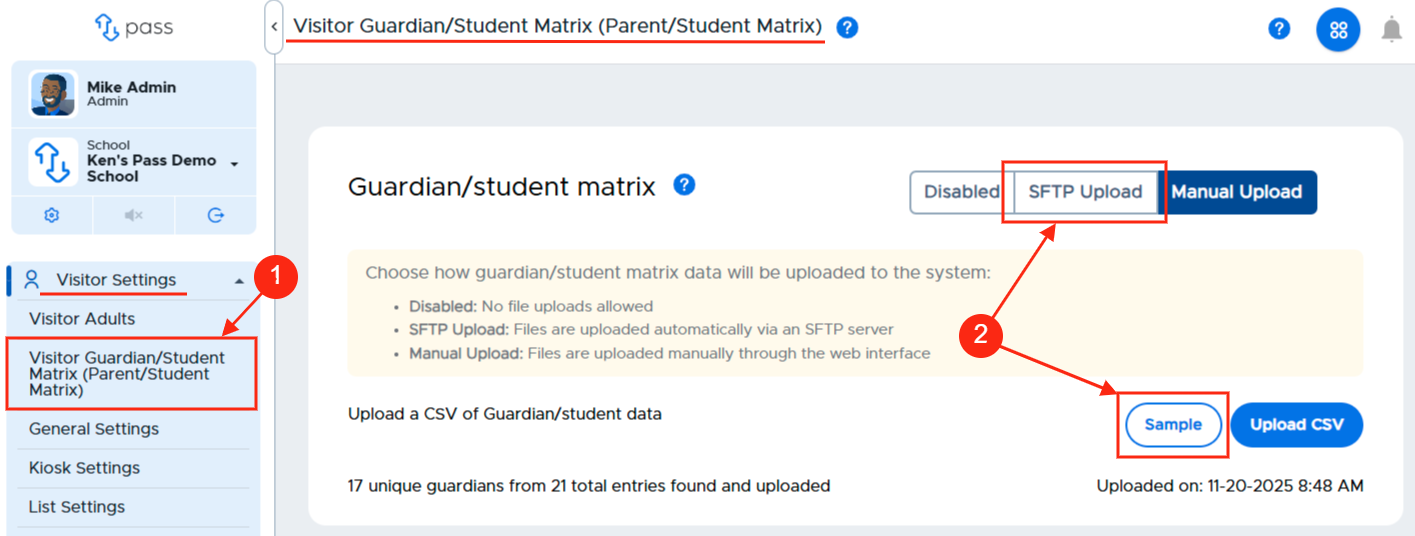
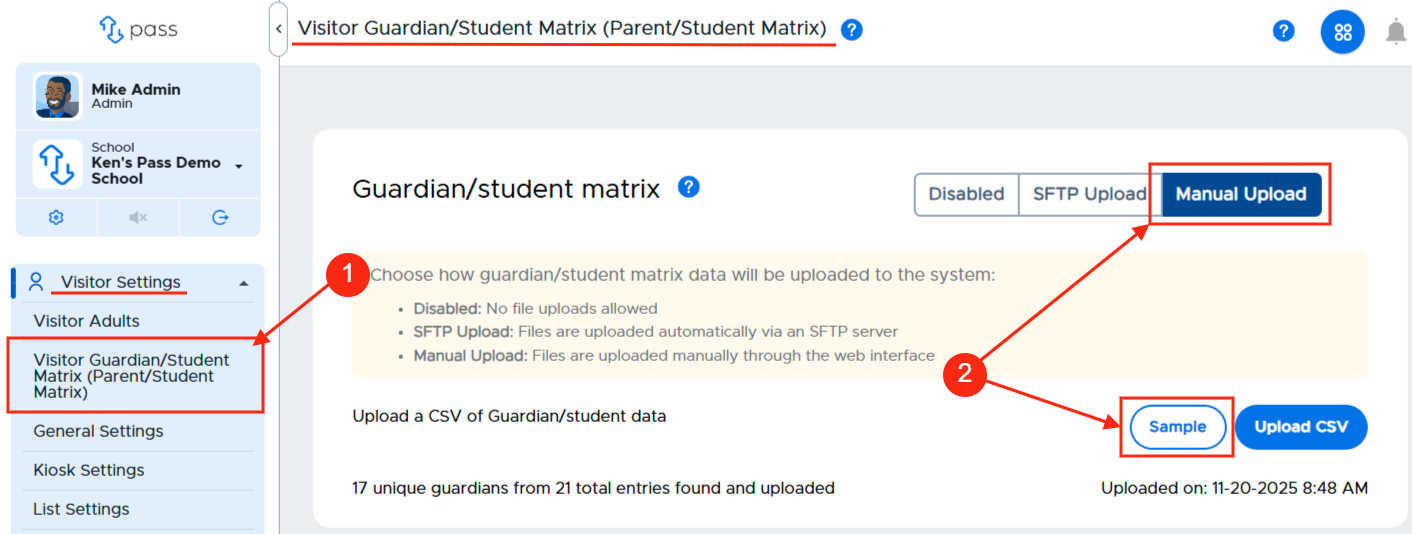
To create a Guardian/Student Matrix file for SFTP, under the Control Panel, click Visitor Settings and then Visitor Guardian/Student Matrix. On this page in the upper right corner, click SFTP. Click Sample to view the sample file.
Please keep the following information in mind when adding the information to the spreadsheet:
-
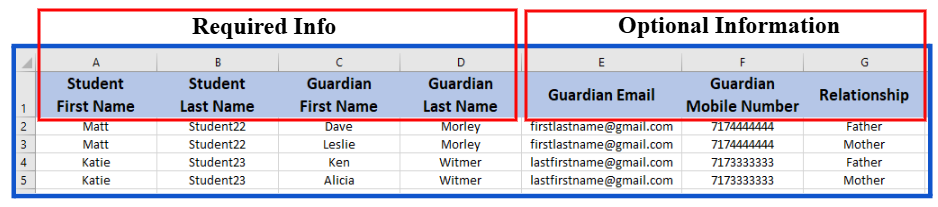
The information in the first four columns) is REQUIRED.
- Student First Name
- Student Last Name
- Guardian First Name
- Guardian Last Name
-
The information in the last three columns) are optional. (DO NOT delete these columns from the file. Just leave them blank if not providing this information.)
- Guardian Email
- Guardian Mobile Number
- Relationship
-
Note: It is possible for one student to be matched with multiple people (mother, father, aunt, uncle, grandfather, etc.) Each person will need to be added on a separate line on the file, the student’s name will be repeated on as many lines as needed to match the multiple guardians.
Important Matrix File Info
- The hyphen ( - ) and the apostrophe ( ‘ ) are acceptable characters in the file. Other characters may cause an issue when the file is uploaded.
- Remove errant spaces at the beginning of cells.
- The headers in your CSV file need to be exactly the same as the appear on the Download Example file. (The screenshot below has been modified for easier viewing.)
Individual School Guardian/Student Matrix (Sample File Screenshot) when uploading a file for an individual school.
District file
District File - Guardian/Student Matrix (Sample File Screenshot) when uploading a file for a district with multiple schools. If you are creating a district file, please add “School Name” to column H. Use the schools’ full names when adding the schools. (Columns are manipulated for easier viewing.)

If interested in the District file option, please reach out to the Help Desk for your schools to be configured and/or if you need your SFTP school/district credentials.
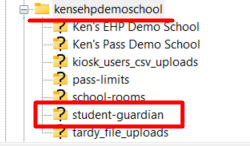
When the file is ready, you will need to access our SFTP server. Locate your Pass folder and upload the file to your school’s or district’s sub-folder labeled “student-guardian”.
Final SFTP Notes
- It is best practice to have one master file for your matrix. Each new file upload (SFTP or manual) will write-over all existing data and will remove data that is not included in the most recent file. Use your master file to add or remove guardians and re-upload the same CSV file.
- Please consult your district IT personnel if you desire to automate the upload process to our SFTP server.
Option #2 - Manual (via CSV)
To create a Guardian/Student Matrix file via CSV file upload, under the Control Panel, click Visitor Settings and then Visitor Guardian/Student Matrix. On this page in the upper right corner, click Manual. Click Sample to view the sample file.
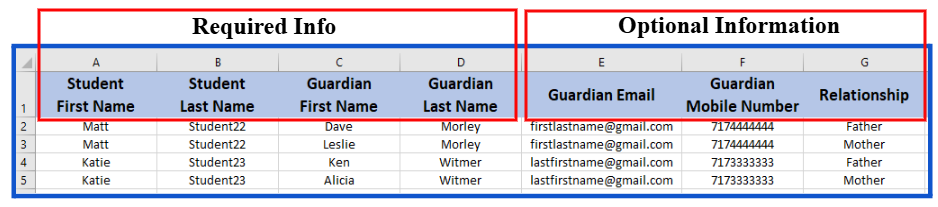
Please keep the following information in mind when adding the information to the spreadsheet:
- The first four columns are REQUIRED.
- Student First Name
- Student Last Name
- Guardian First Name
- GuardianLast Name
- The last three columns are optional.
- Guardian Email
- Guardian Mobile Number
- Relationship
- Note: It is possible for one student to be matched with multiple people (mother, father, aunt, uncle, grandfather, etc.) Each person will need to be added on a separate line on the file, the student’s name will be repeated on as many lines as needed to match the multiple guardians.
Important Matrix File Info
- The hyphen ( - ) and the apostrophe ( ‘ ) are acceptable characters in the file. Other characters may cause an issue when the file is uploaded.
- Remove errant spaces at the beginning of cells.
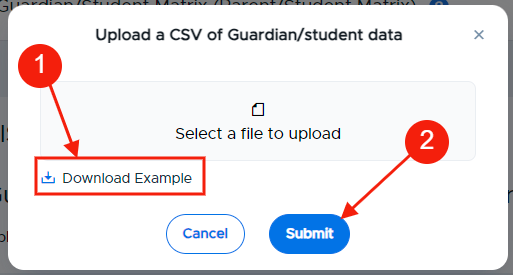
- The headers in your CSV file need to be exactly the same as the appear on the Download Example file. (The screenshot below has been modified for easier viewing.)
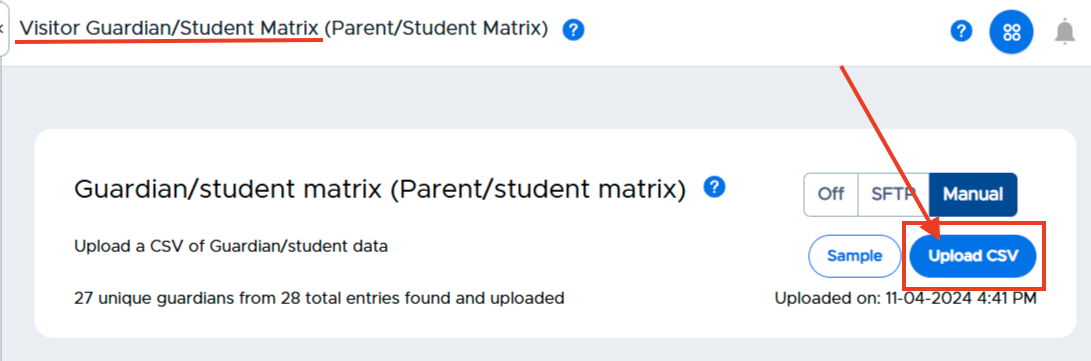
When your file is ready, click the blue Upload CSV button on the Visitor Guardian/Student Matrix page. Click Select a file to upload, select the CSV file, and click Submit.
NOTE: It is best practice to have one master file for your matrix. Each new file upload (SFTP or manual) will write-over all existing data and will remove data that is not included in the most recent file. Use your master file to add or remove guardians and re-upload the same CSV file.
Track File Status
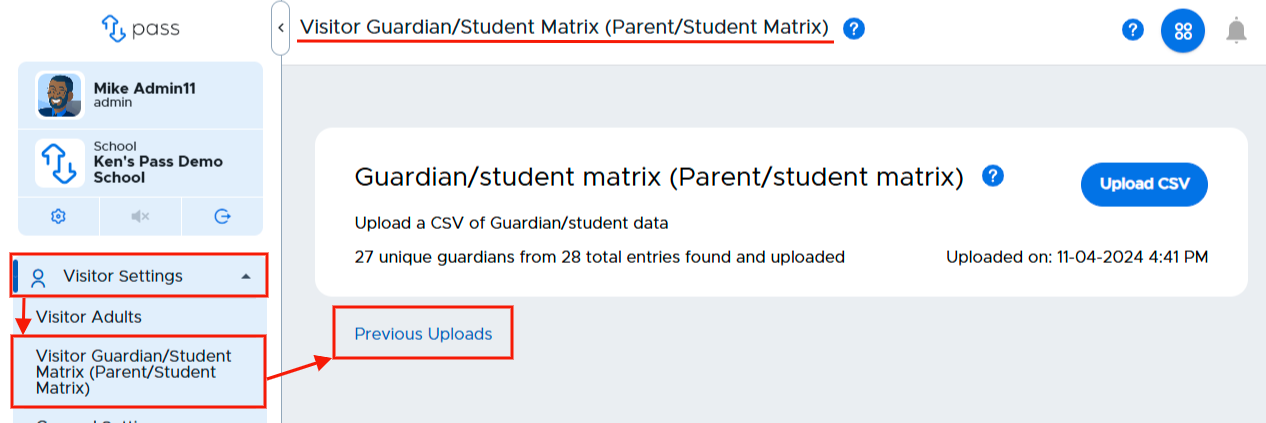
Once you have uploaded your Guardian/Student Matrix, you can easily track the status of the file. On the Visitor Guardian/Student Matrix page, click on Previous Uploads. The name of the file, the status (SUCCESS, PARTIAL, FAILED), and date created will be displayed.
Status Meaning:
- SUCCESS - The file uploaded successfully
- PARTIAL - Portions of the file uploaded successfully (see the information below)
- FAILED - The file did not upload. (Make sure the headers are in the correct format and the required information is included on the file. Re-upload the file.)
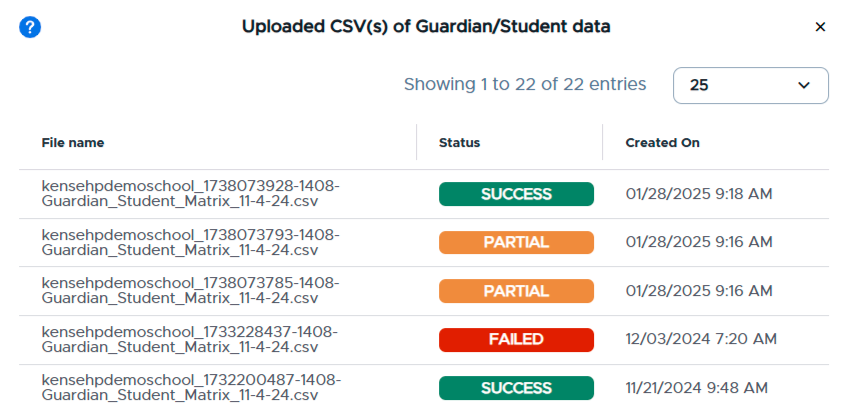
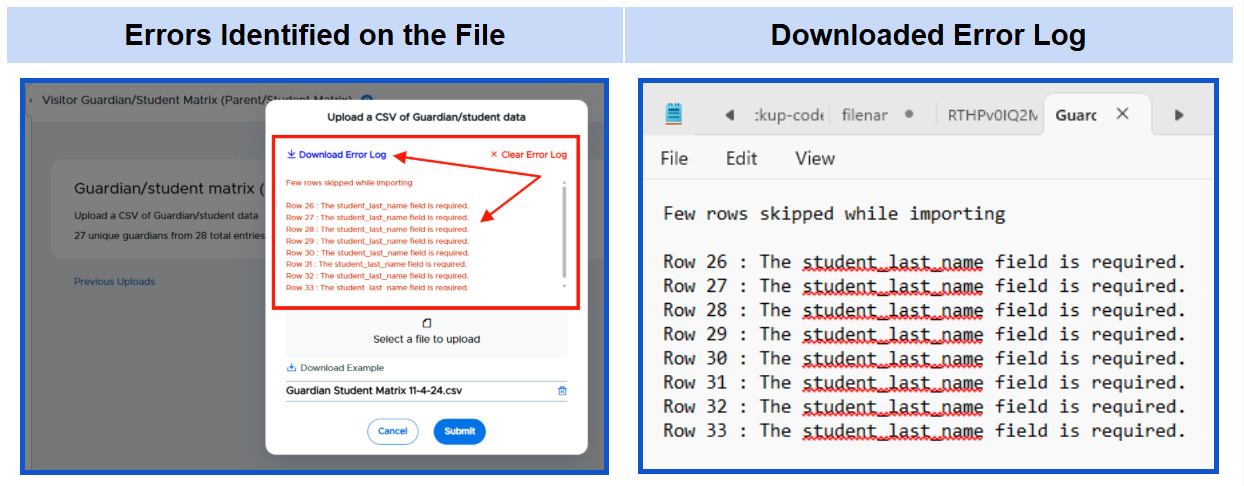
If you receive a PARTIAL status, there are issues with the data on the file, and they will be displayed on the page. If a number of issues exist on the file, you can download the Error Log, make the appropriate corrections on the file, and save and re-upload the file.