AI Chat
Chat
The Chat menu is where users converse with the AI and can see their personal chat history. While this is the primary interface that students will use, admins and other users can use this interface as well to get an idea of how the AI will respond to certain queries.
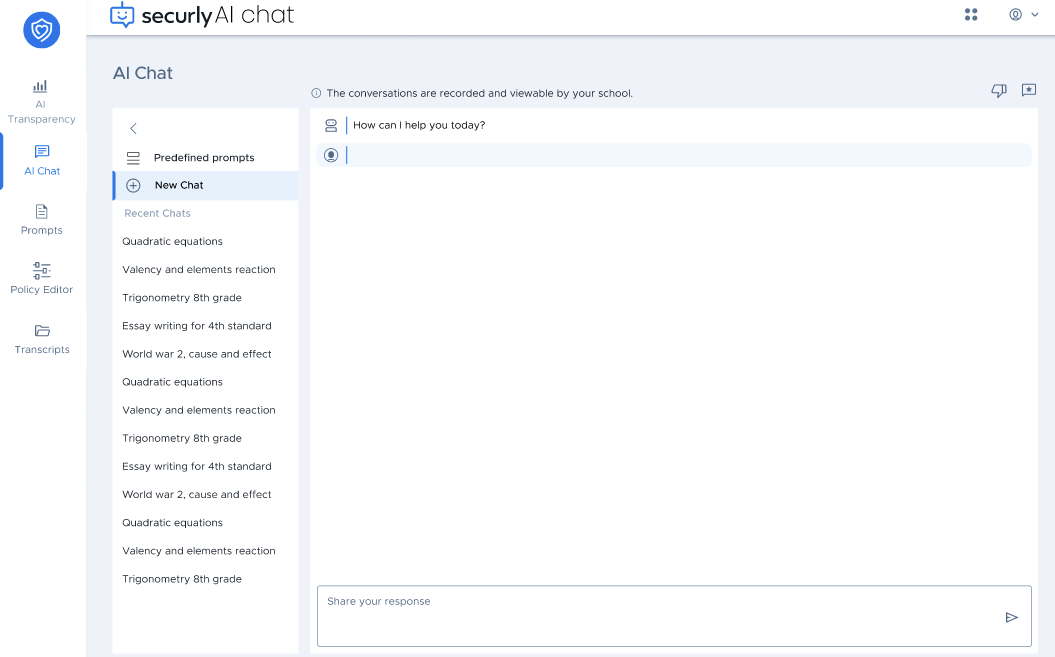
For each conversation, any user can rate the AI's responses as good or bad, or leave a comment on the response using the three buttons in the upper right of the chat interface. Comments are sent to the Securly product team.
Predefined Prompts
Above the "+New chat" option, you have Predefined prompts. These are saved prompts that are pulled from the Prompts page, created by teachers or admins, and are readily available for students to select when starting a new chat session.
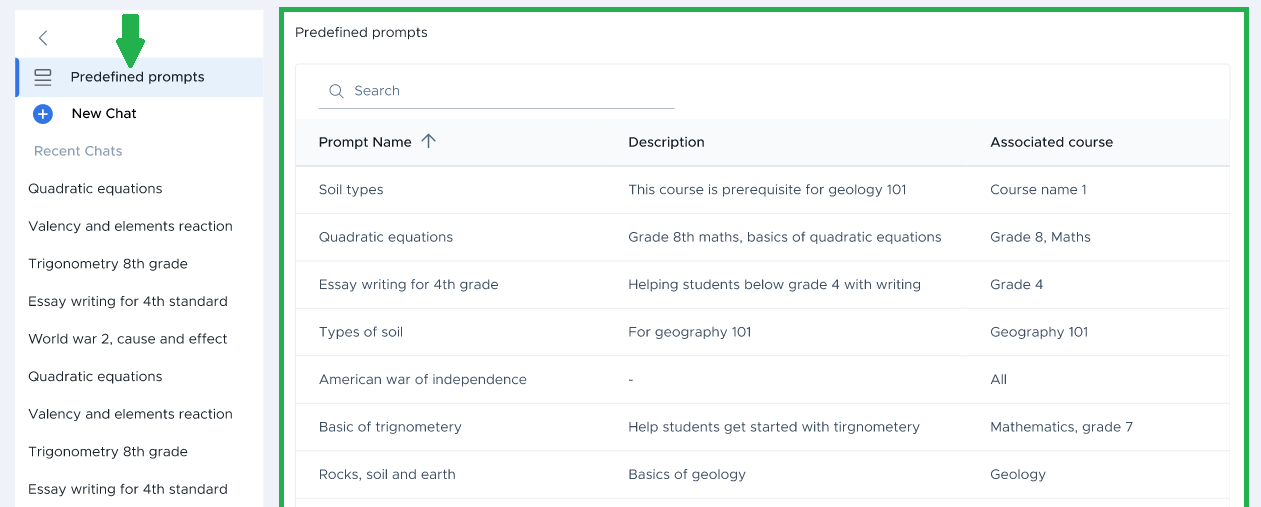
Instead of having to think of how to phrase a question or instruction from scratch, students can simply browse the library and pick a prompt that fits their learning need. This can be particularly beneficial for younger or less experienced students who may struggle to write prompts on their own.