Pass › Visitor
Checking in a Visitor
Schools have options when checking in guests.
Option 1 - They can have guests check in at the front desk or the kiosk, which will include running a background check, Watch List, etc. on each guest. (Most schools utilize this option.)
Option 2 - They can create a Pre-set Visitor List, which will only check if the visitor is on the list but will not run a background check, Watch List, etc. on the visitors on that list.
Checking in a Visitor
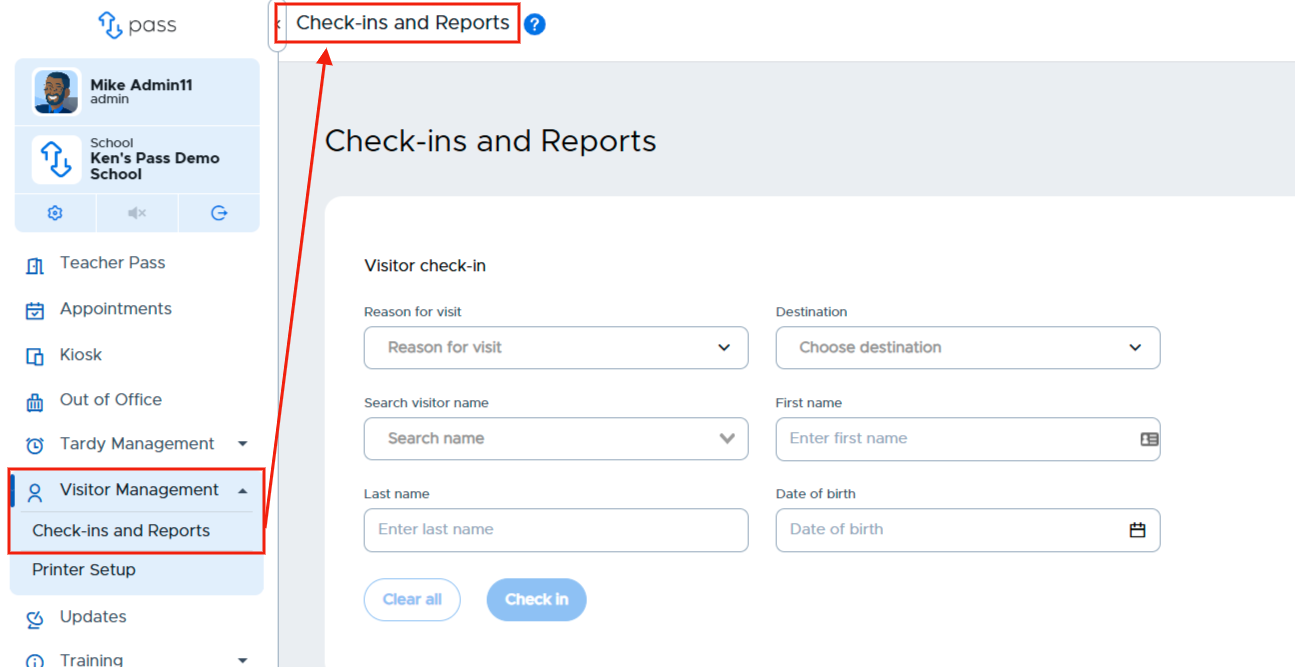
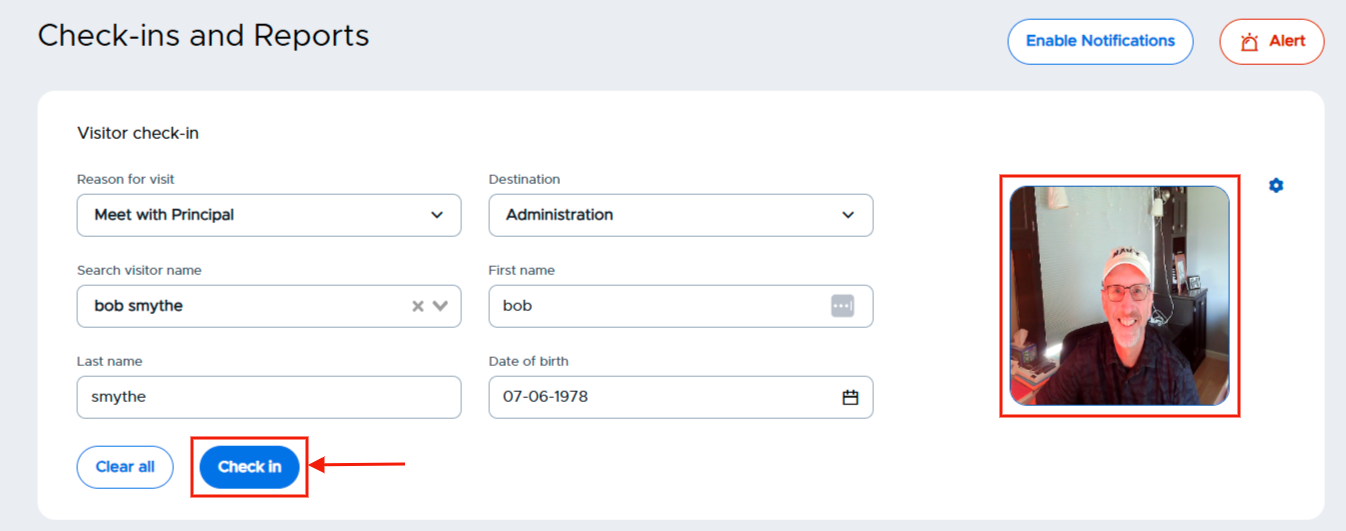
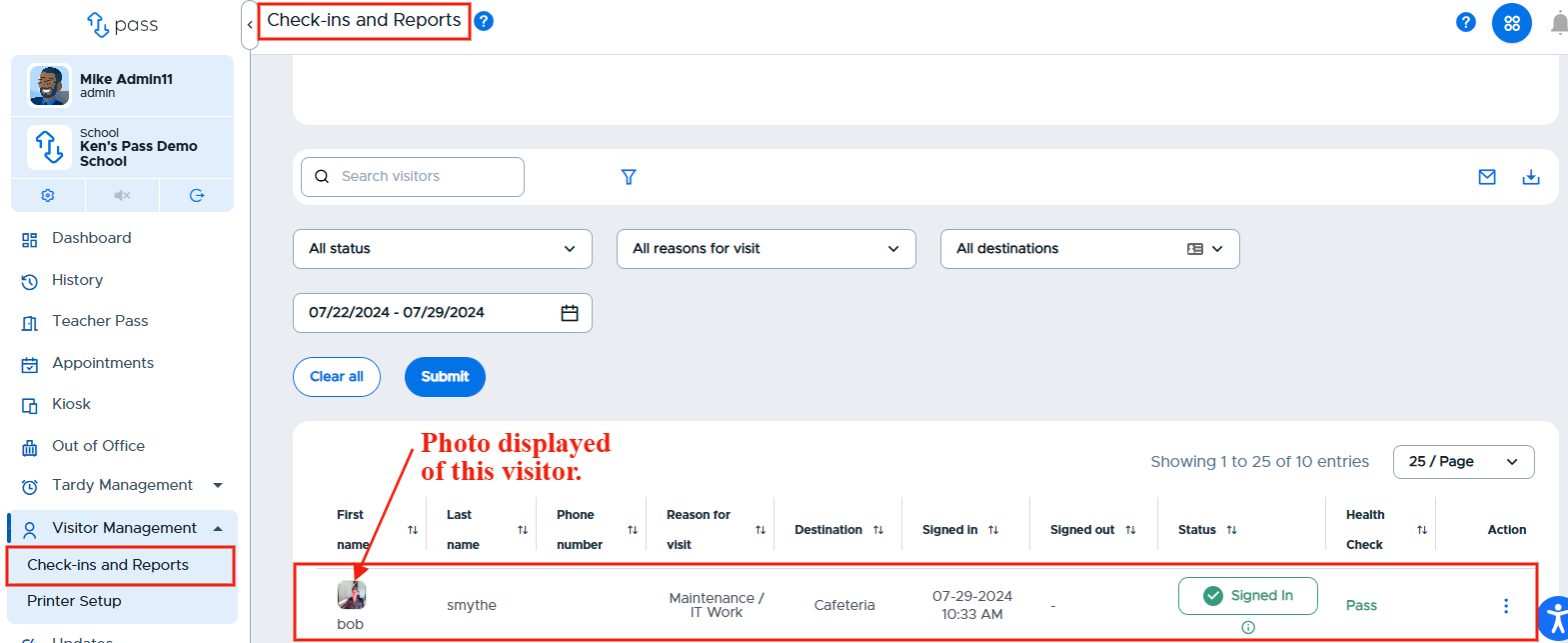
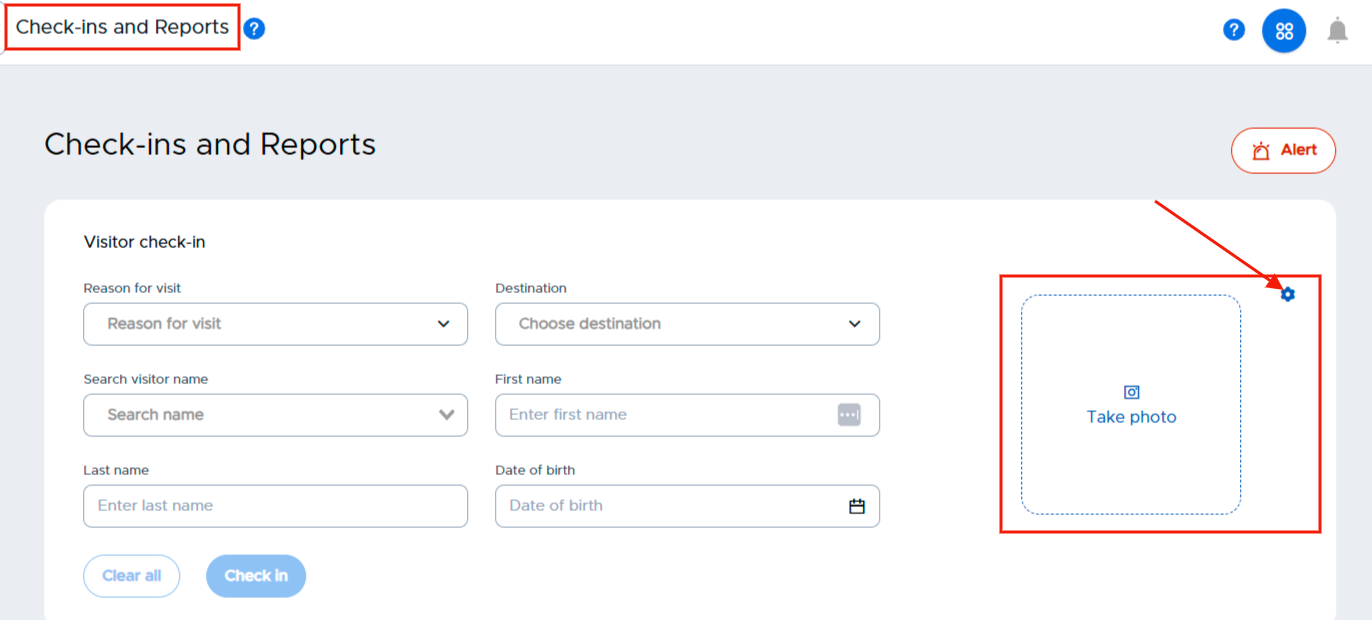
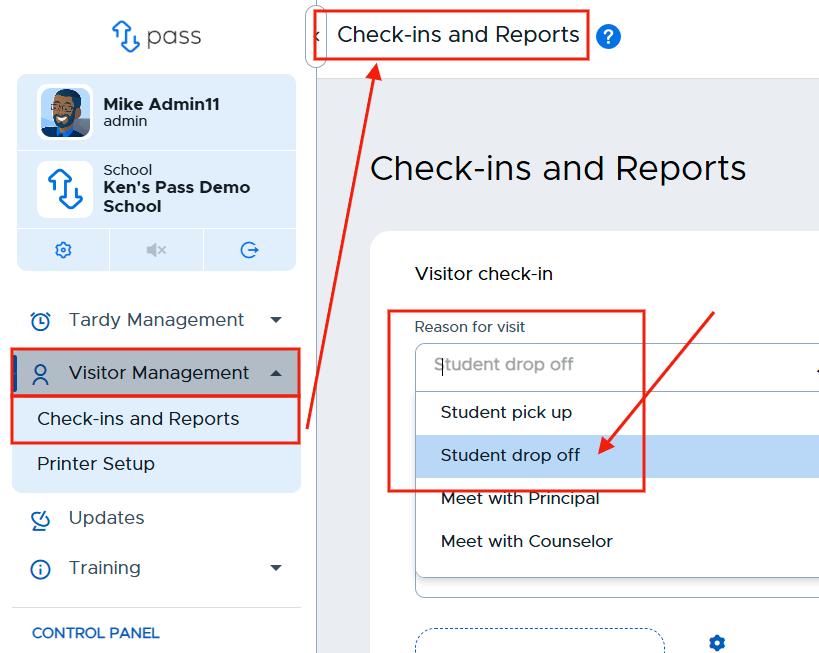
To check a new Visitor into the building, click Visitor Management and then Check-ins and Reports. The Visitor Check-in area will appear.
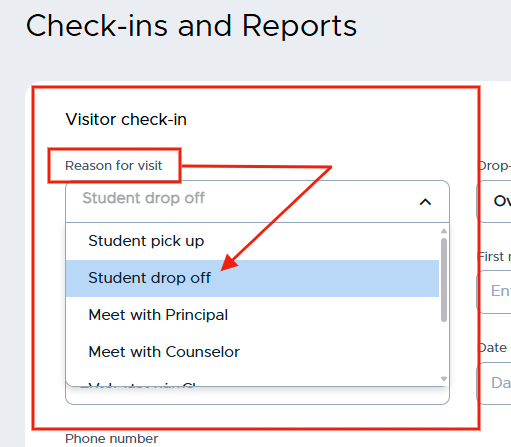
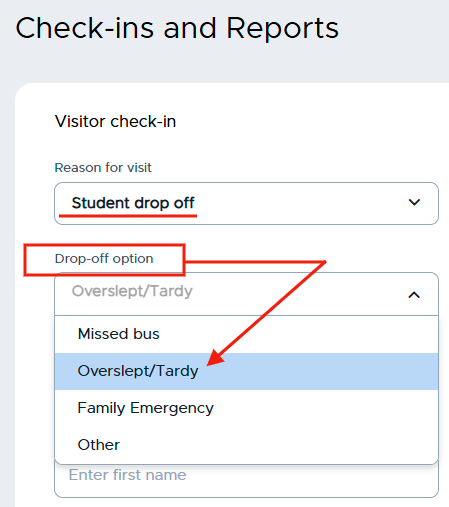
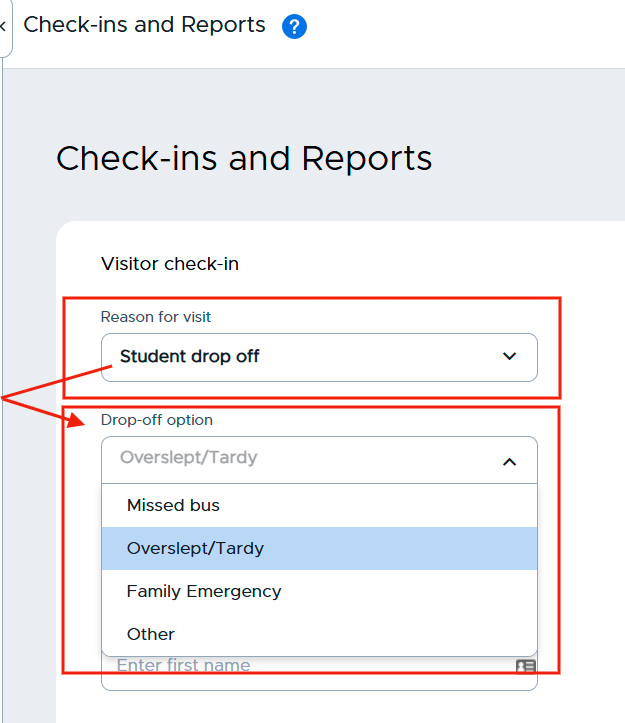
Click Choose a reason for visit, select a reason from the dropdown menu and an option, if available.
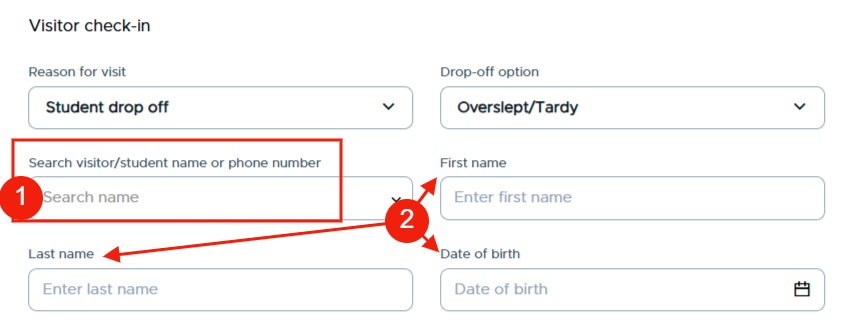
If the person has visited the school before, you can search for that person by name by entering the name in the Search visitor name (1) field. If the visitor is new (2), enter their first name and last name, as well as their date of birth.
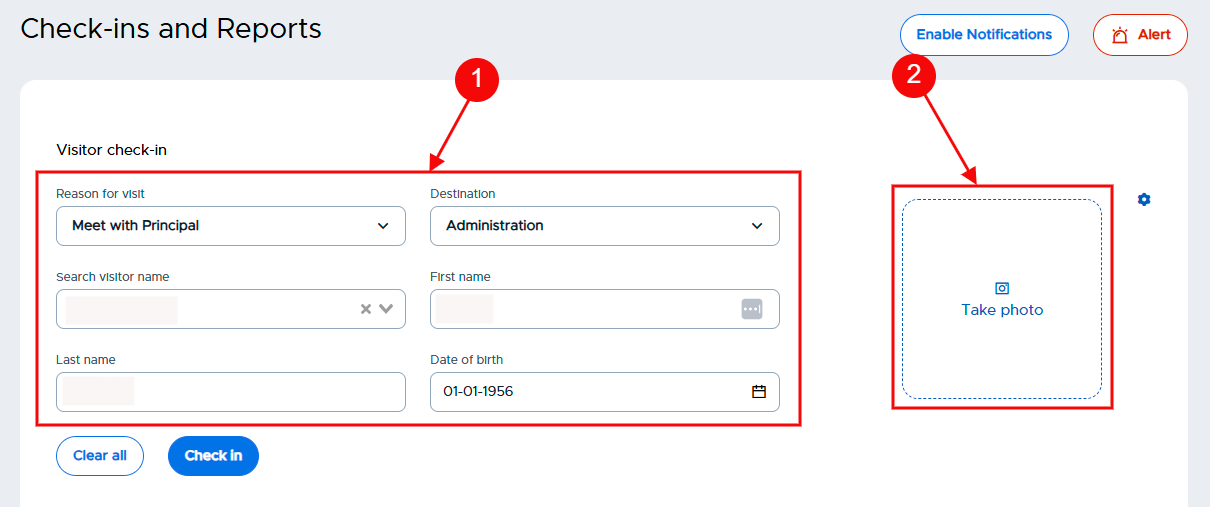
You can click Take Photo to capture a photo of the visitor. This can be taken through a webcam connected to the front desk computer or through a connected iPad kiosk. You can click the gear icon next to the photo section to change which device captures photos.
Once you’ve included all of the identifying information for the visitor, click Take photo.
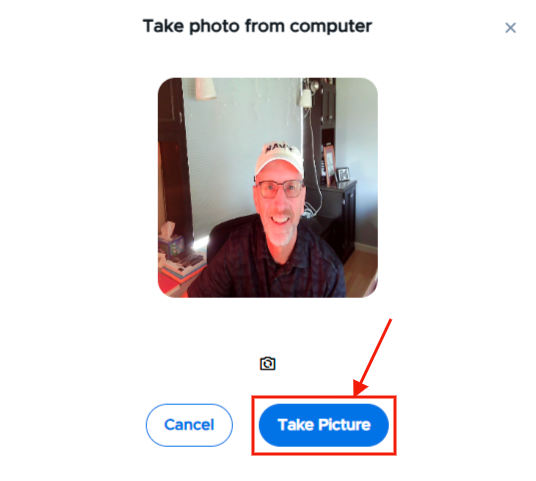
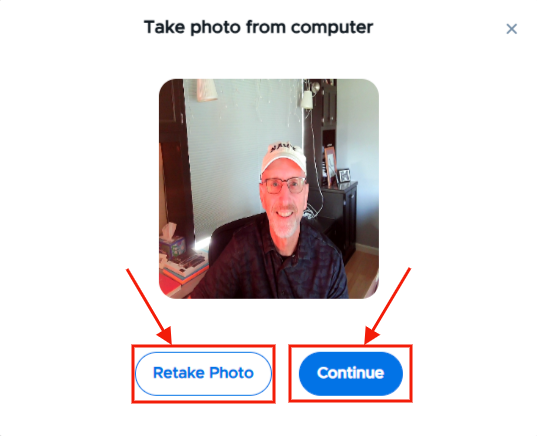
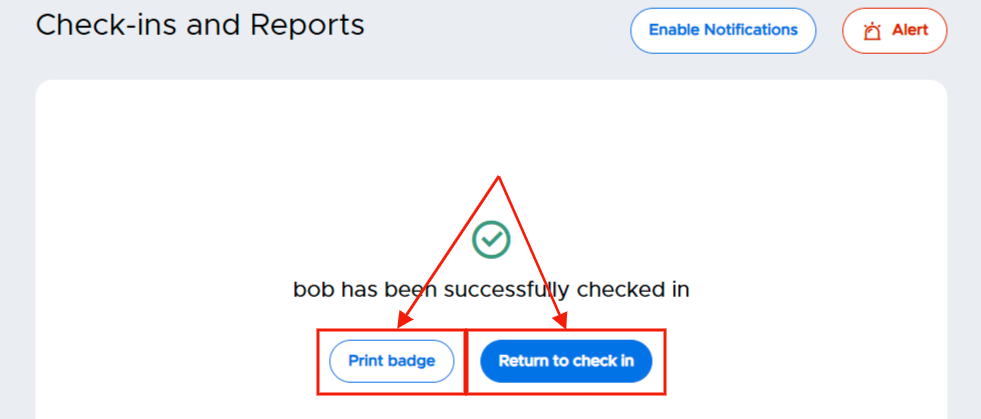
On the popup screen, click Take Picture. On the next popup screen, click Continue or Retake Photo. Back on the Check-ins and Reports page, click Check in. You can print that individual a badge (if enabled) or return to check in. Once checked in, that person’s name and thumbnail photo will appear on the Reports table.
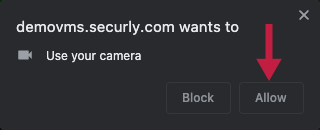
Please note: If you are taking pictures through a webcam and your browser asks to use your camera, click Allow.
Updating an existing visitor’s photo
A visitor who previously checked in and then revisits your school can update their photo. During that visitor’s next check in (at the front desk), click the gear icon next to the Take photo on the Check-ins page, choose App or Computer, click on the picture, click Take Picture, and then continue with the check-in process. Once checked in, the updated photo will be displayed in the log. (All previous photos for that visitor will be updated as well.)
Student Pick Up / Drop Off
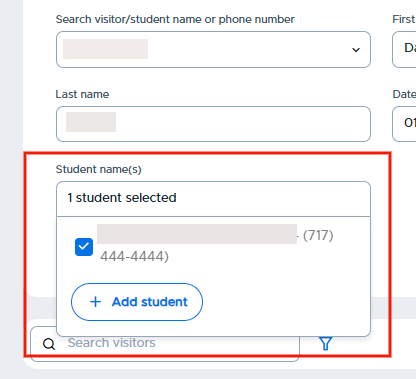
When selecting Student pick up or Student drop off as a reason for the guest’s visit, you can search by the visitor or student name, or phone number in the Search visitor name field.
You will need to select which student the guest is there to pick up or drop off. If a student is not listed, you have the option to add the student by clicking Add Student. If there is no Date of birth listed, please add the Date of birth for that adult.
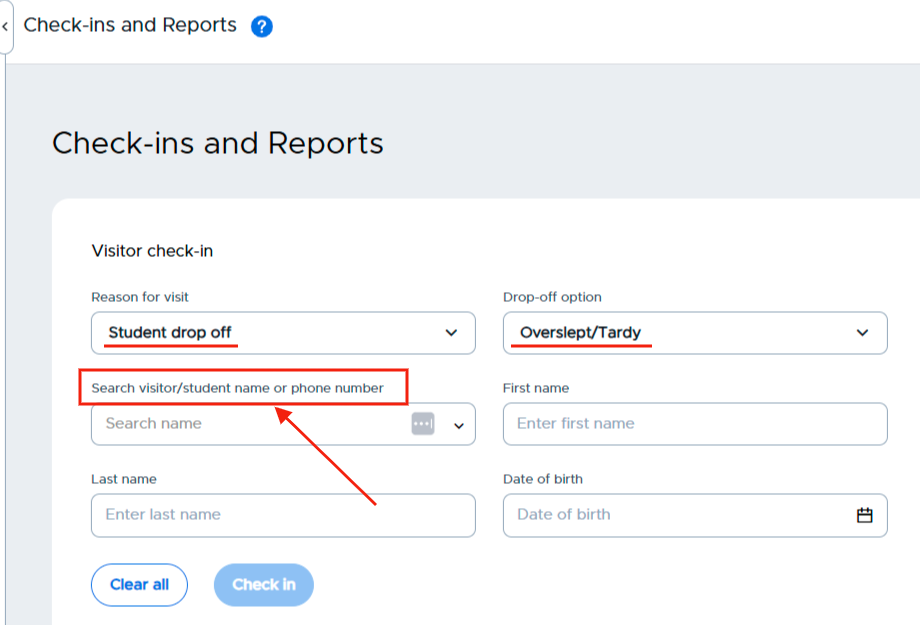
Once the student is selected, you will be able to click Check in visitor.
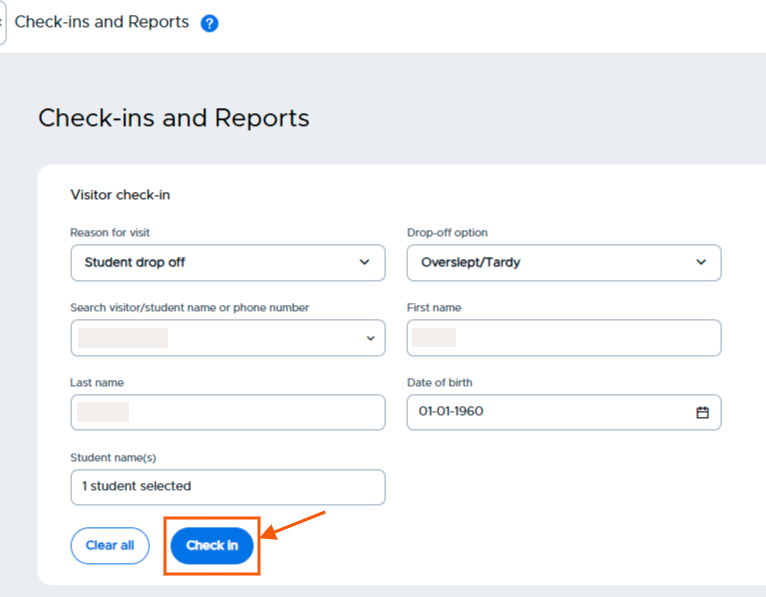
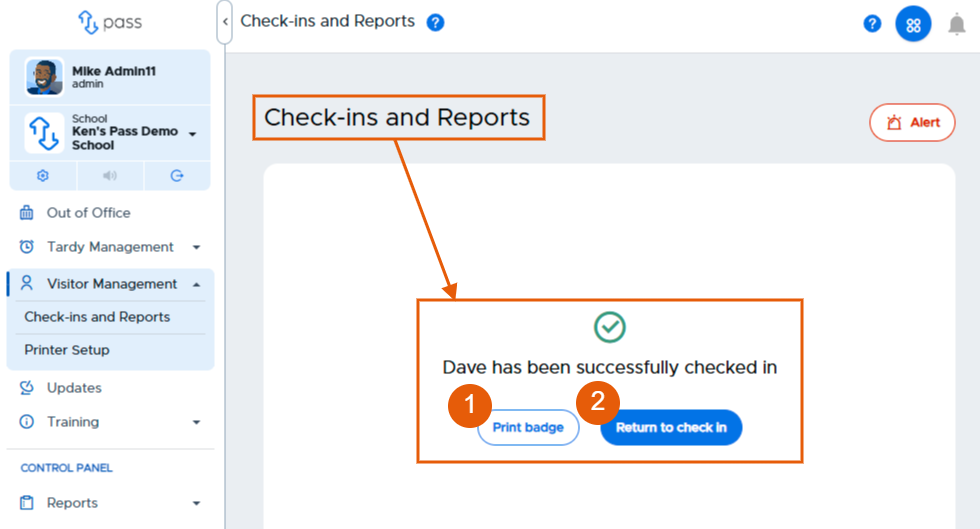
The system will check the Parent/Student Matrix as well as the National Sex Offender Registry. A success message will appear on the screen if the adult is on the Parent/Student Matrix and not on the National Sex Offender Registry.
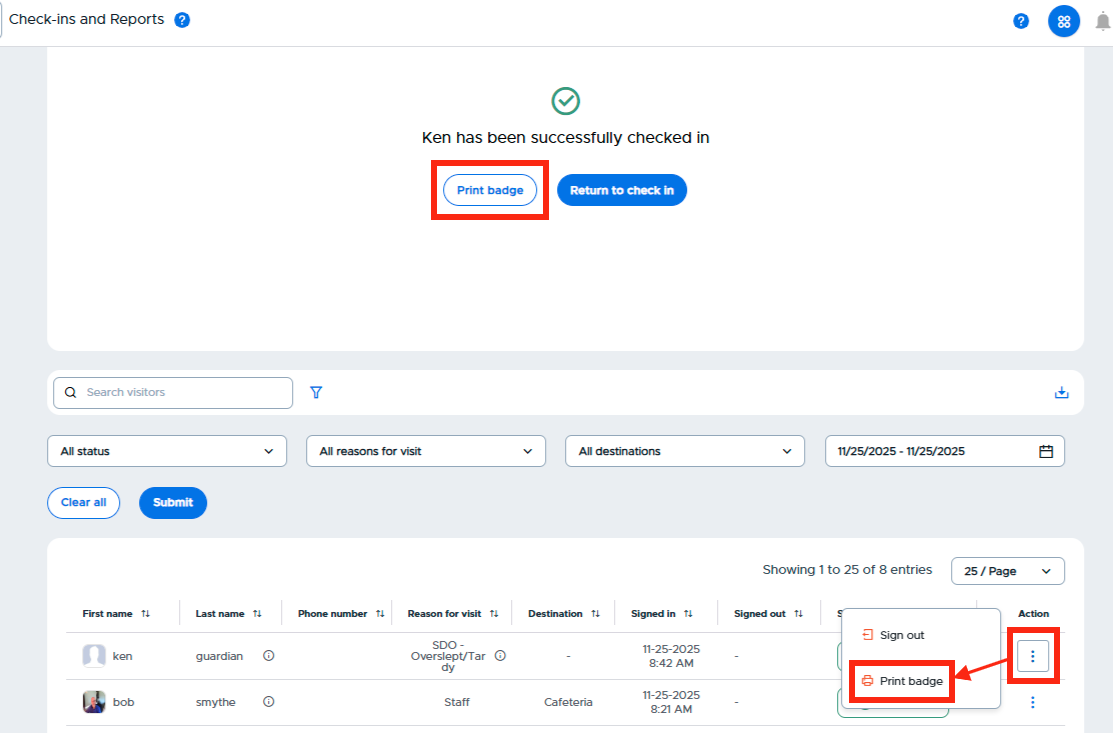
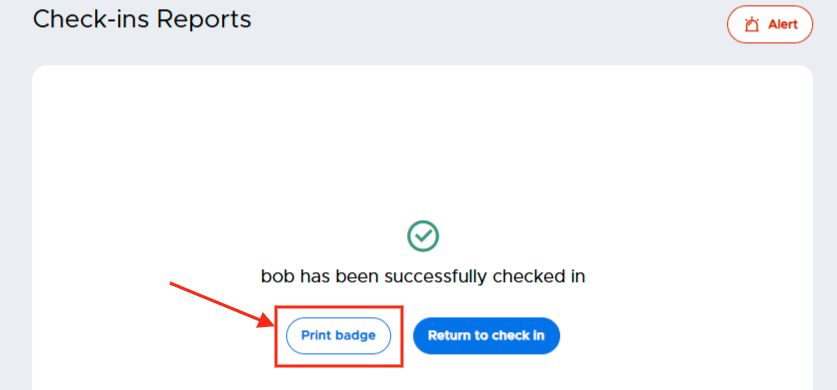
- If an ID Badge is required, click Print badge.
- If no badge is required, click Return to check-in.
Printing a Visitor Badge
School personnel have two options for printing badges from web version:
- Print Badge from Check-in Screen
- Print Badge from Visitor Log
IMPORTANT NOTE: If your school happens to use Macs and the Safari browser, click HERE for printing instructions.
Print Badge from Check-in Screen
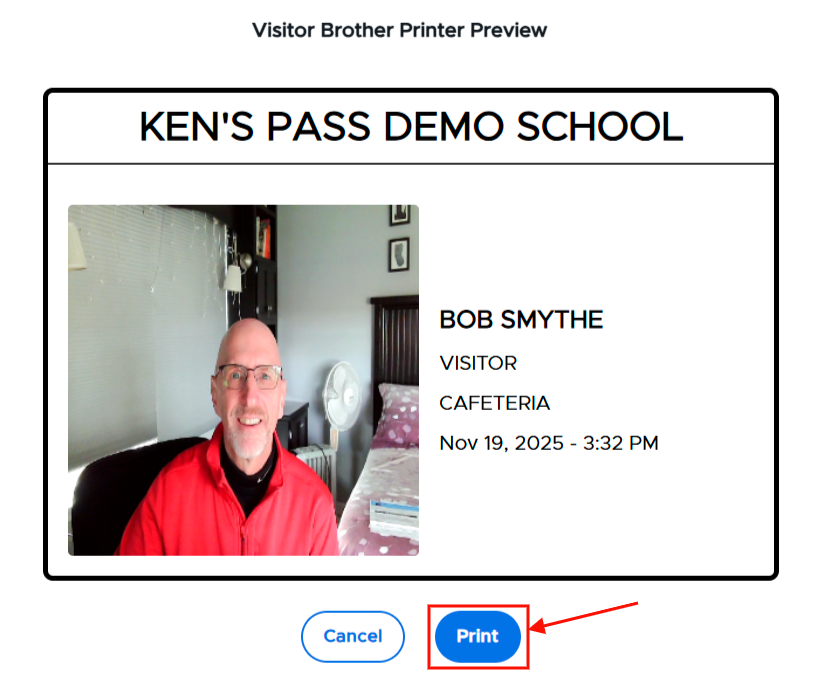
To print a badge from the Visitor Log, click the three (3) dots to the far right of the visitor, then click Print badge.

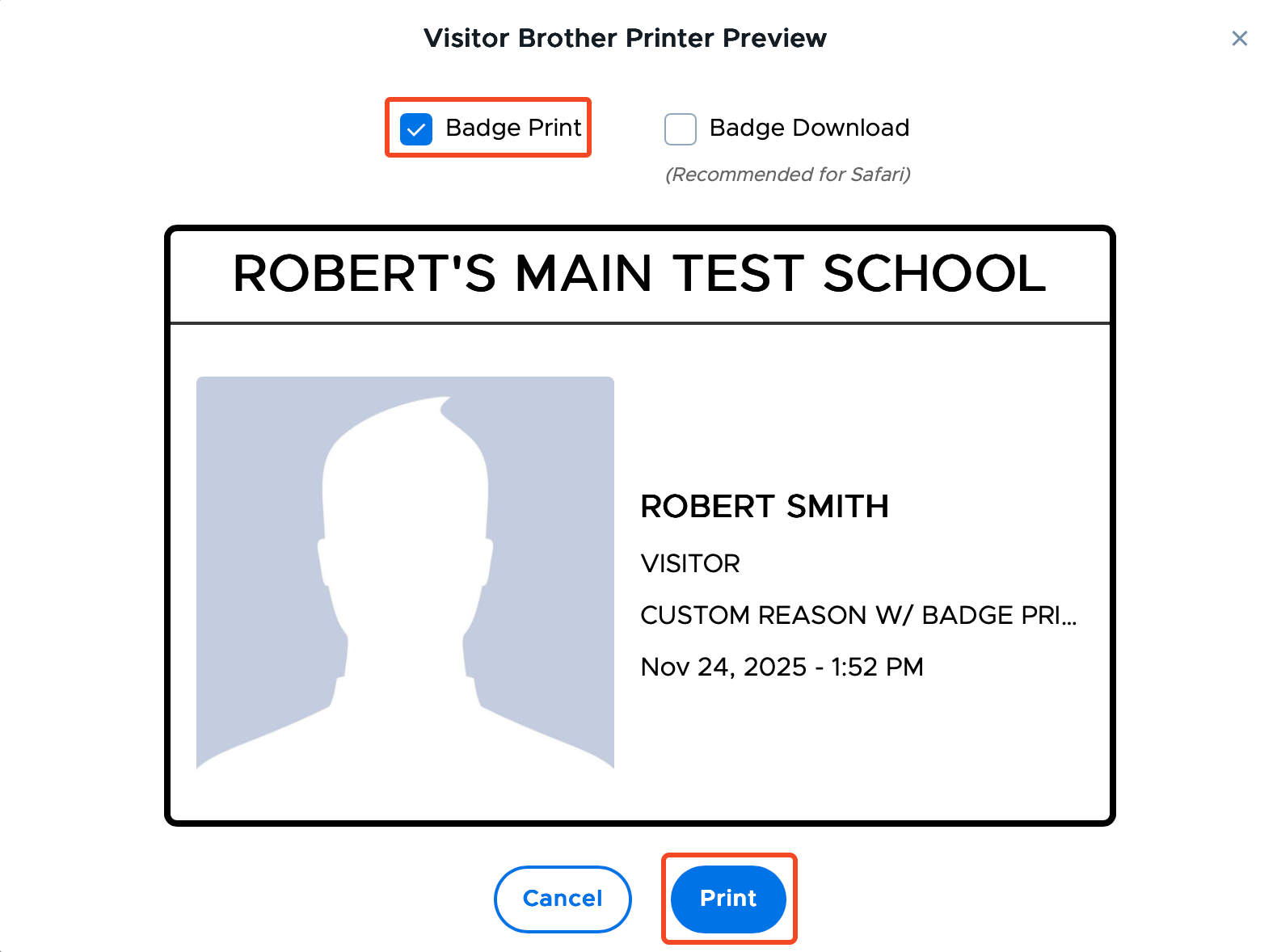
On the next screen, click Print.
Print Badge (Mac using Safari browser)
- Print Badge Option
- Badge Download Option
Once the visitor has successfully checked in, the front desk person can print that visitor a badge from the Check-in page or from the Visitor Log.
Print Badge Option
To Print a badge, click Print Badge. On the next popup, check the Badge Print box and then click Print.
Download Badge Option
Step #1
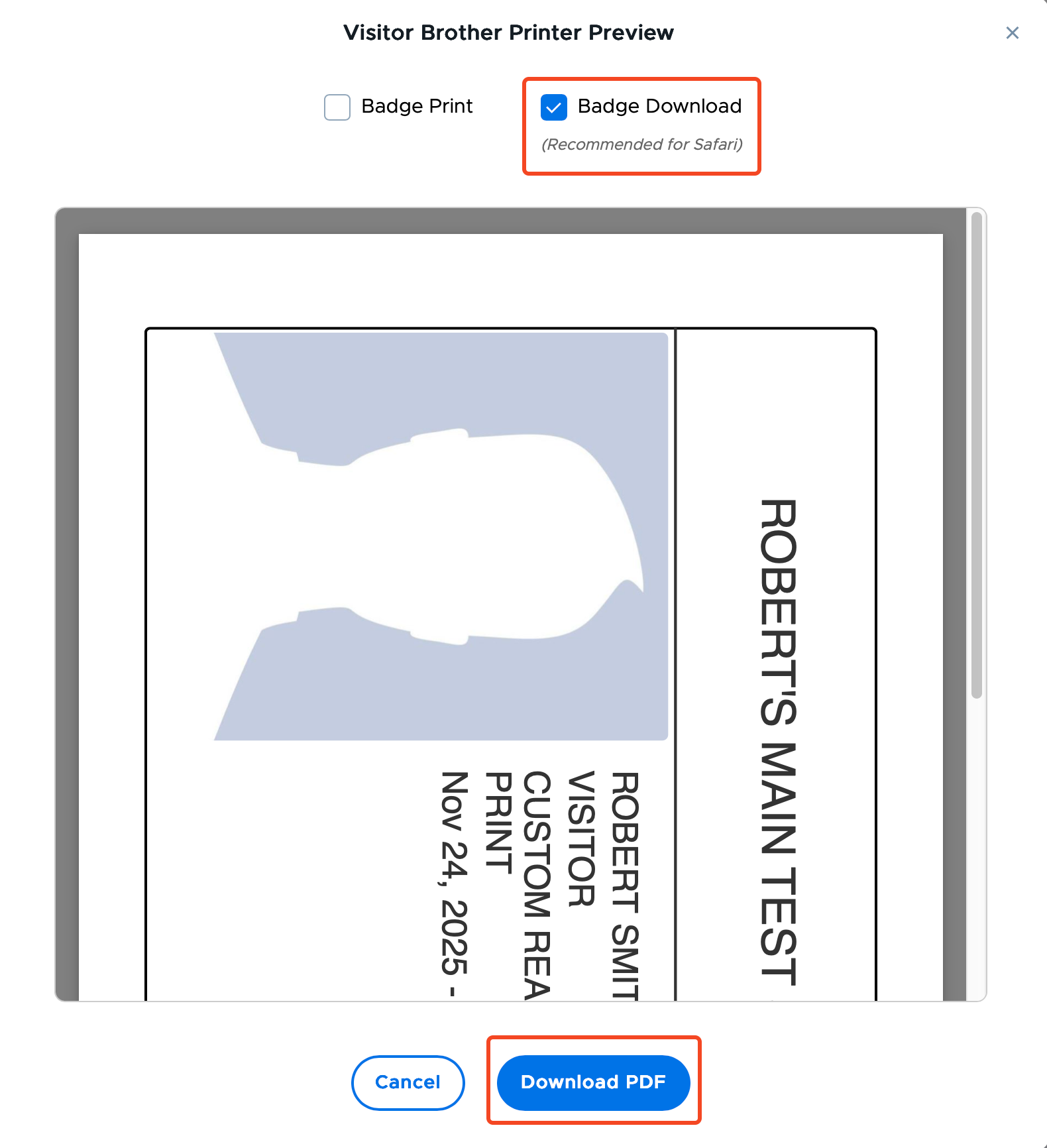
- From the Visitor Brother Printer Preview screen, check the Badge Download box.
- Click Download PDF.
Step #2
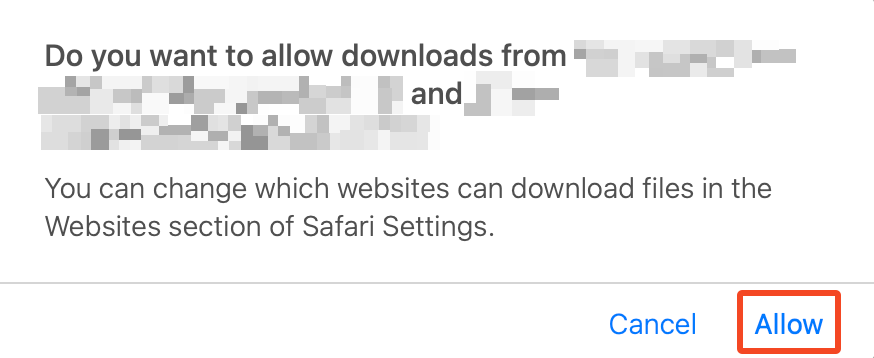
On the Allow downloads popup, click Allow.
Step #3
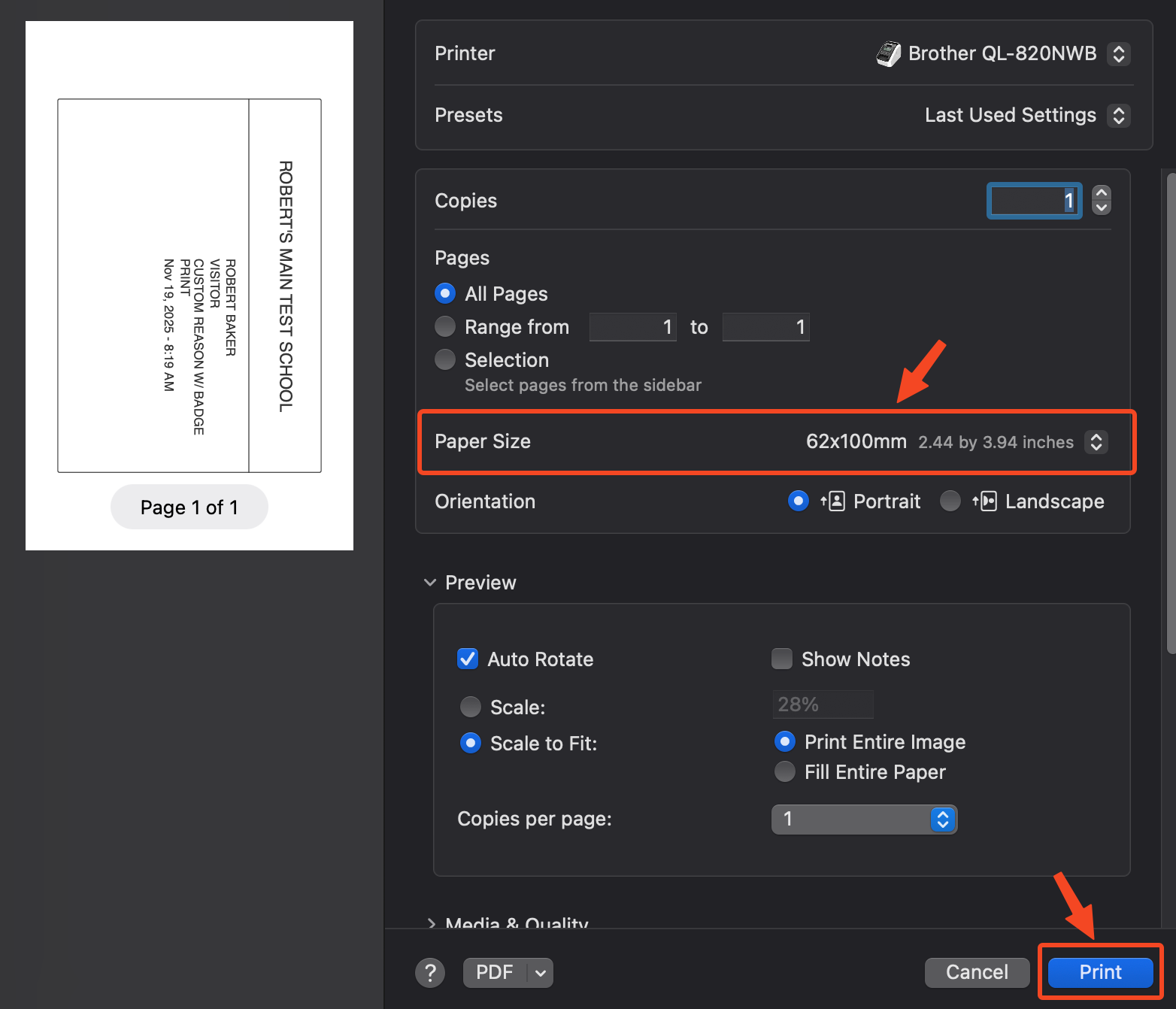
- Once opened, click File → Print
- Change the paper size to 62mm X 100mm.
- Click Print.