MDM › Teacher Tools
Screen Lock
Screen Lock allows the teacher to freeze student screens and display a custom message. Students will be unable to use the devices until the screen is unlocked. Devices can be put into screen lock or released as an entire group or individually.
Locking student screens
Select one or more iPads and click the Screen Lock icon.
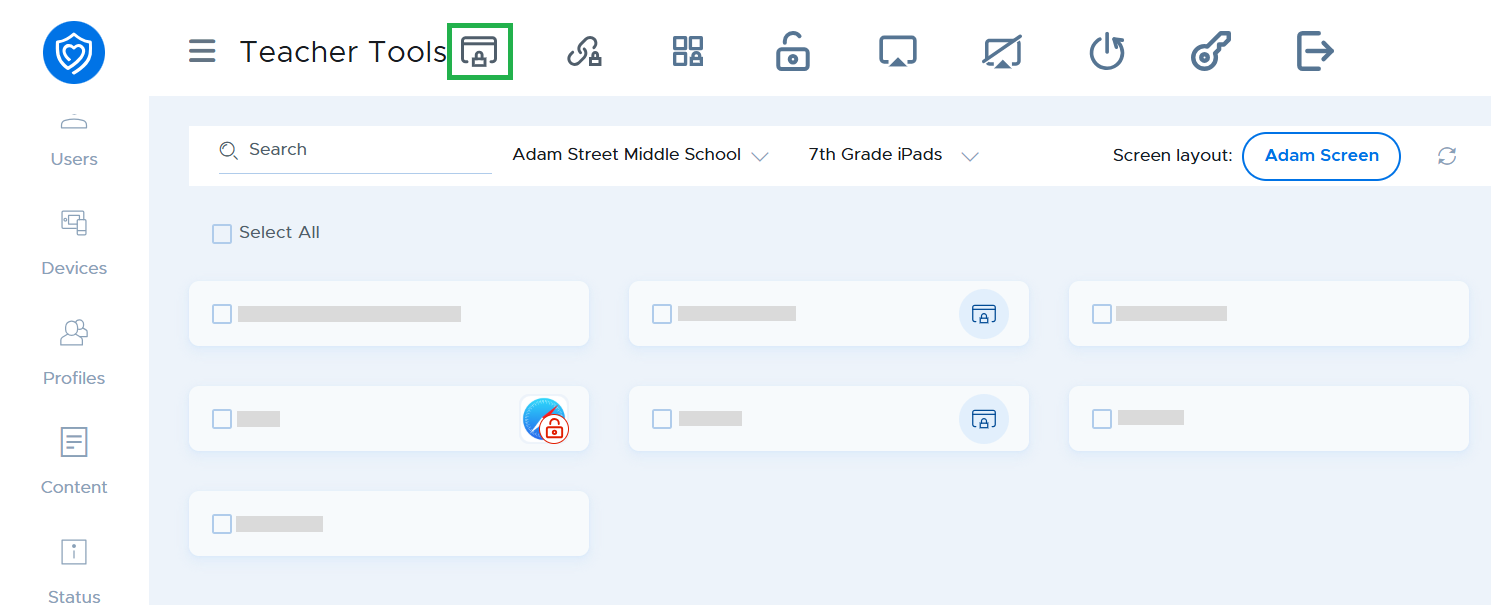
Enter a custom message and click the Screen Lock button. Your custom message will be remembered for the next time.
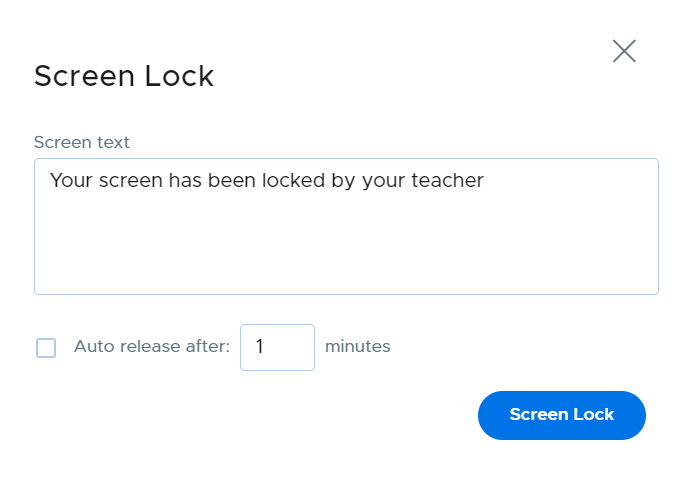
Note that you also get the option to auto release the lock after the specified duration.
Unlocking student screens
Select one or more iPads and click the Release Lock button*.
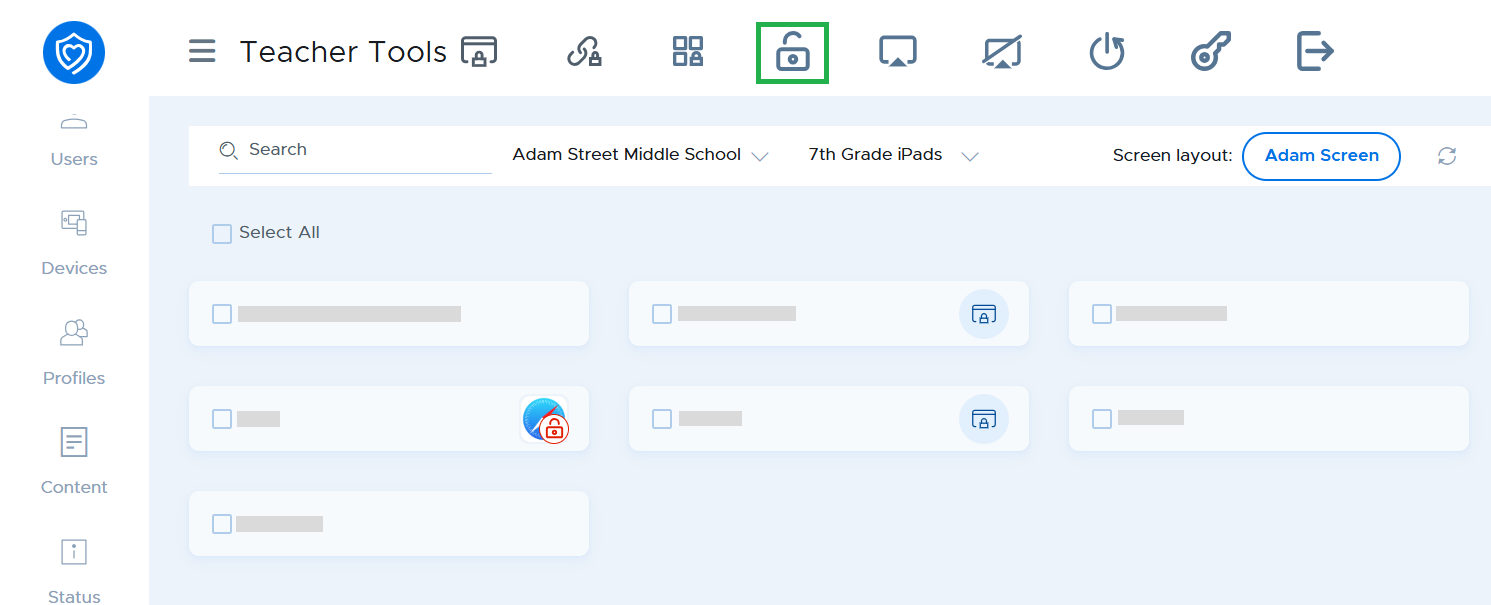
The iPad screen will change to show the Securly Locker screen with a message that the device has been unlocked. The student can then use the home button and return to other apps.