Aware › The Activities Report
Emailing Activity Reports
Follow the steps below to email activity reports:
-
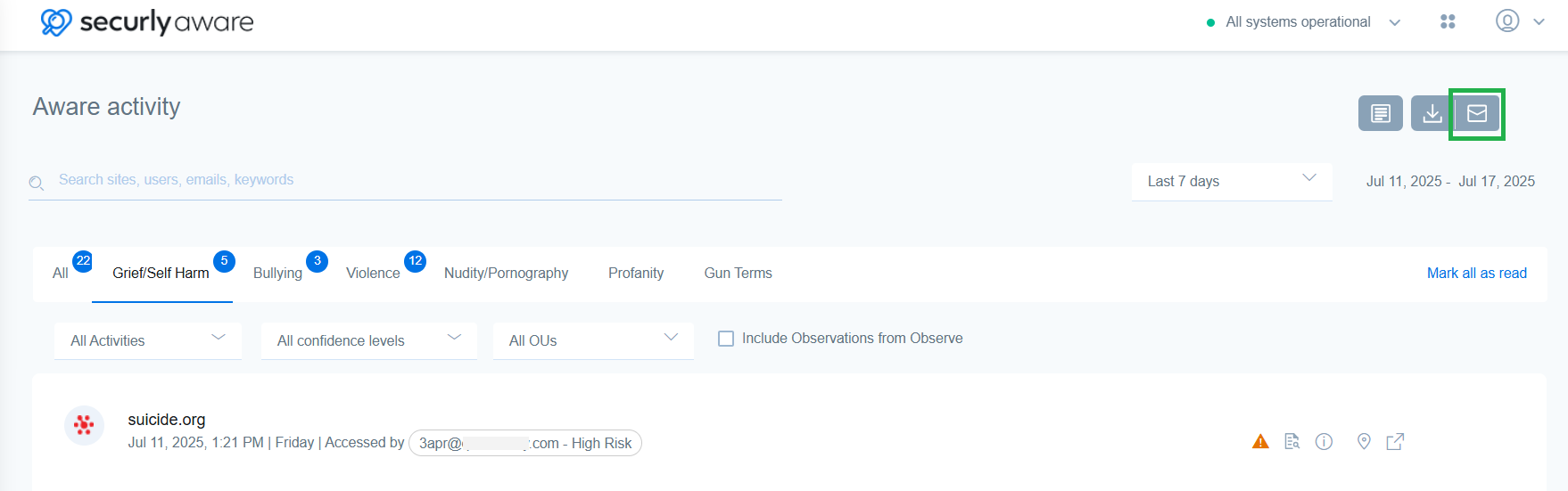
Click on the email action button in the top right corner above the Activities table.
-
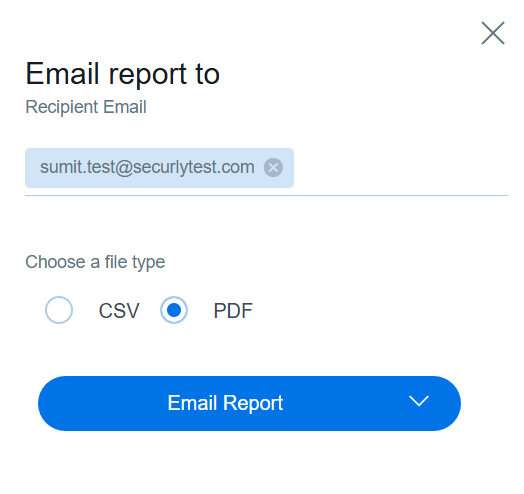
In the sidebar popup, enter the email addresses of the recipients.
-
Choose the file type, CSV or PDF, and click on the Email Report button at the bottom. Alternatively, you also get the option to email reports when you use the reports button to customize and download reports.