Classroom › Settings
Classlink
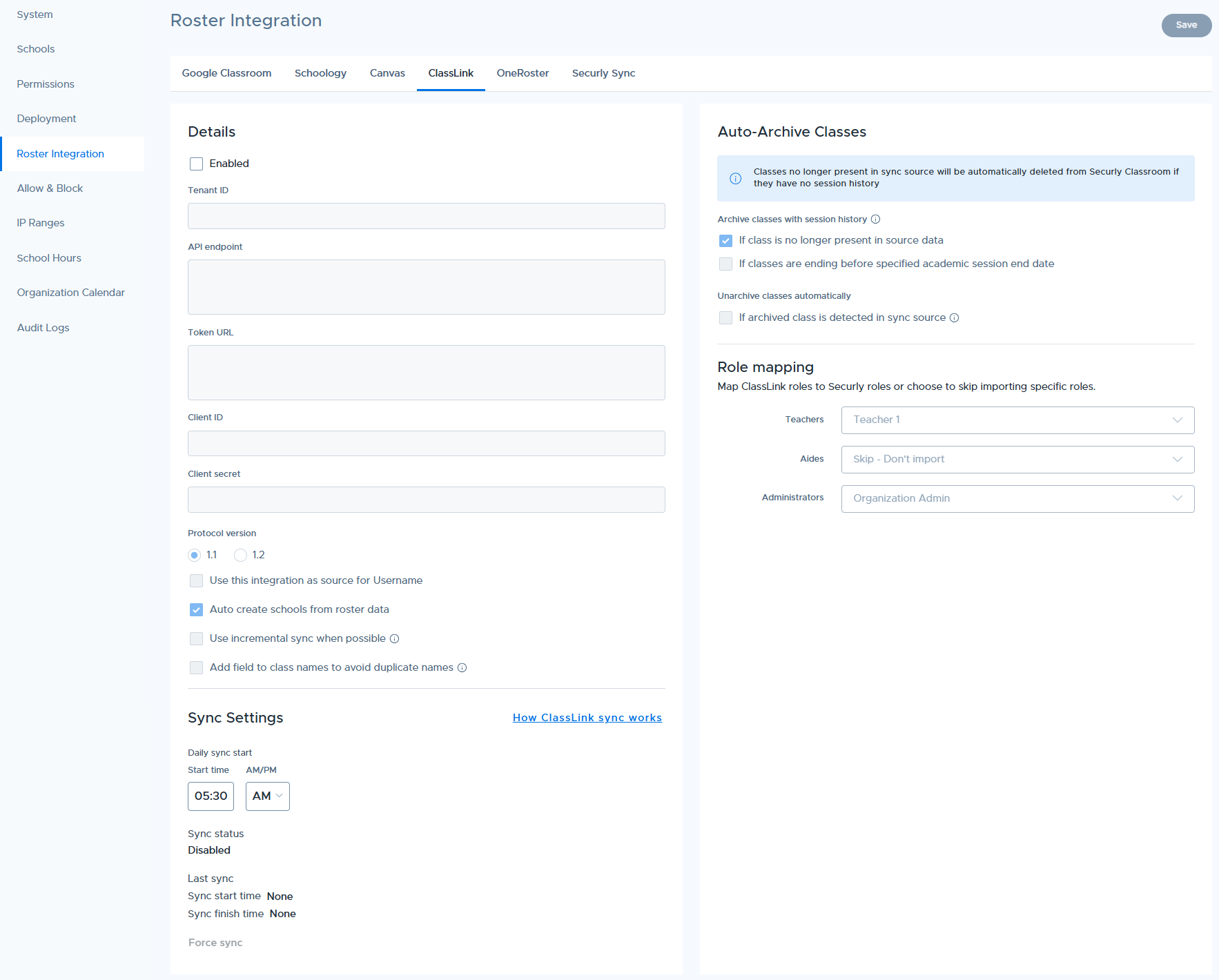
The Classlink tab contains settings that enable syncing roster data from Classlink. Once you have the API information from Classlink, input the data into the required fields and hit save in the top right corner. Adjust syncing times at the bottom for when your roster data is completely updated so we can fetch the newest data daily/nightly.
| Option | Description |
|---|---|
| Use this integration as a source for Username | Enabling this will allow Securly Classroom to pull usernames from the Classlink roster automatically by default. Districts using Windows and Mac devices can also set rules to reformat usernames as it comes from the sync source to ensure they match their local device login requirements. This should be configured with the assistance of Securly Support. |
| Auto create locations from roster data | When enabled, the sync process will automatically create new locations in Securly Classroom based on data found on the roster import. If not selected, all classes from the sync will be created in the Main Location. |
| Use incremental sync when possible | When checked, only new and changed items will sync else a full sync will be performed. Incremental sync is only possible if the source data uses the dateLastModified field. |
| Add field to class names to avoid duplicate names | Lets you append fields (period, academic session title, class code, source ID) to class names to easily tell apart classes with the same name. |
| Daily sync start | Set the time when the daily sync occurs. |
| Role Mapping | This option allows importing users with the roles of Teacher, Aid, and Administrator, and assign them any desired role in Securly Classroom. Using the 1.2 protocol allows even more defined role fields, including counselors, principals, site admin, system admin, and district admin. |
Auto-Archive Classes
Under the Auto-Archive Classes section on the right, admins can configure roster sync sources to:
Automatically archive classes that are no longer present in the source data. This setting is enabled by default. If unchecked, the class remains unarchived, but its teachers and students are removed — hiding it from the teacher's class list.
Automatically archive classes classes based on the academic session end date. Simply check this option to reveal the date picker and specify your session end date.
Automatically unarchive and restore classes if they are detected in sync source. Classes that were manually archived will also be unarchived if they reappear in source.
Classlink Sync Process
See the article How OneRoster-based Syncs Work for details on the sync process.