MDM › Managing Content
Assigning Web Links
Assigning web links and collections to devices will cause them to appear in the Web Links section of the Securly Locker app on the device. This is an alternative way to provide web links to students rather than adding them is icons to appear on home screens in web layouts.
To assign links or collections, select one or more from the table then click the Assign button.
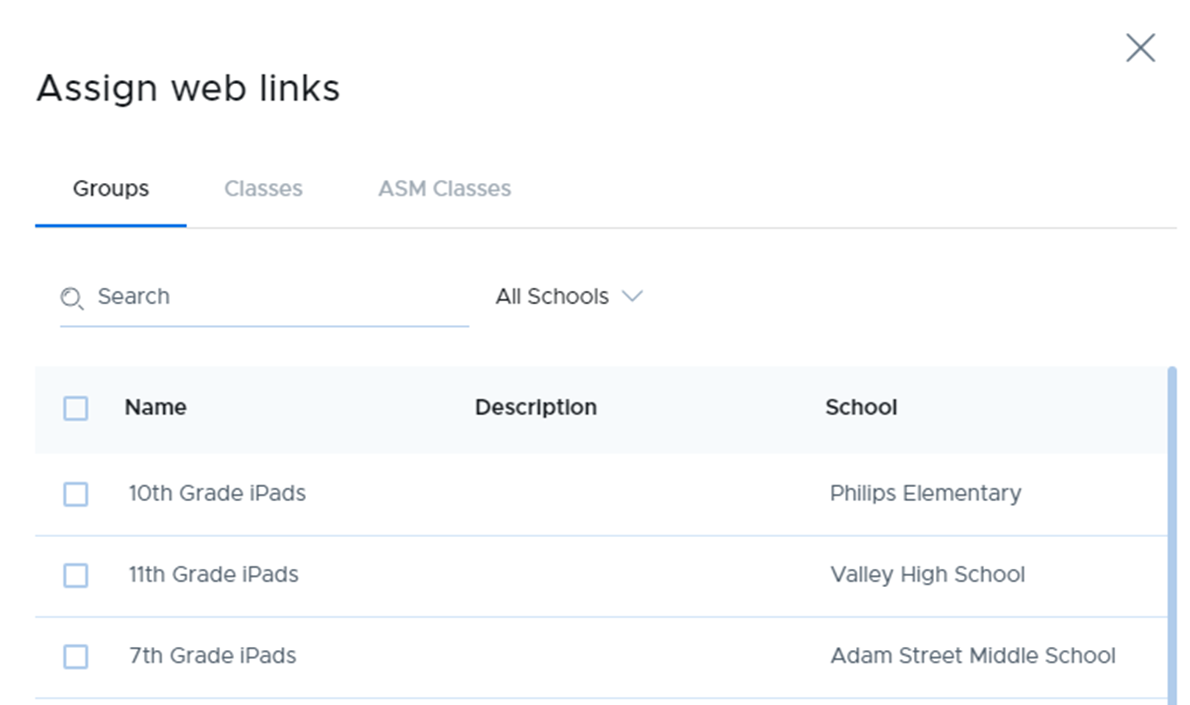
Use the appropriate tab to assign by group, class, or ASM class, select items, then click Assign.
To unassign links or collections, select one or more items from the list and click the Unassign button.