Pass › Pass Admin Guide
Manage Order
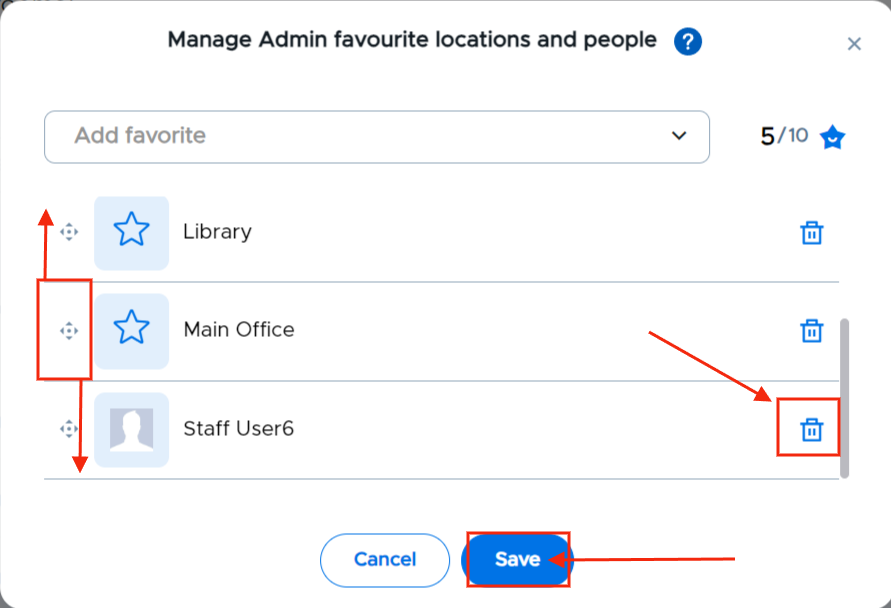
To change the order in which your favorites appear on the adults’ and students’ screens, click** Manage favorites**, click on the directional arrow to the left of the location and place it in the correct order. To remove a favorite location, click the Trash Can to the right of the location. Remember to click Save before leaving this screen.
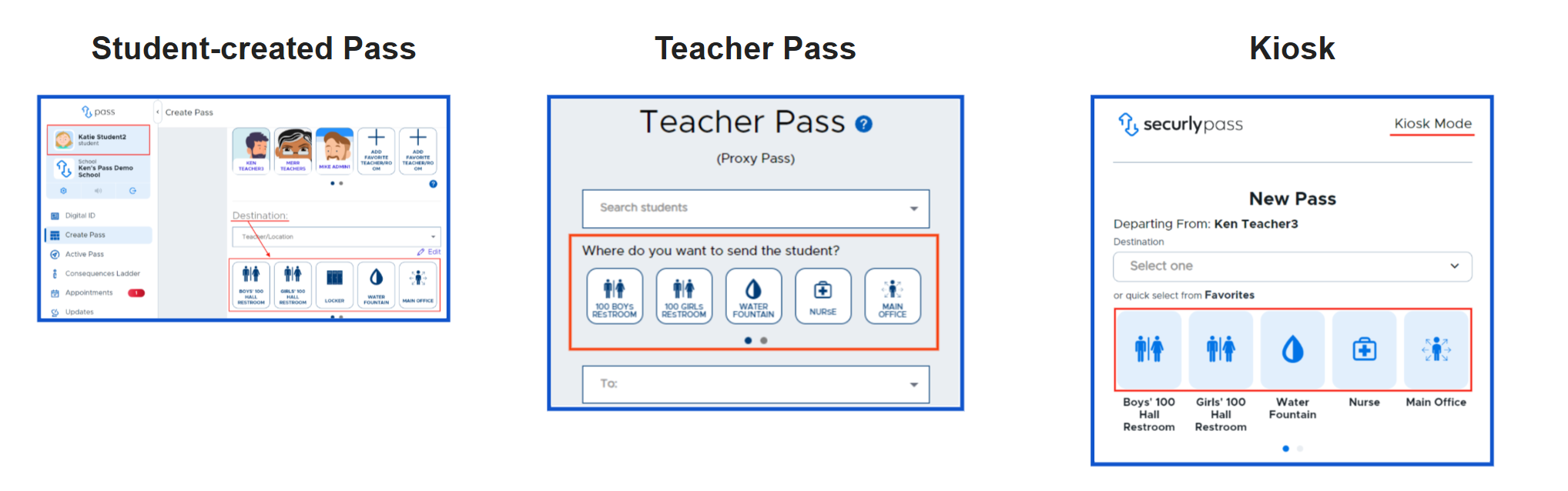
When finished, students and adults will see these Locations (rooms) and icons in the same order whenever they create a pass.