Classroom › Classes
Hand Raise
The Hand Raise feature allows students to virtually raise their hand to indicate that they have a question, or need something from the teacher.
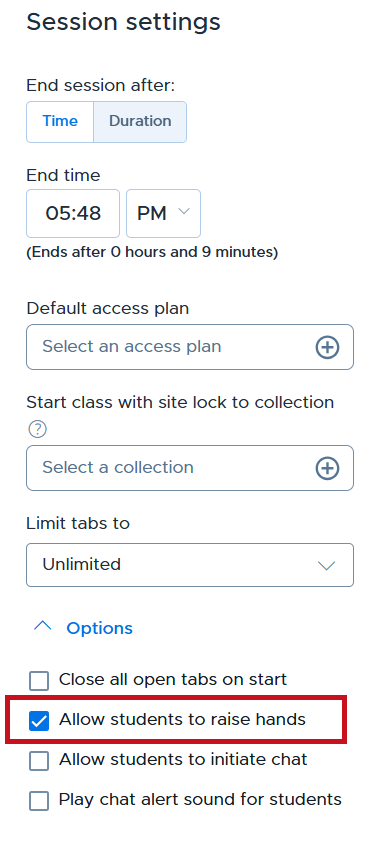
Teachers have the option to enable Hand Raise when starting the class or in the scheduled class start options. To toggle this option, check or uncheck the Allow students to raise hands box when starting a class.
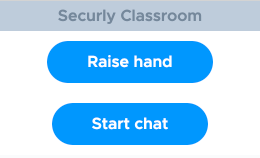
To use hand raise, students click the extension icon at the top of their browser and use the Raise hand button.
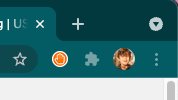
When a hand raise is active, on the student's device, the extension icon will change to show a hand icon.
From the teacher's view, a hand icon will appear in the lower right corner of the student's card, in thumbnail view, tab view, or detail view.
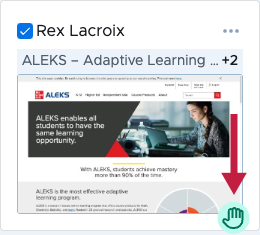
A teacher can clear a hand raise by clicking the hand icon in any view. A student can clear their hand raise by clicking the extension icon and clicking Cancel hand raise.