Pass › Visitor
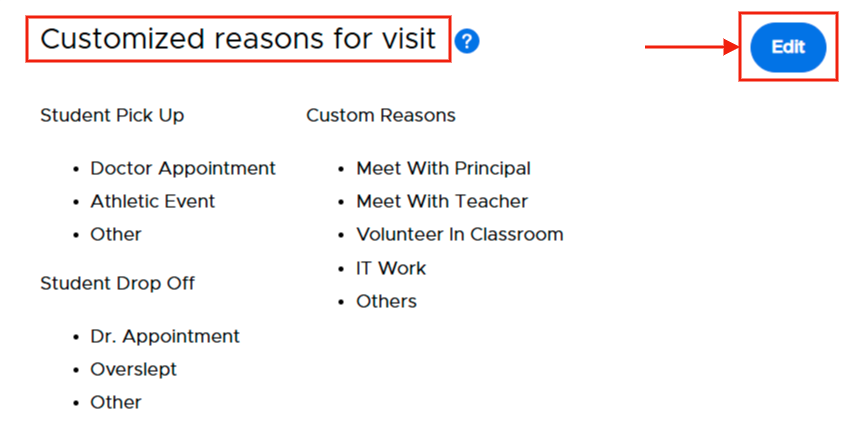
Customized Reasons for Visit
In this section, you can customize the reasons available for visitors to select when checking in.
There are three headings under which you can create up to five (5) reasons:
- Student Pick up
- Student Drop off
- Custom Reasons
You can also choose to include this reason on the badge.
If you would like these reasons translated in Spanish, you will first need to activate the Spanish Translation (Multilingual Support) setting and then input these reasons in Spanish for them to be displayed in the app in Spanish.
To add or edit a reason, click on the blue Edit button on the far right of the screen.
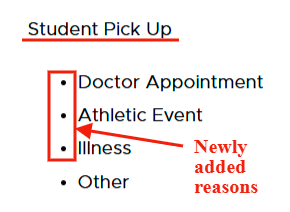
Student Pick Up
To customize the reasons for Student Pick Up:
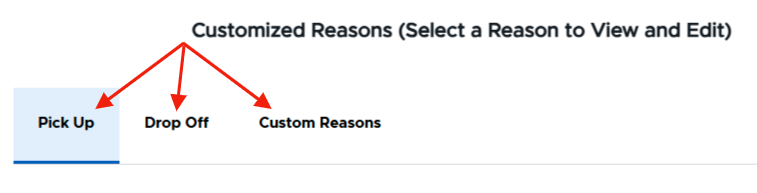
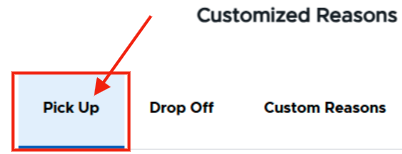
- Click on Pick up.
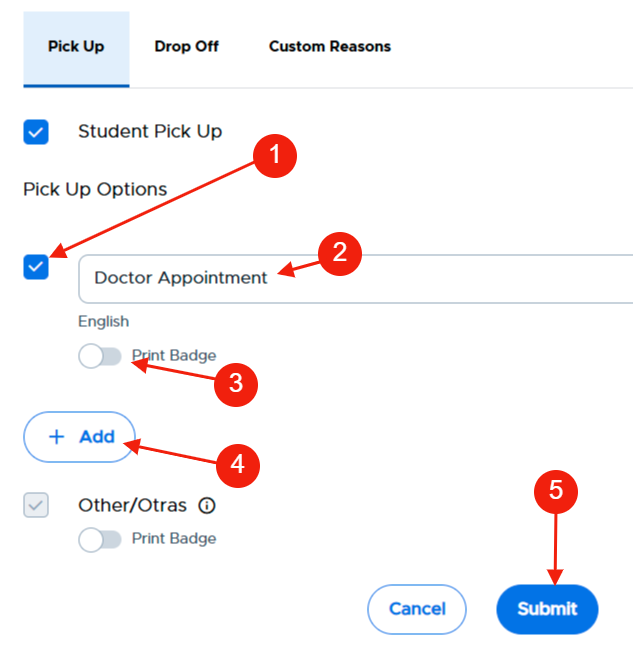
- Check the box under Pick Up Options (1) and then add the reason (2) (i.e. - Dr. Appt, Family emergency, Personal Appt, etc.)
- Toggle the “Print badge” to the right (3) if you want to automatically print this reason on the visitor’s badge, toggle the “Print badge” to the right (3)
- Add additional reasons (up to five total) as needed (4)
- When finished, click Submit (5).
Please Note: “Student Pick Up” (header) and “Other” (reason) are default settings and are always enabled.
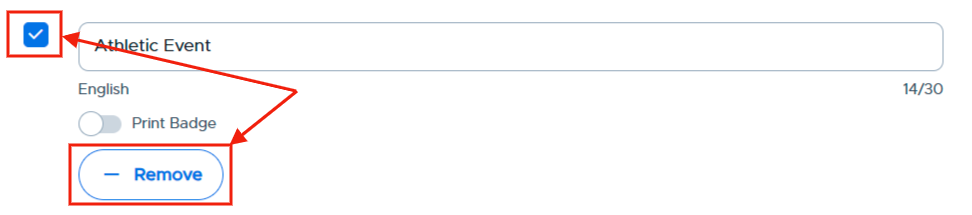
To delete a reason, click the - Remove button or uncheck the box under the reason and click Submit.
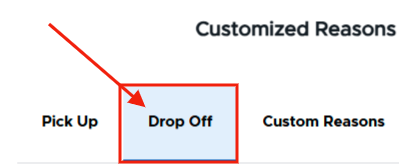
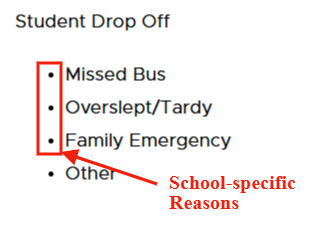
Student Drop Off
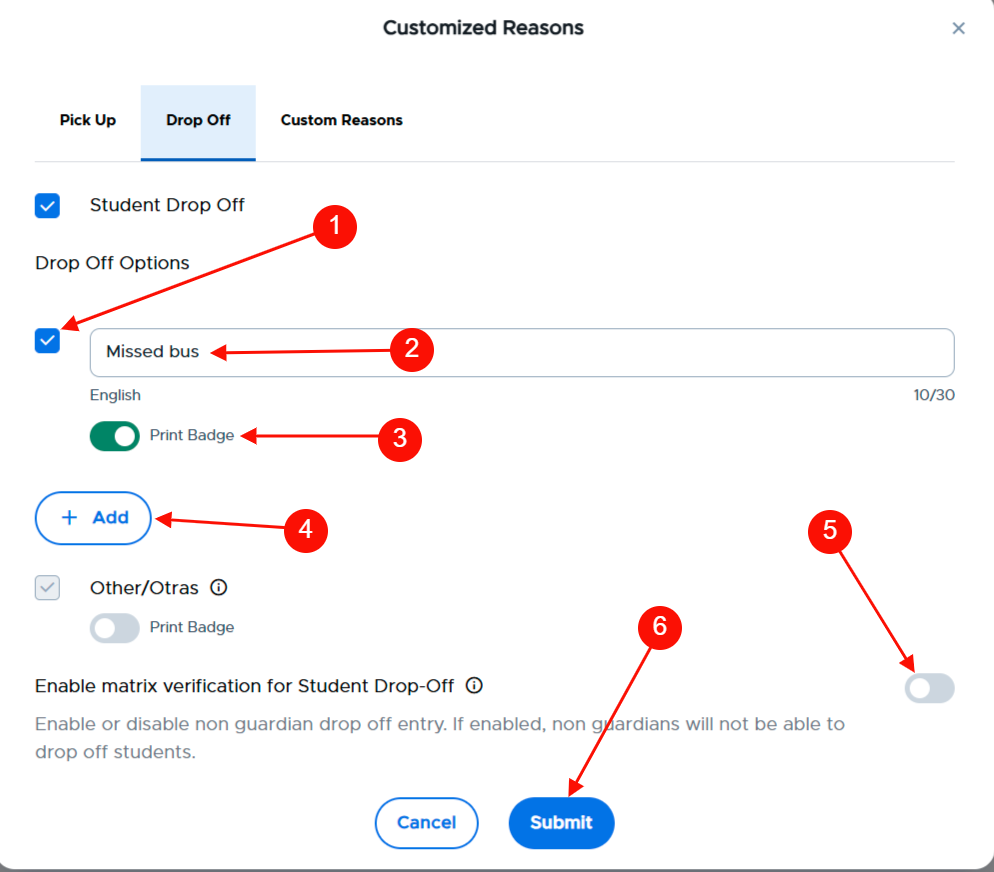
To customize the reasons for Student Drop Off:
- Click on Drop off.
- Check the box (1) and add the reason (2) (i.e. - Missed bus, Overslept, Medical Appt, Inclement weather condition, etc.)
- Toggle the “Print badge” to the right (3) if you would like to print this badge for this customized reason.
- Add additional reasons as needed (4).
- Enable matrix verification for Student Drop Off (5)
- If enabled, non guardians will not be able to drop off students.
- When finished, click Submit (6).
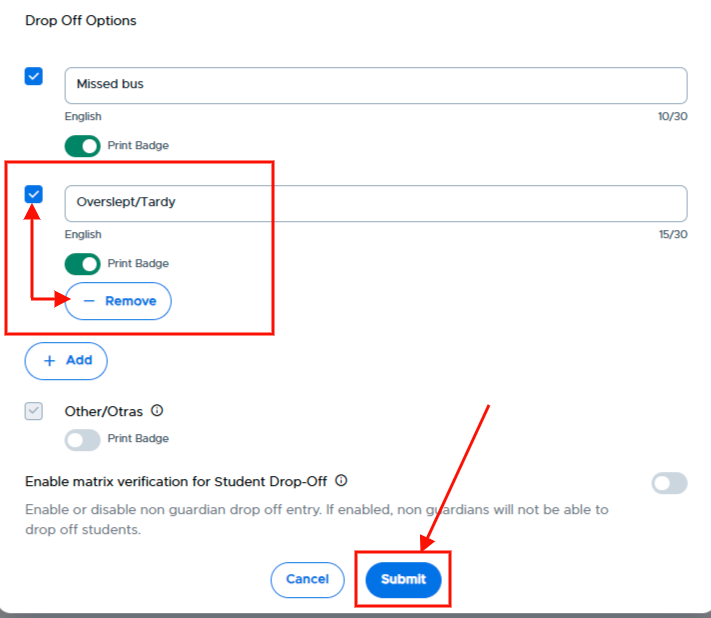
To remove a reason, click the Remove button under the reason and click Submit to save the change.
Custom Reasons
To add custom reasons:
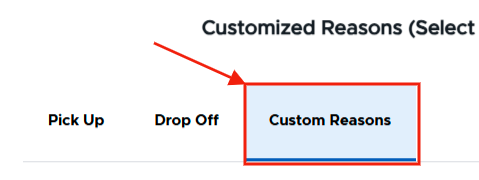
- Click on Custom reasons.
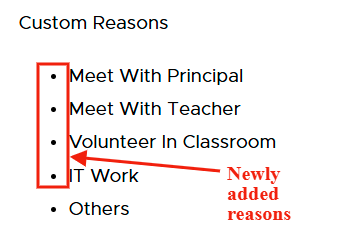
- Check the box (1), and then add the reason (2) (i.e. - Meet with Principal, Volunteer, etc.)
- Toggle the “Print badge” to the right (3) if you would like to print this badge for this customized reason.
- Add additional reasons as needed (5).
- When finished, click Submit (6).
Please Note: “Others” (reason) is a default setting and is always enabled.
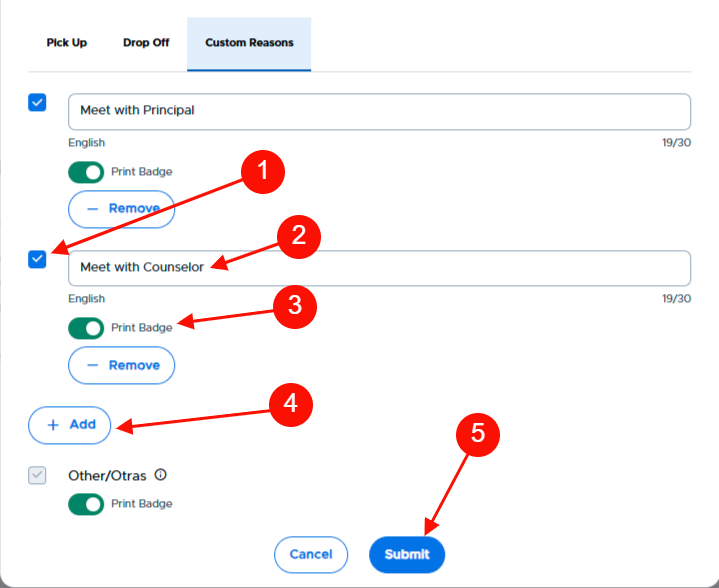
To delete a reason, click the - Remove button or uncheck the box under the reason and click Submit.
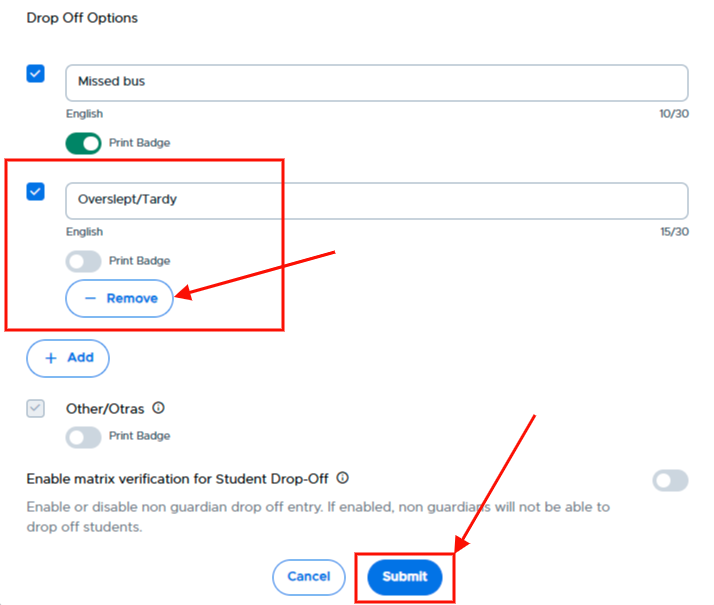
Please Note: “Student drop off” (header) an****d “Other” (reason) are default settings and are always enabled.