Filter › Deploying Securly Filter
Deploying SmartPAC on macOS devices using Intune
Follow the steps below to deploy SmartPAC on Mac devices with Intune.
-
Navigate here to set up a new Configuration Profile for macOS.
-
Click on Create Profile > Profile Type. Then, go to Settings Catalog > Create.
-
Name the policy 'Securly SmartPAC' and click Next.
-
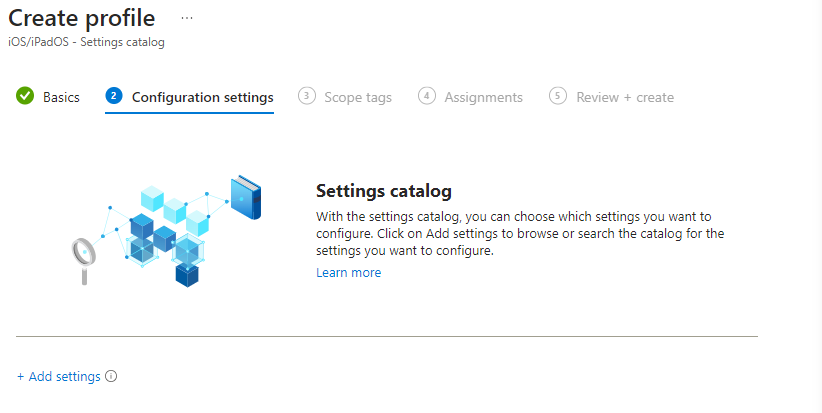
Click + Add settings.
-
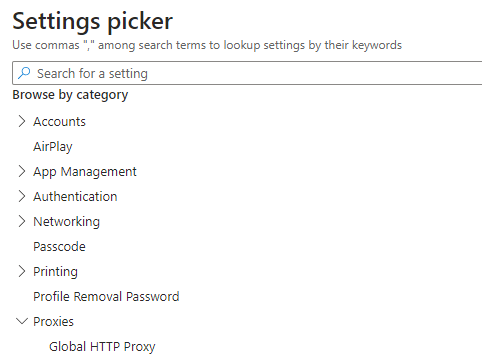
Choose Proxies > Global HTTP Proxy.
-
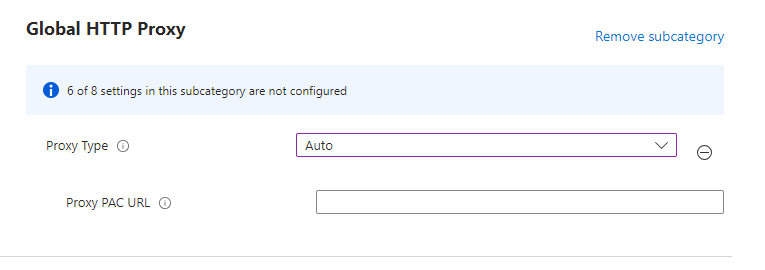
Change the Proxy Type to Auto and enter your custom SmartPAC URL into the Proxy PAC URL box. This will show deprecated. However, that does not apply to our PAC URL; it only applies to HTTP addresses.
- Add Scope tags and the proper user/group/device assignments.
- Click Create to finish.