Filter › Content Management
Can the admin override sites approved by the temporary allow feature
Whenever a student encounters a blocked page, a user with approval rights can unblock/allow that site for all users on that same public IP. To learn more about how temporarily allowed sites work, click here.
The admin can view a site so approved by navigating to the ‘Allow/Deny’ list in Global Settings.
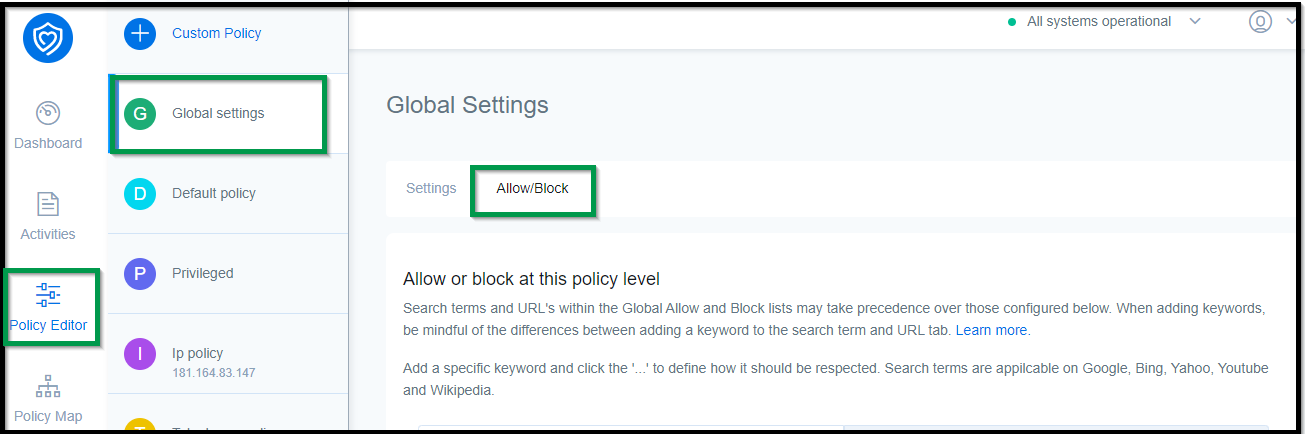
Override the approved sites:
- Login to Securly Filter.
- Navigate to the Policy Editor > Global settings, and click ‘Allow/Block’.
- To view the list of allowed sites, click the ‘Allow’ radio button.
- Active approved sites will be listed with the corresponding public IP address below it. Note that Entries TWL_TTL will expire after the time set in the global settings.
-
Click the trash can icon to delete the site from the Allow list and override the approval of the site.
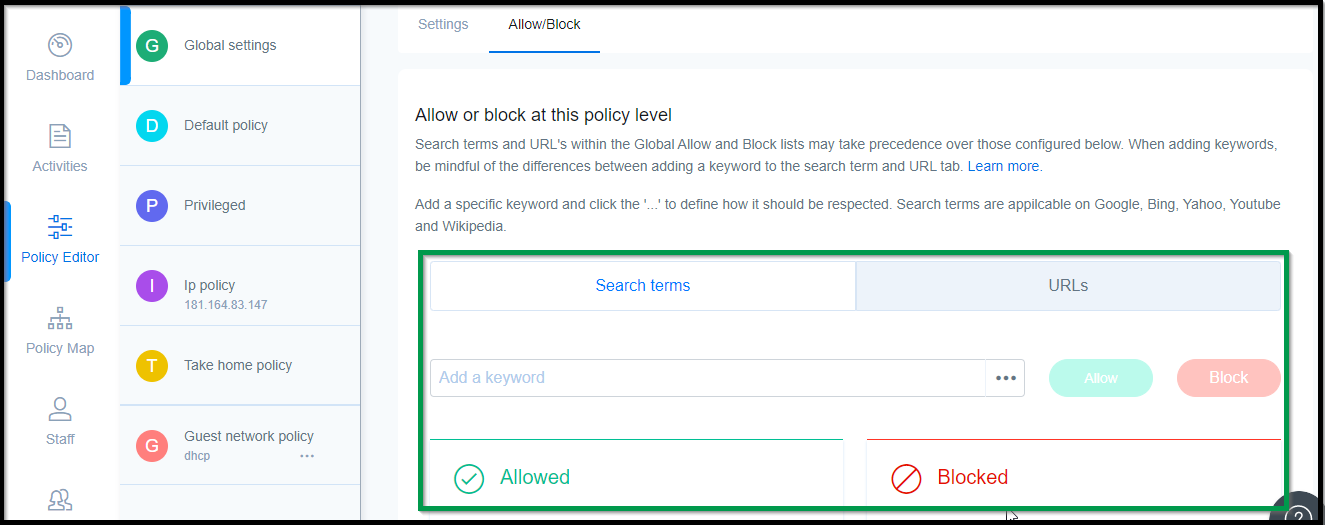
The sites will now appear blocked.