Classroom › Settings
Canvas
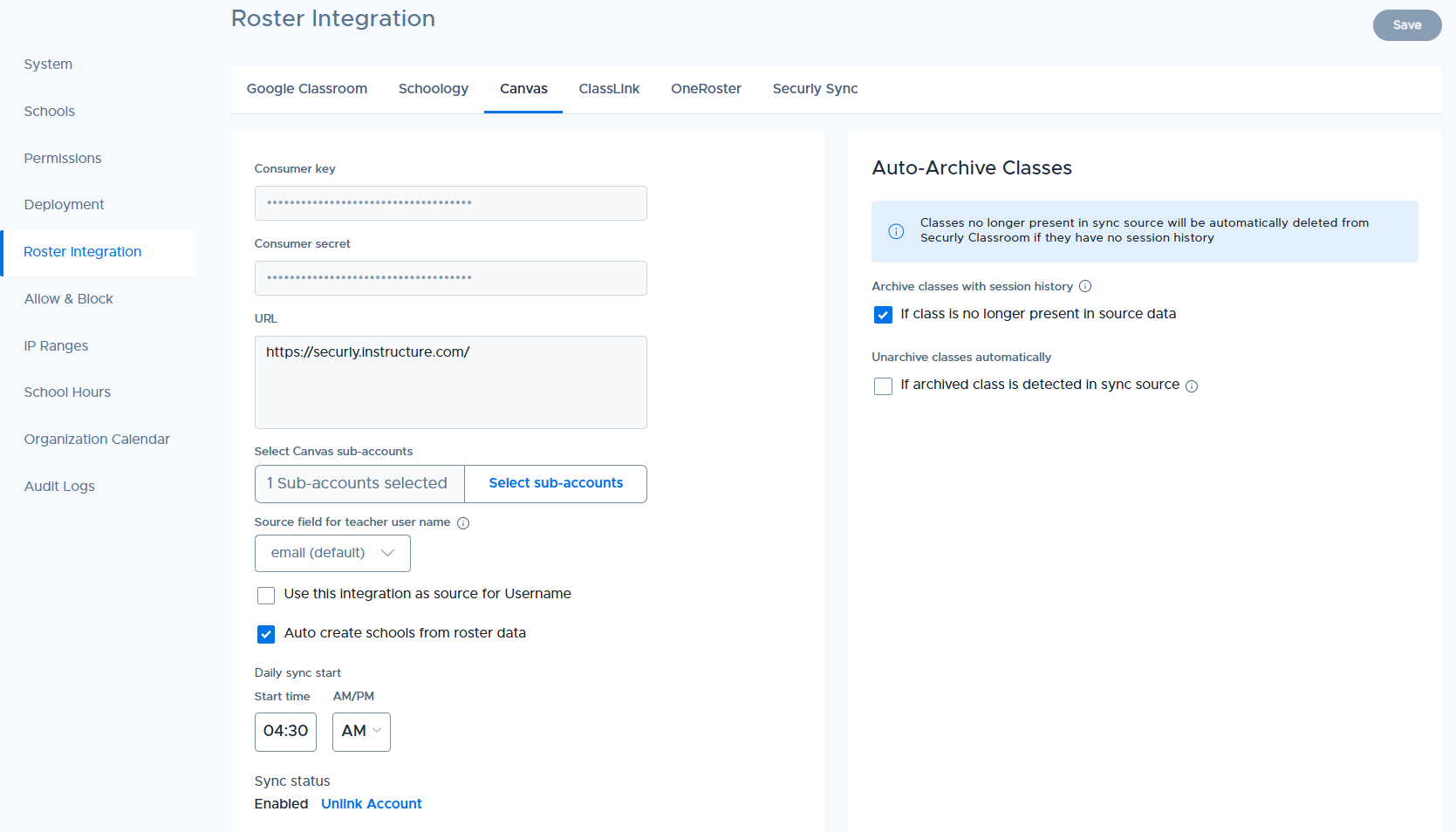
The Canvas tab contains settings that enable syncing roster data from Canvas.
Setup
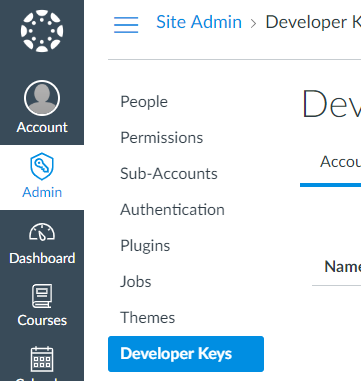
In Canvas go to the Admin menu, then the Developer Keys submenu.
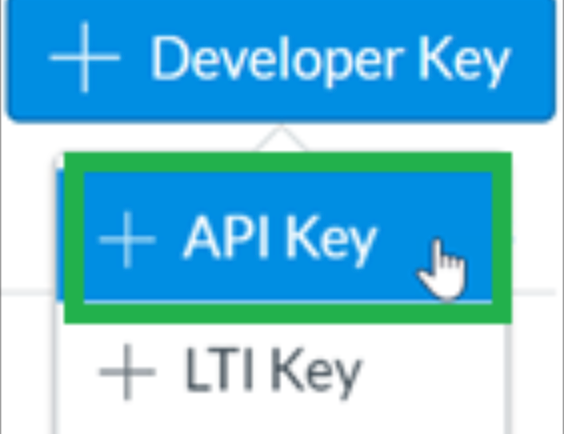
Click the +Developer Key button and chose +API Key to add a new key.
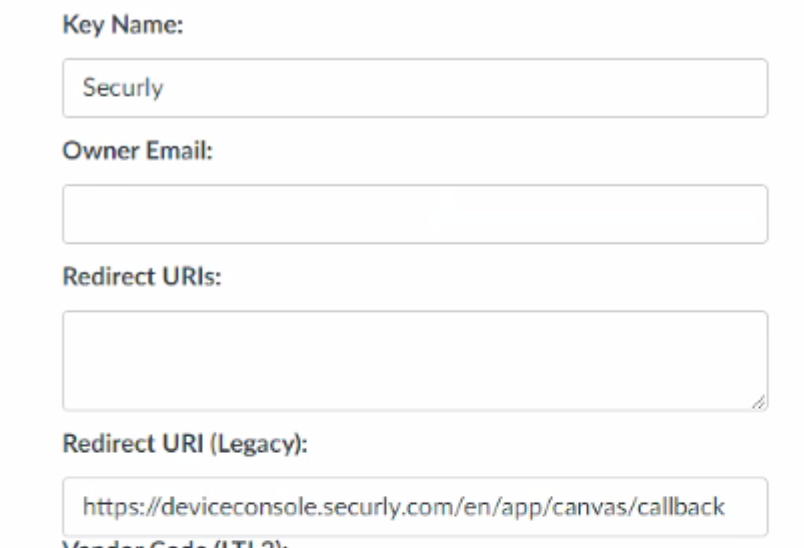
Enter any key name and owner email address. In the Redirect URI (Legacy) field enter:
https://deviceconsole.securly.com/en/app/canvas/callback
Click Enforce Scopes to enable it.
There are 6 scopes that need to be enabled. Expand the category for each one to find the scope and click the checkbox to enable it.
Expand the Accounts category and check the boxes for the following scopes:
Accounts category:
url:GET|api/v1/accounts
url:GET|api/v1/accounts/:account_id/courses
url:GET|api/v1/accounts/:account_id/sub_accounts
url:GET|api/v1/accounts/:account_id/scopes
Courses category:
url:GET|api/v1/courses/:course_id/users
url:GET|api/v1/courses/:course_id/assignments
Sections category:
url:GET|/api/v1/courses/:course_id/sections
Enrollments_api category:
url:GET|/api/v1/sections/:section_id/enrollments
url:GET|/api/v1/sections/:id
Verify that all above scopes are selected and click Save Key
The new key entry will be displayed.

Change the key state to On.
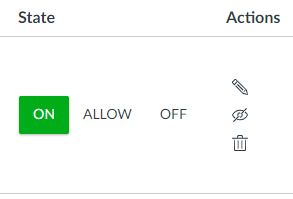
Copy the number above the Show Key button and paste it into Securly Classroom in the Consumer Key field.
Click the Show Key button, copy the value shown and paste it into Securly Classroom into the Consumer Secret field.
For the URL, enter the base URL of your Canvas site. This would be the URL in the address bar after you are logged into Canvas up to the point of the first slash. For example, if you login to Canvas and then see the URL:
http://ec2-33-222-208-11.compute-1.amazonaws.com/login/canvas
in the address bar, you should enter the base URL
http://ec2-33-222-208-11.compute-1.amazonaws.com
After entering the values, click the Link Account button, then authorize the link with Canvas.
Note
Any teacher found on an incoming class roster will automatically be created as a user with the "Teacher 1" role in Securly Classroom.
After the sync completes, your Canvas classes should now be visible in Classes.
You may choose to edit the following sync options:
| Options | Descriptions |
|---|---|
| Auto create locations from roster data | When this setting is enabled, the sync process will automatically create new locations in Securly Classroom based on data found on the roster import. If not selected, all classes from the sync will be created in the Main Location. |
| Select Canvas sub-accounts | With this setting, you can select your desired sub-accounts to better manage permissions and organizational hierarchy. |
| Daily sync start | Set the time when the daily sync occurs. |
| Use this integration as a source for Username | Enabling this will allow Securly Classroom to pull usernames from the Canvas roster automatically by default. Districts using Windows and Mac devices can also set rules to reformat usernames as it comes from the sync source to ensure they match their local device login requirements. This should be configured with the assistance of Securly Support. |
Auto-Archive Classes
Under the Auto-Archive Classes section on the right, admins can configure roster sync sources to:
Automatically archive classes that are no longer present in the source data. This setting is enabled by default. If unchecked, the class remains unarchived, but its teachers and students are removed — hiding it from the teacher's class list.
Automatically unarchive and restore classes if they are detected in sync source. Classes that were manually archived will also be unarchived if they reappear in source.