Classroom › Settings
Google Classroom
The Google tab contains settings that enable syncing roster data from Google Classroom.
To configure Google Classroom, first make sure you have linked Securly Classroom to your Google account as a super admin in the Google submenu, then click the Enabled checkbox for Google Classroom Sync on the Integrations tab.
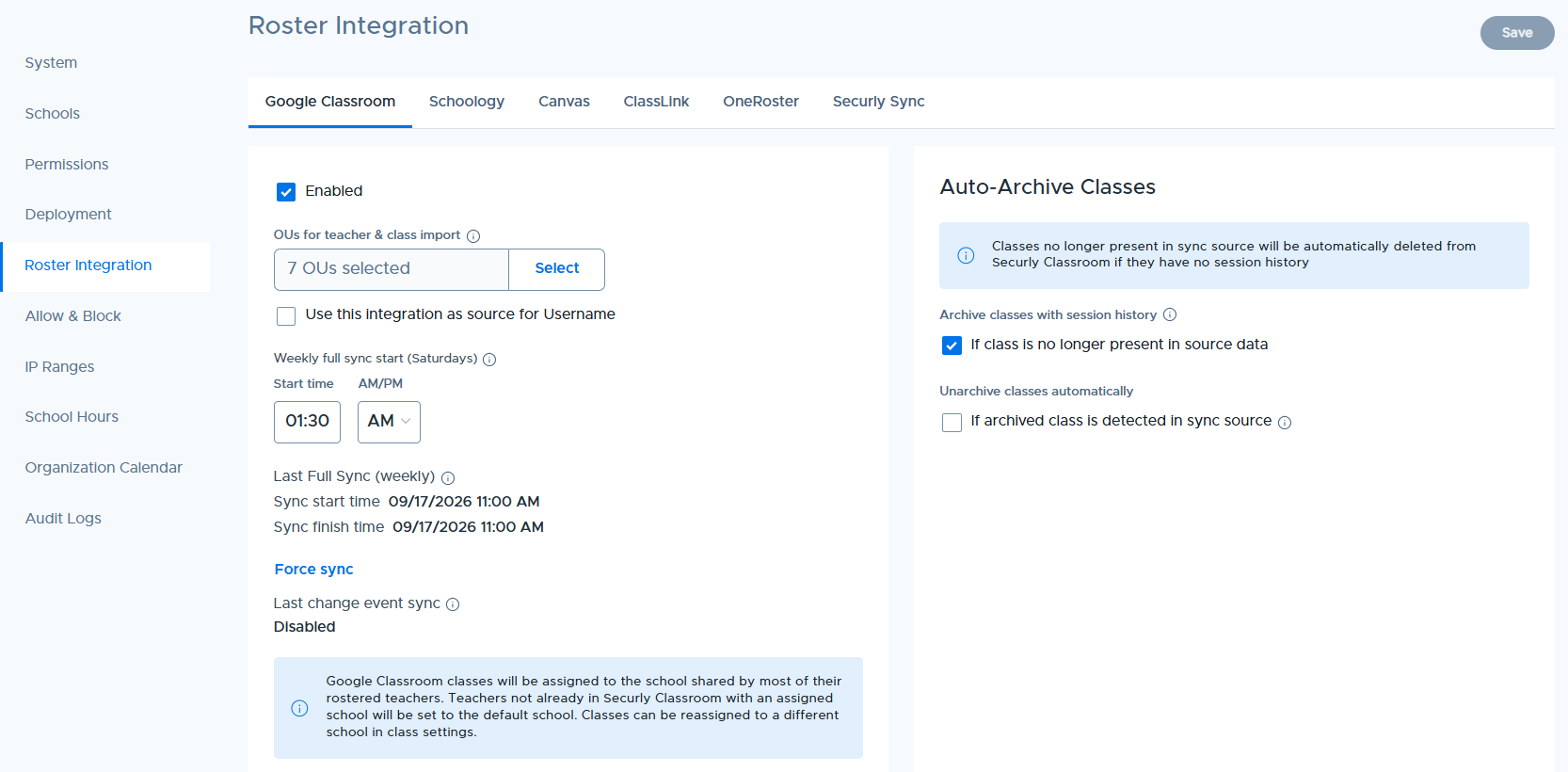
Select an OU to sync. All teachers from the selected OU will import. All classes whose roster has a teacher in a a selected OU will also import and sync.
Check the 'Use this integration as source for Username' option to allow Securly Classroom to pull usernames from the Google Classroom roster automatically by default. Districts using Windows and Mac devices can also set rules to reformat usernames as it comes from the sync source to ensure they match their local device login requirements. This should be configured with the assistance of Securly Support.
You can also set the weekly sync time using the sync start time selectors. The roster sync from Google Classroom to Securly Classroom occurs automatically every night (relative to US time).
Note: Google Classroom classes are automatically assigned to a school location during sync. Locations are assigned automatically based on the location of the teachers on the class roster. If none of the teachers on the incoming roster exist with an assigned school in Classroom yet, the class and teacher are created and assigned to the default location configured in Settings > System > Classroom options. Auto assignment of school ensures teachers only see classes for their own school, use bell schedules for these classes, and improves admin dashboard accuracy by scoping these classes to specific schools rather than all schools.
Auto-Archive Classes
Under the Auto-Archive Classes section on the right, admins can configure roster sync sources to:
Automatically archive classes that are no longer present in the source data. This setting is enabled by default. If unchecked, the class remains unarchived, but its teachers and students are removed — hiding it from the teacher's class list.
Automatically unarchive and restore classes if they are detected in sync source. Classes that were manually archived will also be unarchived if they reappear in source.