Filter › Troubleshoot
Understanding DNS Caching and Its Impact on Website Access
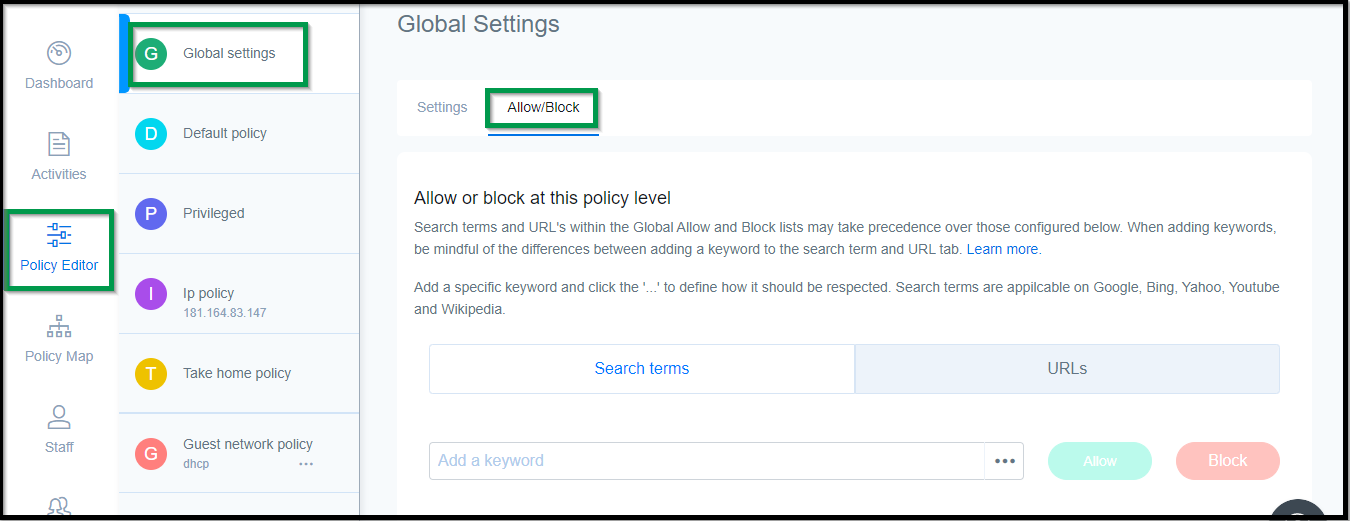
You can add specific websites to the Global Allow/ Deny list to unblock/block them for all your users. To do this, navigate to the Policy Editor > Global Settings > Allow/Deny and add the websites there.
However, you may sometimes find that a blocked site continues to be accessible to users, or an allowed site is still blocked. This issue may arise due to your DNS cache. DNS responses have a Time To Live (TTL) that can range from a few seconds to several hours. If you do not see your block/allow changes reflected, it may mean that the TTL on the DNS entry for that domain has not yet expired.
Once the TTL expires and a new DNS query is made, your changes will be reflected. However, you can expedite this process by clearing your DNS cache.
To clear your DNS cache, execute the following commands and restart your browser:
- Windows - command line: ipconfig /flushdns
- macOS - terminal: dscacheutil -flushcache
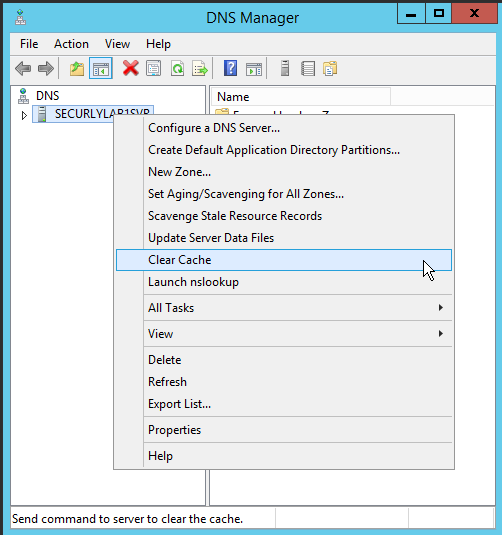
Note that the DNS cache on your server will also need to be cleared.
Windows Server
In the DNS Manager, right-click on the server name and select ‘Clear Cache’.