Filter › Certificates and SSL
How to verify the Securly SSL certificate is installed on Chrome
To ensure that Securly is able to granularly filter HTTP sites, a Trusted Root Certificate is required on the browser. Below are the steps to verify if the certificate has been installed in the Chrome browser.
Chromebook and Windows OS verification
To verify if the certificate is deployed on your Chrome browser
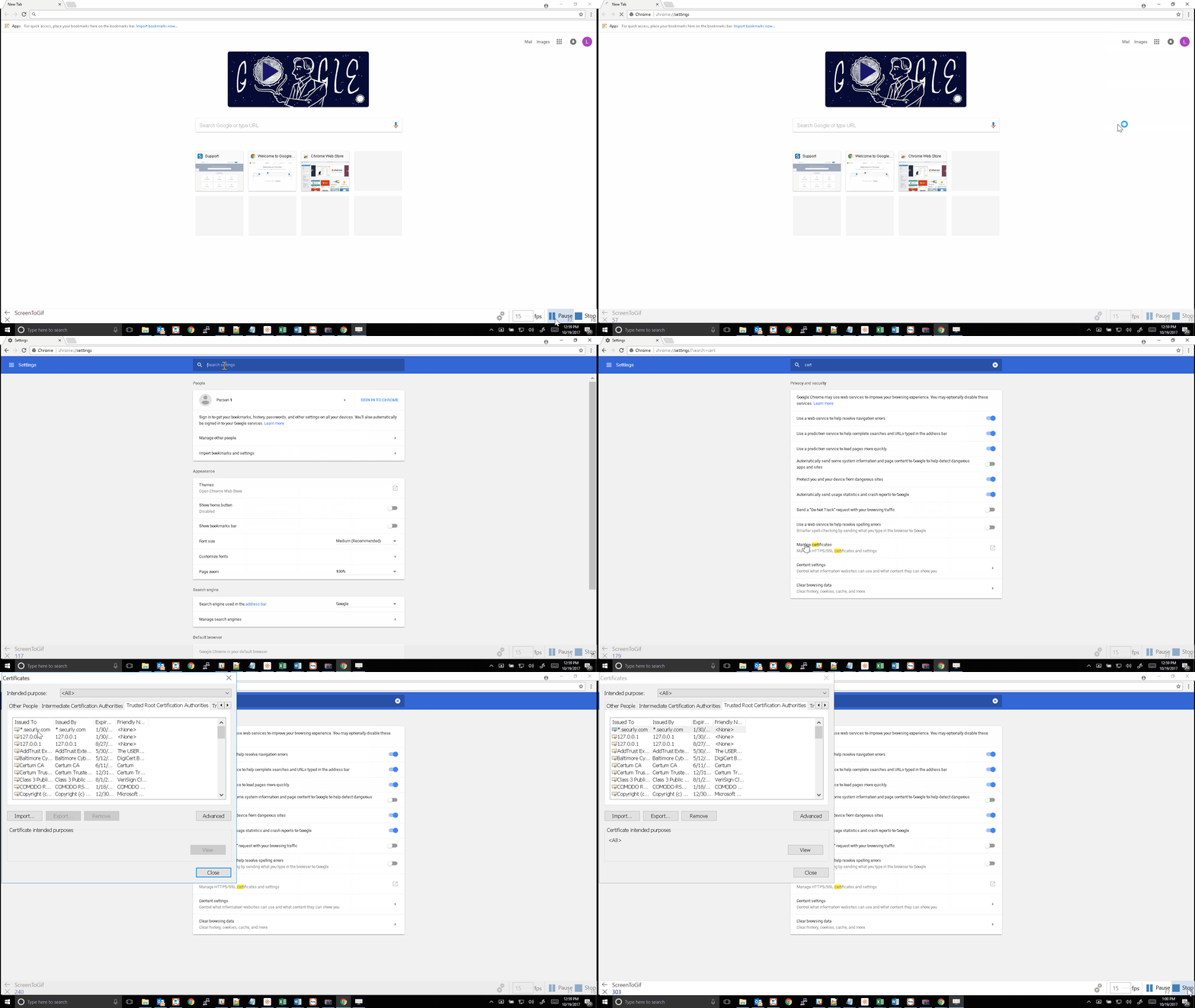
- Navigate to chrome://settings and scroll down to ‘Advanced’.
- Under "Privacy and Security," click "Manage Certificates."
- On the popup that was launched, select "Trusted Root Certification Authorities’. The certificate will be displayed there.
Mac OS X verification
- On the "Chrome://settings" page, complete steps 1 & 2 as in the section on "Chromebook and Windows OS verification’.
- In the "Keychain Access" window that opens, select "System" in the left-hand column. The certificate will be displayed under "Certificates".
If the certificate is not installed, click here to download the certificate and understand the process.